
Guide
How to Set Server MOTD in Hytale
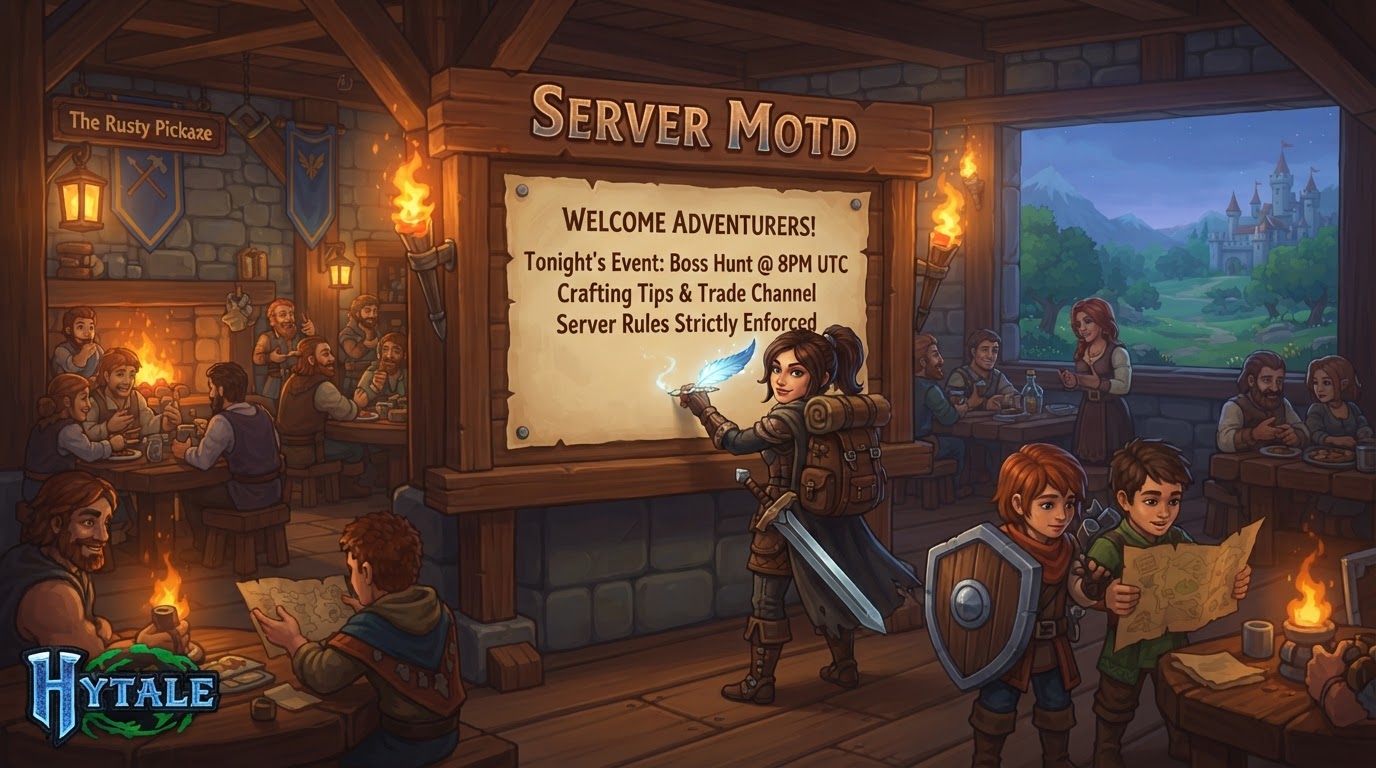
The Message of the Day (MOTD) in Hytale is a customizable text message displayed to players when they view your server in the server list or connect to it. Setting an effective MOTD is crucial for welcoming players, conveying essential server information, or establishing your server’s unique identity before they even join.
The Hytale server’s MOTD is configured through the config.json file, a core configuration file located in the root directory of your server. This file utilizes JSON (JavaScript Object Notation) format, which requires precise syntax. Any deviation, such as a missing comma, an unclosed quotation mark, or an incorrect brace, can prevent the server from reading the configuration correctly, potentially leading to startup issues or default settings being used.
Understanding the `config.json` File
The config.json file acts as the central hub for many of your Hytale server’s fundamental settings. It’s a plain text file that stores data in a structured, human-readable format. For the MOTD, you will be looking for a specific key-value pair within this file. The key is "MOTD", and its associated value will be the text string you wish to display.
Before making any modifications to config.json, it is always recommended to create a backup copy of the original file. This allows you to easily revert any changes if an error occurs during editing.
How to Set Your Server MOTD
The process for updating your Hytale server’s MOTD varies slightly depending on whether you are managing a self-hosted server directly or utilizing a game server hosting provider’s control panel.
For Self-Hosted Servers or Via File Manager (FTP/SFTP)
This method applies if you have direct access to your server’s file system, either because you are running it on your own machine or through a service that provides full file access via FTP (File Transfer Protocol) or SFTP (SSH File Transfer Protocol).
- Stop the Server: It is imperative to completely shut down your Hytale server before attempting to modify any configuration files. Editing
config.jsonwhile the server is running can lead to your changes being overwritten, data corruption, or server instability. - Access Server Files: Connect to your server’s file system.
- If self-hosting, navigate to the directory where your Hytale server files are located using your operating system’s file explorer.
- If using a dedicated server or VPS, use an FTP/SFTP client (e.g., FileZilla, WinSCP) to connect to your server using the credentials provided by your host.
- Locate
config.json: Once connected, navigate to the root directory of your Hytale server installation. You will find theconfig.jsonfile there. - Open
config.jsonwith a Text Editor: Openconfig.jsonusing a plain text editor (e.g., Notepad on Windows, TextEdit on macOS, Nano/Vim on Linux, or more advanced editors like VS Code or Notepad++). Avoid word processors like Microsoft Word, as they can introduce formatting that corrupts the JSON structure. - Edit the MOTD Field: Inside the
config.jsonfile, locate the line that starts with"MOTD":. It will typically look like this:"MOTD": ""Replace the empty quotes (
"") with your desired message. Ensure your message remains within the double quotes. For example:"MOTD": "Welcome to the official Hytale Community Server! Enjoy your stay."If the
"MOTD"line is missing, you can add it, ensuring it follows the JSON structure (e.g., placing it after another setting and adding a comma to the preceding line if it’s not the last entry in its block). - Save Changes: Save the
config.jsonfile. Ensure it is saved with the exact nameconfig.jsonand not asconfig.json.txtor similar. - Restart Server: Start your Hytale server again. The new MOTD will become active and visible to players once the server has fully booted up.
For Servers Hosted by Providers (e.g., Shockbyte, Nodecraft, Pine Hosting, Apex Hosting)
Most game server hosting providers offer a user-friendly web-based control panel to manage server settings, simplifying the process of setting the MOTD.
- Access Your Control Panel: Log in to the control panel or dashboard provided by your game server hosting provider. This is typically done through their website.
- Select Your Hytale Server: If you manage multiple servers, select the specific Hytale server instance you wish to configure.
- Stop the Server: Locate and click the “Stop” button or equivalent command within your control panel to shut down your server. This ensures that any changes you make are applied correctly and without conflict.
- Navigate to Settings: Look for a section related to server configuration. Common labels include “Config Files,” “Game Settings,” “Hytale Server Settings,” “Configuration,” or sometimes an “Easy Config” editor.
- Locate MOTD Field: Within the configuration interface, find an input field or setting specifically labeled “Message Of The Day,” “MOTD,” or similar.
- Enter Your Message: Type your desired MOTD directly into the provided text field. The control panel usually handles the correct JSON formatting for you.
- Save/Submit Changes: Click the “Save,” “Apply,” or “Submit” button to confirm and save your new MOTD.
- Restart Server: Start your Hytale server. The updated MOTD will be visible to players when they refresh their server list or attempt to connect to your server.
Tips for an Effective MOTD
- Be Descriptive: Use your MOTD to give potential players a quick overview of your server’s purpose or gameplay style. Examples include “Roleplay Server,” “Creative Build World,” “PVP Arena,” or “Survival Co-op.”
- Announcements: The MOTD is an excellent place for temporary announcements, such as upcoming server events, maintenance schedules, or new feature highlights. Remember to update it regularly if using it for time-sensitive information.
- Branding and Identity: Incorporate your server’s name, community slogan, or a welcoming phrase to reinforce your server’s brand and make it easily recognizable in the server list.
- Keep it Concise: While there isn’t a strict, widely published character limit, shorter, impactful messages are generally more effective. Players often quickly scan server lists.
- Consider Color Codes (Experimental): Some server platforms allow for text formatting, including colors, within the MOTD. Hytale’s specific support for color codes and their syntax (if any) is not yet fully detailed in public documentation. Experimentation may be required, or official Hytale server documentation should be consulted for confirmed formatting options.
Common Mistakes to Avoid
- Editing a Live Server: The most frequent mistake is attempting to change
config.jsonwhile the Hytale server is actively running. Always stop the server first to prevent data loss or configuration errors. - JSON Syntax Errors: When manually editing
config.json, even a minor syntax error—such as a missing comma between entries, an unclosed quotation mark, or an incorrect bracket—can prevent the server from parsing the file correctly. This can lead to the server failing to start or reverting to default settings. Use a JSON validator if you’re unsure. - Forgetting to Restart: After saving your changes (whether through direct file editing or a control panel), the server must be fully restarted for the new MOTD to be loaded and displayed to players.
- Using the Wrong Editor: Always use a plain text editor. Word processors can embed hidden formatting characters that corrupt JSON files.