
Guide
How to Remap Controller Buttons in Hytale
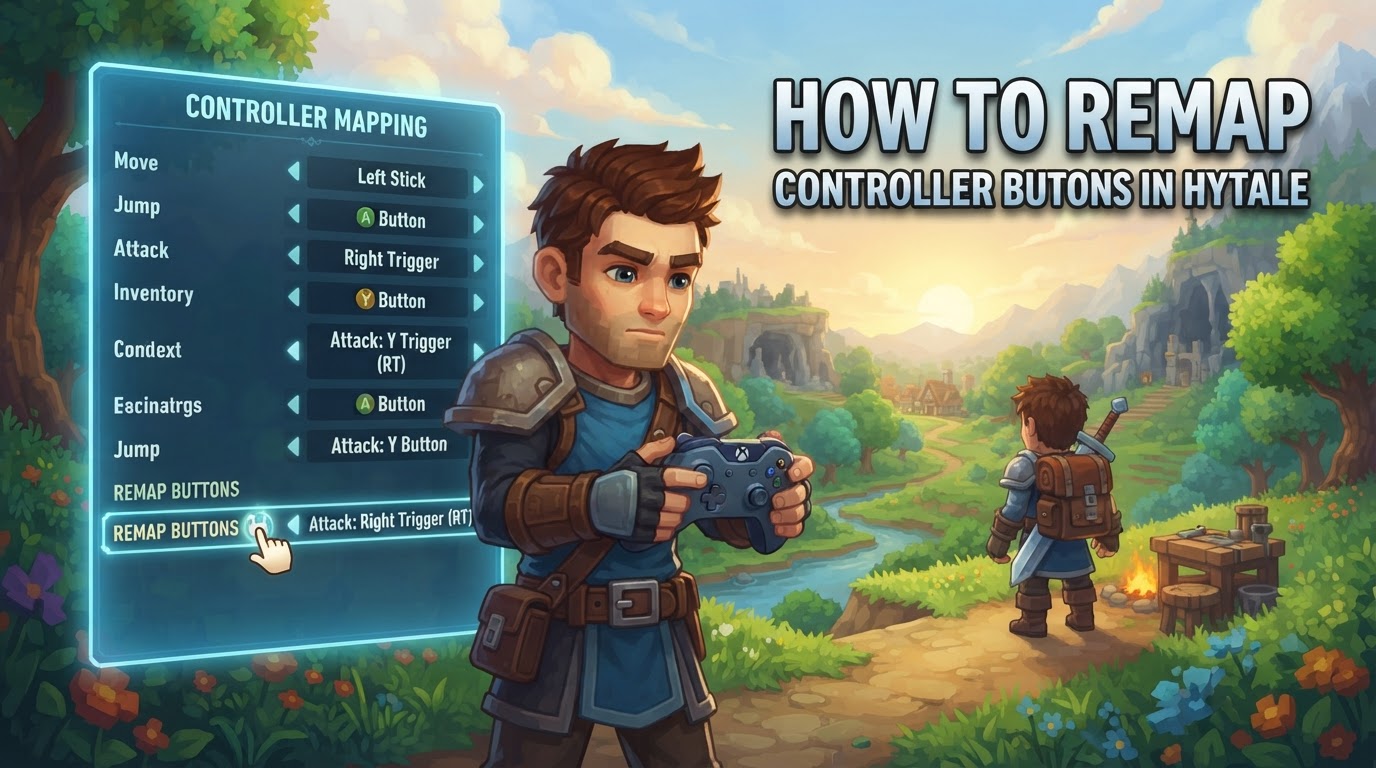
Since the highly anticipated Update 5, released on May 26, 2026, Hytale now features official, native controller support, including comprehensive in-game button remapping capabilities. This means players no longer need to rely on third-party tools or complex workarounds to customize their gameplay experience with a gamepad.
This guide will walk you through the straightforward process of remapping your controller buttons directly within Hytale’s settings, as well as provide insights into legacy methods for those who might still benefit from them or are running older versions of the game.
Official In-Game Controller Remapping (Hytale Update 5 and Later)
With Update 5, Hypixel Studios has integrated robust controller support, making Hytale accessible and enjoyable for a wider audience. This update specifically includes native support for Xbox, PlayStation, and Nintendo Switch controllers, alongside crucial features like adjustable stick dead zones and dynamic button prompts that adapt to your connected device. The most significant addition for customization is the in-game rebinding system, allowing you to tailor every action to your preferred controller layout.
Step-by-Step: Remapping Buttons Natively in Hytale
The process for remapping your controller in Hytale is designed to be intuitive and mirrors typical control customization options found in modern games. Follow these steps to personalize your gamepad setup:
- Launch Hytale: Start the Hytale game client. You can enter any world or server, or simply remain on the main menu, as settings are typically accessible from either location.
- Access the Pause Menu: While in-game, press the designated key or button to open the pause menu. This is commonly the
Esckey on a keyboard, or theStart/Optionsbutton on a controller (though this might be one of the buttons you wish to remap later). - Navigate to Settings: Within the pause menu, locate and select the “Settings” option. This is usually represented by a gear icon or a text label.
- Select the Controls/Controller Tab: Inside the Settings menu, look for a tab specifically labeled “Controls,” “Controller,” or “Gamepad.” Hytale’s interface is designed to be clear, so this tab should be easy to identify.
- Choose Your Controller Profile (If Applicable): Some games offer multiple controller profiles or the ability to create new ones. If Hytale presents this option, select the profile you wish to edit or create a new one.
- Identify the Action to Remap: You will see a list of in-game actions (e.g., “Move Forward,” “Jump,” “Attack,” “Interact,” “Open Inventory”). Each action will have its currently assigned button displayed next to it.
- Initiate the Remapping Process: Click or select the button assignment next to the action you want to change. The game will likely prompt you to “Press new button…” or similar.
- Press the New Button on Your Controller: While the game is waiting for input, press the desired button on your connected controller that you wish to assign to that specific action. The game should register this input and update the display.
- Repeat for Other Actions: Continue this process for any other actions you wish to remap.
- Save Changes (If Prompted): While many games automatically save control changes, it’s always good practice to look for a “Save” or “Apply” button before exiting the settings menu, just in case.
Hytale’s system is designed to handle potential conflicts, often highlighting or clearing previous assignments if a button is remapped to an action it was already performing. This ensures a smooth and error-free customization experience.
Legacy/Advanced Remapping via Steam Input (Pre-Update 5 or for Niche Customization)
Before the official integration of controller support in Update 5, players relied on external tools, primarily Steam Input, to use controllers with Hytale. While native support is now the recommended and superior method, understanding Steam Input can still be beneficial for a few reasons:
- If you are playing an older version of Hytale that predates Update 5 (though this is increasingly unlikely as the game evolves).
- If you prefer Steam Input’s extensive customization options, which can go beyond what even native in-game remapping offers (e.g., complex macros, layered inputs, or specific controller-to-keyboard/mouse emulation for very niche setups).
- If you are using a controller not officially supported by Hytale’s native integration, though Update 5 covers most major brands.
This method essentially translates controller inputs into keyboard and mouse commands, allowing you to play Hytale with a gamepad even when the game itself doesn’t natively recognize controller signals.
Step-by-Step: Using Steam Input for Hytale
To use Steam Input, Hytale must be added to your Steam library, even if you don’t own it through Steam directly.
- Add Hytale to Steam as a Non-Steam Game:
- Open your Steam client.
- Navigate to your “Library.”
- In the bottom-left corner of the Steam window, click “Add a Game.”
- Select “Add a Non-Steam Game…” from the dropdown menu.
- In the new window, click “Browse…” to locate the Hytale executable.
- For Windows users, this is typically the Hytale launcher executable (e.g.,
HytaleLauncher.exe). - For macOS users, you might need to locate the actual Hytale client application within your applications folder or a hidden directory, not just the launcher.
- For Windows users, this is typically the Hytale launcher executable (e.g.,
- Select the executable and click “Add Selected Programs.”
- Crucial Step: Rename the Entry: Once added, right-click the newly added Hytale entry in your Steam Library, select “Properties,” and rename it to exactly “Hytale.” This is vital for Steam to correctly identify the game and display community controller layouts.
- Enable Steam Input for Hytale:
- With Hytale selected in your Steam Library, click on the “Controller Configuration” button (often represented by a controller icon) on the game’s library page.
- Ensure “Enable Steam Input” is toggled on for Hytale.
- Launch Hytale via Steam Big Picture Mode:
- It is often recommended to launch Hytale through Steam’s Big Picture Mode for the most reliable controller integration. Click the Big Picture Mode icon in the top-right corner of Steam.
- Navigate to your Library within Big Picture Mode, find “Hytale,” and launch it.
- Once Hytale has launched and is running, you can either minimize it (Alt+Tab) or use the Steam Overlay (usually by pressing the central guide button on your controller) to access controller settings.
- Access and Edit Controller Layout:
- From the Steam Overlay or Big Picture Mode interface while Hytale is running, select “Controller Configuration” or “Edit Layout.”
- You have two primary options here:
- Manual Remapping: You can individually assign each controller button, stick, and trigger to specific keyboard keys or mouse actions. For instance, you might map the Left Stick to “WASD” for movement and the Right Stick to “Joystick Mouse” for camera control.
- Community Layouts: This is often the easiest starting point. Select “Browse Configs” or “Community Layouts.” Here, you can download and apply pre-configured setups created by other Hytale players. These often provide a solid foundation that you can then tweak to your liking.
- Make sure to save your changes after configuring.
- Return to Hytale: Go back to the Hytale game window. Your controller should now be functioning according to your Steam Input configuration.
Tips for Hytale Controller Users
- Prioritize Official In-Game Settings: Always use Hytale’s native in-game controller remapping first, especially after Update 5. It offers the most stable and integrated experience, complete with dynamic button prompts and direct game interaction.
- Experiment with Community Layouts (Steam Input): If you do opt for Steam Input, leveraging community layouts can save you significant time. They provide excellent starting points that you can then fine-tune. Remember to rename your Hytale entry in Steam to “Hytale” to ensure these layouts appear.
- Consider Toggle vs. Hold Options: Hytale’s settings often include options to change certain actions (like crouching or sprinting) from a “hold” to a “toggle” behavior. Experiment with these to see what feels most comfortable and reduces finger strain during extended play sessions with a controller.
- Be Mindful of Menu Navigation: While Update 5 significantly improves controller navigation, some complex menus or inventory management screens might still be more efficiently navigated with a mouse, even with a controller connected. Don’t hesitate to briefly switch to your mouse if a particular menu feels clunky with the gamepad.
- Adjust Stick Dead Zones: If your character or camera drifts slightly when your sticks are neutral, access the controller settings in Hytale and adjust the stick dead zones. Increasing the dead zone slightly can eliminate unwanted input.
Common Issues and Troubleshooting
Even with official support, players might encounter minor hiccups. Here are some common points of confusion and their resolutions:
- Controller Not Recognized Post-Update 5:
- Ensure your controller is properly connected to your PC (wired or via Bluetooth) before launching Hytale.
- Check your operating system’s device manager or Bluetooth settings to confirm the controller is recognized by your computer.
- Restart Hytale. Sometimes, the game needs to be launched with the controller already connected to properly detect it.
- Update your controller’s firmware if available (e.g., Xbox Accessories app for Xbox controllers).
- Steam Input Conflicts with Native Support: If you previously used Steam Input for Hytale, ensure it’s disabled for the game in Steam’s settings (right-click Hytale in Library > Properties > Controller > Disable Steam Input) to prevent conflicts with Hytale’s new native support. Running both simultaneously can lead to double inputs or erratic behavior.
- Dynamic Button Prompts Not Appearing: If Hytale is still showing keyboard prompts even with a controller connected and recognized, double-check that “Dynamic Button Prompts” or a similar option is enabled in the game’s controller settings.
- Launcher vs. Game Issues (Legacy Steam Input): In older Steam Input workarounds, some users reported that controller remapping only worked in the launcher, not the actual game. The solution was often to set up controller options *while the game was already open* (using the Steam Overlay) to bypass launcher-specific issues. This is less relevant with native support but good to know for troubleshooting older setups.
- Unreliable Workarounds (Pre-Update 5): Before official support, relying on third-party input remappers or even Steam Input could sometimes be unreliable, leading to dropped inputs or inconsistent behavior. The introduction of native support in Update 5 is the definitive solution to these stability issues.
- macOS Specifics for Steam Input: For macOS users attempting the Steam Input method, locating the actual Hytale client file (not just the launcher) within hidden folders was a common hurdle. Ensure you’re pointing Steam to the correct executable for full game control.
By following these guidelines, you should be able to effectively remap your controller in Hytale and enjoy a personalized, comfortable gameplay experience.