
Guide
How to Use Blockbench to Create Custom Hytale Models
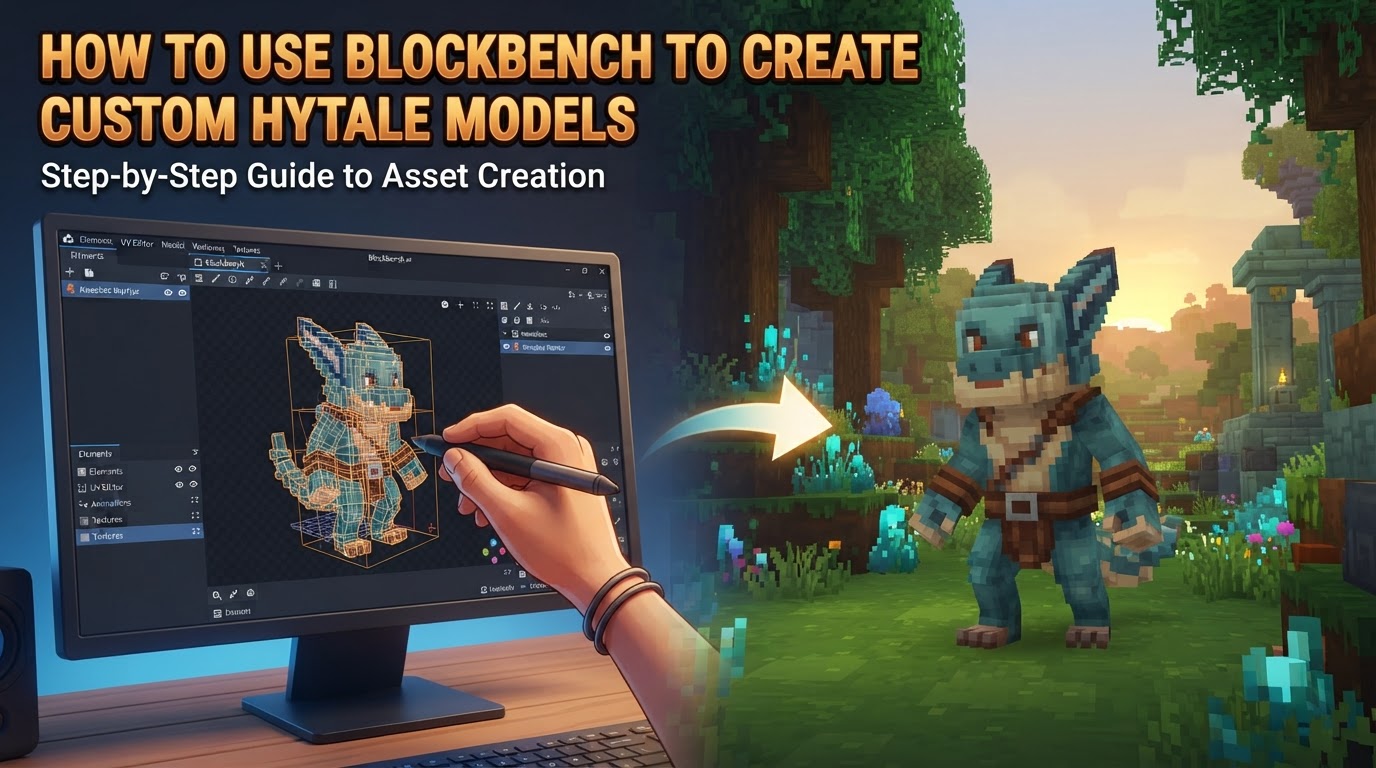
Creating custom 3D models for Hytale is streamlined and officially supported through Blockbench, a powerful and user-friendly 3D model editor that includes a dedicated Hytale plugin. This integration makes Blockbench the indispensable tool for anyone looking to contribute custom assets to the Hytale ecosystem.
Hytale’s unique visual style and technical requirements necessitate a specific approach to model creation. Unlike traditional 3D modeling software, Blockbench, combined with its Hytale plugin, ensures that your creations adhere to the game’s cuboid-based geometry, pixel-art texturing, and animation pipeline, allowing for seamless integration into the game world.
Understanding Hytale Model Mechanics
Before diving into Blockbench, it’s crucial to grasp the fundamental mechanics of how Hytale handles 3D models. Adhering to these principles ensures your models are both visually consistent and performant within the game.
- Official Tool: Blockbench is the primary and recommended tool for Hytale 3D modeling, texturing, and animation. Its Hytale plugin is essential for accessing game-specific features and export formats.
- Model Format: Hytale utilizes a custom JSON-based format known as
.blockymodel. Blockbench is designed to export directly to this format, simplifying the asset pipeline. - Geometry: All Hytale models are constructed exclusively from cuboids – basic cubes and flat quads. Complex curves, organic shapes, or traditional 3D modeling techniques like edge loops are not used. Angles and intricate details are achieved by carefully stacking, rotating, and scaling these fundamental cuboid shapes. This approach maintains Hytale’s distinct visual consistency and optimizes game performance.
- Animation Support: The
.blockymodelformat fully supports skeletal animation through bone hierarchies. This allows for defining pivot points within your model, which dictate the center of rotation for different parts, enabling dynamic and expressive animations. - Texturing:
- Hytale supports precise UV mapping, including per-face UV mapping, allowing for detailed texture placement.
- Textures should be in PNG format, use nearest-neighbor scaling for crisp pixel art, and be optimized for reasonable file sizes.
- The game supports multiple texture types, such as diffuse (color), emissive (glowing), and other special maps, offering creative flexibility.
- Pixel Density: This is a critical aspect for ensuring models appear at the correct scale and detail.
- Blocks and Props: 32 pixels per unit.
- Player Models, Mobs, and Player Equipment: 64 pixels per unit.
- Texture atlas dimensions (width and height) must always be multiples of 32 pixels (e.g., 32×32, 64×64, 128×128, etc.).
- Materials: Hytale’s material system is pre-optimized, meaning custom material creation or modification is not permitted. This helps maintain consistent visual quality and performance across all in-game assets.
- Integration: Models exported from Blockbench integrate seamlessly with the in-game Hytale Asset Editor. This powerful editor is used to define the model’s in-game function (e.g., as a block, an item, or a creature) by configuring associated data assets (JSON files). Models can also be influenced by Hytale’s Visual Scripting, Java plugins, and particle effects.
Step-by-Step Guide: Creating Your First Hytale Model
Follow these steps to create and prepare your custom Hytale model using Blockbench.
1. Download and Install Blockbench
Begin by downloading the latest version of Blockbench from its official website. Install it on your system as you would any other application.
2. Install the Hytale Plugin
Once Blockbench is installed, open it. Navigate to File > Plugins or click the “Plugins” button on the welcome screen. Search for “Hytale” and install the official Hytale plugin. This plugin is absolutely crucial as it enables Hytale-specific project formats, export options, and other helpful features. Keep in mind that the plugin is under active development and may receive frequent updates.
3. Create a New Hytale Model Project
From the Blockbench welcome screen or by going to File > New, select “Hytale Model” as your project format. This sets up your workspace with the correct Hytale-specific settings, including default unit scales and export options.
4. Constructing Your Model with Cuboids
This is where your creativity comes to life. Use Blockbench’s intuitive tools to add, move, scale, and rotate cuboids. Remember Hytale’s geometry constraints: every part of your model must be a cuboid. Experiment with combining these basic shapes to create intricate forms. Use the “Group” feature to organize your model into logical parts, which is essential for animation later on.
5. Applying Textures
Texturing is vital for Hytale’s pixel-art aesthetic.
- Create or Import Textures: Design your textures in a pixel-art style, ensuring they are PNG files. You can create them directly within Blockbench’s built-in paint editor or import existing PNG texture sheets.
- UV Mapping: Apply your textures to the cuboids. Blockbench offers various UV mapping options, including automatic mapping and manual adjustment for precise control. Ensure nearest-neighbor scaling is used for crisp pixel art.
- Adhere to Pixel Density: Double-check that your textures and model scale align with Hytale’s pixel density rules: 32 pixels per unit for blocks/props, and 64 pixels per unit for characters/equipment. Also, ensure your texture atlas dimensions (width and height) are always multiples of 32 pixels.
- Detailing: Since Hytale doesn’t support custom materials, paint details like shadows, highlights, and ambient occlusion directly onto your textures to give the illusion of depth and complex lighting.
6. Animating Your Model (Optional)
If your model requires movement (e.g., a creature, a moving part of an item), Blockbench’s animation features are powerful.
- Bone Hierarchy: Use the “Group” feature to establish a bone hierarchy. Parent smaller groups to larger ones (e.g., a hand to an arm, an arm to a body).
- Pivot Points: For each group, define its pivot point. This is the exact location around which the group will rotate. Proper pivot points are crucial for natural-looking animations.
- Timeline Editor: Use the timeline editor to create keyframes, defining the position, rotation, and scale of your model’s parts over time.
7. Exporting Your Hytale Model
Once your model is complete and textured (and animated, if applicable), it’s time to export.
- Go to File > Export > Export Hytale Model.
- The Hytale plugin will generate a
.blockymodelfile, which contains all the model’s geometry, UV mapping, and animation data. - It will also export any associated texture PNG files. Ensure these are saved in a logical location within your Hytale asset pack structure.
8. Integrating into Hytale
The final step is to bring your model into the game.
- Asset Pack Structure: Organize your exported
.blockymodeland texture files into an Hytale Asset Pack. Typically, models go into anassets/modelsfolder, and textures into anassets/texturesfolder within your pack. - Hytale Asset Editor: Launch Hytale and access the in-game Asset Editor. This editor provides a visual interface for configuring your model’s properties.
- Define Behavior: Use the Asset Editor to create data assets (JSON files) that define how your model functions in the game. For example, you might define it as a new block, an equippable item, or a creature. This involves linking your
.blockymodelfile and specifying parameters like collision boxes, interaction properties, and animations.
Essential Tips for Hytale Model Creation
- Art Style Adherence: Embrace Hytale’s unique “modern, stylized voxel game, with retro pixel-art textures” aesthetic. Focus on immersive, fantasy, stylized, and flexible designs that fit the game’s overall look.
- Texture Detail: Since custom materials are not supported, paint shadows, ambient occlusion, and highlights directly into your textures. This creates an illusion of greater detail and simulates complex lighting, making your models pop. Avoid overly noisy or perfectly flat-looking surfaces.
- Performance Optimization: Be mindful of the number of cuboids used in your model and the resolution/size of your texture files. While Hytale is optimized, excessively complex models can still impact game performance. Aim for efficiency.
- Start Simple: If you’re new to Blockbench or Hytale modding, begin with simple content packs like custom blocks or items before tackling more complex animated creatures or intricate structures.
- Leverage Community Resources: The Hytale community is a rich source of knowledge. Utilize resources like HytaleModding.dev, HytaleDocs, YouTube tutorials, and official/community Discord servers for guides, support, and inspiration.
Common Mistakes to Avoid
- Ignoring Geometry Constraints: Do not attempt to use traditional 3D modeling shapes (e.g., smooth spheres, complex organic forms with many vertices) that are not cuboid-based. Hytale’s engine strictly supports only cubes and quads.
- Incorrect Pixel Density: Using the wrong pixel density for different asset types (e.g., 32px/unit for a player character instead of 64px/unit) will result in models appearing at an incorrect scale or with distorted textures in-game.
- Non-Standard Texture Sizes: Always ensure your texture atlas dimensions (width and height) are exact multiples of 32 pixels. Deviating from this can lead to rendering issues.
- Overly Complex Models: Creating models with an excessive number of cuboids or extremely large texture files without optimization can lead to performance bottlenecks and longer loading times.
- Attempting Custom Materials: Do not try to implement custom materials, shaders, or advanced rendering techniques. Hytale’s material system is fixed and optimized for consistency and performance.
- Incorrect Export Format: Always use the “Export Hytale Model” option in Blockbench to generate the specific
.blockymodelformat required by Hytale. - Confusing OBJ Import with Blockbench Workflow: While Hytale allows importing
.objfiles in Creative Mode to create static voxel structures, this is distinct from creating game-integrated, animated models with Blockbench. OBJ import voxelizes the model, often resulting in a single block type, and is not suitable for animated entities or items requiring specific game logic and texture mapping.