
Guide
How to Change V-Sync Settings in Hytale
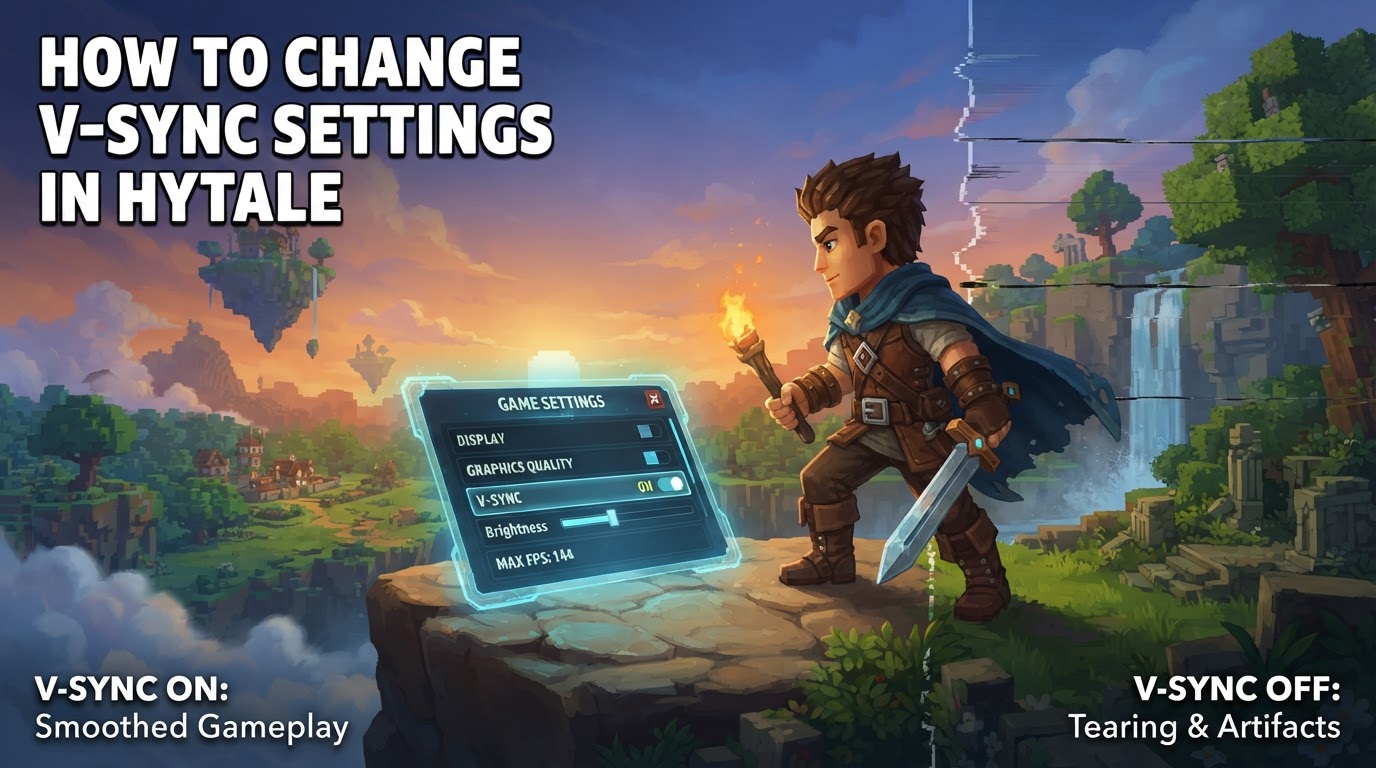
V-Sync (Vertical Synchronization) is a crucial graphics setting in Hytale that helps synchronize your game’s frame rate with your monitor’s refresh rate. Adjusting this setting can significantly impact your visual experience, influencing everything from screen tearing prevention to input responsiveness. To change V-Sync settings in Hytale, you will navigate through the in-game options menu to the Video tab, where you can toggle the V-Sync option on or off as desired.
How to Change V-Sync Settings in Hytale
Adjusting your V-Sync preferences in Hytale is a straightforward process, accessible directly from the game’s main menu or during gameplay via the escape menu. Follow these precise steps to modify your V-Sync setting:
- Open the Settings Menu: From the Hytale main menu, click on the “Settings” button. If you are already in-game, press the
Esckey to bring up the in-game menu, then select “Settings.” - Navigate to the Video Tab: Within the Settings menu, you will see several tabs on the left-hand side. Click on the “Video” tab to access all graphics-related options.
- Locate the General Section: Inside the Video tab, settings are typically categorized into sections. Look for a section labeled “General” or similar, which usually contains fundamental display options.
- Find the V-Sync Option: Within the General section, you will find an option clearly labeled “V-Sync.” This will typically be a toggle switch or a checkbox.
- Toggle V-Sync On or Off: Click on the V-Sync option to toggle it to your preferred state.
- On: Enables Vertical Synchronization, aiming to prevent screen tearing.
- Off: Disables Vertical Synchronization, potentially allowing for higher frame rates and reduced input lag.
- Apply/Save Your Changes: After making your selection, ensure you apply or save the changes. There will usually be an “Apply” or “Save” button at the bottom of the settings screen. Clicking this will implement your new V-Sync setting.
Understanding V-Sync Mechanics in Hytale
V-Sync is a technology designed to synchronize the game’s frame output with your monitor’s refresh rate. Your monitor refreshes its image a certain number of times per second (e.g., 60Hz, 144Hz). Without V-Sync, your graphics card might render frames faster or slower than your monitor can display them. This mismatch can lead to:
- Screen Tearing: This visual artifact occurs when the monitor displays parts of two different frames simultaneously, resulting in a horizontal “tear” line across the screen. V-Sync aims to eliminate this by making the graphics card wait for the monitor to complete its current refresh cycle before sending a new frame.
- Input Lag: While V-Sync prevents tearing, it can introduce a delay between your actions (e.g., mouse click, keyboard press) and their appearance on screen. This “input lag” happens because the graphics card might hold onto a rendered frame until the monitor is ready for it, adding a slight but noticeable delay.
- Frame Rate Cap: When V-Sync is enabled, your game’s frame rate will be capped at your monitor’s refresh rate. If your system is capable of rendering Hytale at 100 frames per second (FPS) but your monitor is 60Hz, V-Sync will limit your FPS to 60.
Understanding these trade-offs is crucial for optimizing your Hytale experience based on your hardware and personal preferences.
Optimizing Your V-Sync Experience
Choosing the right V-Sync setting depends on your priorities and hardware configuration. Here are some tips to help you decide:
For Maximum FPS and Reduced Input Lag
If your primary goal is to achieve the highest possible frame rates and minimize input delay, it is generally recommended to turn V-Sync off. This is particularly relevant if your PC consistently produces frames significantly above your monitor’s refresh rate. Disabling V-Sync allows your graphics card to render frames as quickly as possible, which can be beneficial in fast-paced scenarios where every millisecond of responsiveness counts. Be aware that disabling V-Sync might introduce screen tearing, especially if your frame rate fluctuates wildly above your monitor’s refresh rate.
To Prevent Screen Tearing
If you experience noticeable and distracting screen tearing, enabling V-Sync can effectively eliminate this visual artifact. By synchronizing the game’s output with your monitor’s refresh cycle, V-Sync ensures that each frame is displayed completely before the next one begins. This provides a smoother, tear-free visual experience. However, remember the potential trade-off of increased input lag and a capped frame rate, which might be a concern for some players.
Consider Adaptive Sync Technologies
For players with compatible hardware, technologies like NVIDIA G-Sync or AMD FreeSync offer a superior alternative to traditional V-Sync. These “Adaptive Sync” technologies allow your monitor’s refresh rate to dynamically adjust and match the frame rate output by your graphics card. This means you get the benefits of tear-free gameplay without the significant input lag or fixed frame rate cap associated with traditional V-Sync. If your monitor and graphics card support G-Sync or FreeSync, it is highly recommended to enable them through your GPU’s control panel (e.g., NVIDIA Control Panel or AMD Radeon Software) rather than relying solely on Hytale’s in-game V-Sync setting. These external settings typically override or work in conjunction with in-game V-Sync for optimal results.
Common V-Sync Mistakes and Troubleshooting
Even with a clear understanding of V-Sync, players can sometimes encounter issues or make choices that don’t align with their desired experience. Here are some common mistakes and how to address them:
Leaving V-Sync On with High Refresh Rate Monitors
A common mistake is keeping V-Sync enabled when using a high refresh rate monitor (e.g., 120Hz, 144Hz, 240Hz) if your system can consistently achieve frame rates close to or above that refresh rate. In such cases, V-Sync will artificially cap your FPS to your monitor’s refresh rate, preventing you from fully utilizing your hardware’s capabilities and potentially introducing unnecessary input lag. For these setups, disabling in-game V-Sync (and ideally using Adaptive Sync if available) is often the better choice.
Not Checking External GPU Settings
Sometimes, V-Sync settings enforced by your graphics card’s control panel can override or interfere with Hytale’s in-game settings. If you’ve disabled V-Sync in Hytale but still feel your frame rate is capped or experience unexpected behavior, check your graphics card’s global or Hytale-specific settings. For NVIDIA users, this is in the NVIDIA Control Panel under “Manage 3D settings.” For AMD users, it’s in the AMD Radeon Software. Ensure that V-Sync is either set to “Off” or “Application Controlled” in these external settings to allow Hytale’s in-game option to take precedence or function correctly.
Expecting FPS Gains with V-Sync On
It’s important to remember that enabling V-Sync is designed to limit your frame rate to your monitor’s refresh rate for visual stability, not to increase it. If you’re looking to boost your overall FPS in Hytale, focus on adjusting other graphics settings such as reducing view distance, lowering render scale, disabling demanding post-processing effects, or upgrading your hardware. V-Sync will not improve your raw frame rate performance.
Persistent V-Sync Issues
In rare cases, players might report issues where V-Sync doesn’t seem to turn off properly, even when disabled in-game and in their GPU control panel, leading to an unwanted FPS cap. If you encounter such persistent problems, consider the following troubleshooting steps:
- Update Graphics Drivers: Ensure your graphics drivers are up to date. Outdated drivers can sometimes cause unexpected behavior with graphics settings.
- Perform a Clean Driver Installation: If a simple update doesn’t work, try performing a clean installation of your graphics drivers. This removes all previous driver files which might be corrupted.
- Check Game Files: Verify the integrity of Hytale’s game files through its launcher or platform client to ensure no files are corrupted.
- Consult Community Forums: If the issue persists, check Hytale’s official forums or community pages. Other players might have encountered similar problems and found solutions.
By understanding and correctly configuring V-Sync, you can fine-tune your Hytale experience to balance visual quality, responsiveness, and performance according to your preferences and hardware capabilities.