
Guide
How to Enable Third-Person Camera in Hytale
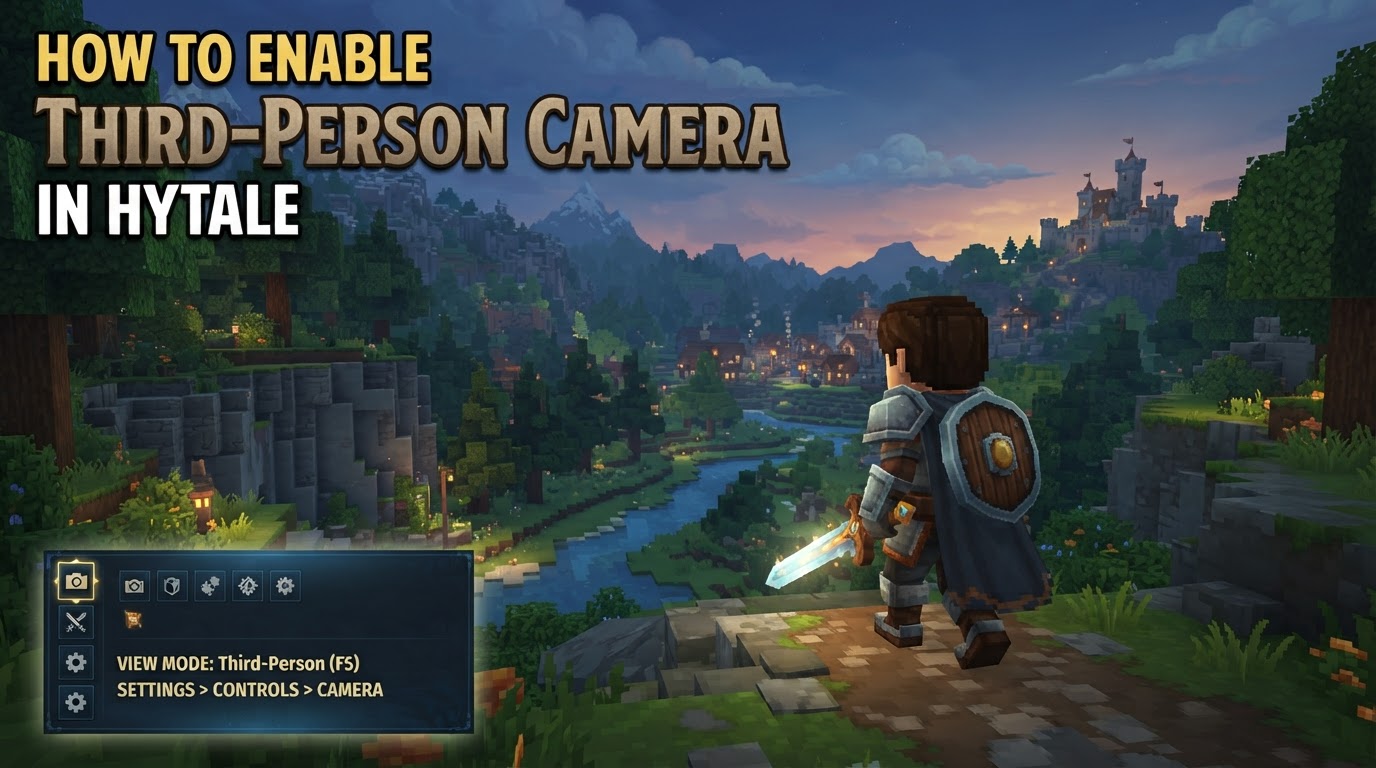
Enabling the third-person camera in Hytale is straightforward, offering players two primary methods: an instant in-game toggle for dynamic switching and a dedicated settings menu option to set a default preference upon spawning into a world. Hytale is designed with flexible camera controls, allowing players to seamlessly transition between first-person and third-person perspectives to suit their gameplay style and current activity.
Quickly Switching Camera View In-Game
The fastest way to toggle between first-person and third-person views while actively playing Hytale is through a simple key press. This method allows for immediate perspective changes without needing to pause the game or navigate through menus.
Using the ‘V’ Key Toggle
- During Gameplay: While you are playing Hytale in either first-person or third-person view, simply press the ‘V’ key on your keyboard.
- Instant Switch: The camera will instantly switch to the alternate perspective. If you were in first-person, you will now be in third-person, and vice-versa.
- Repeat to Toggle: You can press ‘V’ again at any time to switch back to your previous perspective.
- Key Customization: If the ‘V’ key conflicts with other actions or you prefer a different key, you can rebind this function within the game’s control settings menu.
This instant toggle is ideal for situations where you need to quickly adapt your view, such as switching to third-person for better environmental awareness during exploration, then back to first-person for precise combat or building.
Setting Third-Person as Your Default View
If you prefer to always start Hytale in third-person view whenever you join a world or respawn, you can adjust this setting in the game’s options menu. This ensures consistency and saves you from manually toggling the view each time you begin a new session.
Configuring Camera Preference On Spawn
- Open the Main Menu: Press the ‘Esc’ key on your keyboard to bring up the main menu or pause menu while in-game. If you are on the main title screen, you can also access settings from there.
- Navigate to Settings: Click on the ‘Settings’ option from the menu.
- Select Gameplay Tab: Within the settings interface, locate and click on the ‘Gameplay’ tab. While some general camera settings like Field of View (FOV) and Camera Shoulder might be found under the ‘General’ tab, the primary spawn preference is typically under ‘Gameplay’.
- Locate Camera Subsection: Scroll down through the ‘Gameplay’ settings until you find the subsection specifically labeled ‘Camera’.
- Choose Camera Preference: Look for the option titled ‘Camera Preference (On Spawn)’. Click on this option to reveal a dropdown or selection list.
- Select ‘Third Person’: From the available choices, select ‘Third Person’. Other options might include ‘First Person’ or ‘Remember Last Used’, which will recall your camera state from your previous session.
- Save Your Changes: After selecting ‘Third Person’, ensure you click the ‘Save Changes’ or ‘Apply’ button, usually located at the bottom of the settings screen, to confirm your selection.
- Apply Changes (If Needed): If you change this setting while already in a game, you might need to respawn (e.g., leave the current world or server and re-enter it) for the new default camera preference to fully take effect.
By following these steps, Hytale will automatically place you in third-person view every time you start a new game or load into an existing world, providing a consistent experience tailored to your preference.
Advanced Camera Customization and Tips
Hytale offers several additional camera options to enhance your gameplay and viewing experience beyond just first-person and third-person toggles.
Front-Facing View (‘C’ Key)
- Pressing the ‘C’ key provides a temporary front-facing third-person perspective, allowing you to see your character from the front. This can be useful for taking screenshots or admiring your character’s appearance.
- However, this view is generally not recommended for active gameplay as it can be cumbersome and disorienting due to the camera’s fixed position relative to your character’s movement.
Adjusting Camera Shoulder
- For third-person view, you can typically adjust whether the camera is positioned over your character’s right or left shoulder. This setting is often found within the ‘Camera’ subsection of the ‘General’ or ‘Gameplay’ settings menu.
- Experiment with both options to see which provides a more comfortable and effective field of view for your playstyle.
Controlling Camera Shake Intensity
- The ‘Third Person Camera Shake Intensity’ setting, located in the ‘Gameplay’ tab under the ‘Camera’ subsection, allows you to control the strength of camera movements during certain in-game actions.
- Reducing this intensity can be particularly helpful if you experience motion sickness or prefer a more stable camera view during gameplay.
Optimizing Your View: Best Use Cases
- Third-person view is often preferred for general exploration, navigating open environments, spotting distant objectives or loot, and gaining better spatial awareness of your character’s position relative to the surroundings. It’s also great for admiring your character’s gear and animations.
- First-person view is generally more effective for precise actions like combat, aiming ranged weapons, detailed building, and navigating tight or confined spaces where environmental awareness is less critical than direct interaction.
- Dynamically switching between views using the ‘V’ key can significantly enhance your overall gameplay experience, allowing you to leverage the strengths of each perspective as needed.
Common Considerations and Potential Limitations
While Hytale provides robust camera controls, there are a few factors that might influence or temporarily override your preferred settings.
Server Overrides
- Be aware that when playing on multiplayer servers, the server administrator may have specific configurations that can override your personal camera preferences. Some servers might enforce a particular view for certain game modes or areas.
Environmental Constraints
- Hytale’s camera system is designed to provide the best possible view. If your character is in a very confined space, such as a narrow tunnel or directly beneath a block, the game might automatically force a first-person perspective. This is to prevent the camera from clipping through geometry or becoming obstructed.
- Moving your character into a more open area should typically restore your preferred third-person view.
Field of View (FOV) Settings
- Hytale currently features a single Field of View (FOV) slider that applies to both first-person and third-person views. This means there are no separate FOV adjustments for each perspective.
- Adjusting the FOV will affect the breadth of your vision in both camera modes, so find a setting that feels comfortable for all your preferred views.
Understanding these aspects of Hytale’s camera system will allow you to fully customize and optimize your viewing experience, ensuring you always have the best perspective for your adventures.