
Guide
How to Adjust Texture Quality in Hytale
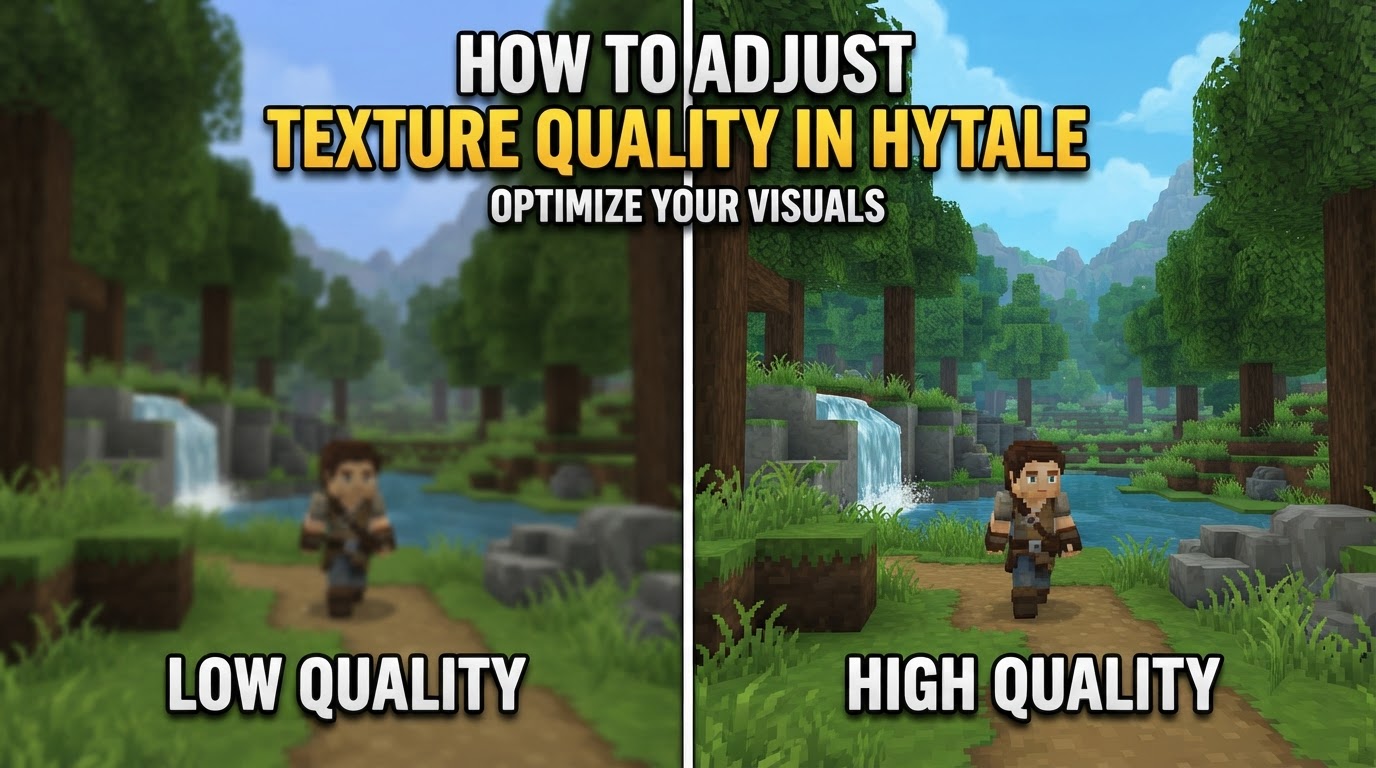
In Hytale, there isn’t a single, dedicated “Texture Quality” slider as you might find in many other games. Instead, the perceived quality and resolution of textures are influenced by a combination of general graphics settings, the game’s unique voxel-based rendering engine, and its distinct art style. Adjusting settings like Render Scale and World Detail, along with considering custom texture packs, are the primary ways to modify how textures appear in your game.
Understanding Hytale’s Visuals and Texture Rendering
Hytale’s engine is built on a voxel foundation, which means its approach to rendering and visual fidelity differs from games using traditional polygon-based graphics. This fundamental design choice has several implications for how textures are handled and perceived:
- Voxel-Based Rendering: The game world is constructed from cubic blocks (voxels). While textures are applied to these voxels, the overall visual detail is heavily influenced by the density and complexity of the voxel world itself.
- CPU and RAM Reliance: Unlike many games that heavily tax the GPU for high-resolution textures, Hytale’s voxel engine places significant demands on your CPU and RAM. These components are crucial for world generation, physics, NPC behavior, and processing game chunks, especially in single-player where your client also runs a local server. Optimizing these can often yield greater visual smoothness and performance than solely upgrading your graphics card.
- Stylized Art Direction: Hytale blends a modern, stylized voxel aesthetic with retro pixel-art textures. The official textures use specific pixel densities: 64 pixels per unit for detailed elements like avatars, tools, and weapons, and 32 pixels per unit for environmental blocks, props, and accessories. This intentional design means that while custom packs can change resolution, the game’s core visual identity is rooted in this pixel-art approach.
Adjusting In-Game Graphics Settings for Visual Fidelity
To modify the settings that impact how textures are rendered and perceived, follow these steps within the Hytale client:
Step 1: Access the Settings Menu
- Launch Hytale.
- From the main menu or while in-game, navigate to the Settings menu. This is typically represented by a gear icon.
Step 2: Navigate to the Video/Graphics Tab
- Within the Settings menu, locate and select the Video or Graphics tab. This section contains all visual-related options.
Step 3: Utilize Graphics Presets (Optional)
- In the “Rendering” section, you’ll likely find Graphics Presets. These predefined options (e.g., Low, Medium, High, Epic, Custom) adjust multiple visual settings simultaneously to prioritize either performance or visual quality.
- Selecting a higher preset like “High” or “Epic” will generally increase settings that contribute to a more detailed and refined visual experience, including how textures are displayed.
Step 4: Fine-Tune Individual Settings
For granular control over your visual experience, you can adjust specific settings under the “Rendering” section. These are the most impactful for perceived texture quality and overall visual fidelity:
- Render Scale:
- What it does: This is one of the most crucial settings. Render Scale determines the internal resolution at which the game is rendered before being scaled to your display’s resolution. A higher render scale means more pixels are rendered internally, resulting in sharper images and more defined textures.
- Recommendation: While setting it to 100% (or higher, if available) provides the sharpest image, even a slight reduction can significantly boost performance with minimal visual impact. Try 95% for a good balance, or 90% if you need more frames per second, especially at higher display resolutions (1440p or 4K).
- World Detail:
- What it does: This setting likely controls the complexity and detail level of environmental elements, such as terrain features, flora, and prop density. Higher settings can make the world appear richer and more textured by rendering more intricate details.
- Recommendation: Increase this for a more vibrant and detailed world, but lower it if you experience performance issues, as it adds to the rendering load.
- Anti-Aliasing:
- What it does: Anti-aliasing smooths out jagged edges on objects and textures, making the overall image appear cleaner and more refined.
- Recommendation: Enable this for a smoother visual experience. Experiment with different levels (e.g., FXAA, TAA, MSAA if available) to find a balance between visual quality and performance.
- Shadow Quality:
- What it does: Shadows add depth and realism to the scene, affecting how textures are illuminated. Higher quality shadows are more detailed and less pixelated. However, shadows are computationally intensive in voxel environments.
- Recommendation: For a performance boost, consider setting this to “Low” or even disabling shadows if performance is paramount. For visual quality, set it to “Medium” or “High” if your system can handle it.
- Post-processing Effects:
- What it does: This category includes effects like Bloom, Sunshafts, and Depth of Field. While not directly texture quality, they can significantly alter the overall visual presentation and perceived fidelity.
- Recommendation: These effects can be resource-intensive. Disabling them can improve performance and sometimes even clarity, as some players prefer a sharper, less stylized look.
- View Distance:
- What it does: View Distance determines how far into the distance the game world is rendered. While not a texture setting, a longer view distance means more textured blocks and objects are visible, increasing the overall visual scope.
- Recommendation: A setting of 192 to 256 blocks often provides a good balance between visual immersion and performance. Lowering it can significantly reduce CPU and RAM pressure, leading to smoother gameplay, especially when exploring new areas.
Optimizing for Both Visuals and Performance
Achieving the best visual experience in Hytale often involves balancing settings to maintain smooth performance:
- Prioritize CPU and RAM: Due to Hytale’s voxel engine, ensure your CPU is robust and you have sufficient RAM (16GB or more is often recommended for modern gaming). These components are critical for stable frame rates and preventing stutters, which directly impact the enjoyment of visual details.
- Start with Render Scale: If you’re chasing higher frame rates, reducing your Render Scale to 95% or 90% is often the first and most effective step, as it has a large impact on GPU load with minimal perceived visual degradation.
- Adjust View Distance Pragmatically: Don’t automatically max out view distance. Experiment to find a value that feels immersive without causing performance dips.
- Disable Unnecessary Effects: Turn off VSync if you experience input lag or want uncapped frame rates. Disable Bloom, Sunshafts, and Depth of Field if you prefer a cleaner image or need more performance.
Utilizing Custom Texture Packs
For a fundamental change to the visual style and resolution of textures, custom texture packs are your primary tool. These packs can entirely replace the game’s default textures with new ones, often at different resolutions or with unique artistic styles.
How to Install Custom Texture Packs (Example via CurseForge)
While the exact method may vary slightly depending on the modding platform, here’s a general process using CurseForge, a popular platform for game modifications:
- Install CurseForge App: Download and install the CurseForge desktop application if you haven’t already.
- Navigate to Hytale: Open the CurseForge app and find the Hytale section (once the game is officially released and supported on the platform).
- Browse Texture Packs: Use the browser within CurseForge to explore available texture packs. Pay attention to descriptions, screenshots, and user reviews.
- Install Your Chosen Pack: Once you find a pack you like, click the “Install” button on its project page. CurseForge will typically handle the download and placement of the files in the correct game directory.
- Launch Hytale: Launch Hytale, preferably through the CurseForge app, to ensure it recognizes the installed pack.
- Enable in-Game: Within Hytale’s settings (often under a “Resource Packs” or “Texture Packs” menu), you will need to enable the newly installed pack. You might need to restart the game for it to take full effect.
Tips for Selecting Custom Texture Packs
- Consider Art Style: Choose packs that align with your aesthetic preferences. Some offer higher resolution versions of the default style, while others provide entirely different artistic interpretations (e.g., more realistic, cartoonish, or retro).
- Check Resolution: Texture packs come in various resolutions (e.g., 16×16, 32×32, 64×64, 128×128, or higher). Higher resolution packs offer more detail but can be more demanding on your system. Ensure your hardware can handle them.
- Read Descriptions and Reviews: Always check the pack’s description for compatibility information, specific features, and any known issues. User reviews can also provide valuable insights.
- Update Frequency: Opt for packs that are regularly updated, especially during early game releases, to ensure compatibility with new game versions and content.
- Test One at a Time: If you’re trying multiple packs, install and test them one by one to easily identify any performance issues or visual conflicts.
Common Mistakes When Adjusting Visual Settings
- Over-relying on GPU: Many players focus solely on their graphics card, but Hytale’s engine demands a strong CPU and ample RAM for optimal performance due to its voxel-based nature and server-client architecture in single-player.
- Maxing out all settings: Automatically setting all graphics options to “Epic” or “High” without considering hardware limitations can lead to stuttering, especially during exploration or combat.
- Ignoring View Distance: Not adjusting view distance can significantly impact performance, as chunk loading is a major cause of CPU spikes and stuttering.
- Mismanaging Custom Texture Packs: Installing poorly optimized, inconsistent, or outdated texture packs can lead to visual bugs, performance issues, or a cluttered aesthetic. It’s important to check a pack’s update history, screenshots, and clarity before installing, and to install one pack at a time to easily troubleshoot issues.
- Expecting extremely high-resolution textures: Hytale’s base art style favors a pixel-art aesthetic. While custom packs can increase resolution, the game’s core design uses 32×32 or 64×64 pixel densities for most elements, meaning a photorealistic texture experience might not align with its intended look.