
Guide
How to Set Node Editor Triggers in Hytale
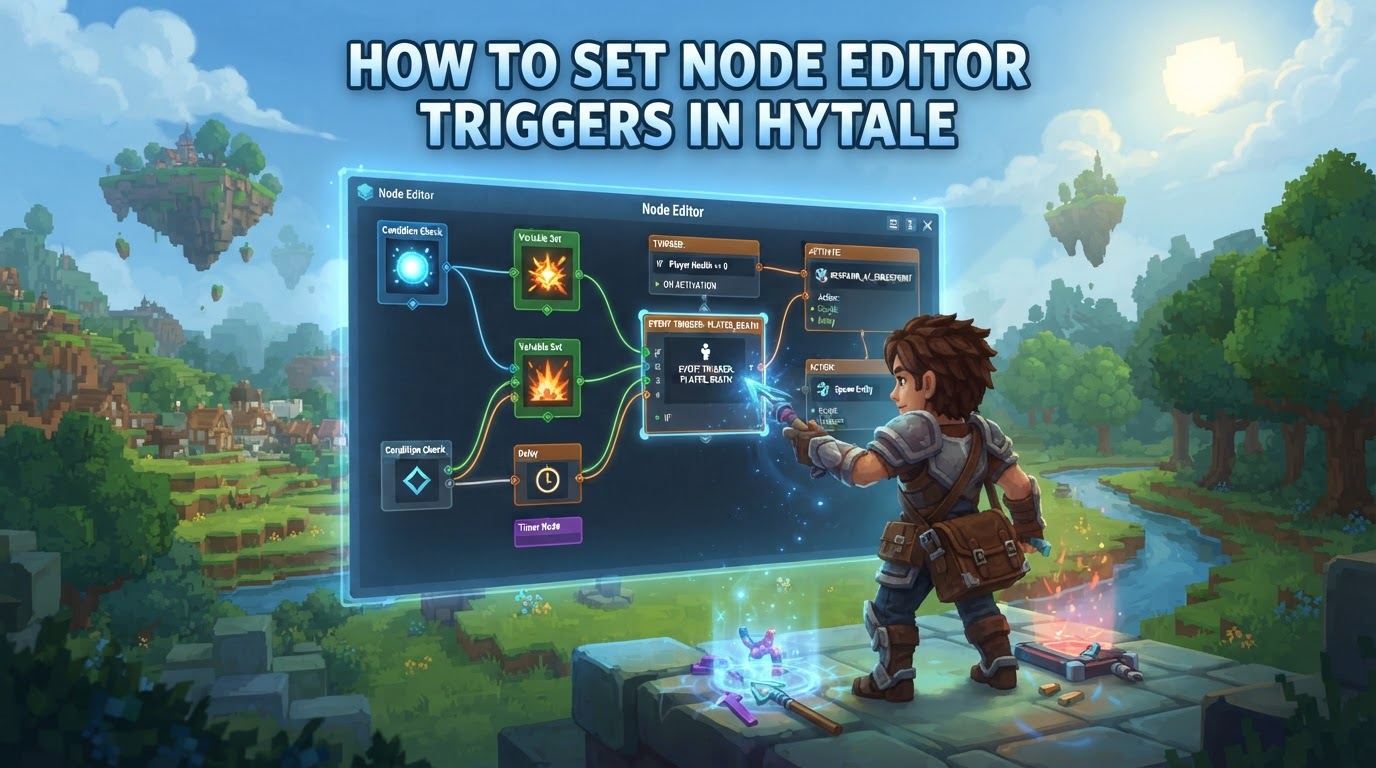
While Hytale’s powerful Node Editor is primarily designed for advanced procedural content generation, such as crafting custom biomes, terrain rules, and scripted brushes, setting up interactive in-game triggers like “on enter” or “on exit” events is primarily achieved through Trigger Volumes and the Visual Scripting system. These tools provide a user-friendly, node-based interface for defining game logic without traditional coding, allowing creators to bring dynamic behaviors to their worlds.
Understanding Hytale’s Trigger Systems
Hytale provides a comprehensive suite of in-game tools for content creation, each with a specialized purpose. Understanding the distinction between them is key to effectively setting up triggers.
The Node Editor: For Procedural Generation
The Node Editor in Hytale is a robust tool, but its main function is not for creating discrete in-game event triggers. Instead, it excels at defining complex systems like:
- World Generation Rules: Crafting custom biomes, defining terrain shapes, and managing the placement of environmental props.
- Scripted Brushes: Creating advanced tools for terrain modification that follow specific rules or patterns.
You can access the Node Editor in-game from the Content Creation menu by pressing B. It’s an incredibly powerful system for world builders and procedural artists, with live-reload capabilities for rapid iteration.
Trigger Volumes: Detecting In-Game Events
For detecting player (or other entity) interactions within the game world and initiating specific effects or events, Trigger Volumes are the core mechanic. These are defined areas within your Hytale world that can be configured to react to various conditions.
- They support conditions like “on enter,” “on exit,” and various entity-specific criteria.
- They act as the “sensor” that detects when something happens in a specific location.
Visual Scripting: Defining Custom Logic
Once a Trigger Volume detects an event, the Visual Scripting system comes into play to define what actually happens. Inspired by systems like Unreal Engine’s Blueprints, Visual Scripting allows creators to build custom behaviors and game logic through a node-based interface. While distinct from the “Node Editor” for world generation, Visual Scripting also uses nodes to represent actions, conditions, and data flow, making it accessible even for non-programmers. This is where you connect the “on enter” event from a Trigger Volume to a series of actions, like spawning an NPC, playing a sound, or modifying player stats.
Setting Up Basic In-Game Triggers with Trigger Volumes
The most direct way to create interactive in-game triggers is by utilizing Trigger Volumes. The following steps outline how to set up a basic trigger, such as placing a block when an entity enters a specific area.
-
Access the Trigger Volume Tool:
Begin by entering Hytale’s Creative Mode. This mode provides full access to all creation tools and allows for real-time testing of your creations. Locate and select the dedicated Trigger Volume tool from your Creative Mode inventory or tool palette.
-
Define the Trigger Area:
With the Trigger Volume tool equipped, left-click in the game world to define the first corner of your desired trigger volume. Drag your mouse or move your character to expand the volume, then left-click again to set the opposite corner, establishing the boundaries of your trigger area. You can adjust its size and position after creation.
-
Open the Trigger Volume Editor:
Once your trigger volume is placed, look directly at it and press the designated hotkey, typically
T. This action will open the Trigger Volume’s dedicated editor interface. This editor usually displays a list of all active trigger volumes on the left panel and various configuration tabs on the right. -
Configure Effects:
Within the Trigger Volume editor, navigate to the ‘Effects’ tab. This section is where you define the actions that will occur when the trigger is activated. It’s the core of your trigger’s functionality.
-
Set Trigger Conditions (e.g., “On Enter”):
Before adding actions, you must specify when the trigger should activate. From the available options within the ‘Effects’ tab, choose the primary condition. For instance, select “on enter” if you want the trigger to fire when any entity steps into the volume. You can often add further conditions to refine this, such as “only if player enters” or “only if specific entity enters.”
-
Add Actions (e.g., “Place Block”):
Click the “Add” button, usually found within the ‘Effects’ tab, to introduce a new action that will be performed upon trigger activation. A dropdown or list of available actions will appear. For our example, select “place block” from this list.
-
Define Action Parameters:
After selecting an action, you’ll need to specify its parameters. For a “place block” action, this typically involves:
- Block Type: Choose the specific type of block to place (e.g., a cyan crystal block, dirt, stone, etc.).
- Position: Define the exact coordinates where the block should appear. This can often be done by clicking a “pick position” button and then clicking a spot in the game world.
Other actions will have different parameters, such as specifying an entity to spawn, a sound file to play, or a variable to modify.
-
Save and Test:
Once you’ve configured all your conditions and actions, save your changes within the Trigger Volume editor and close it. You can then immediately test its functionality by walking through the trigger volume in Creative Mode. Observe if the specified action (e.g., the block being placed) occurs as expected.
Integrating with Visual Scripting for Advanced Logic
While Trigger Volumes can handle simple actions directly, for more complex or branching logic, you will link them to the Visual Scripting system. Instead of directly adding a “place block” action within the Trigger Volume editor, you might add an action like “Trigger Visual Script Event.” This event would then be the starting point for a more elaborate sequence of nodes within your Visual Scripting graph, allowing for:
- Conditional branching (e.g., “if player has item X, then do Y, else do Z”).
- Managing quest states and progression.
- Spawning multiple, varied entities based on player choices.
- Manipulating player attributes, inventory, or UI elements.
Visual Scripting provides the flexibility to build almost any game logic you can imagine, all through a visual, node-based interface that connects seamlessly with in-world triggers.
Tips for Creators
-
Utilize Creative Mode:
Creative Mode is your primary sandbox for building, scripting, and testing. It offers a comprehensive environment where changes can be tested and refined without constant restarts due to hot-reloading for many asset types.
-
Explore the Node Editor for World Generation:
Remember that the dedicated Node Editor is exceptionally powerful for crafting custom biomes, terrain shapes, and prop placement systems. Don’t confuse its capabilities with the in-game event triggering of Trigger Volumes and Visual Scripting.
-
Community Resources:
As Hytale is in early access, official documentation is continuously developing. Leverage community forums, like Reddit, and YouTube channels for tutorials, discussions, and shared knowledge from other creators. These can be invaluable for learning new techniques and troubleshooting.
-
Visual Scripting for Logic:
Embrace the visual scripting system for creating complex game logic and custom behaviors without writing traditional code. For experienced programmers, the system can often be extended with custom nodes, bridging the gap between visual and text-based development.
-
Modding Tools Integration:
Hytale’s modding tools are deeply integrated. You can load and test custom items, entities, and mechanics directly within a Creative world, allowing for a seamless development workflow from asset creation to in-game testing.
Common Mistakes and Considerations
-
Distinction Between Tools:
A common point of confusion is differentiating between Hytale’s various editors. The Asset Editor is for modifying data assets (blocks, items, NPCs). The Node Editor is specifically for node-based procedural systems (world generation, scripted brushes). Visual Scripting is for game logic and behaviors, often triggered by Trigger Volumes. Understanding their individual purposes is crucial for efficient workflow.
-
Complexity of Advanced NPC Behavior:
While Visual Scripting is powerful, creating highly advanced and automated NPC behaviors (like those seen in complex village management systems) might currently be challenging or require intricate custom logic. Community members have noted that some very complex AI might push the current limits, potentially requiring custom GUI creation for management.
-
Early Access Stability:
As an early access title, Hytale’s tools, including the Node Editor and Visual Scripting, are still under active development. This means you might encounter bugs, crashes, or inconsistent states. Community reports have mentioned issues like the Node Editor freezing or crashing, though continuous updates are addressing these problems. Always save your work frequently.
-
Learning Curve:
While node-based editors are designed for accessibility, mastering complex systems for custom game logic and behaviors will still require practice, experimentation, and a solid understanding of logical flow and event-driven programming concepts. Start with simple triggers and gradually build complexity.
-
Evolving Features:
Hytale’s tools and functionalities will continue to evolve significantly throughout its early access period. Features may be added, changed, or refined over time. Stay updated with official announcements and community discussions to leverage the latest capabilities.