
Guide
Hytale Keybinds and Controls: Full List
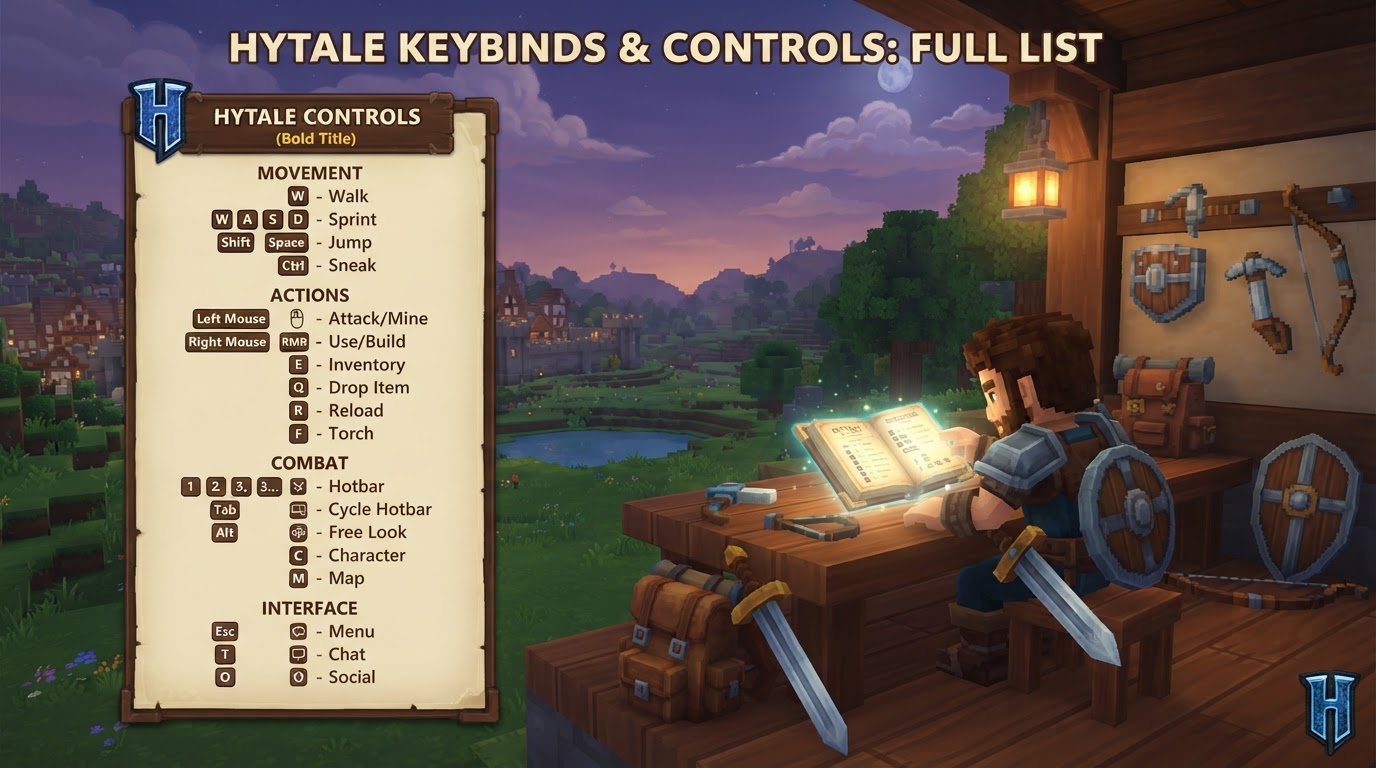
Hytale, the highly anticipated sandbox adventure, features a robust and extensively customizable control scheme designed primarily for PC players using a keyboard and mouse. While controller support is planned for future updates, the current system allows players to remap virtually every keybinding to suit their individual playstyle and preferences. Beyond simple remapping, the game offers granular control over movement behaviors, such as whether sprint, crouch, and walk are toggled or held, and fine-tunes camera options including sensitivity, screen shake, and head bobbing for a personalized experience.
Understanding the default keybinds is crucial for new players and serves as an excellent starting point before diving into customization. This comprehensive guide outlines the standard keyboard and mouse controls available in Hytale, providing a clear reference for navigating the world, interacting with objects, and utilizing the game’s diverse toolsets.
Movement
Navigating the vast and varied landscapes of Hytale is intuitive, with standard WASD controls forming the core of character movement. These keybinds allow players to explore, evade, and position themselves strategically within the game world.
- Move Forwards:
W– Propels your character in the direction they are currently facing. - Move Backwards:
S– Retreats your character directly backward. - Move Left:
A– Strafe or move your character to the left, without changing their facing direction. - Move Right:
D– Strafe or move your character to the right, maintaining their current facing. - Jump:
Spacebar– Initiates a jump, allowing characters to clear obstacles or gain vertical height. In creative modes, this key also facilitates upward flight. - Crouch/Slide/Roll:
Left Ctrl– Provides stealth by lowering your character’s profile, allows for sliding through tight spaces, or performing evasive rolls. In creative modes, this key is used to descend while flying. - Sprint:
Left Shift– Increases your character’s movement speed, useful for covering ground quickly or escaping danger. - Walk:
Left Alt– Decreases your character’s movement speed, enabling more precise and controlled movement, particularly useful in construction or platforming challenges.
Actions
Interacting with the world, engaging in combat, and manipulating items are fundamental to the Hytale experience. These keybinds cover the primary actions players will perform throughout their adventures, from building structures to using powerful abilities and items.
- Primary Action (Attack/Mine):
Left Mouse– The main interaction key for attacking hostile creatures, mining resources from the environment, or performing other primary item-specific actions like swinging a tool. - Secondary Action (Use/Place):
Right Mouse– Primarily used for placing blocks, utilizing items with secondary functions (such as eating food or activating a device), or interacting with objects in a specific way. - Use Ability 1:
Q– Activates the first equipped character ability, often a core combat or utility skill tied to your character’s class or gear. - Use Ability 2:
E– Activates the second equipped character ability, expanding your tactical options and providing additional utility. - Use Ability 3:
R– Activates the third equipped character ability, offering further versatility in combat, exploration, or support roles. - Interact with a Block/Mount/Dismount:
F– A versatile key used to interact with various environmental elements, such as opening doors, activating mechanisms, looting containers, or mounting and dismounting creatures and vehicles. - Rotate a Block:
R– When placing blocks, this key allows players to rotate the block before final placement, enabling intricate and varied architectural designs. - Show Utility Slot Selector:
Z– Brings up a selector for quick access to utility items or tools that are not part of the main hotbar, allowing for efficient inventory management during gameplay. - Drop Item:
G– Discards the item currently held in your active hand, dropping it onto the ground for others to pick up or to clear inventory space. - Hotbar Slots 1-9:
1-9– Directly selects the corresponding item or tool from your quick-access hotbar, allowing for rapid switching during combat, building, or resource gathering. - Switch Camera Mode:
V– Toggles between different camera perspectives, such as first-person and various third-person views, to suit player preference or situational awareness. - Activate Camera Rotation:
C– Enables free camera rotation, allowing players to look around independently of their character’s facing direction, useful for surveying surroundings or taking screenshots. - Toggle Chat:
Return (Enter)– Opens or closes the in-game chat interface, facilitating communication with other players in multiplayer environments.
Creative Tools and Modes
Hytale offers extensive creative capabilities, allowing players to build and design with unparalleled freedom. These keybinds are essential for accessing and utilizing the game’s creative toolset and for managing game modes, providing builders with powerful shortcuts.
- Pick a Block:
Middle Mouse– A highly convenient feature that allows players to instantly select a block from the world and place it into their inventory, streamlining the building process by quickly acquiring desired materials. This functions similarly to the “pick block” mechanic found in other popular sandbox titles. - Switch Game Mode:
O– Toggles between different game modes, such as Survival, Creative, and potentially others, offering varied gameplay experiences without needing to restart the game.
Menus
Accessing various in-game menus is crucial for managing inventory, viewing information, and configuring game settings. These keys provide quick access to essential interfaces, keeping players informed and in control of their experience.
- Open Inventory:
Tab– Displays your character’s inventory, allowing you to manage items, equip gear, craft new objects, and organize your possessions. - Open Machinima Editor:
N– Launches the powerful in-game machinima editor, enabling players to record, direct, and produce their own cinematic content and stories within Hytale. - Open Map:
M– Brings up the world map, providing an overview of explored areas, discovered points of interest, and your current player location. - Open Creative Tools:
B– Opens a dedicated menu offering a suite of specialized tools for creative building and design, separate from the standard inventory. - Show Player List:
P– Displays a list of all players currently present in the game session or on the server, useful for multiplayer interactions and managing friend groups. - Pause/Settings:
Esc– Pauses the game (in single-player) and opens the main menu, which includes access to comprehensive game settings, keybind remapping, and options to save or exit the game.
Builder Tools
For those who delve deep into construction and terraforming, Hytale’s builder tools offer advanced functionality for precise world manipulation. Many of these specialized tools are mapped to the numeric keypad for quick and efficient access, allowing for intricate and large-scale changes.
- Toggle Builder Tools Legend:
L– Shows or hides an on-screen legend explaining the various builder tool functions and their associated keybinds, a helpful reference for complex operations. - Legend – Previous Page:
J– Navigates to the previous page of the builder tools legend, if the legend spans multiple pages of information. - Legend – Next Page:
K– Navigates to the next page of the builder tools legend, allowing access to all available tool explanations. - Undo:
Z– Reverses the last action performed within the builder tools, invaluable for correcting mistakes without having to manually rebuild. - Redo:
Y– Reapplies an action that was previously undone, allowing for flexible editing and experimentation. - Paint Brush Tool:
Keypad 1– Activates the paint brush tool, used for applying textures or block types over areas, quickly changing the appearance of surfaces. - Sculpt Brush Tool:
Keypad 2– Activates the sculpt brush tool, designed for shaping terrain and manipulating volumes of blocks, ideal for creating natural landscapes. - Selection Tool:
Keypad 3– Activates the selection tool, used to define specific areas for various operations such as copying, pasting, or deleting. - Paste Tool:
Keypad 4– Activates the paste tool, used to insert previously copied or generated structures into the world. - Line Tool:
Keypad 5– Activates the line tool, for drawing straight lines of blocks or effects, speeding up repetitive building tasks. - Change Sculpt Brush Modifier:
Left Shift– Modifies the behavior or intensity of the sculpt brush, allowing for more nuanced terraforming and detailing. - Use Paint Mode for Brush:
U– Toggles a specific paint mode for brush tools, altering how they apply effects or textures to blocks. - Select Block from Set:
Q– Allows selection of a specific block type from a predefined set, speeding up material choice during construction. - Paste Preview:
T– Displays a holographic preview of what will be pasted, helping players position structures accurately before committing the changes.
Debug and Developer Tools
While primarily intended for developers, testers, and content creators, Hytale includes several debug keybinds that can be useful for advanced users, troubleshooting, or capturing specific footage. These often provide insights into game performance or alter fundamental game states for testing purposes.
- Decrease Speed Multiplier:
F1– Reduces the game’s internal speed, potentially useful for slow-motion capture or detailed observation of animations and mechanics. - Increase Speed Multiplier:
F2– Increases the game’s internal speed, useful for accelerating time, testing rapid sequences, or quickly moving through events. - Toggle Creative Collision:
F3– Toggles collision detection for the player in creative mode, allowing for free movement through blocks and terrain without obstruction. - Toggle Fly Camera:
F4– Activates a detached camera that can move independently of the player character, excellent for cinematic shots, exploring inaccessible areas, or observing gameplay from unique angles. - Toggle Fly Camera Control Target:
F5– Switches what the fly camera is currently controlling or focusing on, allowing it to lock onto specific entities or remain free. - Toggle Debug Screens:
F7– Displays various debug information overlays, such as performance statistics (FPS, ping), coordinates, or entity data, invaluable for technical analysis.
Miscellaneous Controls
Beyond core gameplay and creative tools, a few additional keybinds handle common PC game functions or provide utility for content creation. It’s worth noting that some of these may align with common operating system or application conventions, making them intuitive for many players.
- Toggle HUD:
F8– (Uncertain) This key is often used in games to hide or display the Heads-Up Display, providing a clean screen for screenshots or machinima recording without UI elements. - Toggle Fullscreen:
F11– (Uncertain) A common PC shortcut to switch between windowed and fullscreen display modes, optimizing the game’s visual presentation. - Take Screenshot:
F12– (Uncertain) Often the default key for taking screenshots via game platforms like Steam, or sometimes an in-game function to capture memorable moments.
It is important to remember that Hytale is still under active development. While these keybinds represent the most current and widely published information, the development team may introduce changes, add new functionalities, or adjust default settings as the game evolves. Players are always encouraged to consult the in-game settings menu upon release and during updates, as it will provide the most accurate and up-to-date list of controls and allow for complete personalization of their Hytale experience.