
Guide
How to Enable Pre-Release Branch in the Hytale Launcher
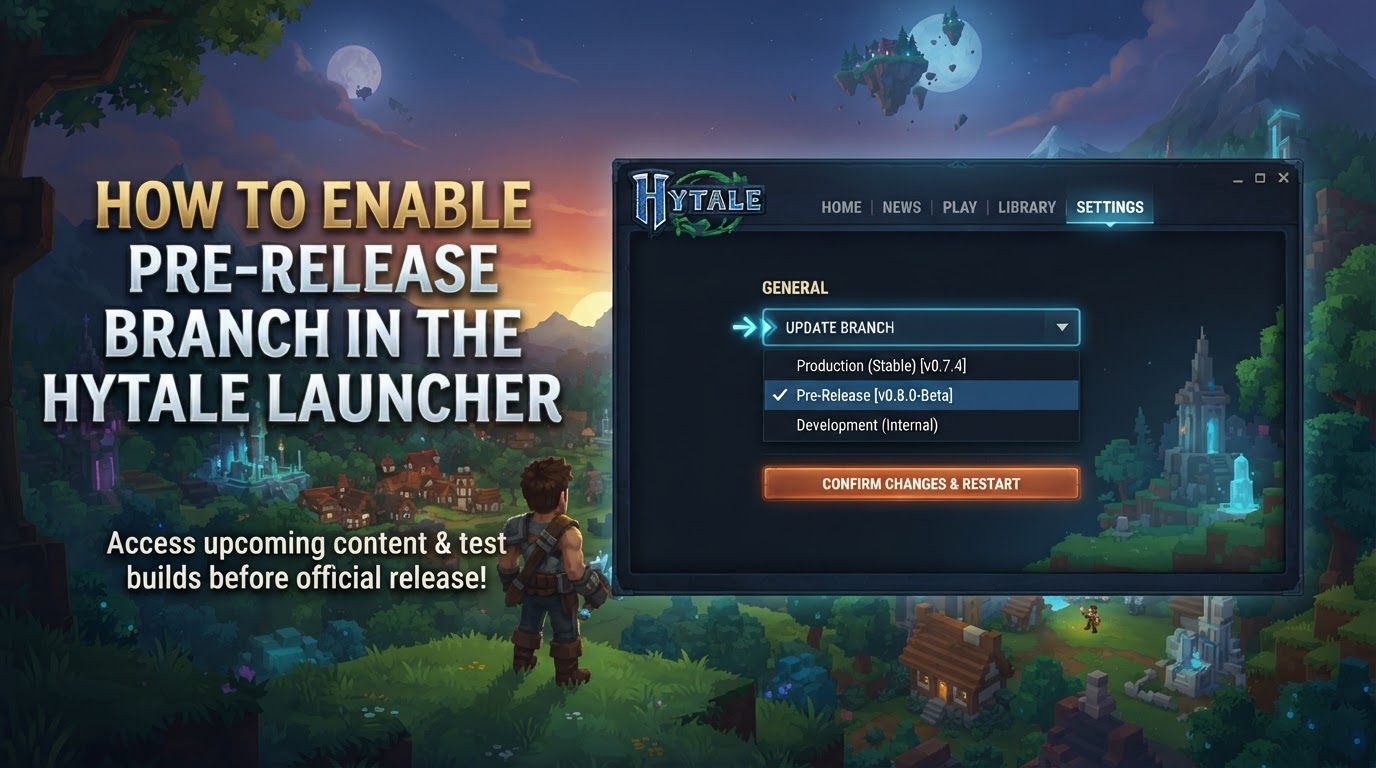
The Hytale Pre-Release Branch provides early access to upcoming game updates, allowing players and server administrators to test new features, identify bugs, and provide valuable feedback to the developers before an update is officially released as a “Stable” build. These pre-release builds are downloaded into a separate folder, ensuring your main game files remain unaffected, and you can switch between the stable and pre-release versions at any time through the Hytale Launcher.
Mechanics of Hytale Pre-Releases
Hytale’s development process incorporates community involvement through these pre-release builds. They are essentially public testing versions that offer a sneak peek at future content, balance changes, and technical improvements. By participating, players contribute directly to the game’s refinement. A key design choice is that pre-release files are managed independently of your stable game installation. This means you don’t risk corrupting your primary game data when experimenting with new features. The Hytale Launcher facilitates seamless switching between the stable and pre-release branches, making it easy to engage with the latest development builds or revert to the most stable version as needed.
Enabling the Pre-Release Branch (Hytale Game Client)
Accessing the pre-release version of Hytale on your game client is a straightforward process managed directly through the Hytale Launcher.
-
Open the Hytale Launcher
Begin by launching the Hytale Launcher application on your computer. Ensure that your launcher is updated to its latest version to guarantee access to all available features and branches.
-
Locate the Version Selector
Within the launcher window, you will need to find the version selection interface. This is typically displayed as a version number, often found in the bottom-left corner of the launcher (e.g.,
v1.0.4). Alternatively, you might find a cog icon or a similar settings button adjacent to the main “Play” button; clicking this often reveals advanced version options. -
Switch to Pre-Release
Click directly on the displayed version number or the patch line dropdown menu. A list of available branches will appear. From these options, select “Pre-Release” or a specific pre-release version identifier (e.g.,
1.0.5-pre1). This action informs the launcher of your intent to switch to the testing branch. -
Download and Launch
Upon selecting the pre-release branch, the Hytale Launcher will automatically begin downloading the necessary game files for that specific version. This process may take some time depending on the size of the update and your internet connection. Once the download is complete, the “Play” button will become active. Click “Play” to launch the game client running on the newly selected pre-release branch.
Enabling the Pre-Release Branch (Hytale Server)
For server administrators, enabling the pre-release branch involves a few steps within your server hosting panel. The exact labels and locations may vary slightly between providers (e.g., Kinetic Panel, PebbleHost Panel), but the general principle remains consistent.
-
Stop Your Server
Before making any significant changes to your server’s version, it is crucial to stop the server completely. Access your server control panel and locate the option to stop your Hytale server. This prevents data corruption or conflicts during the update process.
-
Access Server Settings
Navigate to the settings section within your server panel. This area is often labeled “Hytale Settings,” “Version Management,” “Configuration,” or similar. Look for options related to the game version or update branch.
-
Change Patch Line/Version
Within the server settings, locate an option such as “Patch Line,” “Hytale Version,” or “Branch.” This will typically be a dropdown menu or a selection box. Change the current selection from “release” (or “stable”) to “pre-release” (or the specific pre-release version you wish to run).
-
Update Server Files
After selecting the pre-release branch, you will need to trigger an update of your server files. Some panels may automatically prompt you to update, while others might require you to click a specific “Update Server,” “Reinstall,” or “Apply Changes” button. Confirm the change and allow the server to download and install the new pre-release files.
-
Restart Server
Once the server files have been successfully updated to the pre-release branch, restart your Hytale server. It will now boot up and run on the selected pre-release version, ready for players to connect.
Tips for Using Pre-Release Builds
- Separate Worlds: When testing pre-release client builds, it is highly recommended to create and use a separate world for your experiments. Pre-release builds can be unstable and may contain bugs that could corrupt your main game progress or world data. Keeping them isolated protects your valuable saves.
- Server Backups: For server administrators, always perform a full backup of your server data before updating to a pre-release branch. This is a critical safeguard, as updates, especially in testing phases, can introduce unforeseen issues or data inconsistencies. A recent backup ensures you can always revert to a stable state if problems arise.
- Client-Server Version Matching: If you are playing on a private server, it is absolutely essential that both your game client and the server are running the exact same pre-release version. Attempting to connect a stable client to a pre-release server (or vice versa) will result in version mismatch errors and connection problems. All players joining the server must also update their clients to the corresponding pre-release branch.
- Stay Informed: Keep a close eye on official Hytale announcements, developer blogs, and community channels. This is where you’ll find information regarding new pre-release content, known issues, bug fixes, and important updates about the testing phase.
Common Mistakes When Using Pre-Release Builds
- Ignoring Backup Warnings: One of the most frequent and impactful mistakes is neglecting to back up server data before a pre-release update. This oversight can lead to irreversible data loss or severe world corruption if a critical bug or update issue occurs. Always back up!
- Version Mismatch: A common source of frustration is attempting to connect a game client running a stable version to a server running a pre-release version, or vice versa. This will consistently result in connection failures and error messages. Ensure all parties (client and server) are on the identical branch and version.
- Expecting Stability: Pre-release builds are, by their very nature, for testing. They are not guaranteed to be stable. Expect to encounter bugs, performance issues, crashes, and potentially incomplete or placeholder features. These builds are designed to find and fix such issues, not to provide a polished gameplay experience.