
Guide
How to Use Hytale’s In-Game Mod Browser
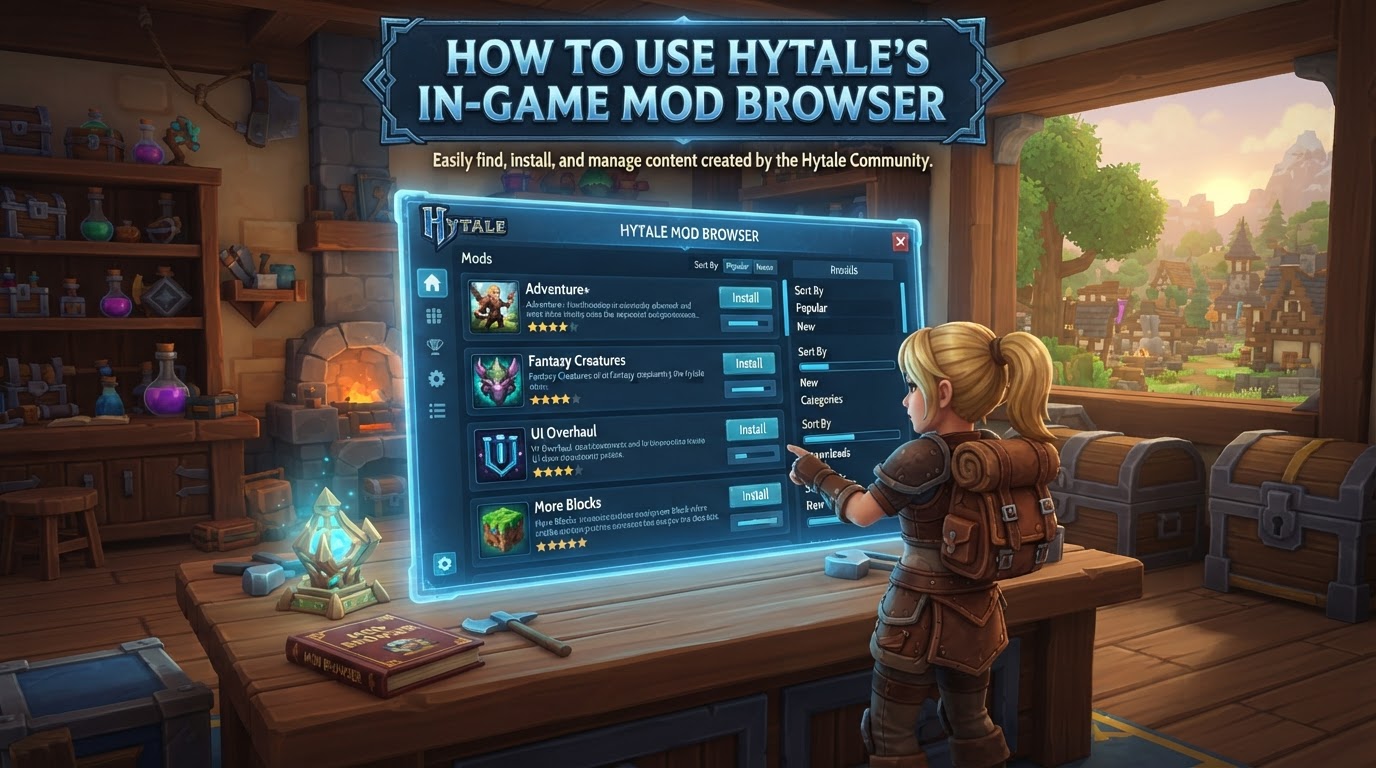
Hytale’s in-game mod browser, a pivotal feature introduced in “Update 6,” fundamentally simplifies the process of discovering, installing, and managing modifications directly within the game client. This integration significantly enhances the player experience by making mod access intuitive and seamless, eliminating the need for external downloads and manual file placement for client-side installations.
This guide will walk you through accessing and utilizing Hytale’s built-in mod browser, explaining its core functionalities and providing essential insights into Hytale’s unique server-based modding architecture.
Accessing the Mod Browser
The first step to enhancing your Hytale experience with modifications is to locate the mod browser itself. It’s designed for easy access directly from the game’s main interface.
- Launch Hytale: Begin by starting your Hytale game client as you normally would.
- Navigate to the Main Menu: Once the game has loaded, you will be presented with the main menu screen.
- Select “Mod Browser”: Look for an option clearly labeled
Mod Browser. This is typically a prominent button or menu item, often alongside options like “Play,” “Settings,” or “Quit.” Click on this to open the mod browser interface.
Upon entering the Mod Browser, you’ll be greeted with a user-friendly interface designed for easy navigation and discovery of community-created content.
Discovering New Modifications
The mod browser offers several ways to find modifications that suit your playstyle, whether you’re looking for popular additions or something very specific.
Browsing Categories
The browser categorizes mods to help you explore. You can typically find sections such as:
- Featured: Highlights new or officially endorsed modifications.
- Popular: Shows mods that are currently trending or have a high number of downloads.
- Recently Updated: Lists mods that have received recent patches or content additions, ensuring you have access to the latest versions.
Clicking on any of these categories will display a list of relevant mods, often with a small preview image and basic information.
Searching for Specific Mods
If you have a particular modification in mind or are looking for something that addresses a specific need, the search function is your best tool.
- Utilize the Search Bar: Locate the search bar, usually positioned at the top or side of the mod browser interface.
- Enter Keywords: Type in the name of the mod you’re looking for, or relevant keywords describing its function (e.g., “new biomes,” “magic spells,” “quality of life”).
- Review Results: The browser will display mods matching your search terms, allowing you to quickly narrow down your options.
Installing Modifications
Once you’ve found a modification that piques your interest, installing it is a straightforward process within the browser.
Reviewing Mod Details
Before installing, it’s always recommended to gather more information about the mod:
- Click on a Mod Entry: Select any mod from the browsing or search results to open its dedicated detail page.
- Examine Information: On this page, you will typically find:
- Detailed descriptions of the mod’s features and changes.
- Screenshots or videos showcasing the mod in action.
- Information about the mod author.
- Crucially, details on supported game versions. Always verify that the mod is compatible with your current Hytale client version to avoid issues.
One-Click Installation
After reviewing the details and confirming compatibility, installation is simple:
- Locate the “Install” Button: On the mod’s detail page, there will be a prominent button, usually labeled
InstallorDownload. - Initiate Download: Click this button. The mod browser will then handle the download and integration of the modification into your game files automatically.
- Confirmation: Once the installation is complete, you may receive a notification, and the button might change to indicate the mod is installed (e.g.,
InstalledorManage).
Managing Your Installed Modifications
The mod browser isn’t just for discovery and installation; it also provides a dedicated space to manage all the modifications you’ve added to your Hytale client.
The Mod Library
Within the mod browser, you’ll find a section specifically for your installed mods:
- Access the “Library” Page: Look for a tab or button labeled
LibraryorMy Modswithin the mod browser interface. Clicking this will display a list of all modifications currently installed on your Hytale client. - View Installed Mods: This page provides an overview of your active modifications, often showing their names, versions, and status.
Updating and Removing Mods
Keeping your mods up-to-date and removing unwanted ones is straightforward:
- Updating Mods: If an installed mod has a newer version available, the
Librarypage will typically indicate this. You’ll often see anUpdatebutton next to the mod. Clicking this will download and install the latest version, replacing the old one. - Removing Mods: To uninstall a mod, select it from your
Library. On its detail page (or directly from the library list), you should find anUninstallorRemoveoption. Confirming this action will delete the mod files from your Hytale installation.
Understanding Hytale’s Server-Based Modding Philosophy
A critical aspect of Hytale’s modding ecosystem is its emphasis on server-based mod delivery, particularly for multiplayer experiences. This design choice has significant implications for how mods behave and are managed.
Hytale’s modding architecture is primarily server-based. This means that when players connect to a modded multiplayer server, the server automatically delivers the necessary mod content without requiring individual client-side downloads of external files. This ensures consistency and security across the community.
What this means for you as a player is that while the in-game mod browser facilitates client-side installation (primarily for single-player worlds or local hosting), connecting to a multiplayer server will often override or provide its own set of modifications. The server dictates the mod experience, ensuring everyone on that server is playing with the same set of rules and content. Your client-side installed mods will generally not automatically apply to a multiplayer server unless that server is specifically configured to use those exact mods.
Playing with Installed Modifications
How your installed mods become active depends on whether you’re playing solo or joining a multiplayer session.
Single-Player and Local Hosting
For single-player worlds or when you host a local game session, the mods you’ve installed via the in-game browser should be active automatically. Simply start a new single-player world or load an existing one, and the modifications will be integrated into your gameplay experience.
Multiplayer Servers
When connecting to a multiplayer server:
- Connect to the Server: Join your desired Hytale server as usual.
- Server-Side Delivery: The server will automatically detect and deliver any required mod content to your client. You may see a loading screen indicating mod downloads.
- Client-Side Overrides: Any mods you installed client-side for single-player use will typically be ignored or overridden by the server’s mod list. This ensures a consistent experience for all players on that server.
Always remember: If you want to play with specific mods in multiplayer, you need to join a server that is running those mods. Your client-side installations are primarily for your personal single-player adventures.
Best Practices and Tips for Mod Users
To ensure a smooth and enjoyable modding experience, keep these tips in mind:
- Always Check Compatibility: Before installing any mod, double-check its supported Hytale game version. Using outdated or incompatible mods can lead to crashes or unexpected behavior.
- Read Mod Descriptions Thoroughly: Pay close attention to a mod’s description. It will explain its features, potential conflicts with other mods, and any specific installation or usage instructions.
- Leverage Official Platforms: Hytale’s official mod distribution platform is CurseForge. While the in-game browser handles installation, knowing that CurseForge is the source can be useful for finding more information or support outside the game.
- Server Owner Considerations: If you’re a server owner, many hosting providers (like Zap-Hosting or WinterNode) offer integrated mod browsers within their control panels. These often simplify server-side mod installation, including one-click options and dependency handling, making it easier to manage mods for your community.
Common Pitfalls and Misunderstandings
Navigating the world of game modifications can sometimes lead to confusion. Here are a couple of common misunderstandings to avoid:
- Client-Side vs. Server-Side Expectation Mismatch: The most frequent misunderstanding is expecting mods installed via the in-game browser on your client to automatically apply to any multiplayer server you join. As discussed, Hytale’s multiplayer modding is server-driven. Your client-side mods are primarily for single-player or local hosting; multiplayer servers dictate their own mod lists.
- Mod Dependencies: While the in-game browser streamlines installation, it’s not explicitly stated if it automatically handles all potential mod dependencies for client-side installations. Some complex mods might require other “library” mods to function. Always check a mod’s description for any listed dependencies and install them separately if required. For server-side installations via hosting panels, dependency handling is often automated.
By understanding these nuances and following the steps outlined in this guide, you’ll be well-equipped to explore and enjoy the vast world of Hytale modifications.