
Guide
How to Ban or Kick Players From Your Hytale Server
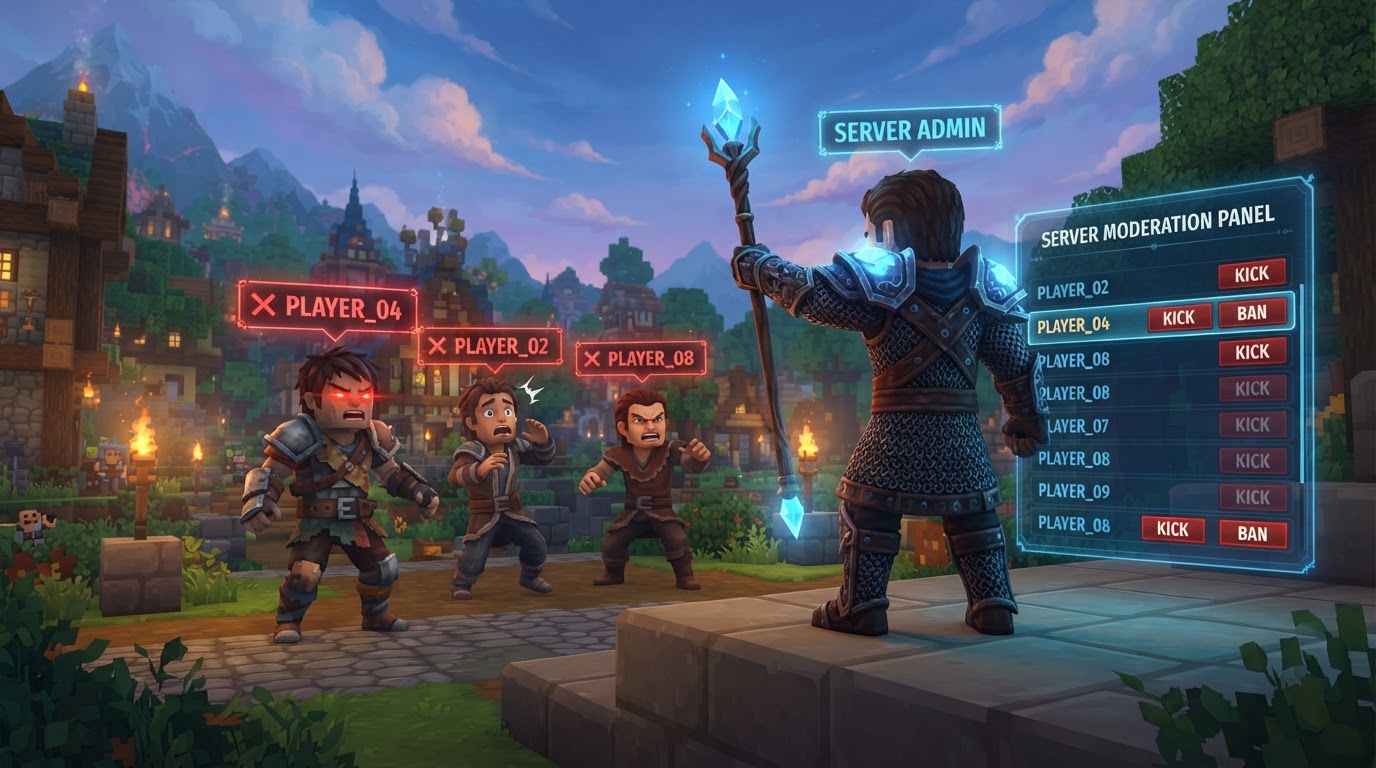
Managing your Hytale server’s community is crucial for a positive player experience, and the most direct tools for maintaining order are the ability to kick or ban players. Server administrators with operator (OP) privileges can temporarily remove disruptive players using the /kick command or permanently prevent them from rejoining with the /ban command, all executable directly through the in-game chat or your server host’s console.
Understanding Hytale Server Moderation
Hytale’s server management system empowers administrators to control player access and behavior. Kicking a player provides a temporary removal, useful for minor infractions or when a player needs to rejoin to fix a client-side issue. Banning, on the other hand, is a more severe action, preventing a player from rejoining the server indefinitely until they are unbanned. Both actions are performed using specific console commands.
Prerequisites: Administrator Privileges
To execute moderation commands like kicking or banning, you must possess administrator or operator (OP) status on your Hytale server. Without these privileges, the server will deny your command requests.
- Granting OP Status to Others: If you are already an administrator, you can grant OP status to another player using the command
/op add [playername]. Replace[playername]with the exact username of the player you wish to promote. - Granting OP Status to Yourself (Single-Player/Initial Setup): In a single-player world or during initial server setup, you might need to grant yourself OP status. This can typically be done with
/op selfif the server setup allows it, or directly through your server host’s control panel. - Server Hosting Panels: Most commercial Hytale server hosting providers offer a web-based control panel where you can easily manage player permissions, assign roles, and grant administrator status without needing to use in-game commands. Consult your host’s documentation for specifics.
Executing Commands: In-Game Chat vs. Server Console
Hytale commands can be entered in two primary locations, each with a slight difference in syntax:
- In-Game Chat:
- Open the chat window, typically by pressing the ‘Enter’ key.
- All commands entered here must be prefixed with a forward slash (
/). For example,/kick [playername]. - Press ‘Enter’ again to send the command.
- Server Console:
- Access your server host’s control panel and navigate to the ‘Console’ or ‘Terminal’ tab.
- Commands entered directly into the server console do not require a forward slash. For example,
kick [playername]. - Press ‘Enter’ or click the ‘Send’ button (depending on your host’s interface) to execute the command.
Using the server console is often preferred for critical moderation actions as it bypasses any potential in-game chat restrictions and provides a direct line to the server’s core functions.
How to Kick a Player From Your Hytale Server
Kicking a player temporarily removes them from the server. They can rejoin immediately unless other restrictions are in place.
- Verify Administrator Privileges: Ensure you have OP status on the server. If you receive a “permission denied” error, you do not have the necessary rights.
- Open Command Interface:
- In-game: Press ‘Enter’ to open the chat.
- Server Console: Log in to your server host’s control panel and go to the ‘Console’ section.
- Execute the Kick Command:
- In-game: Type
/kick [playername]and press ‘Enter’. - Server Console: Type
kick [playername]and press ‘Enter’.
You can optionally add a reason for the kick, which will be displayed to the player being kicked. This is good practice for transparency and communication.
- In-game (with reason):
/kick NuisancePlayer Excessive chat spam - Server Console (with reason):
kick NuisancePlayer Excessive chat spam
- In-game: Type
The targeted player will be disconnected from the server and will receive a message indicating they were kicked, often including the reason if one was provided.
How to Ban a Player From Your Hytale Server
Banning a player permanently prevents them from rejoining your server. This action should be reserved for serious rule violations.
- Verify Administrator Privileges: Confirm you have OP status.
- Open Command Interface:
- In-game: Press ‘Enter’ to open the chat.
- Server Console: Access your server host’s control panel and navigate to the ‘Console’.
- Execute the Ban Command:
- In-game: Type
/ban [playername] [reason]and press ‘Enter’. - Server Console: Type
ban [playername] [reason]and press ‘Enter’.
Providing a reason for the ban is highly recommended. It helps you remember why the player was banned and can be useful if the player appeals the ban later.
- Example (in-game):
/ban GriefKing Repeated griefing of player builds - Example (server console):
ban GriefKing Repeated griefing of player builds
- In-game: Type
If the player is currently online when banned, they will be immediately disconnected from the server. Any future attempts by that player to join will be met with a message indicating they are banned from the server.
While banning by username is the most common method, advanced server configurations may also allow banning by a player’s unique identifier (UUID) for more robust enforcement, though this is less common for direct console commands.
How to Unban a Player From Your Hytale Server
If you decide to allow a previously banned player to rejoin your server, you must unban them.
- Verify Administrator Privileges: Ensure you have OP status.
- Open Command Interface:
- In-game: Press ‘Enter’ to open the chat.
- Server Console: Access your server host’s control panel and navigate to the ‘Console’.
- Execute the Unban Command:
- In-game: Type
/unban [playername]and press ‘Enter’. - Server Console: Type
unban [playername]and press ‘Enter’.
You must use the exact playername that was used to ban them.
- Example (in-game):
/unban GriefKing - Example (server console):
unban GriefKing
- In-game: Type
Once unbanned, the player will be able to join your server again without restriction.
Best Practices and Tips for Server Management
- Case Sensitivity: Player usernames and sometimes command parameters can be case-sensitive. Always ensure you are typing them exactly as they appear.
- Using
/help: If you are unsure about a command’s syntax or available options, type/helpin-game. For specific command help, try/[command] --help(e.g.,/ban --help) if supported by your server’s command system. - Player List: To accurately type a player’s name, you can often view a list of online players. In Hytale, this might be accessible via the map screen (usually ‘M’) followed by another key (like ‘P’) to bring up player details.
- Moderation Philosophy: Establish clear server rules and communicate them to your players. Use kicks for minor infractions or warnings, and reserve bans for repeat offenders or severe breaches of conduct. Consistency in moderation fosters a fair and stable community.
- Logging Actions: Many server setups automatically log moderation actions. Regularly review these logs to maintain accountability and track player behavior.
- Community Tools and Modifications: As Hytale’s modding scene develops, various server-side modifications may become available to enhance moderation. Tools like permission management systems (e.g., similar to LuckPerms in other games) or admin toolkits (like Essentials Plus) can offer more granular control, visual interfaces, and automated features for managing players, including IP bans, chat filtering, and more detailed ban reasons. Always research and choose mods compatible with your server version and security needs.
Common Mistakes to Avoid
- Missing Admin Permissions: The most frequent error is attempting to use moderation commands without having OP or admin privileges. This will always result in a “permission denied” message.
- Incorrect Command Syntax: Forgetting the leading forward slash (
/) when typing commands in-game, or conversely, including it when typing directly into the server console, will cause the command to fail. - Banning an Admin/OP: While possible, banning a player who still holds administrator privileges might allow them to circumvent the ban. It’s best practice to revoke their OP status before banning them if they are being permanently removed for severe offenses.
- Forgetting Ban Reasons: Although optional, not providing a reason for a ban can lead to confusion later. It makes it harder to remember why a player was banned, complicates ban appeals, and hinders consistent moderation.
- Outdated Information: Hytale is still under development, and command sets or server mechanics may change. Always refer to the in-game
/helpcommand or official Hytale documentation for the most current and accurate command information.
Important Considerations for Hytale’s Development Status
It is vital to remember that Hytale is an evolving game. The exact functionality, command names, and stability of server management features can change between development builds and official releases. Always consult your specific server’s in-game help commands (/help) or your server host’s documentation for the most up-to-date information. While the core concepts of kicking and banning are standard across many server-based games, the precise implementation in Hytale may be subject to adjustments as development progresses.