
Guide
How to Take Cinematic Screenshots in Hytale?
Improve Hytale screenshots with one setting for sharper, more cinematic visuals.
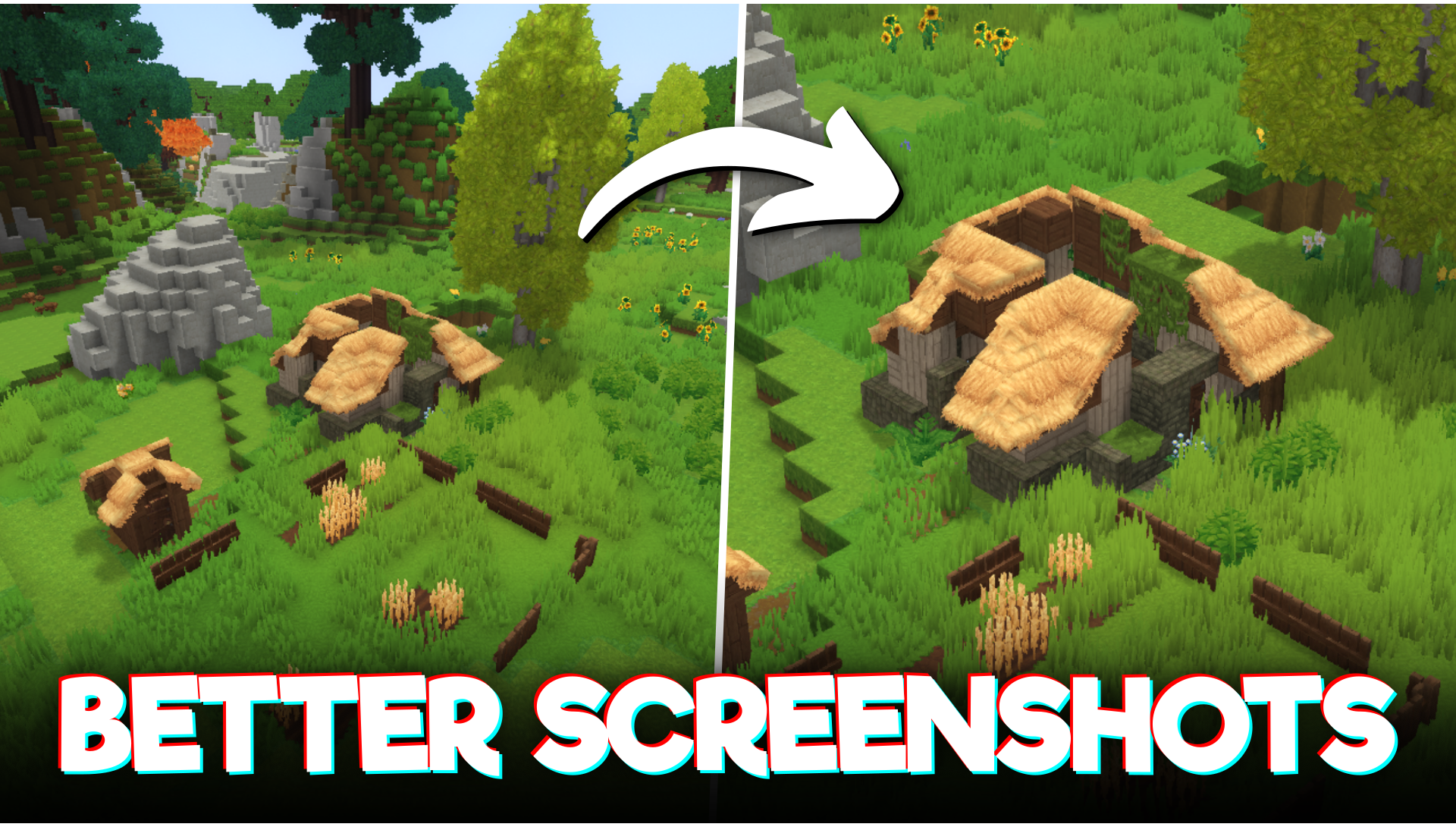
If your Hytale screenshots feel flat compared to the shots you see on Reddit and Twitter, the fix probably isn’t your graphics settings. It’s your field of view (FOV) slider. Dragging FOV down to its minimum value is the single fastest way to turn a normal gameplay screenshot into something that looks pulled from a movie trailer.
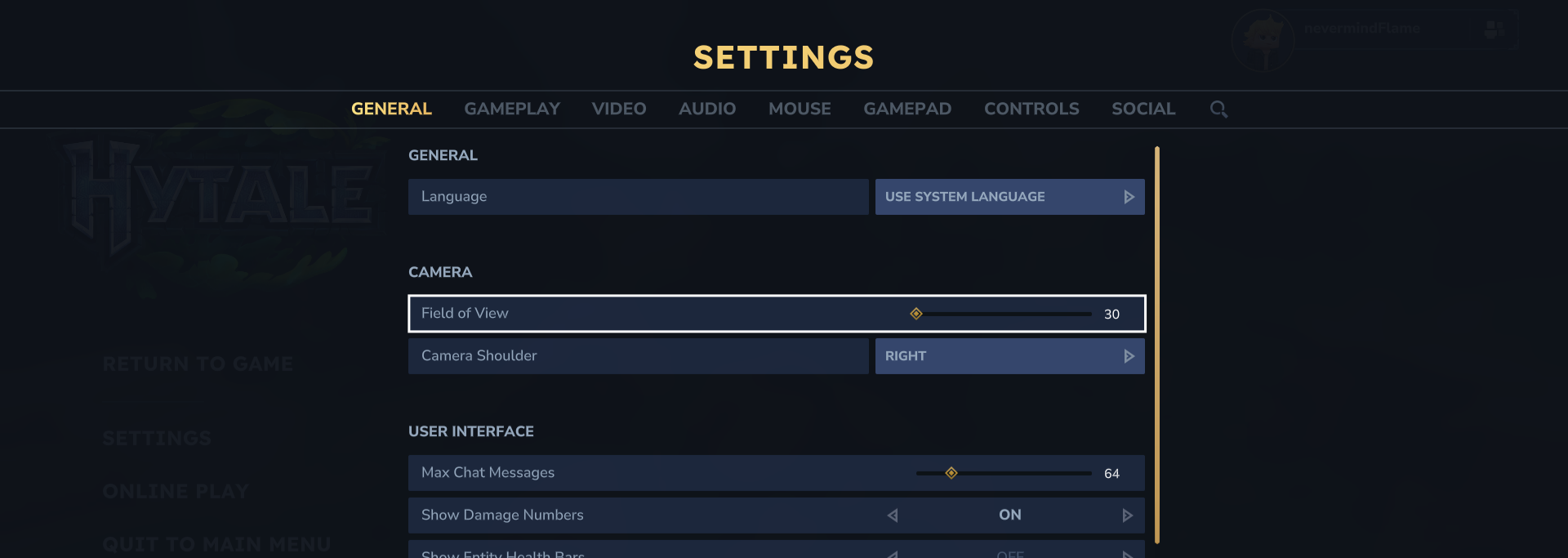
Here’s why it works, and how to use it.
What FOV Actually Does in Hytale
FOV controls how much of the game world your camera captures at once. A high FOV (the default setting most players start with) stretches the frame wide, showing more of your surroundings but compressing everything toward the edges with a fisheye-like distortion. A low FOV narrows that frame, showing less of the world but rendering it with far less lens distortion and a much tighter, more focused composition.
In practical terms: default FOV shows you more of the map. Minimum FOV shows you a better picture of it.
Default FOV vs Minimum FOV: The Visual Difference
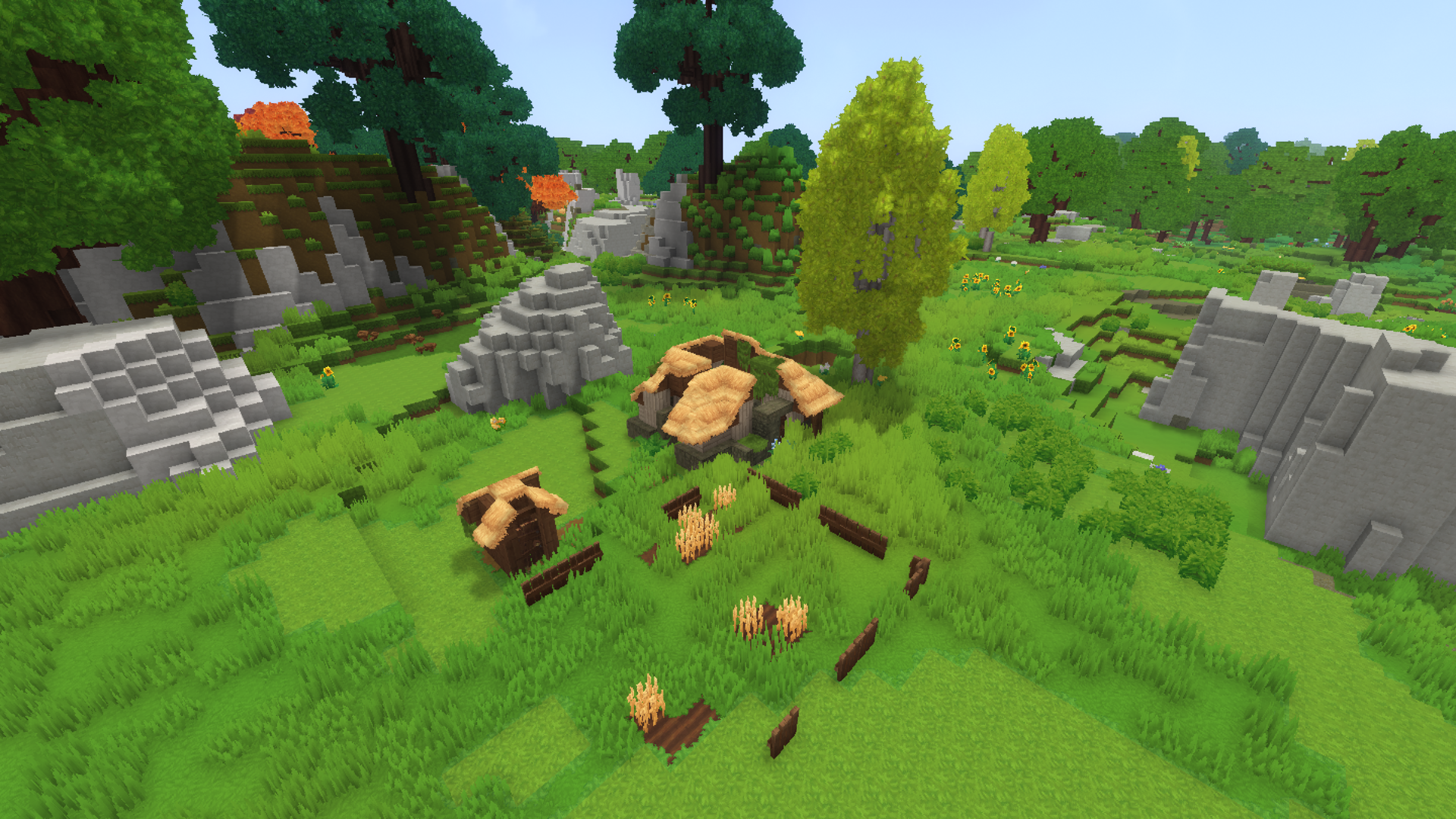
At default FOV, subjects in the middle distance look small, background elements pull toward the corners of the frame, and straight lines near the edges bend slightly outward. It’s great for gameplay, since it maximizes peripheral awareness. But for a screenshot, that wide-angle stretch reads as “gameplay footage,” not “photography.”
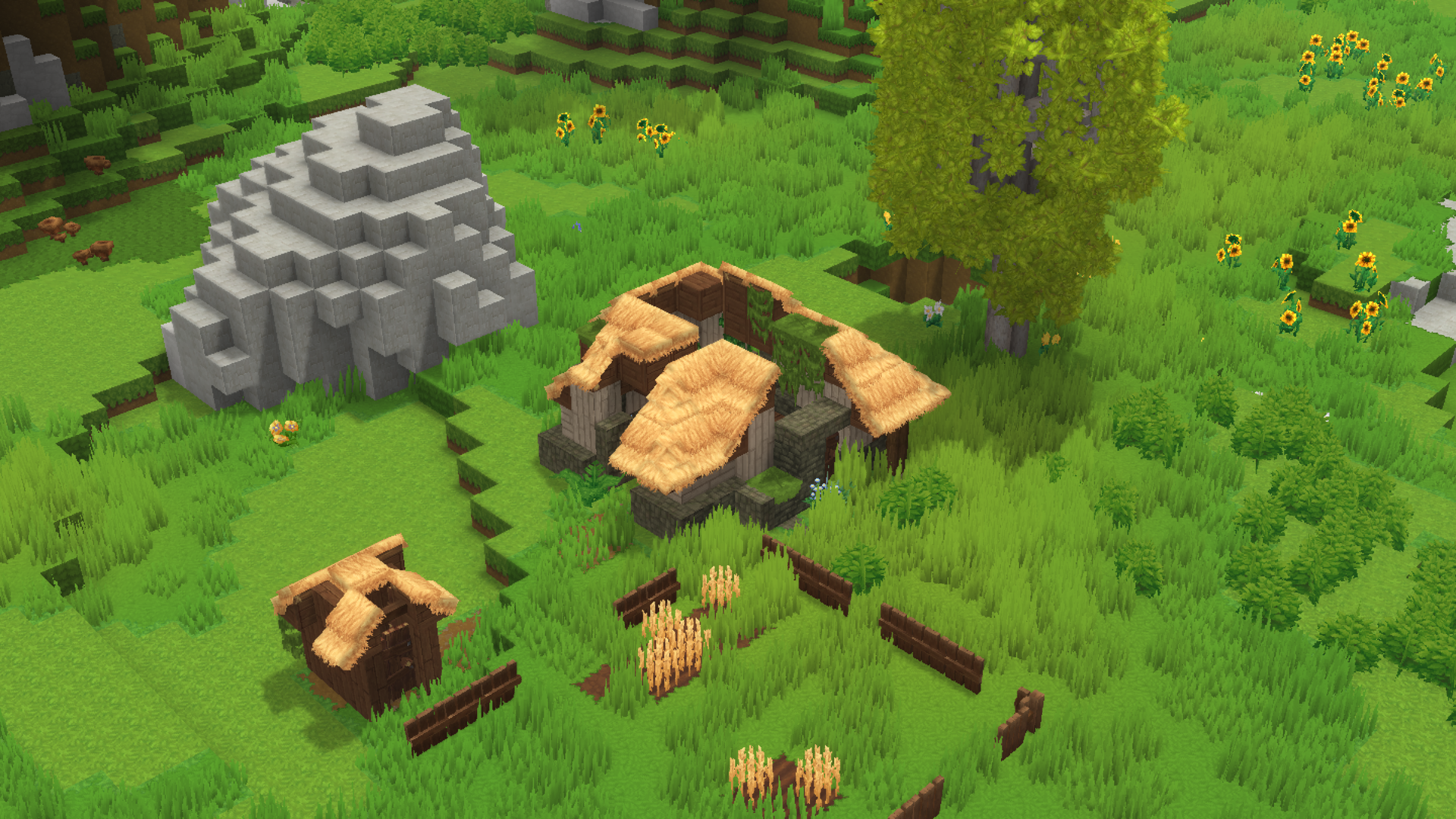
Drop the slider to minimum, and the same scene changes character entirely. Distances compress, so your subject and the background elements behind it feel closer together and more connected. Edge distortion disappears almost completely. The composition tightens into something that resembles a telephoto camera lens rather than a security camera.
Why Low FOV Reads as “Cinematic”
This isn’t a Hytale-specific trick. It’s the same reason film directors reach for longer lenses during dramatic or scenic shots:
- Compression flatters scale. A narrow FOV pulls background mountains, buildings, or mobs visually closer to your subject, making environments feel grander and more immersive.
- Less distortion, more realism. Wide FOV bends straight edges near the frame border. Minimum FOV keeps verticals straight and horizons level, which our eyes read as more “real” and intentional.
- Tighter framing forces better composition. With less real estate in the shot, you naturally center your subject and crop out visual clutter, similar to switching from a wide-angle to a portrait lens.
How to Lower FOV for Screenshots in Hytale
- Open Settings > Video/Display.
- Find the Field of View slider.
- Drag it all the way to the minimum value.
- Frame your shot, then take the screenshot.
- Set FOV back to your normal gameplay preference afterward, since a permanently low FOV will hurt situational awareness during actual play.
Best Situations to Use Minimum FOV Screenshots
Minimum FOV isn’t a universal upgrade, it’s a tool for specific shots:
- Character portraits and close-up screenshots — the compression flatters faces and gear detail.
- Landscape and skybox shots — distant mountains, floating islands, or biome transitions look denser and more epic.
- Action poses with a mob or boss — tightening the frame makes the subject feel larger and more dominant in the shot.
For screenshots where you want to show scale by capturing a huge open area, default or even higher FOV can still be the better choice. Use minimum FOV when you want impact, not coverage.