
Guide
How to Set Player Permissions on a Hytale Server
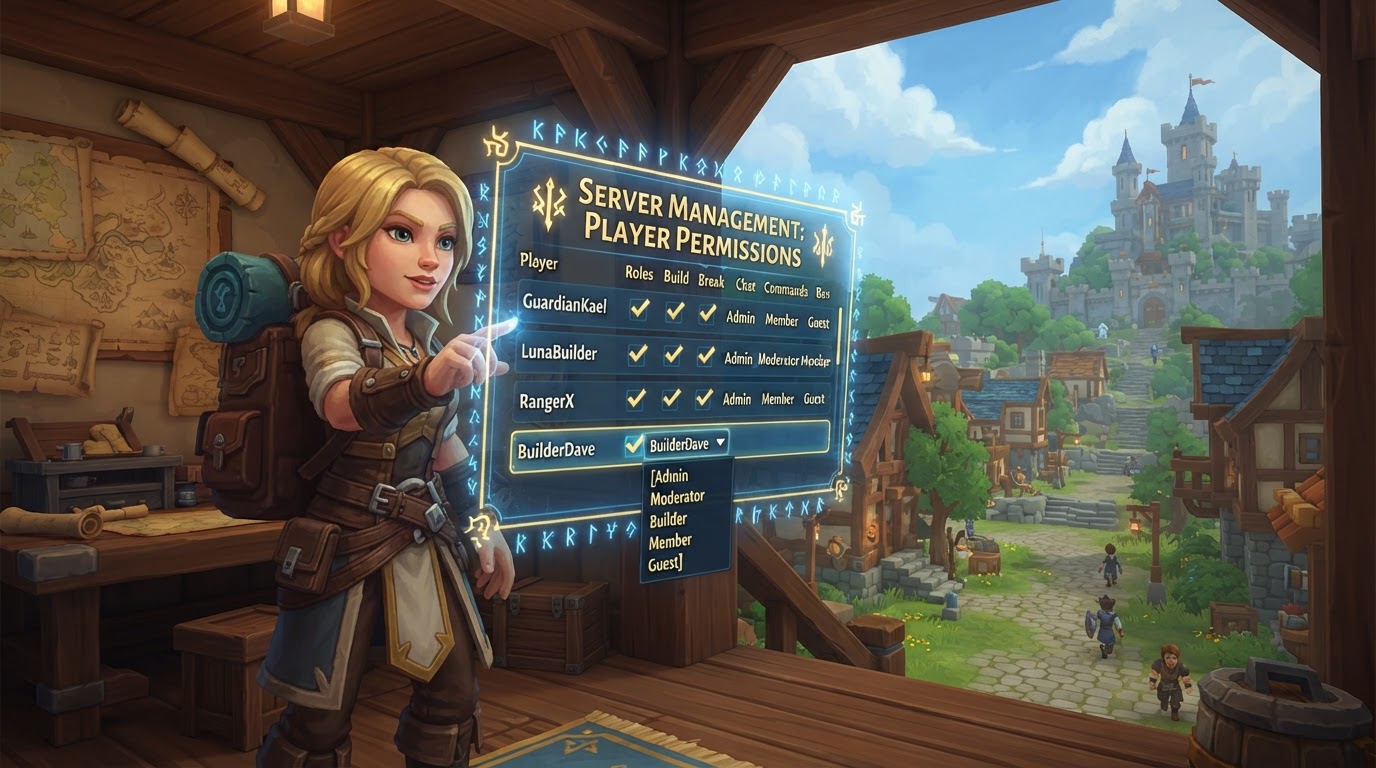
Setting player permissions on your Hytale server is fundamental for managing player actions, maintaining order, and fostering a balanced and secure environment. Hytale, currently in Early Access, utilizes a robust JSON-based permission system that allows for granular control over who can do what, either by directly editing server files or through in-game console commands.
Mechanics of Hytale Server Permissions
Hytale’s permission system is a core server management tool that dictates which actions and commands players can access within your server world. Understanding its underlying mechanics is crucial for effective administration.
permissions.jsonFile: Permissions are primarily stored and managed in a file namedpermissions.json. This file is located in the root directory of your server, alongside other critical configuration files likeconfig.jsonandwhitelist.json.- Permission Nodes: Specific access rights are granted through “permission nodes.” These are unique string identifiers that control access to particular features, commands, or actions. They often follow a hierarchical pattern, such as
hytale.command.kickfor the ability to kick players, orhytale.ambience.commandfor managing world ambience settings. - Wildcard Permissions: To simplify the assignment of multiple permissions, you can use a wildcard character (
*). This grants all permissions within a specific category. For example,hytale.command.*would grant access to all command-related permissions, whilehytale.admin.*would grant all administrative permissions. Use wildcards judiciously to avoid over-privileging players. - User and Group Assignments: The system supports granting permissions directly to individual users via their Universally Unique Identifier (UUID) or by assigning them to predefined groups (often referred to as roles). Groups can also be configured to inherit permissions from other groups, creating a layered hierarchy of access.
- Operator (OP) Status: Players granted Operator (OP) status automatically receive full administrative access to the server. This includes all commands and permissions, essentially acting as a super-user. OP status is typically assigned to server owners and trusted administrators.
- Permission Check Order: When a player attempts an action, Hytale checks their permissions in a specific order to determine access. The system first checks for direct permissions granted to the individual user. Next, it evaluates permissions inherited from any groups the player belongs to. Following this, it considers virtual groups (such as game-mode-based permissions). Finally, if no specific permission is found, a default value (usually “false” for denial) is applied. The first definitive match found in this sequence takes precedence, meaning a direct user permission can override a group permission.
How to Set Player Permissions
There are two primary methods for configuring player permissions on your Hytale server: by directly editing the permissions.json file or by using in-game console commands. Each method has its advantages depending on the permanence and scope of the changes you wish to make.
Method 1: Editing permissions.json (Recommended for Permanent Changes)
This method is the most reliable for establishing long-term permission configurations, especially for defining administrative roles, custom player ranks, and default access levels. It requires direct access to your server’s file system.
Step 1: Obtain Your Player UUID
Before you can assign permissions to yourself or other players, you’ll need their Universally Unique Identifier (UUID). This unique string identifies each player across Hytale servers.
- Connect to your Hytale server.
- Open the chat window (usually by pressing ‘T’ or ‘/’).
- Type
/uuidand press Enter. - Note down the displayed UUID (it will look something like
3bf5f21f-4a4d-4ff8-9294-9e3f31ecb70d). You can often copy it directly from the chat. - If you cannot connect to the server, you might find player UUIDs in server connection logs after they attempt to join, or by using a third-party Hytale UUID lookup tool if one becomes available.
Step 2: Stop the Server
This step is crucial. You must completely shut down your Hytale server before making any manual edits to the permissions.json file. Modifying the file while the server is running can lead to your changes being overwritten when the server next saves its configuration or restarts, effectively undoing your work.
Step 3: Access permissions.json
Once your server is offline, you can access its files.
- Navigate to your server’s root folder. This is typically done using an FTP client (like FileZilla) if you’re using a dedicated host, or directly through your hosting provider’s file manager in their control panel. If you’re self-hosting, it’s the folder where your Hytale server executable is located.
- Locate and open the
permissions.jsonfile using a plain text editor (e.g., Notepad++, Visual Studio Code, Sublime Text, or even basic Notepad). Avoid rich text editors as they can introduce formatting errors.
Step 4: Configure Permissions
The permissions.json file uses a JSON (JavaScript Object Notation) structure. Pay close attention to syntax, including commas, brackets, and quotation marks.
- Granting Administrator Status (OP): To give yourself or another player full administrative rights, you’ll add their UUID to the
"users"section and assign them to an “OP” group that has all permissions. If an “OP” group doesn’t exist, you’ll need to define it. A common setup looks like this:{ "users": { "YOUR_UUID_HERE": { "groups": [ "OP" ] } }, "groups": { "Default": [], "OP": [ "*" ] } }Replace
"YOUR_UUID_HERE"with the actual UUID you obtained in Step 1. This configuration places the user into the “OP” group, which is then defined to have the wildcard permission"*", granting all possible permissions. - Creating or Modifying Permission Groups: Within the
"groups"section, you can define different roles for your players. Each group can have a list of specific permission nodes. Groups can also inherit permissions from other groups using the"inherits"key, which is useful for building hierarchical roles (e.g., a “Moderator” group inheriting all permissions from a “Member” group).{ "groups": { "default": { "permissions": [ "hytale.command.help", "hytale.command.list" ] }, "member": { "permissions": [ "hytale.command.home.set", "hytale.command.home.teleport" ], "inherits": ["default"] }, "moderator": { "permissions": [ "hytale.command.kick", "hytale.command.mute", "hytale.command.ban.temp" ], "inherits": ["member"] }, "admin": { "permissions": ["hytale.admin.*"], "inherits": ["moderator"] } }, "users": { "ANOTHER_UUID_HERE": { "groups": ["moderator"] } } }In this example, a “moderator” inherits permissions from “member” (which in turn inherits from “default”), and also gains additional moderator-specific permissions. An “admin” inherits from “moderator” and gets all
hytale.admin.*permissions. Ensure correct JSON formatting: each permission node should be a string in a list, and items in lists or objects should be separated by commas. Group names are case-sensitive and should generally avoid spaces for consistency.
Step 5: Save and Restart
After you have made all your desired changes to the permissions.json file:
- Save the file in your text editor.
- Close the text editor.
- Start your Hytale server. The server will load the updated
permissions.jsonfile upon startup, applying all the new permission configurations. - Connect to the server and test the permissions to ensure they are working as intended.
Method 2: Using Console Commands (For In-Game or Temporary Adjustments)
Server operators with sufficient privileges can manage permissions directly through the server’s console (the command line interface where the server runs) or by using in-game commands. This method is convenient for quick adjustments or when you don’t have direct file system access.
- Granting Operator Status: These commands are typically used from the server console or by an existing OP player.
/op add <playername>: Grants full administrator permissions to a specific player by their in-game name./op add <uuid>: Grants full administrator permissions using a player’s UUID. This is more reliable as player names can change./op self: Grants yourself administrator permissions. This command is usually only available when run directly from the server console, not in-game.
- Removing Operator Status:
/op remove <playername>: Removes administrator access from a player by their in-game name./op remove <uuid>: Removes administrator access using a player’s UUID.
- Managing User Permissions: These commands allow for direct permission manipulation for individual players.
/perm user list <uuid>: Displays all permissions currently assigned to a specified user, both direct and inherited from groups./perm user add <uuid> <permission_node>: Adds a specific permission node to a user. Example:/perm user add YOUR_UUID hytale.command.fly/perm user remove <uuid> <permission_node>: Removes a specific permission node from a user./perm user group add <uuid> <group_name>: Adds a user to an existing permission group. Example:/perm user group add YOUR_UUID moderator/perm user group remove <uuid> <group_name>: Removes a user from a permission group.
- Managing Group Permissions: These commands allow for modifying the permissions associated with predefined groups.
/perm group list <group_name>: Displays all permissions associated with a specific group./perm group add <group_name> <permission_node>: Adds a permission node to a specified group. Example:/perm group add member hytale.command.spawn/perm group remove <group_name> <permission_node>: Removes a permission node from a specified group.
Tips for Effective Permission Management
Managing permissions efficiently is key to a smooth-running server. Consider these best practices:
- Principle of Least Privilege: Always grant players only the permissions they absolutely need to perform their role. This minimizes potential misuse, reduces the attack surface, and enhances overall server security.
- Utilize Groups Extensively: Organize permissions into logical groups (e.g., “Default,” “Member,” “VIP,” “Moderator,” “Admin”). This streamlines management, makes it easy to assign roles to new players, and simplifies updates.
- Regular Audits: Periodically review the list of operators and all player permissions. Ensure that roles are still appropriate and that no unauthorized or excessive access exists, especially for long-term staff members.
- Backups are Essential: Always create backups of your
permissions.jsonfile (and other critical configuration files likeconfig.jsonand world data) before implementing any major changes. This allows for quick recovery if an error occurs. - Use
/helpCommand: In-game, type/helpor/help <command_name>to view a real-time list of available commands and often their associated permission requirements for your specific server build. This is invaluable for discovering new nodes. - Test Changes on a Private Server: Before applying significant permission changes to a live production server, test them thoroughly on a private, staging, or development server. This prevents disruptions and unexpected issues for your player base.
- Leverage Hosting Panel Features: If you use a game server host, explore their control panel features. Many providers offer user-friendly interfaces for file editing, console command execution, and even dedicated permission management tools that can simplify the process.
Common Mistakes to Avoid
Even experienced administrators can make mistakes. Being aware of these common pitfalls can save you time and frustration:
- Editing
permissions.jsonWhile Server is Running: This is the most frequent and impactful mistake. Modifying thepermissions.jsonfile while the server is active will almost certainly result in your changes being overwritten when the server next saves or restarts. Always stop the server first. - Incorrect File Formatting: The
permissions.jsonfile must adhere to strict JSON syntax. Errors like missing commas, misplaced brackets, incorrect quotation marks, or extra characters will prevent the server from loading the permissions correctly, often reverting to defaults or causing startup issues. Use a JSON validator if unsure. - Over-Granting Wildcard Permissions: While convenient, granting extensive wildcard permissions (e.g.,
"*"for all permissions) to non-administrative roles creates significant security vulnerabilities. It’s better to be specific with permission nodes unless the role truly requires full access. - Forgetting to Restart the Server: After manually editing
permissions.json, the server must be restarted for the new permissions to be loaded and applied. Changes made via console commands are usually immediate. - “You do not have permission” Errors: This common error message indicates that the player attempting an action or command lacks the necessary permission node. When this occurs, review the player’s assigned permissions, their group roles, and the specific permission node required for the command.
- Misunderstanding Permission Check Order: Remember that direct user permissions can override group permissions. If a player isn’t getting a permission you expect from a group, check if they have a conflicting direct user permission.
Important Considerations for Early Access
As Hytale is in Early Access, there are some unique factors to keep in mind regarding permissions:
- Early Access Volatility: Hytale is actively under development. Specific command syntaxes, permission node names, and even the structure of the
permissions.jsonfile itself are subject to change in future updates. Always refer to the in-game/helpcommand or official Hytale documentation (when available) as the most current source of truth for your server’s build. - Plugin Permissions: While the core Hytale permission system is robust, third-party plugins (when they become available) will introduce their own specific permission nodes. The integration and management of these plugin-specific permissions will depend on the individual plugins and their developers, often requiring separate configuration or additional permission managers.
- Future Source Code Release: Hypixel Studios has indicated plans to release the full server source code 1-2 months after the official launch. This future release could enable more advanced custom permission management solutions, third-party permission plugins, and deeper server customization beyond the current scope.