
Guide
How to Change Your Discord Link in Hytale’s Social Sidebar
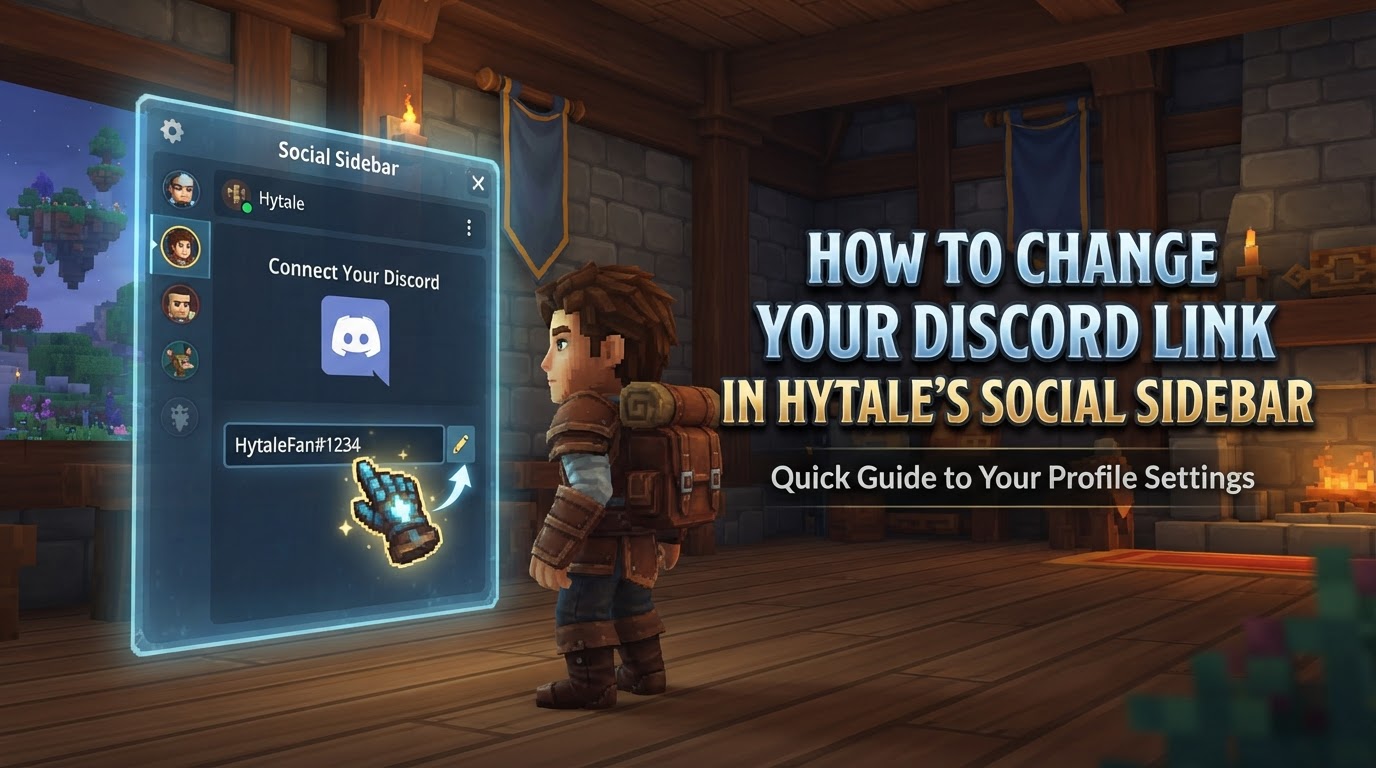
Changing your Discord link within Hytale’s Social Sidebar is a straightforward process that involves two primary steps: first, disconnecting your currently linked Discord account, and then connecting the new Discord account you wish to use. Hytale’s integration with Discord, introduced in Update 5, allows for a seamless social experience, but managing which account is linked requires a brief interaction with both your in-game settings and potentially the Hytale website.
Understanding Hytale’s Discord Integration
Hytale, since its early access launch and subsequent Update 5, has incorporated a Social Sidebar to enhance player interaction. A key feature of this sidebar is its direct integration with Discord, a popular communication platform. This integration allows players to bridge their Hytale and Discord presences, offering several benefits:
- Friend Management: Easily add Discord friends directly within Hytale.
- Online Status: View the online status of your Discord friends from within the game client.
- Seamless Grouping: Invite Discord friends to your world or join theirs with greater ease.
- Avatar Display: See your Discord friends’ avatars displayed in-game, adding a personal touch to your social interactions.
This functionality is managed through your Hytale account settings, accessible both on the official Hytale website and directly within the game’s client. The process of changing your linked Discord account essentially involves resetting this connection and establishing a new one.
Step-by-Step: Disconnecting Your Current Discord Account from Hytale
Before you can link a different Discord account, you must first sever the connection with the one currently associated with your Hytale profile. This ensures a clean slate for the new integration.
-
Launch Hytale and Access Settings:
Start the Hytale game client. From the main menu, navigate to the “Settings” option. This is typically represented by a gear icon or labeled explicitly.
-
Locate the Social or Discord Section:
Within the Settings menu, look for a tab or section dedicated to “Social” features or specifically “Discord.” The exact labeling may vary slightly with updates, but it will be clearly related to social connectivity.
-
Disable Discord Integration:
Inside the Discord or Social settings, you will find an option for “Discord Integration.” This will likely be a toggle switch or a selection between “Yes” and “No.” Select “No” to disable the integration.
-
Confirm and Save Changes:
After selecting “No” for Discord Integration, ensure you confirm your choice and save any pending changes. There might be a “Confirm” button followed by a “Save Changes” button. This action will effectively remove Hytale’s access to your previously linked Discord account and disconnect it from your Hytale profile.
Once these steps are completed, your Hytale account will no longer be linked to your previous Discord account. You are now ready to establish a connection with a different Discord account.
Step-by-Step: Linking a New Discord Account to Hytale
With your previous Discord account disconnected, you can now proceed to link the new Discord account you wish to use with Hytale. This process mirrors the initial setup for Discord integration.
-
Access Account Management:
You have two primary ways to initiate the connection:
- Via Hytale Website: Go to the official Hytale website and log in to your account management area. Look for options related to “Connected Accounts” or “Social Links.”
- Via In-Game Social Sidebar: Within the Hytale client, select your avatar, usually located in the top right-hand side of the main menu. This will open the Social Sidebar. Look for an option to connect your Discord account.
-
Initiate the Connection Process:
On the account management page or within the Social Sidebar, locate the option to connect your Hytale account to Discord. This will typically be labeled as “Connect,” “Link Discord,” or similar. Select this option.
-
Security Verification and Browser Redirection:
For security purposes, this action will usually open a separate web browser window. This window will facilitate the secure authentication process between Hytale and Discord.
-
Authorize Hytale via Discord:
In the newly opened browser window, you will be prompted to log in to your Discord account if you aren’t already. Ensure you log in with the specific Discord account you wish to link to Hytale. After logging in, you will be asked to authorize Hytale to access certain information from your Discord account. Review the requested permissions and click “Authorize” to proceed.
-
Complete Integration and Enable In-Game:
Once the authorization is successful, you can close the web browser window and return to the Hytale client. The connection between your Hytale account and the new Discord account should now be established. It is crucial to then navigate back to Hytale’s “Settings” menu, go to the “Social” or “Discord” section, and ensure that “Discord Integration” is toggled to “Yes.” This activates the features of the integration within the game.
Your Hytale account is now successfully linked to your desired Discord account, and you can enjoy all the integrated social features.
Important Considerations for Managing Your Discord Link
Keeping your social connections up-to-date in Hytale is simple once you understand the process. Here are some additional tips:
Always Consult Official Sources
Hytale is in early access, meaning features and interfaces can evolve with updates. For the most accurate and current instructions, always refer to the official Hytale website, their official announcements, or the in-game settings. Guides, including this one, are based on the latest available information but may require minor adjustments if significant UI changes occur.
Understand Discord Permissions
When authorizing Hytale to access your Discord account, take a moment to review the permissions it requests. These are generally for basic profile information and activity status, necessary for the integration to function correctly. Granting these permissions is essential for the link to work.
Distinguish Personal vs. Server Integration
This guide specifically addresses linking your personal Hytale player account to your Discord account for features like friend lists and status updates in the Social Sidebar. It is important not to confuse this with server-side Discord integrations, which often involve third-party mods or plugins for community management (like chat relays or role assignment based on in-game actions). Those require server administration knowledge and separate configuration.
Verify In-Game Settings
Even after successfully authorizing the connection through the Hytale website or the initial in-game prompt, always double-check your Hytale client’s settings. The “Discord Integration” toggle within the game’s Social settings must be enabled for the features to be active and visible in your Social Sidebar.
By following these steps and tips, you can effectively manage which Discord account is linked to your Hytale profile, ensuring your social experience is always connected to your preferred communication channels.