
Guide
How to Change Audio Output Device in Hytale
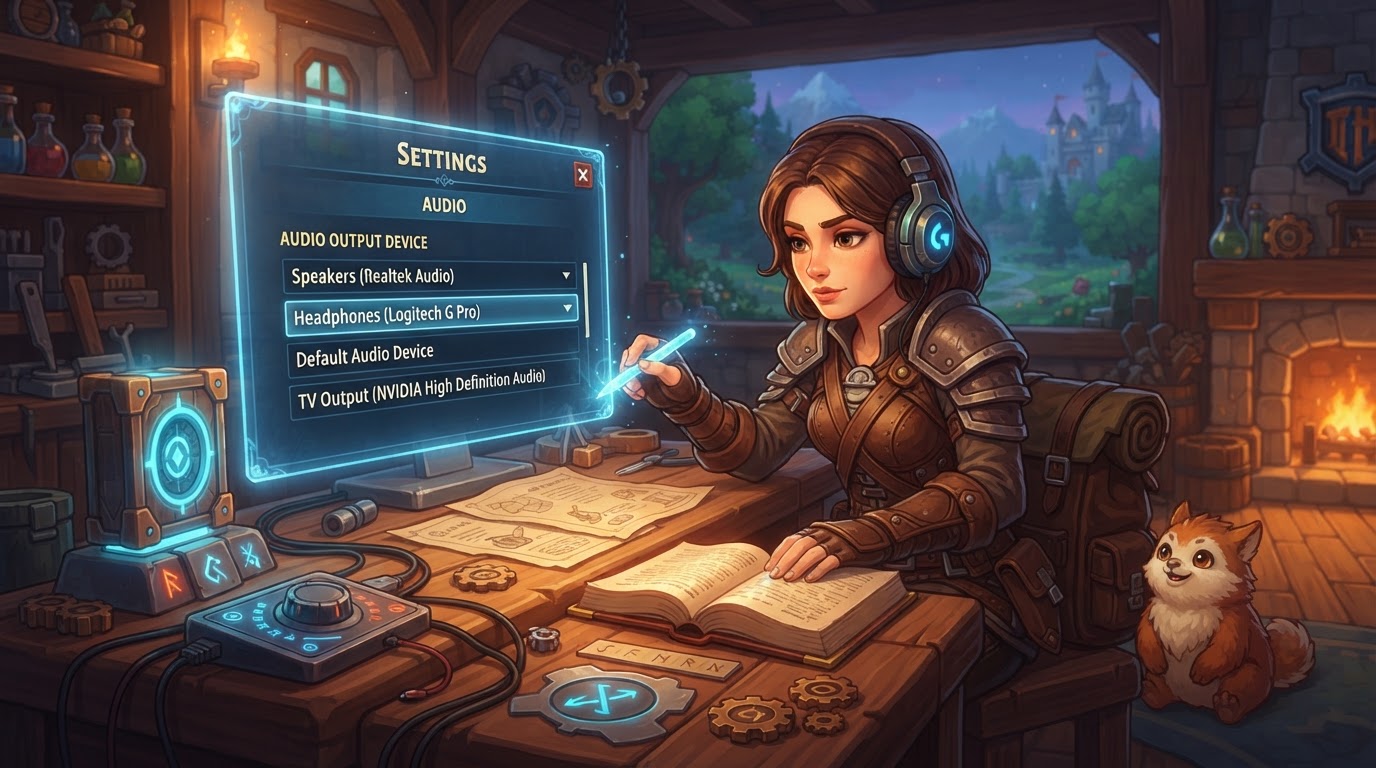
Hytale, which entered early access on January 13, 2026, provides players with direct in-game controls to manage their audio output, allowing for seamless switching between various connected devices such as headphones, speakers, or other audio peripherals without needing to exit the game. This crucial feature ensures that players can tailor their audio experience to their specific setup and preferences, whether they are engaging in intense combat, exploring the vast world of Orbis, or collaborating with friends.
Managing your audio output effectively is paramount for an immersive and enjoyable Hytale experience. The ability to quickly swap between a high-fidelity gaming headset for detailed sound cues and a set of external speakers for a more relaxed, shared experience is a testament to Hytale’s commitment to player convenience and customization. This guide will walk you through the precise steps to change your audio output device within Hytale, along with valuable tips and troubleshooting advice to ensure your sound is always exactly where you want it.
Accessing Audio Settings in Hytale
The journey to customizing your audio output begins within Hytale’s intuitive settings menu. This central hub for game customization houses all the controls you need to fine-tune your gameplay experience, including a dedicated section for audio.
- Open the Settings Menu: While in-game, you can typically access the settings menu by pressing the
Esckey on your keyboard. This action will pause the game and bring up a menu with several options, one of which will be “Settings” or “Options.” Click on this to proceed. - Navigate to the Audio Tab: Within the comprehensive settings menu, you will find various tabs dedicated to different aspects of the game, such as Graphics, Controls, and Audio. Locate and click on the “Audio” tab. This section is specifically designed to manage all sound-related aspects of Hytale, from volume levels to output devices.
Changing Your Audio Output Device
Once you are in the Audio tab, locating and changing your preferred output device is a straightforward process, designed to be as user-friendly as possible.
- Locate Output Device Setting: Within the “Audio” tab, you will see several categories and sliders for different sound types (e.g., Master Volume, Music Volume, Ambient Volume, UI Volume, Sound Effects Volume). Look for a section specifically labeled “Output.” Underneath this heading, you will find a setting titled “Output device.” This is the control you need to change your audio output.
- Choose Your Device: The “Output device” setting will typically display the currently active audio output. To change it, click on the dropdown menu or the list associated with this setting. A list of all detected and available audio output devices connected to your system will appear. This list might include your integrated speakers, connected headphones (both wired and wireless), USB headsets, or even virtual audio devices. Simply click on the name of the device you wish Hytale’s audio to play through.
- Save Changes: After selecting your new audio output device, it is crucial to apply your selection. Many games, including Hytale, require you to confirm your changes. Look for a “Save Changes,” “Apply,” or “OK” button, usually located at the bottom of the settings menu. Clicking this button will finalize your selection, and Hytale’s audio should immediately begin playing through your newly chosen device.
Understanding Hytale’s Audio Options
Beyond simply selecting an output device, Hytale offers additional audio settings that can further enhance your experience. Familiarizing yourself with these can help you achieve the best possible sound quality and immersion.
- Output Mode: In addition to the “Output device,” you may find an “Output Mode” setting. This option allows you to specify how Hytale processes and delivers audio. Common modes include:
- Default: Relies on the game’s standard audio processing.
- Stereo for Speakers: Optimized for a traditional two-speaker setup, often providing a wider soundstage.
- Stereo for Headphones: Tailored for headphone use, often enhancing spatial audio cues crucial for directional sound in gameplay.
- Mono: Combines all audio channels into a single channel, useful for certain accessibility needs or specific hardware setups.
Experimenting with these modes can significantly impact your perception of in-game sounds, especially when using headphones for competitive play where directional audio is key.
- Individual Volume Controls: Hytale provides granular control over different audio elements. You can adjust the master volume, but also independently control music, ambient sounds, user interface (UI) sounds, and sound effects (SFX). This allows you to prioritize certain sounds, such as lowering music to hear footsteps more clearly, or increasing ambient sounds for greater immersion.
Tips for Optimal Audio Experience
To ensure a smooth and consistent audio experience in Hytale, consider these expert tips:
- System Default Matters: While Hytale allows in-game selection, your operating system’s default audio device can sometimes influence which devices appear in the game’s list or how the game prioritizes them. If you encounter issues, ensure your desired device is set as the default playback device in your operating system’s sound settings (e.g., Windows Sound Control Panel or macOS Sound Preferences).
- Restart Hytale if Necessary: In some rare instances, especially after installing new audio hardware or updating drivers, Hytale might not immediately recognize a newly designated system default device. If you change your system’s default audio device, restarting Hytale can often prompt the game to re-scan and update its list of available output devices.
- Experiment with Output Mode: Don’t just stick to the default output mode. If you’re using high-quality headphones, switching to “Stereo for Headphones” might offer a more precise and immersive soundscape, enhancing your ability to pinpoint sound sources within the game world.
Common Issues and Troubleshooting
Even with straightforward settings, issues can arise. Here’s how to troubleshoot common problems when changing your audio output in Hytale:
- Forgetting to Save: This is perhaps the most common oversight. Always remember to click the “Save Changes” or “Apply” button after making any modifications in the settings menu. Without saving, your selection will not take effect, and Hytale will revert to the previous audio output.
- Desired Device Not Listed: If your preferred headphones or speakers do not appear in Hytale’s “Output device” dropdown, first check your operating system’s sound settings. Ensure the device is properly connected, recognized by your computer, and its drivers are up to date. Sometimes, a simple unplug and replug of a USB or 3.5mm jack can resolve connection issues.
- Game-Specific vs. System-Wide Audio: Remember that Hytale’s audio output setting only affects the game itself. Your overall system audio output (for web browsers, other applications, etc.) remains independent unless you also change it in your operating system’s sound settings. This means you can have Hytale playing through headphones while a video plays through your speakers.
- Outdated Audio Drivers: Ensure your audio drivers are current. Outdated or corrupted drivers can cause devices not to be recognized or to function improperly. Visit your audio device manufacturer’s website or your motherboard manufacturer’s website (for integrated audio) to download the latest drivers.
- The “Alt-Tab” Method (General PC Tip): For some PC games, if an in-game option isn’t available or working as expected, you can sometimes force a change by altering your default audio device in your operating system while the game is running, then Alt-Tabbing out of and back into the game. While Hytale provides direct in-game controls, making this method less necessary, it remains a general troubleshooting step for stubborn audio issues in PC gaming. It is uncertain how reliably this method works with Hytale specifically, given its robust in-game options.
By following these steps and understanding the nuances of Hytale’s audio settings, you can ensure that your in-game sound is always routed to your preferred device, providing the best possible auditory experience as you delve into the adventures of Orbis.