
Guide
How to Adjust Shadow Quality in Hytale
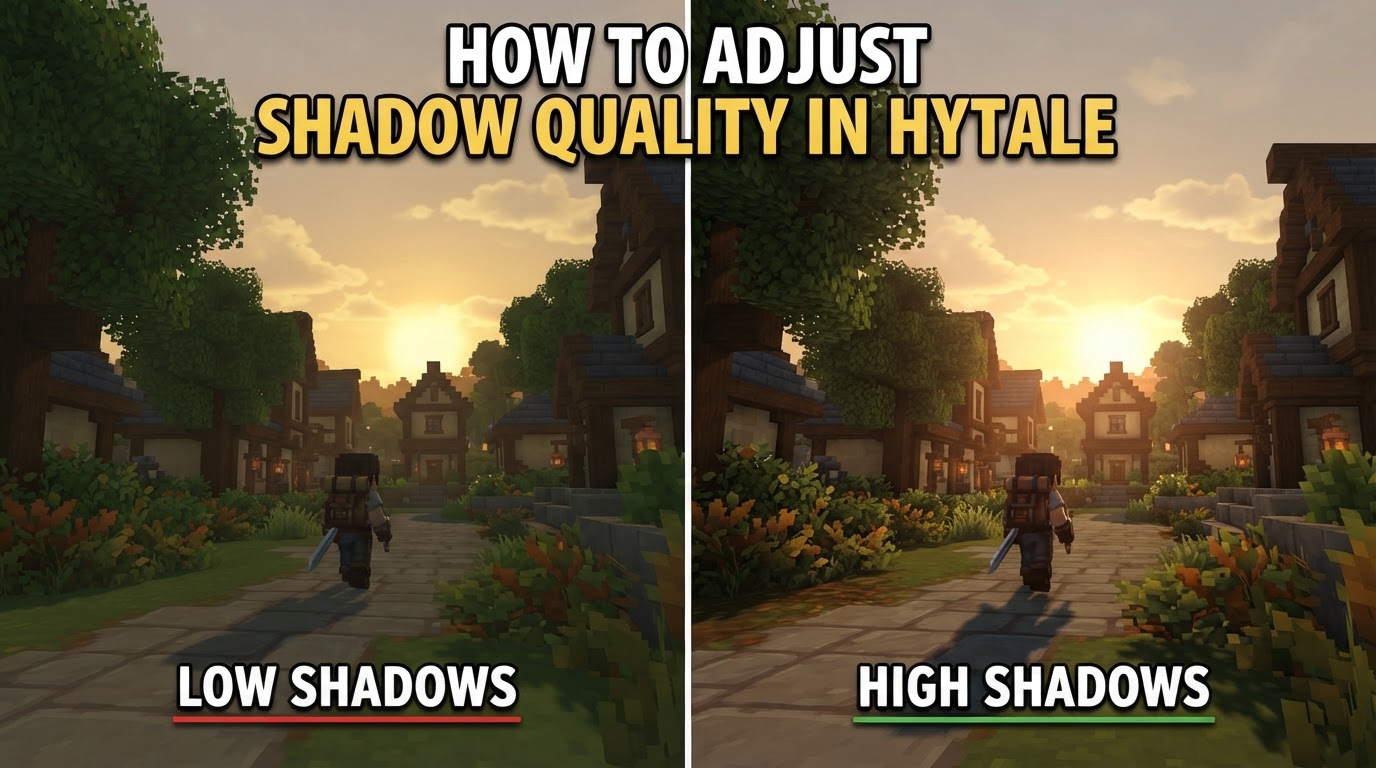
Optimizing shadow quality in Hytale is one of the most effective ways to significantly boost your game’s performance, as shadows are a notoriously resource-intensive graphical element in voxel-based environments. For the maximum frame rate improvement, it is highly recommended to set the “Shadows” option to 0 and “Shadow Quality” to “Low” within the game’s graphics settings.
Hytale’s rendering engine, while visually distinctive, places considerable demands on your system, particularly with complex lighting and shadow calculations across its vast, dynamic voxel world. Understanding how to fine-tune these settings can dramatically improve your gameplay experience, especially on less powerful hardware or when aiming for higher frame rates.
Adjusting Shadow Quality In-Game
This method allows you to modify shadow rendering directly through Hytale’s user interface, offering a balance between visual fidelity and performance.
-
Access Game Settings
Launch Hytale and navigate to the main menu. Look for an “Options” or “Settings” button, typically represented by a gear icon. Click on it to open the game’s configuration panel.
-
Locate Graphics or Video Settings
Within the settings menu, you’ll find various categories. Search for a tab or section explicitly labeled “Graphics,” “Video,” “Rendering,” or “Advanced Graphics.” This is where all visual adjustments are made.
-
Identify Shadow-Related Options
Once in the graphics settings, scan the available options for anything related to shadows. You are typically looking for two key settings:
- Shadows: This is often a toggle or a numerical slider that controls the presence and intensity of shadows. Setting this to
0(or “Off”) will disable most dynamic shadows, providing the largest performance increase. - Shadow Quality: If “Shadows” is not set to
0, this option determines the resolution and complexity of the shadows that are rendered. Common settings include “Low,” “Medium,” and “High.”
- Shadows: This is often a toggle or a numerical slider that controls the presence and intensity of shadows. Setting this to
-
Configure for Performance or Visuals
- For Maximum Performance: To prioritize frame rate above all else, set “Shadows” to
0. If0is not an option or you wish to retain some shadows, set “Shadow Quality” to “Low.” This minimizes the computational cost of shadow rendering. - For Balanced Visuals: If your system can handle it, experiment with “Shadow Quality” set to “Medium.” This often offers a noticeable visual improvement over “Low” without the full performance hit of “High.”
- For High Fidelity: Choose “High” for “Shadow Quality” if you have a powerful system and prioritize visual realism. Be aware that this will likely have the most significant impact on your frame rate.
- For Maximum Performance: To prioritize frame rate above all else, set “Shadows” to
-
Consider “Shading Quality”
You may also encounter a setting called “Shading Quality.” While distinct from “Shadow Quality,” it often impacts the overall visual complexity of lighting and surface rendering. Like shadow settings, it typically offers “Low,” “Medium,” and “High” options. If you’re struggling with performance, setting “Shading Quality” to “Low” can also contribute to better frame rates.
-
Apply and Save Changes
After adjusting your desired settings, look for an “Apply,” “Save,” or “OK” button to confirm your changes. The game may require a brief reload or even a restart for some graphical settings to take full effect.
Enabling Fullbright Mode (No Shadows, Out-of-Game)
For scenarios where clear visibility is paramount, such as detailed building projects, server administration, or content creation, Hytale offers a “Fullbright” mode. This mode completely eliminates all shadows and ensures every block is perfectly lit, regardless of light sources. Activating Fullbright requires editing a game configuration file outside of the game itself.
-
Close Hytale Completely
It is crucial that Hytale is not running when you make these changes. If the game is open, it may overwrite your manual edits upon closing, reverting them to the previous state.
-
Locate Your User Data Folder
The game’s configuration files are stored in your user data directory. On Windows, you can quickly access this by pressing
Windows Key + R, typing%appdata%\Hytale\UserDatainto the Run dialog, and pressing Enter. -
Delete the Backup Settings File
Inside the
UserDatafolder, you will find a file namedSettings.json.back. Delete this file. This prevents the game from restoring an older configuration that might not include your Fullbright setting. -
Edit the
Settings.jsonFileOpen the
Settings.jsonfile using a plain text editor such as Notepad (Windows), TextEdit (macOS), or Notepad++. -
Modify “FullbrightEnabled”
Within the
Settings.jsonfile, search for the section titled"BuilderToolsSettings". Inside this section, locate the line that reads"FullbrightEnabled": false. Change the value fromfalsetotrue, so the line now reads:"FullbrightEnabled": true.
{

    // ... other settings ...

    "BuilderToolsSettings": {

        "FullbrightEnabled": true,

        // ... other builder tool settings ...

    },

    // ... other settings ...

}
-
Save and Restart Hytale
Save the modified
Settings.jsonfile and then launch Hytale. You should now observe that all areas within the game are uniformly lit, with no shadows present.
Tips for Optimal Shadow Quality Adjustment
-
Prioritize Performance with Shadow Settings
As shadows are a primary performance hog, setting “Shadows” to
0or “Shadow Quality” to “Low” is consistently the most impactful change you can make for higher frame rates. This is especially true for Hytale’s voxel engine, where countless surfaces interact with light. -
Consider Your Hardware Beyond the GPU
While graphics settings typically focus on the GPU, Hytale’s voxel-based world generation and physics are notably CPU and RAM intensive. If you’re experiencing general performance issues even with low shadow settings, consider that upgrading your CPU or increasing your RAM might yield more significant improvements than just a GPU upgrade, provided your current GPU meets the minimum requirements.
-
Evaluate Visual Impact vs. Performance Gain
Many players report that the visual difference between “Low” and “Medium” or even “High” shadow/shading quality settings can be subtle, especially during fast-paced gameplay. Experiment with different settings to find your personal sweet spot where the visual quality is acceptable, and the performance gain is noticeable.
-
Utilize Fullbright for Specific Tasks
Fullbright mode is not generally recommended for regular gameplay as it removes the intended atmosphere and visual depth. However, it is an invaluable tool for tasks requiring absolute clarity, such as precise block placement in creative builds, debugging lighting issues as an administrator, or recording content where consistent illumination is necessary.
Common Considerations and Evolving Settings
-
“Shadow Quality” vs. “Shading Quality”
There can be some confusion regarding the precise distinction and interaction between “Shadow Quality” and “Shading Quality.” While “Shadow Quality” specifically pertains to the rendering of shadows, “Shading Quality” often encompasses broader aspects of how light interacts with surfaces, including ambient occlusion and other visual effects. Adjusting both to “Low” will generally provide the best performance.
-
Subtle Visual Differences at Higher Settings
Due to Hytale’s distinctive art style and rendering approach, the visual improvements from increasing shadow or shading quality beyond “Low” or “Medium” might not always be as dramatic as in other games. For many, the performance cost of “High” settings outweighs the perceived visual benefit.
-
Early Access Volatility
It’s important to remember that Hytale is in early access. Graphical settings, their specific names, their impact on performance, and even the availability of certain options are subject to change as the game develops. What is true today might evolve in future updates.
-
Overall Lighting Balance
Even with shadow quality adjustments, some players have noted that certain areas, such as nights or deep caves, can remain quite dark. This indicates that the overall lighting balance is a broader aspect of the game’s visual design, which may be refined independently of individual shadow quality settings.