
Guide
How to Edit a Hytale Mod’s manifest.json File
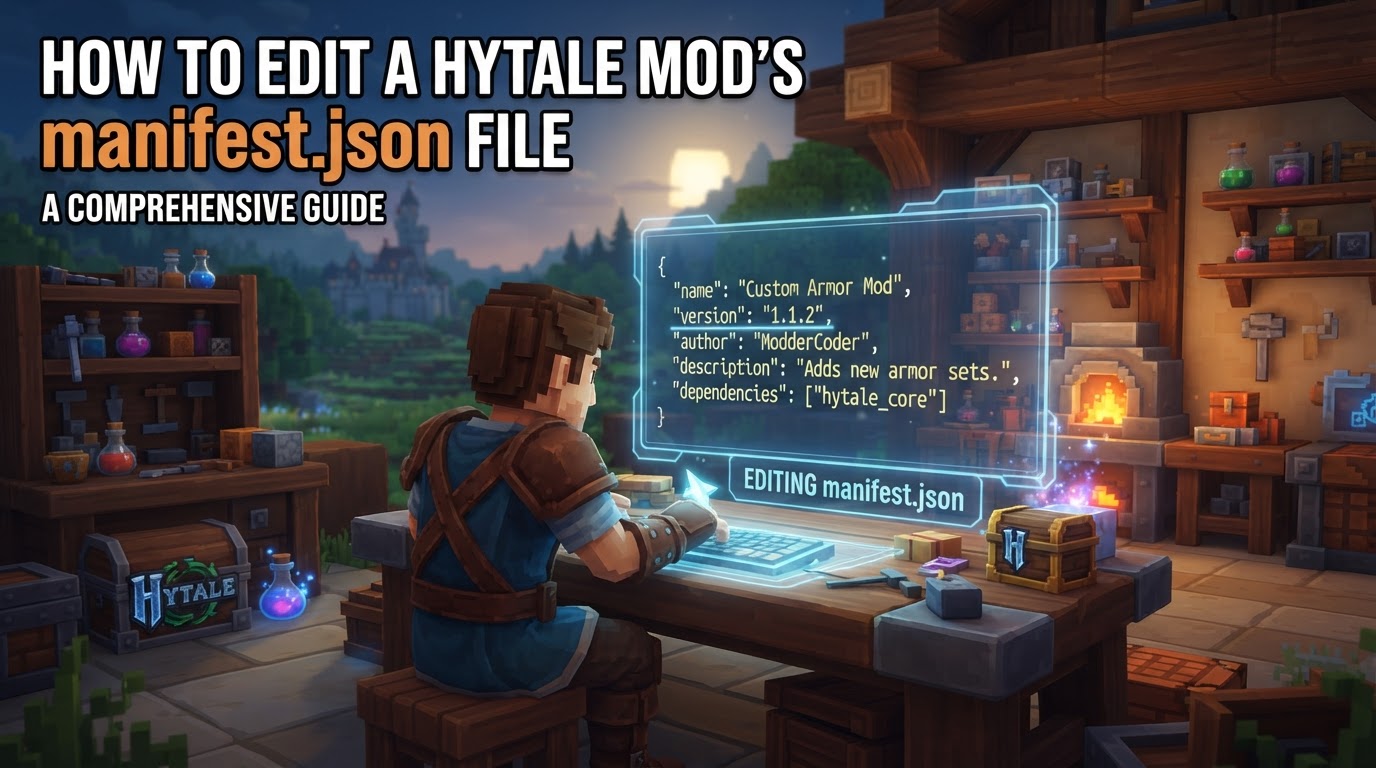
The manifest.json file is the foundational metadata file for any Hytale mod, whether it is a content pack or a plugin. It acts as the mod’s identity card, providing the Hytale game client and server with essential information required to load, identify, and manage your creation correctly. Understanding and accurately editing this file is paramount for any mod developer.
What is the manifest.json File?
The manifest.json file is a required JSON file that must be placed in the root directory of your Hytale mod. It contains critical metadata that Hytale uses to interact with your mod. Without a correctly formatted and located manifest.json, your mod will not be recognized or loaded by the game.
Its key purposes include:
- Identity: Assigning a unique
GroupandNameto your mod, which helps Hytale distinguish it from others. - Versioning: Specifying the mod’s
Versionusing Semantic Versioning 2.0.0, allowing for clear updates and compatibility checks. - Description & Authorship: Providing a
Descriptionof the mod’s function and listing itsAuthors, including their names, emails, and URLs. - Dependencies: Declaring other mods or packs that your mod relies on to function correctly. These are specified using the
Group:Nameformat and semantic version ranges. - Entry Point (for Plugins): For Java-based plugins, it defines the
Mainclass that Hytale loads to start your plugin’s logic. - Asset Bundling: Indicating if the mod includes an embedded asset pack that should be registered, via the
IncludesAssetPackfield. - Compatibility: Specifying the compatible Hytale server version using the
ServerVersionfield. Since Update 3, this is validated as a plain string equality check.
Exact Steps to Edit a manifest.json File
Editing your manifest.json file involves locating it, opening it with a suitable editor, modifying its properties, and then saving it correctly.
1. Locate Your Mod’s Folder and manifest.json File
- For Content Packs: If you are working with a content pack (e.g., custom blocks, items, creatures), the
manifest.jsonfile is typically found within your mod’s installation directory. This is usually located at./AppData/Roaming/Hytale/UserData/Mods/YourPackName/or./AppData/Roaming/Hytale/UserData/Packs/YourPackName/on your system. Themanifest.jsonshould be directly inside theYourPackNamefolder. - For Plugins: If you are developing a Java-based plugin, the
manifest.jsonfile is usually located within your project’s resources directory. The standard path issrc/main/resources/manifest.jsonwithin your plugin’s project directory.
2. Open the manifest.json File
You can open the manifest.json file using any plain text editor. Popular choices include:
- Notepad++ (Windows)
- VS Code (Cross-platform)
- Sublime Text (Cross-platform)
- Atom (Cross-platform)
For plugin developers, an Integrated Development Environment (IDE) like IntelliJ IDEA is highly recommended, as it offers advanced features such as JSON validation and syntax highlighting, which can prevent common errors.
3. Modify Properties
Once opened, you will see a JSON structure consisting of key-value pairs. You will edit these pairs according to your mod’s specifications. Below is a common structure you might encounter, along with explanations for each field:
{
  "Group": "YourGroupName",
  "Name": "YourModName",
  "Version": "1.0.0",
  "Description": "A brief description of your mod.",
  "Authors": [
    {
      "Name": "YourName",
      "Email": "your.email@example.com",
      "Url": "https://your-website.com"
    }
  ],
  "Website": "https://your-mod-website.com",
  "ServerVersion": "*",
  "Dependencies": {},
  "OptionalDependencies": {},
  "DisabledByDefault": false,
  "Main": "com.yourcompany.yourmod.YourMainClass",
  "IncludesAssetPack": false
}
"Group": A unique identifier for your organization or project (e.g.,"hytale.community","mycompany"). This helps prevent naming conflicts."Name": The specific name of your mod or pack (e.g.,"FantasyPack","MagicPlugin"). Combined with theGroup, this forms the unique identifierGroup:Name."Version": The current version of your mod. It must follow Semantic Versioning 2.0.0 (e.g.,"1.0.0","1.0.0-alpha.1","1.0.0+build.123")."Description": A short, descriptive text explaining what your mod does."Authors": An array of objects, where each object represents an author. Each author can have a"Name","Email", and"Url"."Website": An optional URL pointing to your mod’s official website or repository."ServerVersion": Specifies which Hytale server versions your mod is compatible with. Use"*"for compatibility with any version (use with caution), or a specific version string (e.g.,"0.7.1"). This is a direct string comparison."Dependencies": A JSON object where keys areGroup:Nameidentifiers of other required mods, and values are semantic version ranges (e.g.,"hytale.core:items": ">=1.0.0 <2.0.0"). Your mod will not load if these dependencies are not met."OptionalDependencies": Similar to"Dependencies", but for mods that enhance functionality but are not strictly required for your mod to run."DisabledByDefault": A boolean value. Iftrue, the mod will not load automatically and must be enabled manually by the user. Defaults tofalse."Main"(Plugins only): The fully qualified class name of your plugin’s entry point (e.g.,"com.yourcompany.yourmod.YourMainClass"). This tells Hytale where to start executing your plugin’s code."IncludesAssetPack": A boolean value. Set totrueif your plugin JAR file contains an embedded asset pack that Hytale should register. Defaults tofalse.
4. Save the File
After making your modifications, save the file. It is crucial that the file is saved as manifest.json (with the exact lowercase name) and that it retains its correct JSON formatting. Any syntax errors (like missing commas or unclosed brackets) will prevent Hytale from reading the file.
Tips for Editing Your manifest.json
- Use a JSON Validator: Before saving, consider running your
manifest.jsonthrough a JSON validator. Online tools or IDEs can check for syntax errors and ensure your file is well-formed. The HytaleDocs JSON Validator is specifically designed for Hytale manifests and can help ensure fields are valid. - Adhere to Semantic Versioning: Always follow Semantic Versioning 2.0.0 for your mod’s
"Version". This makes it easier for users and other developers to understand compatibility and changes between your mod’s releases. - Manage Dependencies Carefully: Clearly define all required and optional
"Dependencies". Use theGroup:Nameformat and specific semantic version ranges to avoid unexpected behavior or crashes due to incompatible versions of other mods. - Leverage IDE Support for Plugins: If you’re developing Java plugins, IntelliJ IDEA combined with the Hytale IntelliJ Plugin offers invaluable features like manifest.json validation, autocompletion for Hytale-specific fields, and integration with build tools like Gradle to automate updates to fields like
"Version"and"IncludesAssetPack". - Utilize the In-Game Asset Editor for Content Packs: For content packs, Hytale’s in-game Asset Editor can often generate and manage the
manifest.jsonautomatically, simplifying the process and reducing the chance of manual errors. - Test Frequently: Hytale is in early access, and modding features can change. After any modification to your
manifest.json, always test your mod thoroughly in-game to ensure it loads correctly and behaves as expected.
Common Mistakes to Avoid
- Incorrect JSON Syntax: Missing commas, unclosed brackets, or typographical errors will render the file unreadable, causing your mod to fail to load. JSON is strict about its syntax.
- Missing Required Fields: Failing to include essential fields like
"Group","Name", or"Version"will result in an invalid manifest. For plugins, the"Main"entry point is also mandatory. - Incorrect File Naming or Location: The file must be named
manifest.json(all lowercase) and placed directly in the root directory of your mod folder, not in a subdirectory. Incorrect file extensions (e.g.,manifest.json.txt) will prevent it from being recognized. - Version Incompatibility (
ServerVersion): Specifying a"ServerVersion"that does not exactly match the running Hytale server version can prevent your mod from loading. Be precise or use"*"cautiously. - Incorrect Dependency Specification: Typos in dependency
Group:Nameidentifiers or invalid semantic version ranges for dependencies will cause resolution issues, preventing your mod from loading. MainClass Not Found (Plugins): For plugins, if the"Main"field points to a class that does not exist, is incorrectly named, or is not accessible within your plugin’s JAR, the plugin will fail to load.
Uncertainty in Early Access
It is important to remember that Hytale is currently in early access. Modding features, file structures, and the behavior of the manifest.json file are subject to change as the game develops. Always refer to the latest official Hytale modding documentation and community resources for the most accurate and up-to-date information.