
Guide
How to Create a Content Pack in Hytale (No Coding Required)
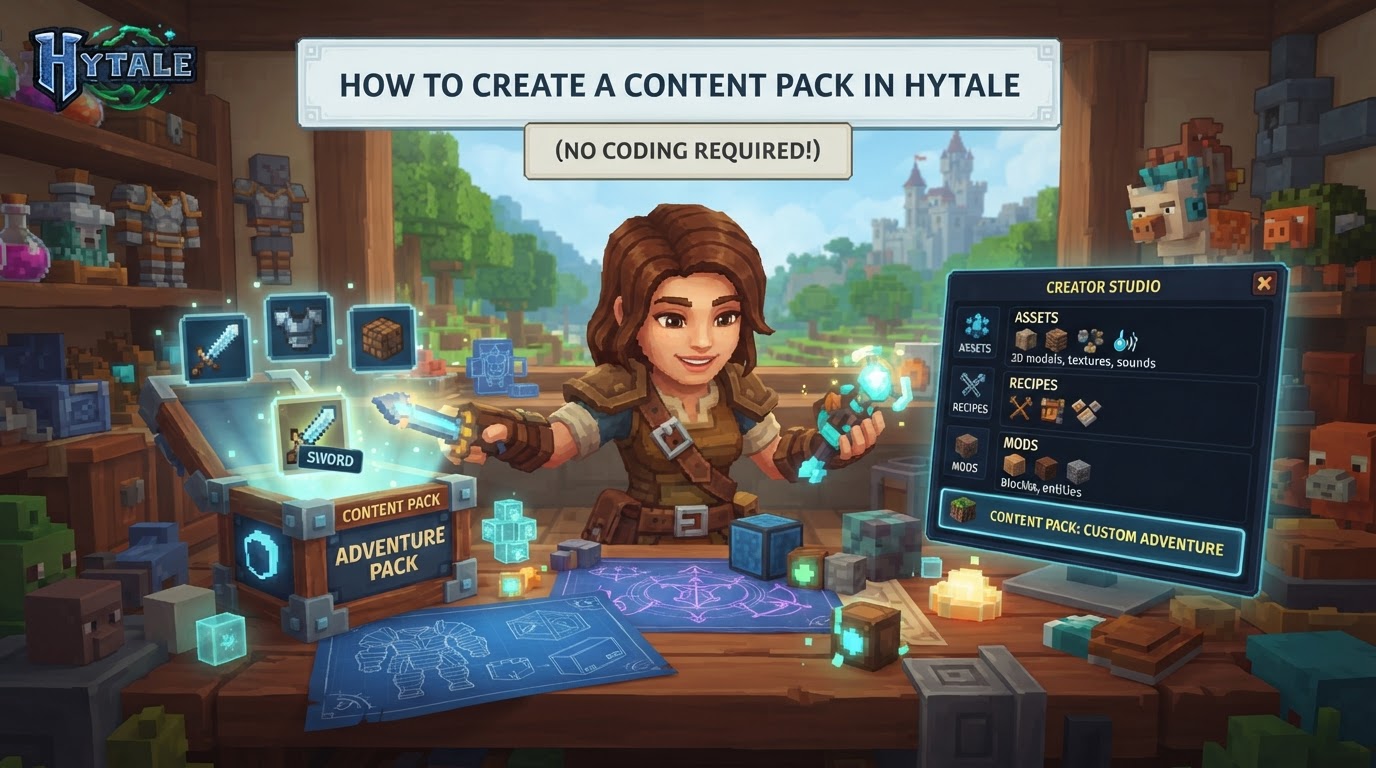
Hytale’s “Packs” system empowers creators to introduce entirely new game content – including blocks, items, creatures, sounds, and more – without writing a single line of code. This robust framework leverages structured data files and intuitive visual asset creation tools, allowing anyone to customize their Hytale experience or build unique server environments.
Content Packs, often simply called Packs, are fundamental to Hytale’s modding ecosystem. They are bundles of assets and data that define new elements within the game. Unlike traditional modding that often requires programming knowledge, Hytale’s Packs are designed for accessibility, primarily utilizing JSON files for data definition and various visual formats for assets. This approach aligns with Hytale’s core philosophy of making content creation approachable for a wide audience.
A key advantage of Hytale’s content pack system is its server-side integration. When a player connects to a Hytale server running custom content, all necessary pack data is automatically streamed to their client. This eliminates the common friction points of client-side mod installations and version compatibility issues, ensuring a seamless and consistent experience for all players. Even in single-player mode, Hytale runs a local server instance, benefiting from the same dynamic content delivery system. Furthermore, data assets within Packs support live reloading during development, allowing creators to see their changes reflected in-game almost instantly.
How to Create a Content Pack (No Coding Required)
Creating a content pack in Hytale involves a structured process of folder organization, data definition, and asset creation using the game’s official tools. Follow these steps to build your own custom Hytale content.
-
Create Your Pack’s Project Folder
The first step is to establish the foundation for your content pack. Navigate to your Hytale installation directory and locate the user data folder. Create a new folder specifically for your pack within the designated content pack directory. This ensures Hytale can discover and load your custom content.
- Location: Your pack folder should be placed in
./AppData/Roaming/Hytale/UserData/Packs/YourPackName(on Windows) or a similar path on other operating systems. ReplaceYourPackNamewith a unique and descriptive name for your content pack. - Purpose: This folder will house all the files and assets that make up your content pack.
- Location: Your pack folder should be placed in
-
Define Your Pack with a Manifest File
Every content pack requires a manifest file, which acts as its identity card. This JSON file provides essential metadata that Hytale uses to identify, load, and manage your pack.
- File Name: Inside your
YourPackNamefolder, create a new text file and save it asmanifest.json. - Content: The
manifest.jsonfile will contain basic information such as the pack’s name, version, and a unique identifier. While you can manually edit this JSON, Hytale’s Asset Editor (discussed below) can often assist in generating or validating its structure. - Example (simplified):
{
  "name": "My Custom Blocks Pack",
  "version": "1.0.0",
  "id": "my_custom_blocks_pack"
}
- File Name: Inside your
-
Set Up Essential Sub-Folders
To keep your content organized and ensure Hytale can find your assets, establish a standardized folder structure within your pack directory. The game expects certain types of content to reside in specific locations.
- Primary Folders: Create two main sub-folders:
CommonandServer.Common: Contains assets and data shared between the client and server (e.g., textures, models, block definitions). Most of your “no coding” content will go here.Server: Contains server-side specific logic or data. For truly “no coding” packs, this might be less used, but it’s good practice to include it.
- Detailed Organization (within
Common): For clarity and manageability, further organize your assets:assets/textures/: For image files (e.g., PNGs) used for blocks, items, and creatures.assets/models/: For 3D model files (.blockymodel).assets/sounds/: For audio files.data/blocks/: For JSON files defining new blocks.data/items/: For JSON files defining new items.data/creatures/: For JSON files defining new creatures.lang/: For localization files (e.g.,en_us.json) that define display names for your custom content.
- Primary Folders: Create two main sub-folders:
-
Add Content Using Official Tools
This is where the magic happens without writing code. Hytale provides powerful, user-friendly tools designed for visual content creation.
- Hytale Asset Editor (In-Game):
- Function: This is your primary tool for defining new blocks, items, NPCs, and other game entities. It’s built directly into Hytale and offers a graphical user interface (GUI) where you can adjust properties, assign textures, link models, and configure behaviors through dropdowns and input fields.
- Usage: Launch Hytale, enter Creative Mode, and access the Asset Editor through the in-game menus. You can create new definitions or modify existing ones, and the editor will automatically generate or update the corresponding JSON files within your pack’s
data/sub-folders.
- Blockbench with Hytale Plugin:
- Function: For creating custom 3D models and animations, Blockbench is the officially supported external software. It’s a free, intuitive 3D model editor that integrates seamlessly with Hytale through a dedicated plugin.
- Usage: Download Blockbench and install the Hytale plugin. You can then design voxel or low-poly models, animate them, and export them in Hytale’s native
.blockymodeland.blockyanimformats. These files are then placed in your pack’sassets/models/folder. Blockbench also helps manage associated textures.
- Hytale Creative Mode Tools:
- Function: While not for defining new assets, Creative Mode is invaluable for building, testing, and refining structures that can be saved as prefabs (reusable building blueprints) within your pack. It offers advanced building tools, terrain modification, selection tools for copying and pasting, and unlimited resources.
- Usage: Use Creative Mode to construct unique buildings, landscapes, or contraptions. These can then be saved and included as part of your content pack, ready to be spawned in your custom worlds or server.
- Hytale Asset Editor (In-Game):
-
Activate and Test Your Pack
Once you’ve created some content, it’s time to see it in action. Hytale makes testing your custom packs straightforward.
- Local Testing (Single-Player):
- Ensure your pack folder is correctly placed in
UserData/Packs/YourPackName. - Launch Hytale.
- Navigate to the “Worlds” tab.
- Right-click on an existing world (or create a new one).
- Look for an option to manage or toggle content packs for that world. Select your pack to activate it.
- Enter the world to explore and test your custom content.
- Ensure your pack folder is correctly placed in
- Server Deployment (Multiplayer):
- Copy your entire
YourPackNamefolder (including the manifest and all sub-folders) into the/mods/directory of your Hytale server. - Restart the Hytale server to load the new content.
- Server administrators can use in-game commands like
/packsto verify that your pack is loaded and active. Players joining the server will automatically download the pack’s content.
- Copy your entire
- Local Testing (Single-Player):
Tips for Content Pack Creation
- Leverage Official Tools: Always prioritize the Hytale Asset Editor and Blockbench with its Hytale plugin. These tools are specifically designed for Hytale’s ecosystem, ensuring compatibility and ease of use for non-programmers.
- Utilize Creative Mode: Think of Creative Mode as your sandbox. It’s perfect for quickly building, iterating, and testing how your new blocks, items, or prefabs look and behave in a live environment.
- Start Simple: Begin with small, manageable projects, such as creating a few new decorative blocks or a custom item. This helps you understand the workflow before tackling more complex endeavors like custom creatures or multi-part structures.
- Consult Documentation and Community: While comprehensive official documentation is always evolving, community resources like HytaleDocs, Reddit (r/HytaleMods), and Discord servers are invaluable for finding tutorials, asking questions, and getting support from other creators.
- Consider Visual Scripting (Advanced): Although this guide focuses on “no coding,” Hytale also features a visual scripting system (similar to Unreal Engine’s Blueprints). This allows you to create custom behaviors and game logic using a node-based interface, without writing traditional text-based code. Once comfortable with asset creation, exploring visual scripting can add significant depth to your packs.
- Publish on CurseForge: Once your content pack is polished and ready, consider sharing it with the wider Hytale community. CurseForge is Hytale’s official mod distribution partner, providing a platform for creators to upload and manage their content.
Common Mistakes to Avoid
- Incorrect Folder Structure: The most frequent error is misplacing the
manifest.jsonfile or theCommonandServerfolders. Hytale relies on this precise structure to discover and load your content. - Duplicate Files: When updating or modifying your pack, ensure you remove any older, superseded files. Duplicate or conflicting files can lead to unexpected behavior or loading errors.
- Missing Dependencies: While less common for basic asset packs, if your pack relies on assets or definitions from another content pack, make sure that dependent pack is also correctly installed and active.
- Version Mismatches: Always ensure your content pack is compatible with the version of Hytale you are running. Packs created for older or newer versions might cause issues.
- Overlooking Asset Editor Limitations (Early Access): During Hytale’s Early Access phase, certain advanced functionalities within the Asset Editor might still be under development or have limitations. Be aware of these and adjust your expectations accordingly.
- Mod Conflicts: If you run multiple content packs, there’s a possibility of conflicts if they attempt to modify the same game asset or introduce contradictory rules. Test packs incrementally to identify and resolve such issues.