
Guide
How to Install Mods on a Hytale Dedicated Server (mods/ Folder)
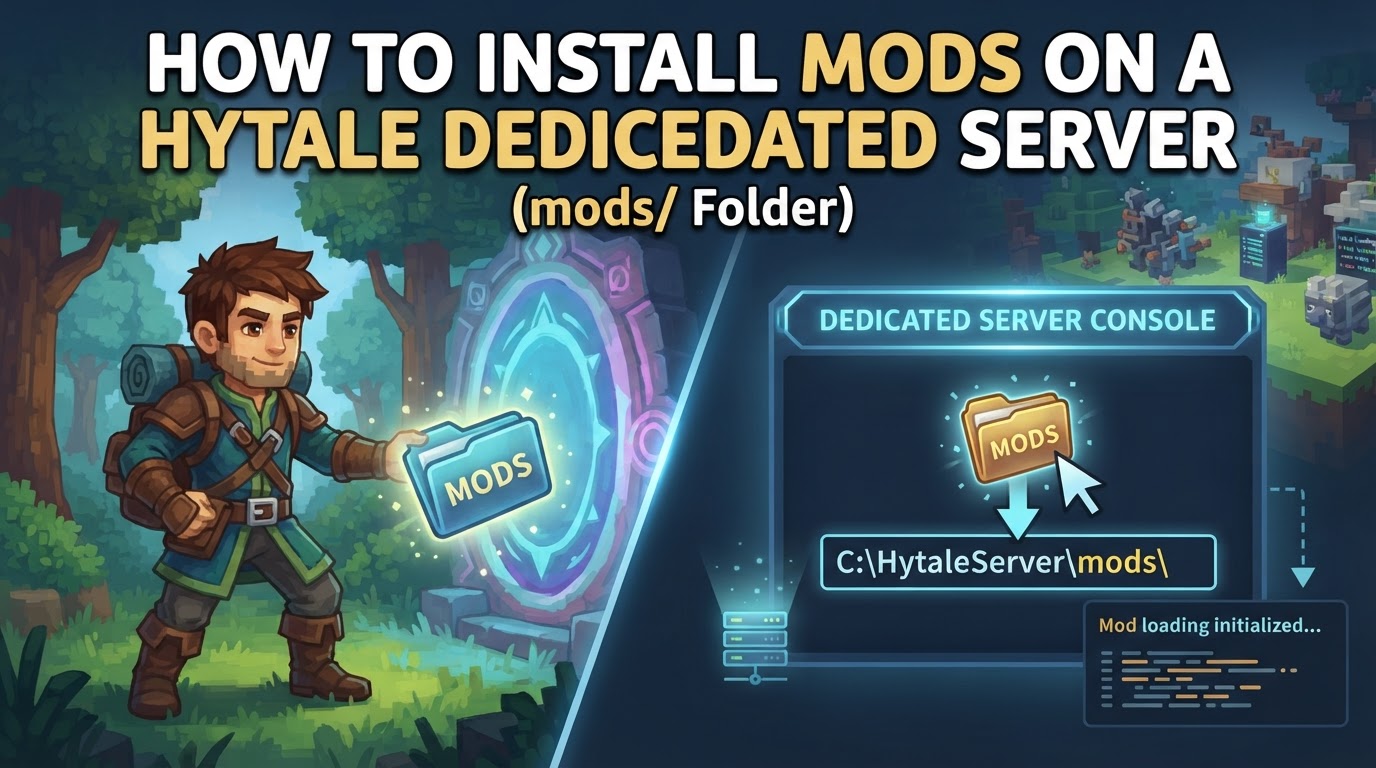
Hytale’s dedicated server architecture is designed to simplify the modding experience for players by centralizing mod installation on the server itself. When you install mods on your Hytale dedicated server, connecting clients automatically receive the necessary files, eliminating the need for players to manually install mods on their end. This guide will walk you through the process of installing mods on your Hytale dedicated server using the designated mods/ folder.
Understanding Hytale’s Server-Side Modding
Unlike many other block-based sandbox games, Hytale’s modding system is primarily server-driven. This means that the dedicated server acts as the authoritative source for all mod-related content. When a mod is placed into the server’s mods/ directory, the server loads it, and any player connecting to that server will have the mod’s assets and logic streamed to their client. This innovative approach ensures consistency across all players on a server and significantly reduces the complexity of managing mod installations for the end-user.
Mods are typically packaged as either .zip or .jar files. These files contain the custom content, game logic, or assets that modify the Hytale experience. Additionally, Hytale supports plugins, which are compiled Java JAR files that interact directly with the Hytale Server API, enabling server owners to implement new game mechanics, custom commands, economy systems, and minigames without requiring client-side modifications.
Step-by-Step Guide to Installing Mods
1. Stop Your Hytale Dedicated Server
Before making any changes to your server’s files, it is absolutely crucial to stop the server. Modifying files while the server is running can lead to corrupted data, incomplete installations, or server crashes. To stop your server, you can typically type stop into the server’s console window and press Enter. If you are using a hosting provider, they will usually have a “Stop” button in their control panel that you should use.
2. Backup Your Server Files
Always create a full backup of your server files before installing new mods. This is a critical step that can save you significant time and frustration if a mod causes unexpected issues, server instability, or data corruption. A backup allows you to revert to a stable state quickly. Most hosting providers offer backup solutions, or you can manually copy your entire server directory to a safe location.
3. Locate or Create the mods/ Folder
Navigate to the main installation directory of your Hytale dedicated server. This is the folder that contains essential server files such as HytaleServer.jar and your server’s configuration files (e.g., config.json). Within this main directory, look for a folder named mods/.
- If the
mods/folder already exists, you’re good to go. - If it does not exist, you must create a new folder and name it exactly
mods. Ensure this folder is at the root level of your server directory, not nested within other subfolders likeworld/orplugins/.
For example, if your server is installed at C:\HytaleServer\ on Windows, the correct path for your mods folder would be C:\HytaleServer\mods\. On a Linux server, it might be /home/server/hytale/mods/.
4. Download Mod Files from Trusted Sources
Obtain the mod files you wish to install. It is highly recommended to download mods only from trusted and reputable sources. Platforms like CurseForge are expected to be primary hubs for Hytale mods. Mods will typically be distributed as either .zip or .jar files. Always ensure the mod you download is specifically for Hytale and is compatible with your server’s version.
5. Upload Mod Files to the mods/ Folder
Transfer the downloaded mod files into the mods/ folder you located or created in Step 3. You will typically use an FTP client (like FileZilla) for remote servers or simply copy-paste for local servers.
-
Handling
.zipfiles: Many mods are distributed as.ziparchives. It’s common for these archives to contain the actual mod file (a.jarfile) along with documentation or other assets. You should generally extract the.zipfile first and place only the core.jarmod file directly into themods/folder. Do not upload the.zipfile itself unless the mod creator explicitly states that the server expects the.zipfile directly. -
Handling
.jarfiles: If the mod is already a.jarfile, simply upload it directly into themods/folder. -
Incremental Upload: For easier troubleshooting, consider uploading one mod file at a time, restarting the server after each, and verifying functionality. This helps pinpoint any problematic mods quickly.
6. Start Your Hytale Dedicated Server
Once all desired mod files are correctly placed in the mods/ folder, you can now start your Hytale server. This is usually done by executing the server’s startup script or clicking the “Start” button in your hosting provider’s control panel.
Remember that for your dedicated server to allow players to connect, it must be authenticated with Hytale. This is typically done by running the auth login device command in the server’s terminal or console when prompted, which will provide a URL and a code to link your server to your Hytale account.
7. Monitor the Server Console
As your server starts up, pay close attention to the messages displayed in the server console. The console will provide valuable information about which mods are being detected, loaded, and initialized. Look for messages indicating successful mod loading, but also be vigilant for any errors, warnings, or validation failures related to the mods. These messages are crucial for diagnosing any issues that might arise.
Essential Tips for Mod Installation
-
Version Compatibility: Always verify that the mod you are installing is compatible with your specific Hytale server version. Using an outdated or future-version mod can lead to crashes or unexpected behavior.
-
Check for Dependencies: Some mods require other mods to function correctly. These are known as dependencies. Always read the mod’s description or documentation carefully to identify any required dependencies and install them first.
-
Read Mod Documentation: Every mod can have unique installation instructions or configuration requirements. Always refer to the specific documentation provided by the mod creator on their download page or within the mod’s archive.
-
Test Incrementally: If you’re installing multiple mods, add them one by one. Restart your server after each mod installation and test to ensure everything is working as expected. This method makes it much easier to identify which mod is causing a problem if one arises.
Common Mistakes to Avoid
-
Not Stopping the Server: Attempting to add or remove mod files while the server is running is a common cause of file corruption, incomplete installations, and server crashes. Always stop your server first.
-
Incorrect Folder Location: Placing mod files in the wrong directory (e.g., in the
world/folder, a client-sideUserData/Modsfolder, or directly in the server root next toconfig.jsoninstead of inside the dedicatedmods/folder) will prevent them from loading. Ensure it’s/mods/. -
Incorrect File Type or Structure: Uploading a
.zipfile when the server expects the extracted.jarfile directly, or nesting the mod.jarfile within an extra subfolder insidemods/, are frequent errors. The server generally expects the mod’s primary.jaror designated.zipfile directly in themods/folder. -
Ignoring Console Output: Failing to monitor the server console for error messages after restarting can lead to prolonged troubleshooting. The console will often explicitly state if a mod failed to load, caused a conflict, or has a missing dependency.
-
Installing Too Many Mods at Once: While exciting, installing a large batch of untested mods simultaneously makes it incredibly difficult to identify which specific mod is causing an issue if the server fails to start or encounters problems.
-
Using Outdated Mods: Mods designed for older versions of Hytale may not work with newer server versions and can lead to crashes, bugs, or unexpected behavior. Always ensure your mods are up-to-date and compatible.