
Guide
Hytale Settings Guide: Best Configuration for New Players
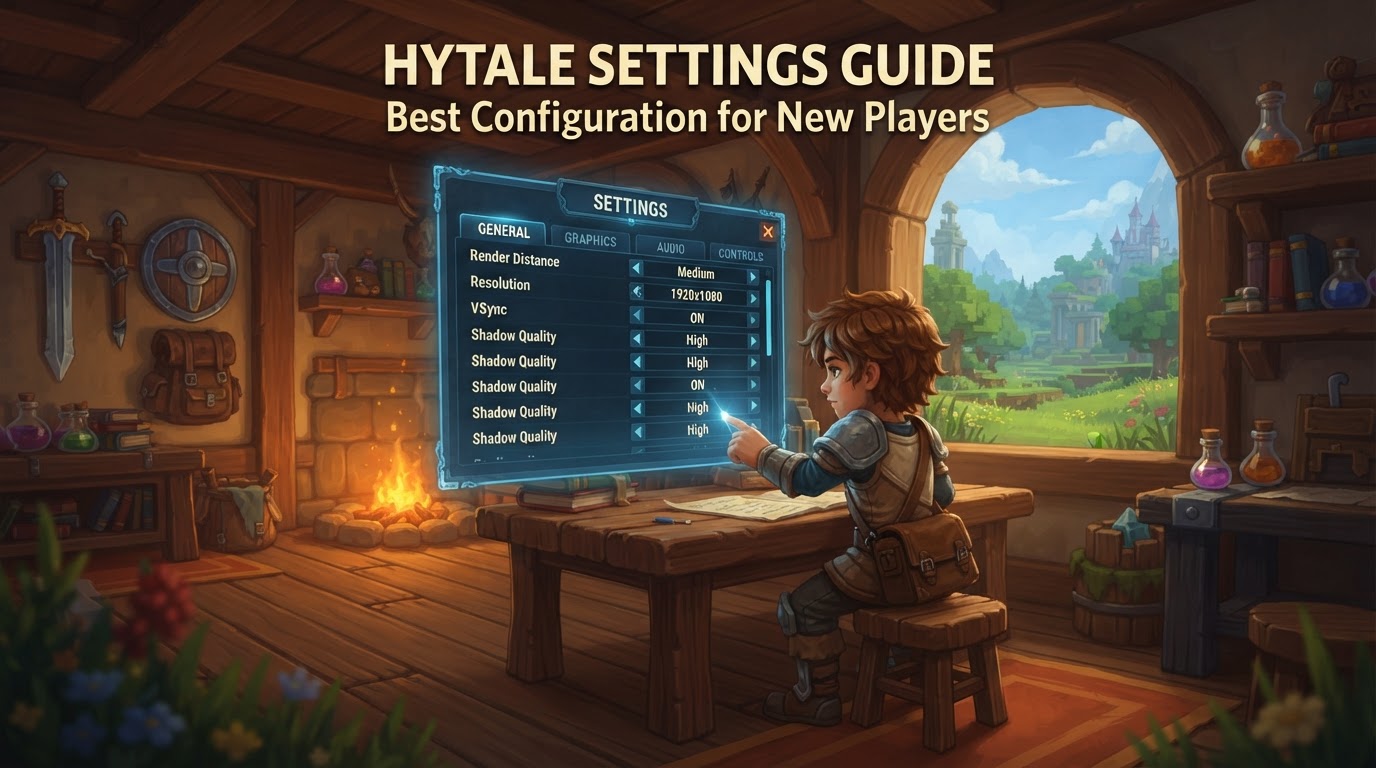
Optimizing your Hytale settings is paramount for a seamless and enjoyable experience, especially for new players navigating its expansive voxel-based world. Given Hytale’s design, your system will be running both the game client and a local server simultaneously in single-player mode, making performance configuration crucial to balance visual fidelity with smooth gameplay. This guide provides a recommended configuration to get you started, focusing on performance, comfort, and accessibility.
Performance Optimization (Graphics and System)
Achieving optimal performance is the foundation of a great Hytale experience. These settings have the most significant impact on your frame rate and system resource usage.
View Distance
This is arguably the most impactful setting for performance in Hytale. It dictates how many chunks of the world are loaded and rendered around your character. For a balanced experience that minimizes chunk loading stutter and reduces pressure on your CPU and RAM, a view distance of 192 is often recommended. While higher settings like 384 or 512 blocks might offer a more expansive vista, they can drastically reduce your frames per second (FPS), particularly in dense areas or on less powerful hardware. A good strategy for new players is to start at 192 or 256 and gradually increase it if your system can comfortably handle it without noticeable performance drops.
Shadows and Post-Processing
These visual effects are among the most resource-intensive. Dynamic shadows and complex post-processing effects require significant computational power. To significantly improve frame rates, especially on mid to low-end systems, consider disabling them or setting them to their lowest possible values. Specifically, set Shadows to 0 (off) and Shadow Quality to Low. You’ll still get a sense of lighting, but without the performance hit of detailed real-time shadows.
Render Scale
It is generally recommended to keep your Render Scale at 100%. This setting determines the resolution at which the game is rendered internally before being scaled to your display resolution. Lowering it can lead to a noticeable blurriness across the entire screen that cannot be corrected by other settings. Unlike some modern games that utilize advanced upscaling technologies like DLSS or FSR, Hytale’s current implementation is more straightforward. If you find yourself needing more performance, prioritize reducing your View Distance before adjusting Render Scale.
Anti-Aliasing
Anti-aliasing helps to smooth out jagged edges on objects and textures. Setting Anti-Aliasing to Low (FXAA) is a good compromise. FXAA (Fast Approximate Anti-Aliasing) is a post-processing technique that is less resource-intensive than other methods but can still make visuals appear sharper and reduce the ‘stair-stepping’ effect on diagonal lines, which is particularly noticeable at lower screen resolutions.
Other Graphics Settings
- World Detail: Start with Medium. This controls the complexity of environmental elements like trees, rocks, and terrain features. Medium offers a good balance between visual richness and performance.
- Particle Quality: This can often be set to High without a significant impact on FPS, as particle effects (like explosions, water splashes, or magic spells) are typically localized and transient.
- Shading Quality: Consider setting this to Medium. It influences the complexity of light and material interactions, and Medium provides a decent visual quality without being overly demanding.
- Bloom: Turn Off. Bloom is a visual effect that creates a glow around bright objects. While it can add to the atmosphere, it’s a post-processing effect that consumes resources and can sometimes make scenes appear overly bright or washed out.
- Foliage Fading: Turn Off. This effect causes distant foliage to fade out rather than abruptly disappear. Disabling it can offer a minor performance gain and a more consistent visual experience, though it might lead to more noticeable pop-in for distant vegetation.
FPS Limit
While some players prefer an unlimited frame rate, setting a maximum FPS can significantly improve game stability and reduce screen tearing, especially if V-Sync is disabled. A good starting point is to limit your FPS to 60 FPS, or to match your monitor’s refresh rate (e.g., 144 FPS for a 144Hz monitor). This prevents your graphics card from rendering frames unnecessarily, which can lead to fluctuating frame times and a less smooth experience.
System-Level Tweaks (for low-end PCs or stutters)
For players experiencing severe stutters or on systems with limited resources, these advanced tweaks can sometimes provide relief:
- Process Priority: If you’re encountering significant stutters, particularly during chunk loading, you can adjust the process priority. While Hytale is running, open your Task Manager (Ctrl+Shift+Esc), navigate to the “Details” tab, locate
HytaleClient.exeandJava.exe. Right-click each, go to “Set priority,” and choose High. Additionally, under “Set affinity,” ensure that All Processors are selected. This tells your operating system to prioritize Hytale’s processes, dedicating more CPU cycles to the game. - Graphics Settings (Windows): Ensure Hytale utilizes your dedicated graphics card if you have one. In Windows, go to System > Display > Graphics settings. Add
HytaleClient.exeandJava.exeto the list of applications and set their preference to “Maximum performance.” This ensures your system directs its most powerful GPU resources to the game. - Config File/Mod (Uncertain/Advanced): The Hytale community has explored performance-oriented configuration files and even mods to address specific issues like dynamic fog at low render distances. These are advanced solutions that might involve manually placing files in your Hytale/UserData directory. New players should approach these with caution, as they are not officially supported recommendations and may require careful file manipulation. Always back up your game files before attempting such modifications.
General and Gameplay Settings
These settings focus on enhancing your comfort, interaction, and overall gameplay experience.
Field of View (FOV)
Field of View determines how much of the game world is visible on your screen. A common recommendation for a balanced and comfortable FOV is 70 degrees. However, this is largely a matter of personal preference. A higher FOV can give you a wider perspective, which is useful for combat or exploration, but can also make distant objects appear smaller. A lower FOV provides a more zoomed-in view, which can be immersive but limits your peripheral vision.
Camera Effects
To reduce the potential for motion sickness, especially during fast movement or combat, new players can disable certain camera effects. Look for and turn off “View Bobbing Effect,” which simulates head movement while walking; “Camera Shake Effect,” which can occur during explosions or impacts; and “Sprint FOV Effect,” which changes your field of view when sprinting. These are typically found under the Gameplay tab in your settings.
Show Entity Health Bars
Turning “Show Entity Health Bars” On under the User Interface section in the General settings can be incredibly helpful for new players. This displays a visual health bar above creatures and enemies, allowing you to easily track their remaining health during combat and strategize your attacks more effectively.
Block Placement Preview
For new builders or those still getting accustomed to Hytale’s building mechanics, setting “Block Placement Preview” to ALL can be a significant aid. This feature visually highlights where a block will be placed before you actually commit to the action, helping to prevent misplacements and streamlining the building process.
Audio Settings
Sound plays a vital role in immersion and provides crucial gameplay cues. Configuring your audio correctly can enhance your experience and communication with other players.
Voice Chat
Hytale includes proximity voice chat, which is often disabled by default. To enable it, navigate to the Audio settings and toggle “Voice Chat” to enabled. This allows you to communicate with players within a certain range of your character, adding a dynamic social element to the game.
- Input Device/Level: Ensure your correct microphone is selected as the input device. Adjust your microphone’s input level to prevent clipping (distortion from being too loud) or being too quiet for others to hear.
- Noise Suppression: Enable this feature to reduce background sounds picked up by your microphone, ensuring clearer communication.
- Input Mode: Choose between “always-on” (your microphone is always active) or “Push-to-Talk” (you press a key to speak). Push-to-Talk is generally recommended to avoid transmitting unwanted background noise. You can set a custom hotkey for this.
- Proximity Chat Commands: On servers, specific commands can adjust the range and volume of proximity chat. Commands like
/voice maxdistance <blocks>and/voice fullvolumedistance <blocks>allow server administrators or players (if permissions allow) to customize how far away players can be heard and at what distance their voice reaches full volume. Default values are typically 32 blocks for max distance and 4 blocks for full volume distance.
Output Device
You can change your sound output device (e.g., speakers, headphones, or a specific headset) directly within Hytale’s Audio settings if the game detects multiple options. This is useful if you switch between different audio setups or need to ensure the game’s sound is routed to your preferred device.
Accessibility Settings
Hytale aims to be accessible to a wide range of players, offering options to tailor the experience to individual needs.
Arachnophobia Mode
For players who experience discomfort or fear related to spiders, Hytale provides an option to “Enable Arachnophobia Mode” under its Accessibility settings. While the exact visual changes this mode implements are not fully detailed, it is designed to alter the appearance of spider-like creatures to make them less unsettling.
Low Vision (Uncertain)
Some users have noted potential issues with the game being too dark in certain areas, even with general brightness settings adjusted, and a relatively small crosshair that can be difficult to see for those with low vision. At present, it is uncertain if there are specific in-game settings beyond general brightness adjustments to comprehensively address these low vision concerns. Players may need to rely on external monitor settings or operating system accessibility features for further customization.
This guide offers a robust starting point for new Hytale players to configure their game for optimal performance and a comfortable, immersive introduction to the world of Orbis. Remember that these settings can always be tweaked and refined based on your individual system specifications, personal preferences, and how you choose to explore Hytale’s diverse environments.