
Guide
Hytale Mod Not Working: Common Causes and Fixes
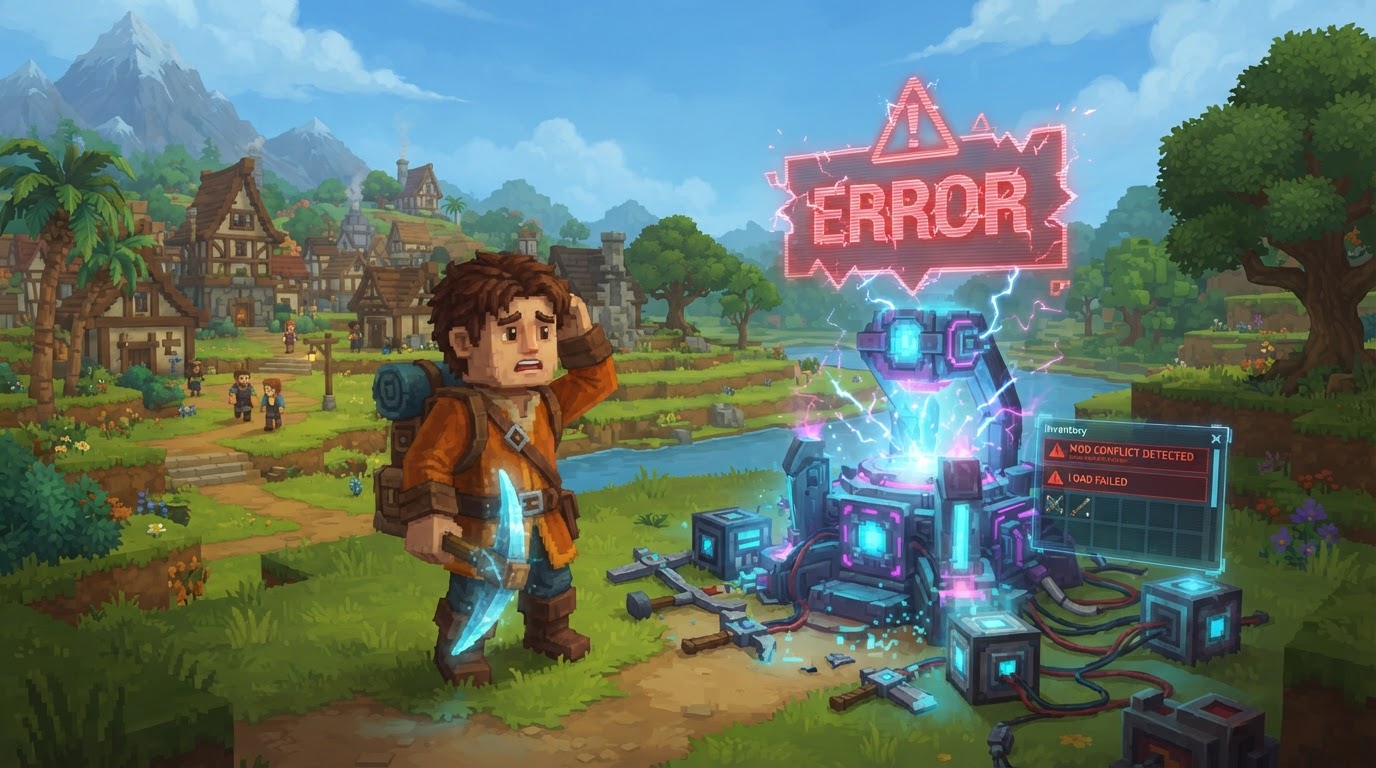
While Hytale’s innovative server-side modding architecture significantly streamlines the modding experience by generally eliminating the need for players to manually install mods, issues can still arise for server owners and players managing their own local game environments. The primary reason a Hytale mod might not be working typically stems from incorrect installation, version mismatches, or missing dependencies, all of which are manageable with systematic troubleshooting.
Understanding Hytale’s Modding Philosophy
Hytale operates on a “One Community, One Client” principle. This means when you join a modded server, the necessary mod content is streamed directly from that server to your game client. You usually don’t need to download anything beforehand. Even single-player gameplay in Hytale runs on a local server instance. This design reduces many common client-side modding headaches but shifts the responsibility for proper mod management to server administrators and those configuring their local game files for single-player experiences.
Hytale categorizes its modding capabilities into several types:
- Server Plugins (Java-based): These are powerful tools for creating custom game modes, commands, economy systems, and complex gameplay mechanics.
- Data Assets (JSON-based): These configure core game content like blocks, items, NPCs, and world generation parameters, often editable directly with the in-game Asset Editor without requiring traditional coding.
- Art Assets: This category includes all visual and audio content, such as 3D models, animations, textures, and sound effects.
- Save Files: These allow for the sharing of entire worlds or specific prefabs.
- Visual Scripting System: A future planned feature, this node-based system aims to allow visual creation of game mechanics.
Common Causes for Hytale Mods Not Working
For server owners or players managing their own local Hytale installations, several factors can prevent mods from functioning correctly:
- Incorrect Installation Directory: Mod files are placed in the wrong folder or within unnecessary subdirectories, preventing the game from finding them.
- Mod Not Enabled: Even if correctly installed, a mod might not be activated within the specific world’s settings.
- Version Incompatibility: The mod’s version does not match the current Hytale game version or its API. This is especially common during the Early Access phase where updates are frequent.
- Missing Dependencies: The mod requires additional files, libraries, or other mods to function, which have not been installed.
- Mod Conflicts: Two or more mods attempt to modify the same game system or asset in incompatible ways, leading to crashes or unexpected behavior.
- Corrupted or Incomplete Files: The mod files themselves may be damaged during download or transfer, or not fully downloaded.
- World Corruption: Certain mods, especially those that extensively alter world generation or save data, can sometimes lead to the corruption of world save files.
- Outdated Mods: Mods that are no longer actively updated by their creators may become incompatible with newer game versions over time.
- Specific Mod Bugs: The mod itself may contain inherent bugs that prevent it from working as intended, regardless of installation.
- Duplicate Mod Files: Having multiple copies of the same mod, even if slightly different versions, can cause conflicts and errors.
Step-by-Step Fixes for Hytale Mod Issues
When a mod isn’t working, a systematic approach to troubleshooting is key. Follow these steps to diagnose and resolve most common issues:
1. Verify Installation Path
Ensure your mod files are placed directly into the correct designated mods folder. Avoid creating extra subfolders unless the mod’s specific instructions explicitly state otherwise. Mod files are typically .jar for server plugins or .zip for asset packs.
- Windows:
%appdata%\Hytale\UserData\Mods\ - macOS:
~/Library/Application Support/Hytale/UserData/Mods/ - Linux:
~/.local/share/Hytale/UserData/Mods/
To quickly access the Windows path, press Win + R, type %appdata%, and navigate to Hytale\UserData\Mods\.
2. Enable Mod in World Settings
After placing the mod files, you must activate them within your game world. Launch Hytale, select the world you wish to play, go into its settings, and locate the “Mods” section. Ensure the mod you installed is listed and toggled to an “enabled” state.
3. Check Version Compatibility
Version mismatches are a frequent cause of mod failures, especially during Early Access.
- Update Hytale: Ensure your Hytale game client and any server instance you are running are updated to the latest available version.
- Download Latest Mod Version: Always download the mod from its official source (e.g., CurseForge, the official platform for Hytale mods). Check for the latest release.
- Verify Mod Requirements: On the mod’s download page or documentation, look for its stated compatibility with Hytale versions. Make sure it matches your current game version.
4. Install Required Dependencies
Some mods rely on other mods or libraries to function. These are called dependencies.
- Read Mod Documentation: Carefully check the mod’s description, download page, or any included README files for a list of required dependencies.
- Download and Install: If dependencies are listed, download them from their official sources and place them into the same
modsdirectory as the main mod.
5. Resolve Mod Conflicts
When multiple mods are installed, they can sometimes interfere with each other.
- Isolate the Issue: Start by removing all mods from your
modsfolder. - Add One by One: Re-add mods one at a time, launching Hytale and testing gameplay after each addition. This helps pinpoint which mod, or combination of mods, is causing the problem.
- Identify the Conflict: Once you identify a problematic mod or a pair of conflicting mods, you may need to choose between them, look for alternative mods that perform similar functions, or consult the mod authors for a potential patch or solution.
6. Reinstall Corrupted Mods
If you suspect a mod file is corrupted (e.g., due to an interrupted download), the best course of action is to remove it completely and then re-download and reinstall it from scratch.
7. Restart Hytale/Server
After making any changes to your mod files or in-game settings, it is crucial to fully restart Hytale or your Hytale server. Changes often do not take effect until a fresh launch.
8. Administrator Permissions
If you encounter errors related to file access or writing, particularly on Windows, try running Hytale or your Hytale server application as an administrator. Right-click the executable and select “Run as administrator.”
9. World Corruption Recovery
In rare cases, a mod might corrupt your world save file.
- Remove Suspect Mods: Try removing the most recently added mods one by one and attempt to load your world after each removal to see if it resolves the issue.
- Load Backup: If you have a recent backup of your world, restore it. Regularly backing up your worlds is a vital practice, especially when experimenting with new mods.
- New World: In severe cases where a world is irreparably corrupted, starting a new world might be the only solution.
Tips for Smooth Modding in Hytale
- Use Official Sources: Always download mods from reputable platforms like CurseForge, which is the official distribution platform for Hytale mods. This minimizes the risk of malware and ensures you get legitimate versions.
- Utilize Built-in Tools: Leverage Hytale’s integrated Creation Tools, such as the Asset Editor, for modifying Data Assets. These tools are designed for compatibility and ease of use.
- Keep Everything Updated: Regularly update both your Hytale game client/server and all installed mods to their latest versions to benefit from bug fixes and compatibility improvements.
- Test Mods Gradually: When adding multiple new mods, introduce them one at a time. Test your game thoroughly after each addition to quickly identify and isolate any potential issues.
- Monitor Logs: If your game crashes or a mod isn’t working, check the game client or server logs (usually found in the Hytale user data directory). Error messages in these logs can provide critical clues about the root cause of the problem.
- Consult Community Resources: Engage with the Hytale modding community on platforms like HytaleModding or official HytaleDocs. These resources often provide guides, troubleshooting tips, and support from experienced modders.
Common Mistakes to Avoid
- Ignoring Version Numbers: Failing to verify that a mod is compatible with your specific Hytale game version is a very common oversight that leads to non-functional mods.
- Neglecting Dependencies: Forgetting to install all required supplementary files or other mods that a primary mod needs will inevitably prevent it from working.
- “Mod Overload”: Installing a large number of mods simultaneously without testing them individually makes it extremely difficult to identify which mod is causing a conflict or issue.
- Incorrect File Placement: Placing mod files in arbitrary subfolders or outside the designated
modsdirectory is a frequent installation error. - Not Restarting: Failing to fully restart the Hytale client or server after adding, removing, or updating mods means your changes won’t be recognized.
- Not Consulting Documentation: Overlooking the mod’s official documentation or Hytale’s guides for installation instructions, compatibility notes, and known issues can lead to avoidable problems.
- Assuming Client-Side Modding: While Hytale’s server-side focus reduces many traditional client-side modding issues, server owners and those managing local single-player installations still bear the responsibility of correctly installing and managing mod files on their end.