
Guide
Hytale Texture Packs: How to Create Your Own
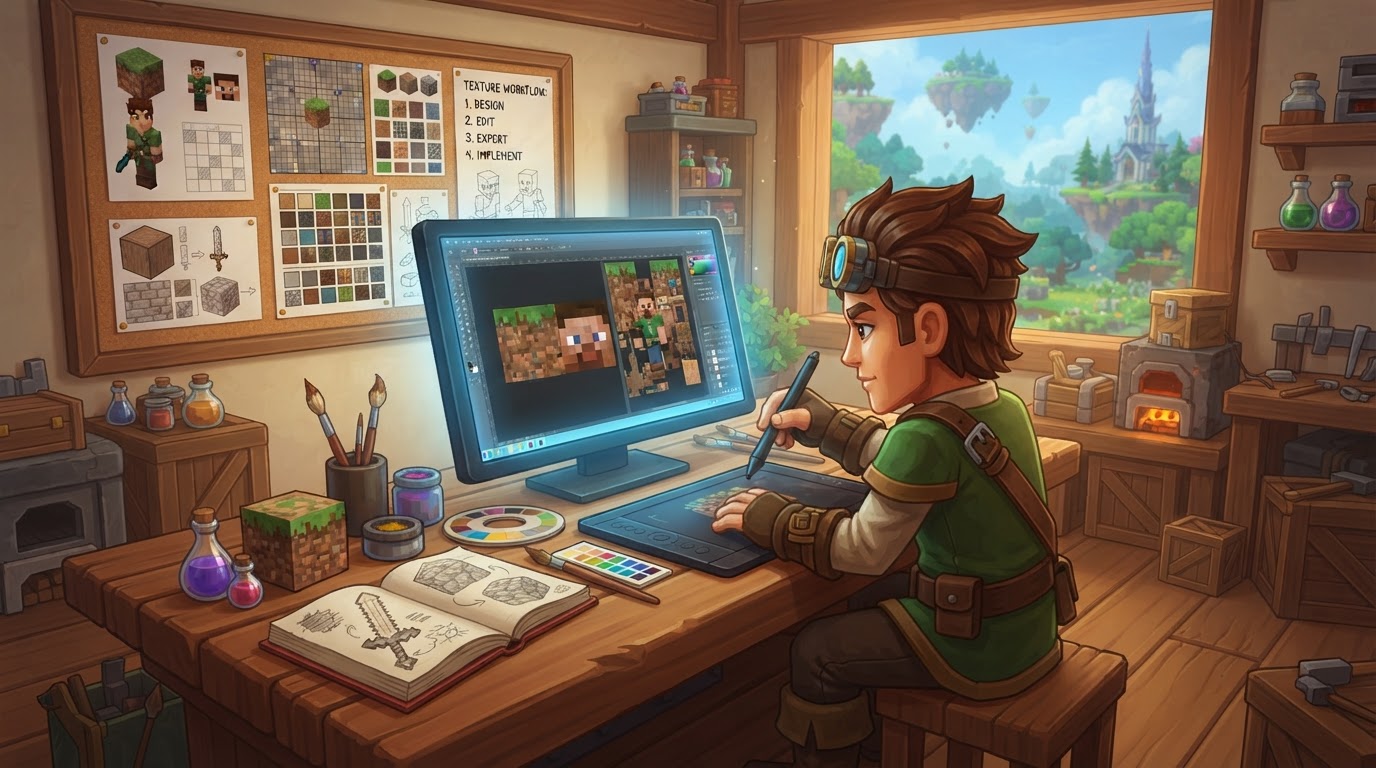
Creating custom texture packs in Hytale empowers you to personalize your game world, from the smallest block to the grandest structure. Hytale’s texture pack system is built around Asset Packs, which are bundles of custom content designed to seamlessly overwrite the game’s default assets. The key to successful texture pack creation lies in understanding Hytale’s specific file structure, adhering to its unique art style guidelines, and utilizing the officially supported tools like Blockbench with its Hytale plugin.
Understanding Hytale Texture Pack Mechanics
Hytale’s approach to custom content is robust and creator-friendly. At its core, a texture pack is an Asset Pack containing your custom image files. When activated, these files replace the game’s default textures by matching their exact name and folder location within the game’s asset hierarchy.
Key Tools for Texture Pack Creation
- Blockbench with Hytale Plugin: This is the primary and recommended tool for Hytale content creation. It’s a powerful, free 3D model editor that, with the Hytale plugin, ensures models and textures are created with the correct pixel density, geometry, and export formats compatible with Hytale’s engine. It streamlines the process of creating models, animating them, and applying textures.
- In-Game Asset Editor: Hytale features an integrated editor that allows players to manage resource packs directly within the game. You can create new packs, modify existing ones, and link custom textures to specific in-game assets like blocks, items, or models. This tool is essential for configuring how your custom textures are applied.
- Image Editing Software: While Blockbench includes basic texture editing, for more complex or detailed textures, you’ll likely use external software like Adobe Photoshop, GIMP, or Krita. These programs offer advanced features for pixel art and image manipulation.
Hytale’s Art Style and Technical Specifications
Hytale boasts a distinctive “modern, stylized voxel game with retro pixel-art textures” aesthetic. This “illustration style” means textures often have painted-in shadows and highlights, creating a vibrant, hand-crafted look. Understanding these specifications is crucial for your textures to blend seamlessly into the game world.
- No PBR Workflow: Unlike many modern engines, Hytale does not utilize a Physical Based Rendering (PBR) workflow. This means you won’t be creating roughness, normal, or metallic maps. All visual information, including lighting cues, must be painted directly into the base color texture.
- Color Palette: Hytale favors warm, saturated colors with tinted shadows. Avoid using pure black (`#000000`) or pure white (`#FFFFFF`) as they can look unnatural and disrupt the game’s lighting system. Instead, opt for very dark grays or very light grays with a subtle hue.
- Pixel Density: The game uses two main pixel densities:
- 32 pixels per unit: For blocks, props, and accessories.
- 64 pixels per unit: For more detailed items like avatars, tools, weapons, and complex equipment.
This means a 1x1x1 block will typically have a 32×32 pixel texture on each face, while a detailed item might use a 64×64 texture for its components.
- Texture Dimensions: All texture files must have dimensions that are multiples of 32 pixels. Common sizes include 32×32, 64×64, 128×128, and up to a maximum of 512×512 pixels. This requirement is critical for optimal performance, as Hytale’s rendering engine efficiently manages texture atlases based on a 32-pixel grid alignment. Non-standard dimensions can lead to visual glitches and performance issues.
- File Format: Textures must be saved as PNG files with an alpha channel (for transparency) and a 32-bit RGBA color depth. Lossless compression is recommended to prevent visual artifacts.
- Geometry: Hytale models are constructed using limited geometry types: primarily cubes and flat quads (rectangles or planes made of two triangles). This simplified geometry supports efficient rendering and maintains the game’s distinctive aesthetic.
Exact Steps to Create Your Own Hytale Texture Pack
Follow these steps to create and implement your custom textures in Hytale:
-
Plan Your Pack
Before diving into creation, decide which in-game assets you want to modify. For your first pack, start small—perhaps a few blocks, an item, or a UI element. Establish a clear visual theme, including a consistent color palette, contrast level, and detail density. This planning ensures your pack looks cohesive rather than a collection of disparate textures.
-
Obtain Reference Assets
To understand Hytale’s asset structure and get a head start, locate the game’s default assets. These are typically found in the
Asset.zipfile, which can be found in your Hytale installation directory (e.g.,%appdata%/Hytale/install/release/package/game/latest/). Copy and unzip this file to access original game textures and.blockymodelfiles. This provides an excellent reference for naming conventions, folder structures, and existing art styles. -
Create a New Resource Pack In-Game
Launch Hytale and enter a Creative World. Grant yourself operator permissions by typing
/op selfin the chat. Open the Asset Editor by navigating throughInventory > Creative Tools > Assets > Asset Editor. Click the three dots in the top-right corner and select “Add Pack.” Fill in the required details like Pack Name, Group Description, and Author, then save. This action creates the necessary folder structure for your pack within your Hytale user data (e.g.,UserData/PacksorUserData/Mods).Alternatively: You can manually create a pack folder in
UserData/Packs(orUserData/Mods) and add amanifest.jsonfile with basic metadata, along with emptyCommonandServersubfolders. The in-game editor is generally more user-friendly for initial setup. -
Design or Modify Textures
- Using Blockbench: Open Blockbench and ensure the Hytale plugin is installed and active. You can create a new Hytale Prop model or load an existing
.blockymodelfile from your unzipped reference assets. Use Blockbench’s built-in texture editor to paint directly onto your model, ensuring correct pixel density and UV mapping. - Using Image Editing Software: If you prefer a dedicated image editor, create or modify PNG texture files there. Remember to strictly adhere to Hytale’s technical specifications: PNG format, 32-bit RGBA color depth, and dimensions that are multiples of 32 pixels (e.g., 32×32, 64×64).
- Using Blockbench: Open Blockbench and ensure the Hytale plugin is installed and active. You can create a new Hytale Prop model or load an existing
-
Integrate Texture Files into Your Pack
Navigate to your Hytale world’s folder (you can often find an “Open Folder” option next to your world in the world selection screen). Inside, go to the
Modsfolder, then find your custom pack’s folder. Within this folder, you’ll see aCommonfolder. Replicate the original Hytale asset’s folder structure inside your pack’sCommonfolder. For example, if you’re changing a block texture, its path might be something likeCommon/blocktextures/my_custom_block.png. Place your custom texture file into this replicated structure, ensuring its filename is identical to the original texture you intend to replace. -
Configure Assets (for Models/Items)
Return to the in-game Asset Editor. Select your custom pack from the dropdown menu. If you’re modifying an item or model, you might need to create a new asset entry or copy an existing one from the default Hytale pack. Within the Asset Editor’s properties for that asset, link your custom texture. For example, you might adjust the
Rendering > Item Texturesetting to point to your new texture file. -
Test Your Texture Pack
Exit your creative world and re-enter it to force the game to reload all assets. Visually inspect the modified textures in-game. Check for clean edges, correct appearance, and ensure no textures are missing (which would appear as placeholder textures). Verify that game performance remains stable.
-
Package and Share (Optional)
Once you’re satisfied with your texture pack, compress your entire pack folder (containing the
manifest.json,Common, andServerfolders) into a.zipfile. This.zipfile can then be placed in the generalUserData/Modsfolder to enable the pack across different worlds or easily shared with other players.
Tips for Hytale Texture Pack Creation
- Prioritize Consistency: A uniform art style, color palette, and detail level across all your textures will make your pack feel professional and immersive.
- Start Simple, Iterate Often: Begin with a small set of textures, test them thoroughly in-game, and then gradually expand your pack. This iterative approach helps you quickly identify and fix issues.
- Utilize Blockbench’s Hytale Plugin: This plugin is invaluable. It helps maintain correct pixel density, geometry, and ensures your exports are compatible with Hytale’s engine, simplifying much of the technical work.
- Embrace Hytale’s Art Style: Focus on painting highlights and shadows directly into your textures. Use soft gradients and avoid pure black or white to match Hytale’s distinctive, illustrated look.
- Proper UV Mapping: When creating models, add 1-2 pixels of padding between UV islands on your texture atlas. Ensure your texture dimensions are powers of two (e.g., 64×64, 128×128). Crucially, ensure UV edges do not align exactly with pixel boundaries to prevent texture bleeding. Enable the “Pixel Perfect” option in Blockbench.
- Consider AI Tools: Tools like VoxAI can generate base textures from prompts, offering a starting point that you can then refine manually in Blockbench or an image editor to meet Hytale’s specific style.
Common Mistakes to Avoid
- Incorrect Naming or Folder Structure: This is the most frequent error. If your custom texture file’s name or its path within your pack’s
Commonfolder doesn’t precisely match the original game asset, Hytale will not override it. - Non-Standard Texture Dimensions: Using texture resolutions that are not multiples of 32 pixels will lead to UV mapping errors, texture bleeding, and negatively impact performance due to inefficient texture atlas generation.
- Ignoring Art Style Guidelines: Deviating significantly from Hytale’s illustration-style art (e.g., using PBR textures, pure black/white colors, or excessive contrast) can make your textures look out of place or visually unappealing within the game.
- “Mixels” or Decimal UV Coordinates: When UV mapping, avoid decimal values or sizes that cause “mixels” (partial pixels). This can lead to stretching or visual glitches. Ensure all UV coordinates are whole numbers.
- Over-detailing or Lack of Contrast: Textures that are too busy might not be clear at typical game distances, while a lack of contrast can make objects blend into the environment and lose definition.
- Pillow Shading or Banding: Poor shading techniques can make textures look flat or artificial. Use consistent light sources, subtle gradients, and potentially add noise or dithering to avoid color banding.
- Neglecting Animations in Blockbench: If you’re modifying models with animations, remember to click on the “animate” tab for each animation within Blockbench before converting or exporting the model. Failing to do so can result in lost animations.
- Insufficient Testing: Not testing your pack frequently in-game can allow errors to accumulate, making them much harder to troubleshoot later. Test each new texture as you create it.