
Guide
Hytale Node Editor: A Beginner’s Guide to Scripting
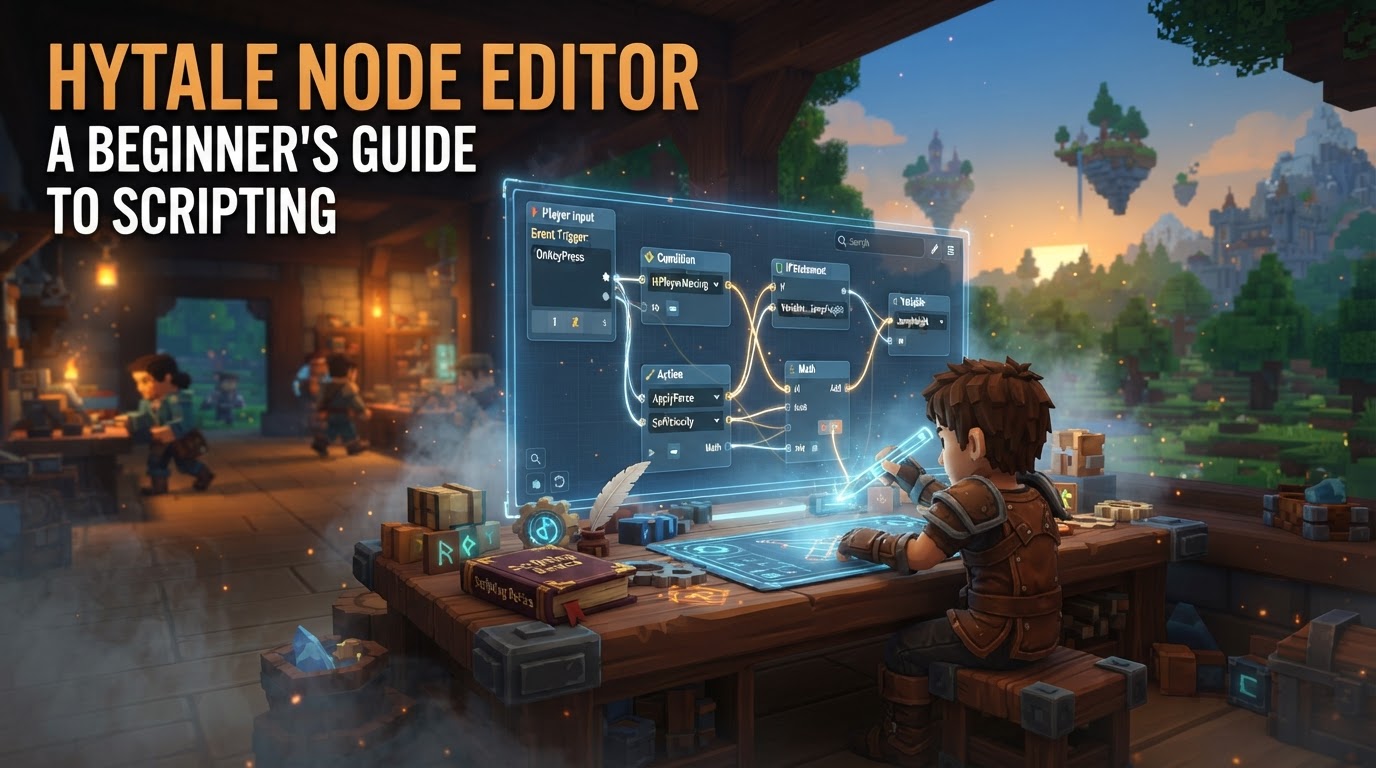
The Hytale Node Editor is a core component of Hytale’s modding toolkit, providing a powerful visual scripting interface that allows creators to define complex game logic, behaviors, and especially world generation rules without needing to write traditional code. It is Hytale’s primary method for accessible scripting, enabling a wide range of modifications from custom events to intricate biome designs.
Understanding Hytale’s Scripting Landscape
Hytale’s modding ecosystem is designed to be comprehensive yet accessible. While server plugins written in Java offer the deepest level of control for programmers, the Node Editor and its visual scripting system are central to empowering a broader audience of creators. This system is inspired by industry-standard visual programming tools, aiming to lower the barrier to entry for game development within Hytale.
What is Visual Scripting?
Visual scripting is a programming paradigm where elements are represented graphically, typically as “nodes” that can be connected to form a logical flow. Instead of writing lines of code, you drag and drop nodes representing actions, events, data, and control structures, then link them together to define how your game elements behave. This approach makes complex systems more intuitive to design and understand, as the logic is visually laid out.
The Role of the Node Editor
The Node Editor is the specific tool within Hytale’s suite where you will engage with this visual scripting system. Its primary applications include:
- World Generation (WorldGen V2): Designing how biomes are formed, how terrain is sculpted, and where structures are placed. This allows for highly customized and procedural worldscapes.
- Scripted Brushes: Creating advanced tools for in-game world editing, enabling artists and designers to procedurally generate features like mountains, rivers, or ruins with complex rules.
- Game Logic and Behaviors: Defining how NPCs react, how custom items function, how quests progress, and how environmental events occur. This covers a broad spectrum of gameplay mechanics.
Accessing the Node Editor
Getting started with the Node Editor is straightforward once you are in the Hytale client with content creation tools enabled.
- Launch Hytale: Start the game client.
- Open Content Creation Menu: Press the default key ‘B’ (or your custom bind for the Content Creation menu).
- Navigate to the Asset Editor: Within the Content Creation menu, you will find various tools. Look for the Asset Editor dropdown or direct access point.
- Select the Node Editor: The Node Editor will be listed as one of the available editors. Selecting it will open its interface.
Once open, you’ll typically see a graph area where you’ll build your scripts, a palette of available nodes, and a properties panel for configuring selected nodes.
Your First Steps in the Node Editor: Building Logic
Working within the Node Editor involves a core loop of selecting, placing, and connecting nodes.
- Identify Your Goal: What do you want to achieve? For example, “When a player steps on a specific block, play a sound.”
- Find Event Nodes: Every script needs a starting point. These are often event nodes (e.g., “On Player Step,” “On Entity Spawn,” “On World Load”). Search the node palette for relevant events and drag them into your graph.
- Add Action Nodes: What should happen when the event triggers? These are action nodes (e.g., “Play Sound,” “Spawn Particle,” “Deal Damage”). Drag these into the graph.
- Connect Nodes: Nodes have input and output pins. Execution pins (often white arrows or lines) define the flow of logic. Data pins (often colored based on data type) pass information between nodes. Click and drag from an output pin to an input pin to create a connection. For our example, connect the output execution pin of “On Player Step” to the input execution pin of “Play Sound.”
- Configure Node Properties: Many nodes have properties you need to set. For “Play Sound,” you’d specify which sound to play. Select the node and adjust its parameters in the properties panel.
- Test and Iterate: Hytale’s editor often supports hot-reloading, meaning you can save your changes and see them reflected in-game almost instantly without restarting. This encourages rapid experimentation.
For world generation, the process is similar but involves nodes specific to terrain manipulation, biome blending, structure placement rules, and resource distribution. You might start with a “Biome Generator” node and connect various “Noise Map” nodes, “Layer” nodes, and “Feature Spawner” nodes to sculpt your desired environment.
Node Editor and Java: A Powerful Combination
While visual scripting is designed for accessibility, Hytale also provides pathways for advanced users and programmers. Java-based server plugins are the most powerful modding option, allowing for extensive game modifications. Crucially, programmers can extend the visual scripting system by creating custom nodes in Java. This means:
- Performance-Critical Logic: Complex calculations or highly optimized routines can be written in Java.
- Exposed to Visual Scripting: These Java functions can then be exposed as new nodes in the Node Editor, allowing designers to utilize powerful custom functionality without needing to touch Java code themselves.
This hybrid approach offers the best of both worlds: accessibility for designers and power for programmers.
Important Considerations: Text-Based Scripting
It’s crucial for beginners to understand Hytale’s official stance on text-based scripting. Hytale has made a deliberate decision not to include general text-based scripting languages like Lua for modding within its official toolset. The developers have cited concerns about complexity, fragmentation, and the belief that such languages don’t genuinely solve accessibility for non-programmers.
While community discussions and third-party tools might emerge that attempt to integrate scripting languages like Lua, it’s important to note that these are not officially supported by Hypixel Studios. Relying on such solutions means you might encounter limitations, lack official documentation, or face compatibility issues with future game updates. For official and stable modding, the Node Editor (visual scripting) and Java plugins are the intended paths.
Tips for Aspiring Node Editors
- Start Simple: Don’t try to build an entire game system on your first attempt. Begin with small, manageable tasks like changing a block’s behavior or spawning a simple particle effect.
- Explore the Node Palette: Spend time browsing the available nodes. Understanding what tools you have at your disposal is key to creative problem-solving.
- Understand Data Types: Nodes often deal with different types of data (numbers, text, true/false, vectors, entities). Pay attention to the color or shape of data pins to ensure you’re connecting compatible types.
- Leverage Hot-Reloading: Experiment freely! The ability to see your changes in real-time is a massive advantage. Don’t be afraid to try different node combinations.
- Utilize Community Resources: When Hytale releases, communities like HytaleModding and community-driven wikis (e.g., HytaleDocs) will be invaluable for tutorials, examples, and troubleshooting.
- Learn Basic Logic: Even without writing code, understanding fundamental programming concepts like variables, conditions (if/then), loops, and events will significantly help you design effective node graphs.
Common Mistakes to Avoid
- Overlooking Visual Scripting’s Power: Some experienced programmers might initially dismiss visual scripting, but Hytale’s implementation is designed to be robust. Embrace it as a primary tool.
- Expecting Client-Side Mod Management: Remember Hytale’s server-side modding architecture. Mods are streamed from the server, simplifying things for players but meaning mod developers focus on server-side deployment.
- Ignoring Official Scripting Stance: While community efforts are valuable, building your entire modding strategy around unofficial text-based scripting solutions might lead to future compatibility headaches. Stick to the officially supported visual scripting and Java paths for stability.
- Creating Spaghetti Graphs: As your node graphs grow, they can become messy. Use comments, group nodes, and organize your logic into smaller, reusable functions (if supported) to maintain readability.
The Hytale Node Editor is a powerful and accessible gateway into creating custom content and gameplay. By understanding its principles and practicing with its visual interface, you’ll be well on your way to bringing your unique visions to life in Hytale.