
Guide
Best Settings to Boost FPS in Hytale
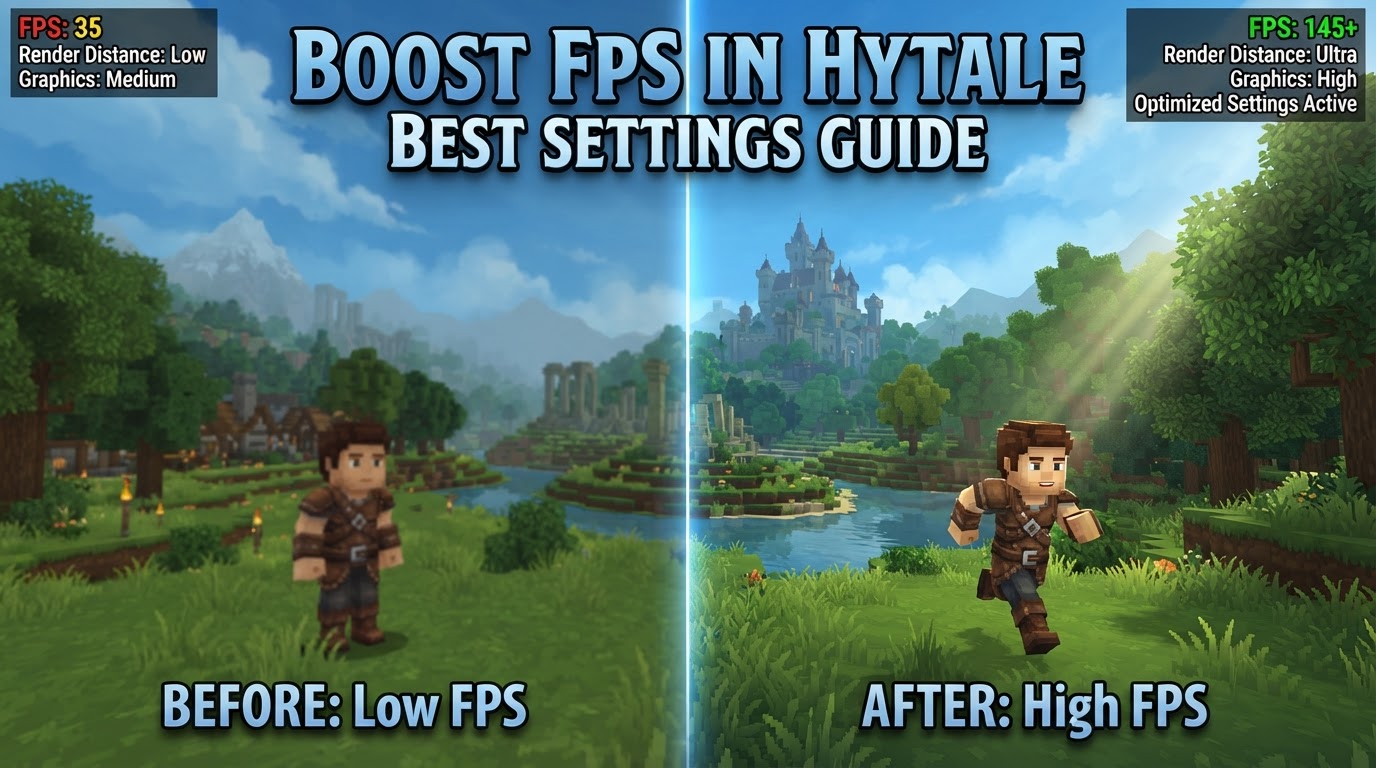
Given that Hytale is not yet officially released, definitive, universally applicable “best settings” for boosting FPS are subject to change upon the game’s launch. However, based on pre-release information, community discussions, and common optimization principles for voxel-based games, several settings and steps are widely suggested to maximize frame rates.
Hytale, an eagerly anticipated block-game adventure, promises a vast and dynamic world. Like many voxel-based games, its performance can be heavily influenced by how much of that world your system needs to process and render at any given moment. Optimizing your settings is crucial for a smooth and enjoyable experience, especially when exploring sprawling biomes, engaging in combat, or participating in community-created content. Understanding which settings impact performance most will allow players to strike a balance between visual fidelity and a high, stable frame rate.
View Distance (Render Distance)
The single most impactful setting for boosting your frame rate in Hytale is View Distance. This crucial setting dictates how many “chunks” of the game world are loaded, simulated, and rendered around your player character. A higher view distance means your system constantly processes more terrain, entities, and environmental details, even if far away.
Lowering this value significantly reduces the workload on both your CPU and GPU, directly lessening the amount of data your system needs to process and render. For substantial performance gains, players often find optimal values ranging around 192, 160, or even 128 units. While reducing view distance might make distant landscapes appear abruptly, the trade-off for a smoother gameplay experience is often well worth it.
- Recommendation: Start by significantly lowering your View Distance.
- Impact: Directly reduces the amount of world data your system must process.
- Suggested Values: Experiment with 192, 160, or 128 for noticeable improvements.
Render Scale
Render Scale controls the internal rendering resolution of the game relative to your monitor’s native resolution. For example, 95% means the game renders at 95% of your screen’s resolution and then upscales the image to fit your display.
Lowering the render scale drastically reduces the number of pixels your Graphics Processing Unit (GPU) has to compute each frame. While this can lead to a slightly softer or blurrier image, the FPS increase can be substantial. It’s an excellent option for squeezing out more frames without drastically altering other visual settings, directly reducing the number of pixels your GPU has to process.
- Recommendation: Consider lowering your Render Scale to 90-95%.
- Impact: Reduces GPU workload by rendering at a lower internal resolution.
- Trade-off: Can result in a slightly less sharp image.
VSync (Vertical Synchronization)
VSync, or Vertical Synchronization, prevents screen tearing by synchronizing the game’s frame rate with your monitor’s refresh rate. Screen tearing occurs when your graphics card renders frames faster than your monitor can display them.
However, VSync can cap your frame rate below your system’s potential and introduce noticeable input lag. For maximizing raw FPS, turning VSync off is generally recommended, allowing your graphics card to render as many frames as possible. If screen tearing is an issue, adaptive sync technologies like FreeSync or G-Sync can offer VSync benefits without the performance penalties.
- Recommendation: Turn VSync off to unlock maximum frame rates.
- Impact: Allows your GPU to render as many frames as possible, but may introduce screen tearing.
- Consideration: If screen tearing is an issue, consider adaptive sync technologies.
Fullscreen Mode
Playing Hytale in Exclusive Fullscreen Mode often provides a noticeable performance advantage over borderless windowed or standard windowed modes. In exclusive fullscreen, the game application takes direct control of your display output, reducing overhead from the operating system and other applications.
This direct access allows the game to utilize your Graphics Processing Unit (GPU) resources more efficiently. For those striving for every possible frame, exclusive fullscreen is a simple yet effective optimization, as it dedicates more resources directly to the game.
- Recommendation: Always play Hytale in Exclusive Fullscreen Mode.
- Impact: Provides the game with direct, optimized access to your GPU.
- Benefit: Reduces operating system overhead, potentially boosting FPS.
Shadows
Shadows are one of the most graphically intensive features in almost any 3D game. Rendering realistic and dynamic shadows requires complex calculations, multiple rendering passes, and significant processing power from your GPU.
Reducing the quality of shadows, or disabling them entirely, can lead to a substantial improvement in your frame rate. If your FPS struggles, especially in areas with many light sources or complex geometry, adjusting shadow settings should be one of your first steps, as it frees up GPU resources for higher frame rates.
- Recommendation: Lower shadow quality or disable shadows entirely.
- Impact: Significantly reduces GPU workload.
- Benefit: One of the most effective settings for FPS improvement.
Post-Processing Effects
Post-Processing Effects are visual enhancements applied to the game’s image after the main scene has been rendered. These include bloom, depth of field, motion blur, ambient occlusion, and color grading. While they enhance visual fidelity, they come at a significant performance cost.
Each post-processing effect requires additional computations, adding to the GPU’s workload. Disabling or lowering the intensity of these effects is highly recommended for players prioritizing frame rate, as it reduces the workload on your GPU without major impact on core gameplay visuals.
- Recommendation: Disable or lower the intensity of Post-Processing Effects.
- Examples: Bloom, Depth of Field, Motion Blur, Ambient Occlusion.
- Impact: Reduces additional GPU computations performed after scene rendering.
Field of View (FOV)
Your Field of View (FOV) setting determines how much of the game world is visible on your screen horizontally. A wider FOV allows you to see more, but also means your system has to render a larger area and more objects within each frame.
Reducing your FOV means less of the world is drawn, translating to fewer objects, less geometry, and fewer textures for your GPU to process per frame. While a very low FOV can feel restrictive, finding a comfortable balance can yield a small but noticeable performance boost.
- Recommendation: Experiment with a slightly lower Field of View.
- Impact: Reduces the number of objects and geometry rendered per frame.
- Benefit: Can offer a minor FPS boost with a comfortable setting.
Advanced Rendering Settings
Hytale will likely feature Advanced Rendering Settings controlling granular aspects like texture quality, anisotropic filtering, anti-aliasing, and particle effects density. For maximum frame rate, the general recommendation is to lower or turn off most, if not all, of these advanced options.
These settings often control resource-intensive graphical elements. Prioritizing FPS means sacrificing these finer details. Start by setting them to their lowest possible values and gradually increase them if your frame rate allows, as reducing them frees up resources.
- Recommendation: Lower or disable most Advanced Rendering Settings.
- Examples: Texture Quality, Anti-Aliasing, Particle Effects, Environmental Detail.
- Impact: Reduces the computational burden of intricate graphical elements.
Hardware Considerations: CPU, RAM, and Storage
Beyond in-game settings, Hytale is expected to be quite CPU and RAM-intensive due to its voxel-based nature, involving constant world generation, dynamic chunk loading, NPC behavior, and extensive data management.
In single-player, your machine runs both the game client and a local server, doubling the workload. A powerful multi-core CPU and ample, fast RAM are essential. If your system frequently stutters, it might indicate a CPU bottleneck or insufficient RAM. Upgrading these components may offer more significant performance improvements than a GPU upgrade alone. Additionally, installing Hytale on an SSD is highly recommended to minimize loading times and stuttering.
- CPU: Prioritize a strong multi-core CPU to handle world generation and simulation.
- RAM: Ensure you have sufficient and fast RAM (e.g., 16GB+ recommended) for data caching.
- Storage: Install Hytale on a Solid State Drive (SSD) to minimize loading times and stuttering.
Community Optimization Mods
The Hytale community anticipates and may develop Community Optimization Mods, similar to “HyFine” in other block games. These mods aim to improve performance and stability, particularly for lower-end systems, without altering core gameplay mechanics.
Such mods typically streamline game processes, optimize rendering, or offer customized graphical presets. However, as Hytale is unreleased, the official support and effectiveness of third-party mods at launch remain uncertain. Their stability, compatibility, and potential for conflicts might vary. Players should approach them with caution and download from trusted sources.
- Potential: May offer additional performance gains beyond official settings.
- Functionality: Could streamline processes, reduce overhead, or offer custom presets.
- Caveat: Uncertainty regarding official support, stability, and compatibility upon release.
It is crucial to reiterate that Hytale is not yet officially released. These recommendations are based on pre-release information, insights from alpha and beta experiences, and community predictions. The final game’s performance characteristics, available settings, and optimization requirements may differ. Always refer to the official Hytale documentation and community resources upon launch for the most up-to-date and accurate advice.