
Guide
How to Delete a World Save in Hytale
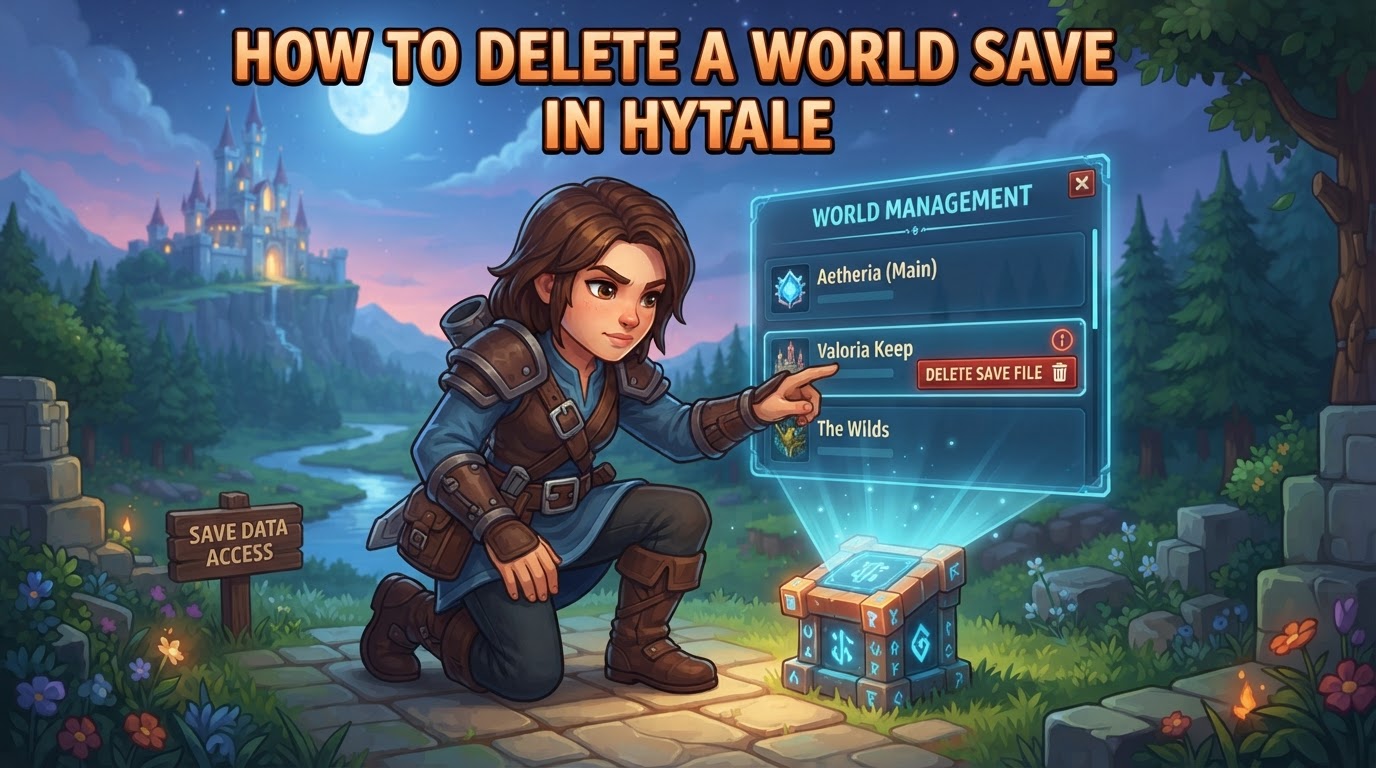
Hytale offers two primary methods for deleting world saves: a straightforward in-game option and a more advanced manual file deletion process. Understanding both approaches, along with best practices for managing your game data, is crucial for maintaining your Hytale experience, especially given its current early access status on PC.
Understanding Hytale World Saves
Before diving into deletion methods, it’s important to understand how Hytale manages your world data. All Hytale world saves are stored locally on your computer. Each world you create has its own dedicated folder within the game’s save directory, containing all the necessary files for that specific world, including terrain data, player inventories, and any structures you’ve built.
Unlike many modern games, Hytale does not currently feature built-in cloud save functionality. This means that if you play Hytale on multiple devices, your world saves are not automatically synchronized. You’ll need to manage these files manually if you wish to transfer worlds between machines. A helpful feature, however, is that Hytale automatically creates backups of your worlds, providing a safety net against accidental data loss or corruption.
Method 1: Deleting a World Save In-Game (Recommended)
For most players, deleting a world directly through Hytale’s user interface is the safest and most convenient method. This approach minimizes the risk of accidentally deleting the wrong files or corrupting your game installation.
-
Navigate to the Worlds Menu
From the main menu of Hytale, locate and click on the “Worlds” option. This will take you to a screen listing all your created and saved worlds.
-
Select the World to Delete
Browse through the list of your worlds. Each world will typically be represented by its name and possibly a small preview image or last played date. Carefully identify the specific world you intend to delete.
-
Access the Delete Option
Once you have identified the correct world, right-click on its entry in the list. This action will typically bring up a context menu with several options related to that world.
-
Confirm Deletion
From the context menu, select the “Delete” option. Hytale will then present you with a confirmation prompt. This is a critical step, as deleting a world is a permanent action that cannot be undone through the game once confirmed. Read the prompt carefully to ensure you are deleting the correct world.
-
Finalize Deletion
If you are certain about your decision, confirm the deletion. The world will then be removed from your list of available worlds and its associated files will be deleted from your local storage.
Method 2: Manually Deleting a World Save (Advanced Users / Troubleshooting)
Manual file deletion is a more direct method that involves interacting with your computer’s file system. This approach is generally recommended for advanced users, for troubleshooting purposes, or when the in-game deletion method is unavailable or not functioning correctly. Exercise extreme caution when using this method, as incorrect file manipulation can lead to data loss or game instability.
-
Close Hytale Completely
Before attempting any manual file deletion, ensure that Hytale is completely closed. Do not proceed with deleting world files while the game is running, as this can lead to file corruption, incomplete deletion, or the game attempting to re-save outdated data, potentially causing issues when you next launch Hytale.
-
Locate the Hytale Save Folder
The Hytale save folder’s location varies slightly depending on your operating system. You’ll need to navigate to this specific directory to find your world files:
- Windows: The path is typically
%appdata%\Hytale\UserData\Saves\. A quick way to access theUserDatafolder is to press theWin + Rkeys to open the Run dialog, type%appdata%\Hytale\UserData, and then press Enter. From there, you can navigate into theSavesfolder. - macOS: The path is usually
~/Library/Application Support/Hytale/UserData/Saves/. Note that theLibraryfolder is often hidden by default on macOS; you can access it by opening Finder, clicking “Go” in the menu bar, and then holding down theOptionkey to reveal “Library.” - Linux: The path is commonly
~/.local/share/Hytale/UserData/Saves/. The.localfolder is hidden by default; you may need to enable “Show Hidden Files” in your file manager.
- Windows: The path is typically
-
Identify the World Folder
Inside the
Savesfolder, you will find several subfolders. Each of these subfolders represents a distinct Hytale world save. The folder’s name will typically correspond to the name you originally gave the world when you created it. If you have multiple worlds with similar names, you might need to check the modification dates or contents to ensure you’re selecting the correct one. -
Delete the Entire World Folder
Once you have positively identified the folder belonging to the world you wish to delete, select the entire folder and delete it. This action will move the folder and all its contents to your operating system’s recycle bin (or trash), from where you can permanently remove it or restore it if you made a mistake (before emptying the recycle bin).
Essential Tips for Managing Hytale World Saves
Effective management of your Hytale world saves can prevent frustration and data loss. Here are some key tips:
- Always Back Up Important Worlds: Before performing any deletion, especially manual ones, or before major game updates, consider creating a backup of your important worlds. Simply copy the entire world folder from the
Savesdirectory to a safe location outside of the Hytale game folders, such as an external hard drive or a dedicated “Hytale Backups” folder. Remember that Hytale also generates automatic backups, which can be useful in a pinch. - Understand Server World Deletion: If you are managing a dedicated Hytale server, the process for deleting a world is different. You will need to stop the server application, then navigate to the server’s specific world directory (often something like
universe/worlds/within the server’s installation folder). From there, you would delete the relevant world data folders, such aschunksandresources, corresponding to the world you wish to remove. Always back up your server data before performing such operations. - Manual Cloud Syncing for Cross-Device Play: Since Hytale lacks integrated cloud saves, players who wish to play the same world across multiple computers can utilize third-party cloud storage services. Services like Google Drive, OneDrive, or Dropbox can be used in conjunction with symbolic links (on Windows, using the
mklinkcommand in Command Prompt) or similar directory junction tools to synchronize yourSavesfolder across devices. This requires careful setup and understanding of how these tools work to avoid conflicts. - Regularly Clean Up Unused Worlds: Over time, you might accumulate many old or experimental worlds that you no longer play. Periodically deleting these unused worlds can help free up disk space and keep your “Worlds” menu organized and clutter-free.
Common Mistakes to Avoid When Deleting World Saves
Being aware of common pitfalls can save you from irreversible data loss and potential game issues:
- Deleting While Hytale is Running: As mentioned, manually deleting world files while the game client is open is a significant risk. It can lead to corrupted save files, incomplete deletions, or even game crashes. Always ensure Hytale is fully closed before manual file manipulation.
- Accidental Deletion of the Wrong World: This is perhaps the most common and frustrating mistake. Always double-check the world name, creation date, or other identifying features to ensure you are deleting the correct world, especially when using the manual file deletion method where visual cues might be less prominent than in-game. Losing hours of progress due to a misclick is easily avoidable with a moment of careful verification.
- Neglecting to Create Backups: Relying solely on Hytale’s automatic backups is generally sufficient for minor issues, but for critical worlds or before major system changes, a manual backup is invaluable. Failing to back up your worlds, especially before manual deletion or significant game updates, is a common mistake that can lead to permanent loss of progress if something goes wrong.
- Expecting Automatic Cloud Saves: Do not assume that your Hytale worlds are automatically backed up to a cloud service or synchronized across your devices. Hytale does not feature integrated cloud save functionality. Any cross-device syncing or off-site backups need to be managed manually by the player.