
Guide
How to Auto-Sync Client Mods When Joining a Hytale Server
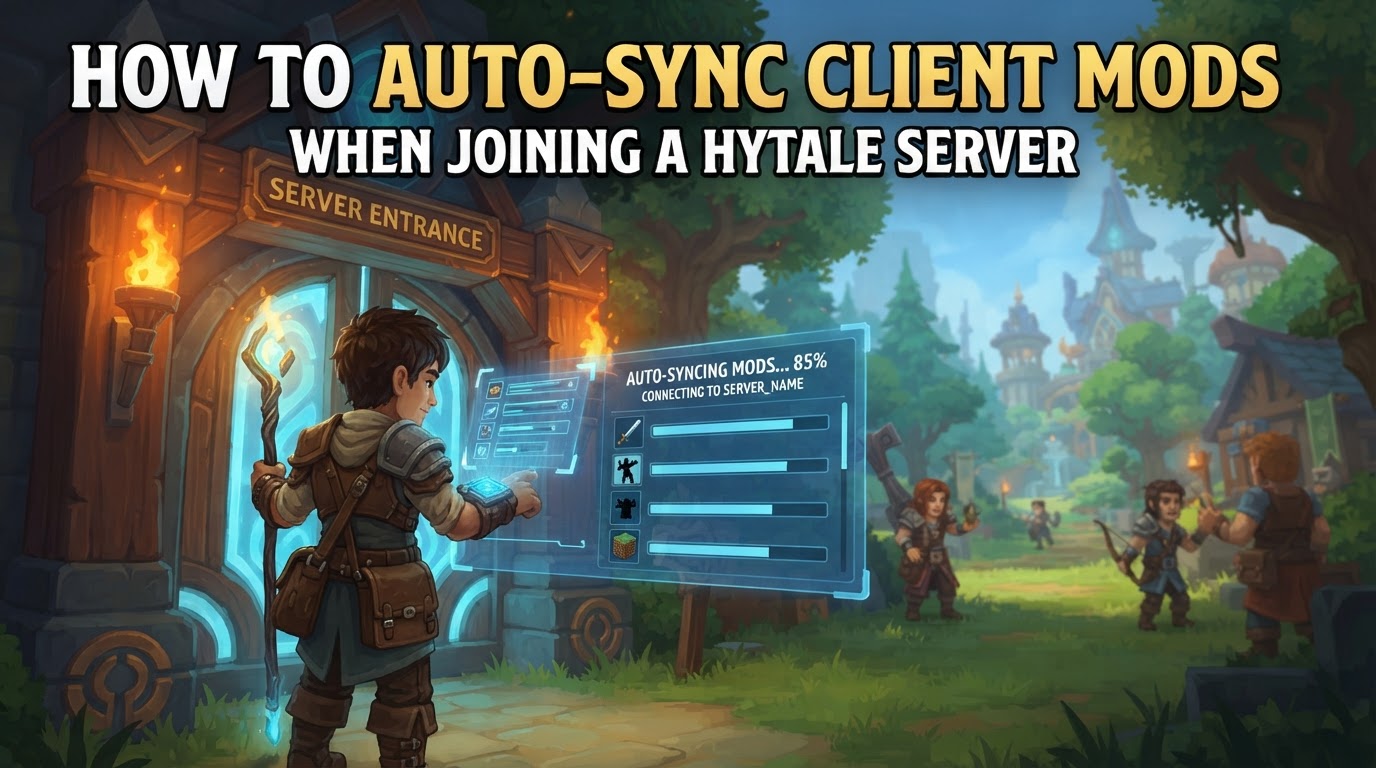
When joining a Hytale server, players do not need to manually “auto-sync” client mods. Hytale’s modding architecture fundamentally shifts the responsibility for mod delivery from the player to the server. This means that all necessary mod content, such as custom textures, models, sounds, and gameplay mechanics, is automatically streamed from the server to your game client upon connection, ensuring a seamless and consistent experience without any manual intervention from your end.
The Hytale Approach to Modding: Server-Side First
Hytale’s design philosophy for modding is centered around a “server-side first” approach. This is a significant departure from many other games where players often need to manually download, install, and manage client-side modifications to match a server’s requirements. In Hytale, the server is the authoritative source for all modded content.
- Automatic Content Delivery: When you connect to a modded Hytale server, the server identifies all the custom content and modifications it is running. During the connection handshake, this content is streamed directly to your client’s local cache. This process is entirely automatic and happens in the background, requiring no action from the player.
- “One Community, One Client” Philosophy: This core principle aims to eliminate the fragmentation commonly seen in other game communities, where different servers might require players to maintain multiple, distinct game client installations. Hytale ensures that any player can join any server, regardless of its modifications, using the same base game client. This simplifies the user experience, enhances security by reducing the risk of malicious client-side mods, and promotes a unified player base.
- Consistent Updates: If a server owner updates or changes the mods running on their server, your client will automatically receive these updated assets the next time you connect. There’s no need to track mod versions or manually update files on your local machine.
Player Experience: No Manual Syncing Required
For players, the process of “auto-syncing” client mods is entirely transparent because there are no manual steps involved. The game handles everything automatically.
- Launch Hytale: Start your Hytale game client as you normally would.
- Connect to a Server: Use the in-game server browser or direct connect option to join your desired Hytale server.
- Automatic Mod Download: As your client connects, the server will automatically begin streaming any required mod assets and data to your game. This might involve a brief loading screen or an increased connection time depending on the size and number of mods.
- Play: Once connected, you will be playing on the modded server with all its custom content fully loaded and functional, without having downloaded or installed anything manually beforehand.
This streamlined process means players can explore a vast array of modded servers without the common headaches of mod management, compatibility issues, or version mismatches.
For Server Owners: Managing Mods for a Seamless Client Experience
While players don’t manage client mods, server owners are responsible for their installation and management, which directly impacts the seamless client experience. Understanding this process can also help players appreciate how the system works.
Installing Mods on Your Server
To make mods available to connecting players, server owners must install them on the server itself.
- Access Your Server Files: This is typically done through your game hosting provider’s control panel file manager, or via an SFTP (Secure File Transfer Protocol) client if you have direct access to the server’s file system.
- Locate the
mods/Folder: Hytale servers have a dedicatedmods/directory, usually located at the root of your server’s installation. This is where all server-side mods (which then get streamed to clients) are placed. - Upload Mod Files: Transfer the mod files (often in
.zipor.jarformats for asset packs or plugins) into thismods/folder. - Restart Your Server: After adding or removing any mod files, you must restart your Hytale server for the changes to take effect and for the server to recognize the new content.
Best Practices for Mod Management (Server Owners)
- Backup Before Changes: Always create a full backup of your server files and world data before adding, updating, or removing any mods. This is crucial for recovery if issues arise.
- Install One Mod at a Time: To easily identify conflicts or errors, install mods individually. Add one mod, restart the server, verify functionality, and then proceed to the next.
- Check Compatibility and Dependencies: Ensure that any mod you install is compatible with your server’s current Hytale version. Also, verify if the mod requires any other mods (dependencies) to function correctly and install them if needed.
- Use Trusted Sources: Download mods only from reputable platforms, such as CurseForge, which is expected to be an official distribution platform for Hytale mods. This helps mitigate security risks and ensures mod quality.
- Monitor Server Console: After starting your server with new mods, always check the server console for any error messages, warnings, or validation failures during the mod loading process.
Common Pitfalls for Server Owners (Impacting Client Experience)
Understanding these common mistakes can further clarify why players have such a hands-off experience with mods in Hytale:
- Expecting Client-Side Installation: The most significant misconception is assuming players need to manually install mods. Hytale’s design actively prevents this, making it unnecessary for players and shifting all mod management responsibility to the server owner.
- Incorrect Mod Placement: Placing mod files in the wrong directory on the server (e.g., in the world folder instead of the dedicated
mods/folder) will prevent them from loading and being streamed to clients. - Missing Dependencies or Version Mismatches: Mods may fail to load, or the server might crash if required dependencies are not installed, or if the mod is incompatible with the server’s Hytale version. This directly impacts whether players can experience the modded content.
- Duplicate Mod Files: Having multiple copies of the same mod file or conflicting versions within the
mods/folder can lead to server startup failures or unexpected behavior. - Not Restarting the Server: Mods are loaded when the server starts. Failing to restart the server after adding, removing, or updating mod files means those changes will not take effect.
- Removing Content Mods Without Caution: If a mod added custom blocks, items, or entities to your server’s world, simply removing the mod without proper world cleanup tools or precautions can leave behind corrupted or broken data in the world, potentially causing errors for players. Always back up your world before removing such mods.
Understanding Client-Side Caching
While mod assets are streamed from the server, your client does cache this data locally. This means that if you disconnect from a server and then rejoin, or if you frequently play on the same server, subsequent connections may be faster as some or all of the mod assets might already be present in your local cache. The exact duration or rules for this caching mechanism (e.g., how long data is retained, when it’s cleared) are managed by the game client to optimize performance and storage.
In summary, Hytale’s innovative modding system ensures that players enjoy a hassle-free experience when joining modded servers. The “auto-sync” process is entirely handled by the server, allowing you to focus purely on gameplay.