
Guide
How to Set Game Rules in a Hytale World
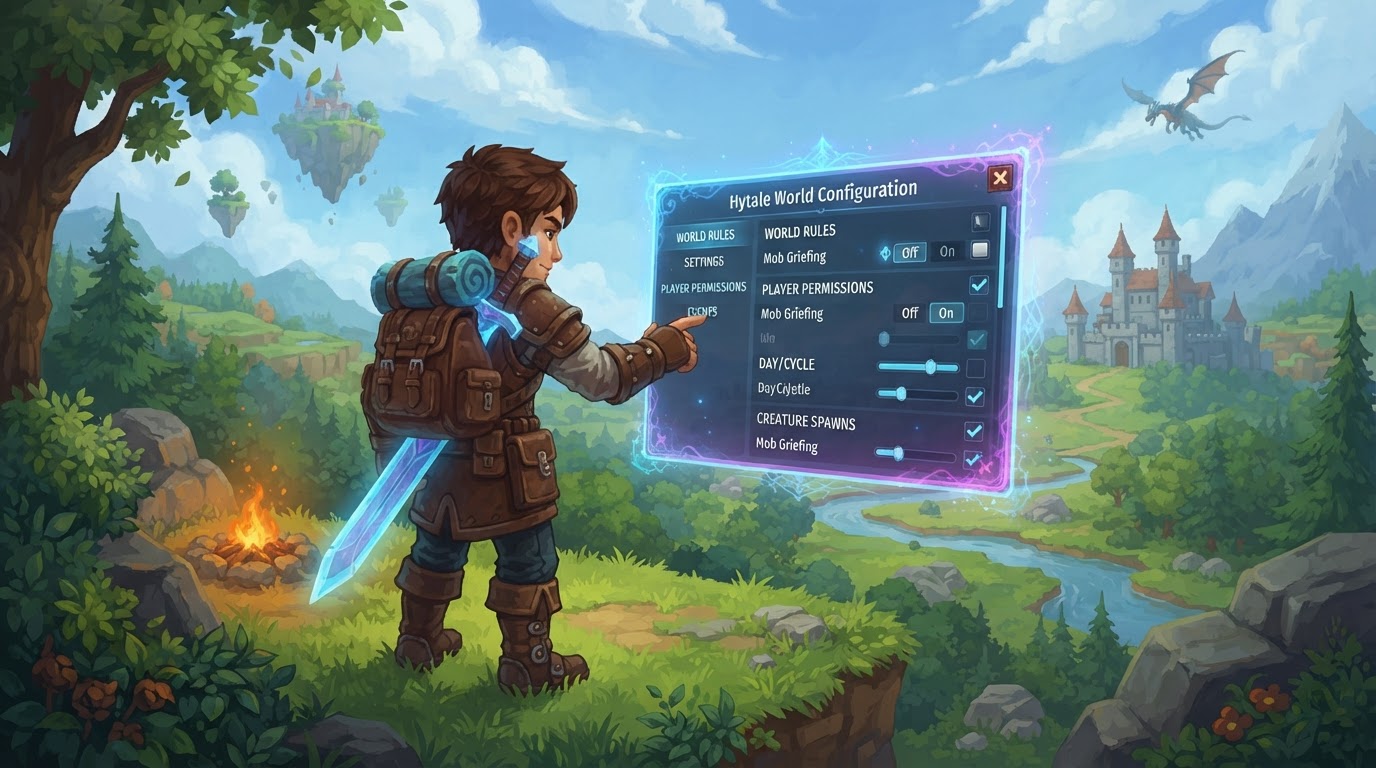
In Hytale, game rules are primarily configured through JSON-based configuration files and, for advanced customization, via server-side scripting (Lua) and data assets. This server-first approach means that settings and modifications are managed on the server, ensuring all connected players automatically receive the correct game rules without needing manual client-side installations.
How to Set General Server Rules
General server rules apply to your entire Hytale server or “universe.” These settings are typically found in the root config.json file.
Via Control Panel (Recommended for Hosted Servers)
For those using a hosting provider, the control panel often provides a user-friendly interface for managing server settings.
- Log into your server hosting control panel.
- Stop your Hytale server if it is currently running. This is crucial to prevent data corruption or changes from being overwritten.
- Navigate to the “Config” tab, “Server Settings,” or an “Easy Config” panel, which your host provides.
- Locate and modify settings such as the server name, Message of the Day (MOTD), password protection, maximum player count, and overall performance options like view distance.
- Save your changes within the control panel interface.
- Start your server again to apply the new settings.
Manual File Editing
If you’re self-hosting or prefer direct file access, you can edit the configuration file manually.
- Stop the server completely from your control panel or command line.
- Locate the
config.jsonfile in the root directory of your Hytale server installation. - Open the
config.jsonfile using a plain text editor (e.g., Notepad++, VS Code, Sublime Text). - Modify the desired values. Be extremely careful with JSON formatting; ensure all strings are enclosed in double quotes, numbers are not, and that all curly braces
{}and square brackets[]are correctly matched. Commas must separate key-value pairs, but the last pair in an object should not have a trailing comma. - Save the modified file.
- Start the server again for the changes to take effect.
How to Set World-Specific Rules
Each world within your Hytale server can have its own distinct configuration, allowing for independent control over gameplay behavior. These settings are stored in each world’s specific config.json file, located under universe/worlds/<world_name>/config.json.
For New Worlds (In-Game UI)
When creating a new world, Hytale provides an in-game interface to set initial rules.
- Launch Hytale and navigate to the “Worlds” option from the main menu.
- Select “Create World.”
- Choose a game mode, such as Exploration or Creative. Note that Adventure mode may not be available during early access periods.
- Enter a name for your new world.
- Click the gear icon, usually located beneath the mode portrait, to open the detailed world settings panel.
- Adjust specific settings such as toggling PvP (Player vs. Player), enabling/disabling fall damage, setting the day/night cycle speed, and configuring inventory penalties upon death (e.g., None, Drop All, Partial Drop).
- Select “Apply Settings,” then proceed to “Create World.”
For Existing Worlds (In-Game Commands)
For existing worlds, certain rules can be modified using in-game commands, provided you have administrator (op) permissions.
- Join your Hytale server with admin privileges.
- Open the in-game chat window.
- To change the game mode, type
/world settings gamemode set [mode](e.g.,/world settings gamemode set Creativeto switch to Creative mode). - Press
Enterto execute the command. A confirmation message should appear in chat. - Important: After changing game modes or other significant settings via commands, it is highly recommended to use
/world save --all --confirmto ensure these changes are permanently saved and not lost upon server restart.
Manual File Editing (Existing Worlds)
Similar to server-wide settings, world-specific rules can be edited directly in their respective configuration files.
- Stop the Hytale server.
- Navigate to the specific world’s configuration file:
universe/worlds/<world_name>/config.jsonwithin your server files. Replace<world_name>with the actual name of your world. - Edit the
config.jsonfile using a text editor to modify world-specific rules like PvP enablement, fall damage, or NPC spawning rates. Adhere strictly to JSON formatting rules. - Save the file.
- Restart the server for the changes to take effect in that world.
How to Set Rules via Modding (Advanced)
Hytale’s robust modding system offers powerful ways to customize game rules beyond basic configuration files, primarily through server-side scripting and data assets. This system is “server-first,” meaning mods are managed on the server and automatically streamed to players.
Lua Scripting
Hytale utilizes a native Lua-based scripting system for advanced server-side modifications, allowing modders to introduce new mechanics, custom commands, and intricate game logic.
- Access your server’s file system, typically via an FTP client or control panel file manager.
- Locate the
mods/folder in your server’s root directory. - Create a new subfolder for your mod (e.g.,
my_custom_rules_mod/). - Inside your mod folder, create a
mod.jsonfile. This file contains metadata about your mod (e.g.,id,name,version) and specifies the entry point for your Lua scripts. - Write your Lua script files (e.g.,
main.lua). These scripts can define custom game logic, handle player events (e.g.,hytale.events.onPlayerJoin,hytale.events.onBlockBreak), and manipulate the world programmatically. - Upload these files to your server’s
mods/<your_mod_folder>/directory. - Many Lua scripts can be reloaded instantly using the in-game command
/mod reloadwithout requiring a full server restart, though a restart is sometimes necessary for more fundamental changes.
Data Assets (JSON-based)
Data assets are JSON-based configuration files that allow you to modify game content and rules without writing code. These can define properties for blocks, items, NPCs, world generation rules, and loot tables.
- Utilize Hytale’s Asset Editor (when available) or manually create/modify JSON files that define properties for various game elements. For example, you might create a JSON file to change the durability of a specific tool or alter the spawn rate of a particular creature.
- Ensure these data asset files are correctly placed within your mod’s directory structure (e.g.,
mods/<your_mod_folder>/assets/) according to Hytale’s asset loading conventions. The server will then load these modified assets.
Tips for Effective Rule Management
- Always Stop and Restart: For any manual changes to
config.jsonfiles (both server-wide and world-specific), always stop the server before editing and restart it afterward. Editing a live config can lead to lost changes or server instability. - Back Up Your Files: Before making any significant modifications to configuration files or adding new mods, create backups of your existing files. This allows for easy rollback if something goes wrong.
- Validate JSON Syntax: JSON is highly sensitive to formatting. Use an online JSON validator or a text editor with JSON syntax highlighting to ensure correct syntax (matching braces, correct use of commas, strings in double quotes). Incorrect JSON will prevent files from loading.
- Make Incremental Changes: When troubleshooting, change one setting at a time. This makes it much easier to identify the cause of any issues that may arise.
- Configure World Generation Early: Settings that affect world generation (like the world seed or biome rules) should be configured before players explore the world. Changes to these settings only affect newly generated chunks, leaving previously explored areas as they were.
- Prefer In-Game Commands for Game Modes: For changing game modes, using in-game commands like
/world settings gamemode set [mode]is generally safer and more convenient than directly editing config files, as it ensures proper internal state updates. - Save After Commands: After using in-game commands to modify world settings, always follow up with
/world save --all --confirmto prevent potential loss of changes if the server restarts unexpectedly. - Understand JSON Structure for Data Assets: For advanced modding with data assets, a thorough understanding of JSON file structure and Hytale’s specific organization of these files is crucial for effective customization.
- Lua Scripting Best Practices: When writing Lua scripts, avoid placing heavy or long-running operations directly in frequently called event handlers (like
onTick). Instead, usehytale.schedulerfor delayed or repeating tasks to optimize server performance. Use unique IDs (e.g.,my_mod:item_name) for namespacing to prevent conflicts with other mods.
Common Mistakes to Avoid
- Editing Live Configurations: Modifying
config.jsonfiles while the server is running is a common pitfall that can lead to lost changes, file corruption, or server crashes. - JSON Formatting Errors: Even a single misplaced comma or missing quote in a JSON file can prevent the server from loading the configuration, leading to default settings or errors.
- Not Restarting the Server: Changes made to configuration files will not take effect until the server is fully stopped and then restarted.
- Applying Late World Generation Changes: Attempting to change world generation settings (e.g., biome distribution, terrain features) after an area has already been explored and generated will not retroactively alter existing chunks.
- Forgetting to Save After In-Game Commands: Relying solely on in-game commands to change settings without explicitly saving the world (e.g., with
/world save) can result in those settings reverting to their previous state upon server restart.
Uncertainties in Hytale’s Development
As Hytale is still under active development, some aspects of its rule-setting and modding capabilities are subject to change or future implementation:
- Modding Language for Plugins: While Hytale previously indicated Java for server plugins, the ongoing rewrite of the client and server to C++ means the definitive language for deeply integrated, high-performance plugin development is currently uncertain. However, Lua remains confirmed for server-side scripting.
- Visual Scripting Availability: A visual scripting system, designed to simplify modding for non-coders, is planned for release “shortly after launch” but will not be available in the initial game release.
- Adventure Mode Availability: During the Early Access period, the full Adventure game mode, with its story-driven content, is currently unavailable and will be introduced later.