
Guide
Hytale Building Tools: What Creative Mode Offers
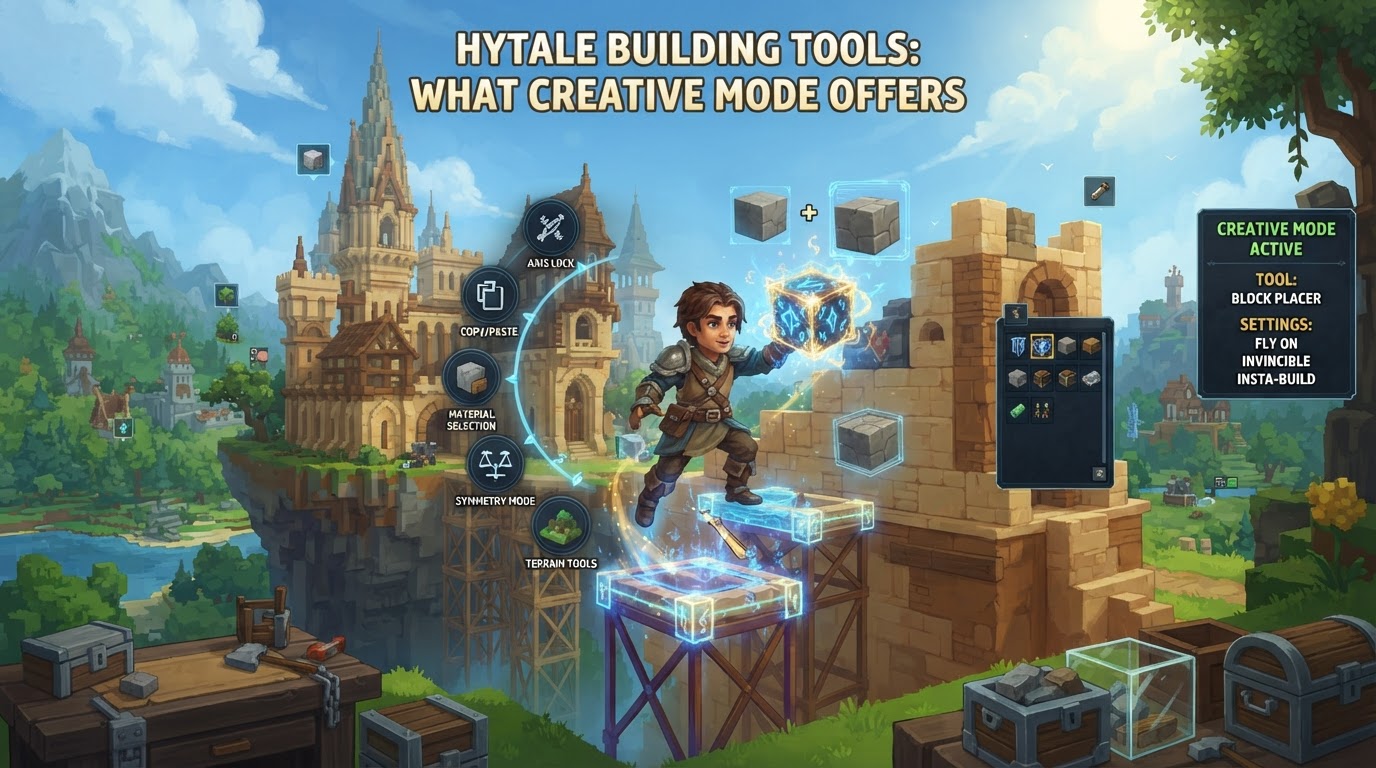
Hytale’s Creative Mode stands apart from many traditional sandbox games by offering an exceptionally robust and precise set of building tools, designed to empower players with granular control over their creations. Far beyond simple block-stacking, it provides advanced block technology, a diverse material palette, and specialized tools that streamline complex construction, terraforming, and detailing processes, allowing for the creation of intricate and highly personalized structures with unprecedented ease and speed.
Understanding Hytale’s Core Building Mechanics
At the heart of Hytale’s creative building experience are several fundamental mechanics that elevate it beyond conventional block-based construction. These systems work in concert to provide both flexibility and precision for builders.
The Advanced Block System
Hytale moves beyond the paradigm of uniform, single-block placement. Its advanced block system allows for a level of detail and realism often seen in professional game environments. This means blocks aren’t just cubes; they can have varying shapes, textures, and even interact differently with their environment. This system is the foundation upon which more complex structures and detailed aesthetics are built, enabling rich, believable environments.
Essential Block Rotation
One of the most critical and frequently used tools in Hytale building is block rotation. By pressing the R key, players can rotate any placable block or object around its axis. This simple yet powerful feature is indispensable for achieving intricate designs, particularly for elements like roofs, decorative trims, and furniture placement, allowing components to fit perfectly into complex architectural arrangements.
The Builder’s Workbench
The Builder’s Workbench is a cornerstone of Hytale’s creative construction, acting as a specialized crafting station that transforms raw materials into a vast array of unique building components. Unlike standard crafting, this workbench focuses specifically on architectural elements, expanding the builder’s palette far beyond basic blocks. It is essential for accessing the game’s more detailed and specialized building pieces.
Mastering Builder Mode Tools
For large-scale projects, terraforming, or highly precise adjustments, Hytale’s dedicated Builder Mode tools are indispensable. These tools are designed to significantly enhance building speed and accuracy, moving beyond individual block placement to manipulate entire sections of the environment.
Accessing Builder Mode Tools
When in Builder Mode, a dedicated set of tools becomes available, accessible via the number keypad. To familiarize yourself with these tools and their functions, you can toggle the Builder Tools Legend by pressing L. Navigate through different legend pages using J for the previous page and K for the next page.
Key Builder Mode Tools and Their Functions
- Paint Brush Tool (Keypad 1): This tool allows you to quickly apply textures or block types over large areas. Instead of replacing blocks one by one, you can “paint” surfaces with your desired material, making it ideal for creating landscapes, roads, or large walls with specific block patterns. You can use
Uto toggle paint mode for the brush, allowing for more nuanced application. - Sculpt Brush Tool (Keypad 2): The Sculpt Brush is Hytale’s answer to terraforming. It enables players to shape terrain, create cliffs, carve out caves, or smooth surfaces with organic precision. Holding
Left Shiftwhile using the sculpt brush allows you to change its modifier, offering options like adding, subtracting, or smoothing terrain, providing immense control over geological features. - Selection Tool (Keypad 3): This is a fundamental tool for manipulating larger sections of your build. The Selection Tool allows you to define a specific volume or area within your world. Once an area is selected, you can perform various operations on it, such as copying, cutting, pasting, or deleting the contained blocks.
- Paste Tool (Keypad 4): Used in conjunction with the Selection Tool, the Paste Tool allows you to place previously copied or cut selections into a new location. This is incredibly powerful for duplicating structures, creating repeating patterns, or moving entire buildings. The
Tkey provides a paste preview, allowing you to visualize the placement before committing, ensuring perfect alignment. - Line Tool (Keypad 5): The Line Tool is perfect for quickly drawing straight lines or edges of blocks. Instead of placing individual blocks along a path, you can define two points, and the tool will automatically fill the space in between, saving considerable time on repetitive linear constructions like walls, fences, or roads.
- Undo (Z) and Redo (Y): These universal commands are lifesavers in any creative endeavor. They allow you to quickly reverse mistakes or reapply changes, encouraging experimentation without fear of permanent errors.
- Select Block from Set (Q): This handy shortcut allows you to quickly pick up a block type that is already present in your world, adding it to your hotbar. This eliminates the need to constantly search your inventory for specific blocks when replicating designs or making minor adjustments.
Practical Steps for Creative Building in Hytale
To effectively utilize Hytale’s creative tools, follow these practical steps:
1. Basic Block Placement and Rotation
- Select a Block: Choose any block or item from your inventory and place it into your hotbar.
- Place the Block: Aim your cursor where you want to place the block and click your primary mouse button.
- Rotate the Block: Before or after placing, with the block selected in your hotbar, press the
Rkey. Each press will rotate the block by 90 degrees around its axis. This is crucial for orienting stairs, roof pieces, and decorative elements correctly. For complex structures like roofs, anchor the first piece, then rotate subsequent pieces to align perfectly with it. - Drop Item/Block: If you need to drop a block from your inventory or hotbar, press
G.
2. Utilizing the Builder’s Workbench
- Craft the Workbench: Gather 6x Any Tree Trunk and 3x Stone. Open your regular crafting interface and craft the Builder’s Workbench.
- Place the Workbench: Place the crafted workbench in your desired location, just like any other block.
- Access Specialized Components: Interact with the Builder’s Workbench. Its interface will display a wide range of specialized building pieces that cannot be crafted conventionally or found in the basic inventory. These include:
- Walls (various types, textures, and heights)
- Roof sections (slopes, corners, ridges)
- Decorative trims and moldings
- Stairs (different materials and styles)
- Beams and support pieces
- Furniture components (for custom furniture)
- Detailed architectural blocks (arches, pillars, windowsills)
- Craft Components: Select the desired component from the workbench interface. If you have the necessary raw materials (e.g., wood planks, stone blocks), you can craft these specialized pieces directly.
- Place Components: Once crafted, these components will appear in your inventory, ready for placement and rotation using the standard controls.
3. Engaging Builder Mode Tools for Advanced Projects
- Enter Builder Mode: Ensure you are in Creative Mode, which typically grants access to Builder Mode functionalities.
- Select an Area (Selection Tool – Keypad 3): Click and drag to define a cubic selection. This highlights the area you intend to modify.
- Perform Operations on Selection:
- Copy/Cut: Once selected, you can copy the contents to your clipboard for later pasting.
- Paste (Paste Tool – Keypad 4): Move to a new location, activate the Paste Tool, and use
Tfor a preview. Adjust the placement as needed, then confirm to paste the copied structure.
- Terraform with the Sculpt Brush (Keypad 2): Select the Sculpt Brush. Left-click to add terrain, right-click to remove terrain. Hold
Left Shiftand use your mouse wheel to cycle through different sculpt modifiers (e.g., flatten, smooth, add/subtract sphere). - Paint Surfaces (Paint Brush Tool – Keypad 1): Select the Paint Brush. Choose a block type from your hotbar. Left-click and drag over existing terrain or structures to quickly re-texture them. Use
Uto toggle between painting individual blocks or painting larger areas. - Draw Lines (Line Tool – Keypad 5): Select the Line Tool. Place a block at your starting point, then move to your end point and click again. The tool will automatically fill the space with the selected block, creating a perfect straight line.
Tips for Efficient and Creative Building
- Master Core Controls: A deep understanding of both basic block placement and the advanced Builder Mode tools is paramount for efficient and precise construction. Practice with each tool to understand its nuances.
- Leverage the Builder’s Workbench: Always utilize this station to access a wider variety of specialized building components. These pieces are designed to add detail and realism that basic blocks cannot achieve alone.
- Utilize Block Rotation (R key) Extensively: This is a powerful tool, especially for complex structures like roofs, intricate facades, and furniture. Don’t be afraid to rotate pieces until they fit perfectly.
- Experiment with Advanced Tools: Tools like the Paint Brush, Sculpt Brush, Selection Tool, and Line Tool are designed for large-scale manipulation. Experiment with them to understand how they can significantly speed up large projects and allow for more complex terraforming and structural manipulation.
- Use Undo/Redo Liberally: Don’t fear making mistakes. The
ZandYkeys are there to encourage experimentation and quick corrections.
Common Pitfalls and How to Avoid Them
- Struggling with Roof Placement: A frequent challenge for new builders is accurately placing and aligning roof pieces. This can be overcome by consistently using the
Rkey to rotate pieces. Anchor your first roof piece, then carefully rotate subsequent pieces into position relative to it, ensuring proper overlap and alignment. - Underutilizing Builder Mode Tools: Many players initially rely solely on manual block placement, which can make large builds unnecessarily time-consuming and less precise. Actively force yourself to use specialized tools like the Sculpt Brush for terrain, the Paint Brush for texturing, and the Selection/Paste tools for duplicating structures. This will drastically improve your building efficiency and the scope of your projects.
As Hytale is still in active development, some details or implementations of these tools may be subject to change before its full release. However, the information provided reflects the current verifiable state of its robust creative building system.