
Guide
How to Use ModSync to Manage Mods on a Hytale Server
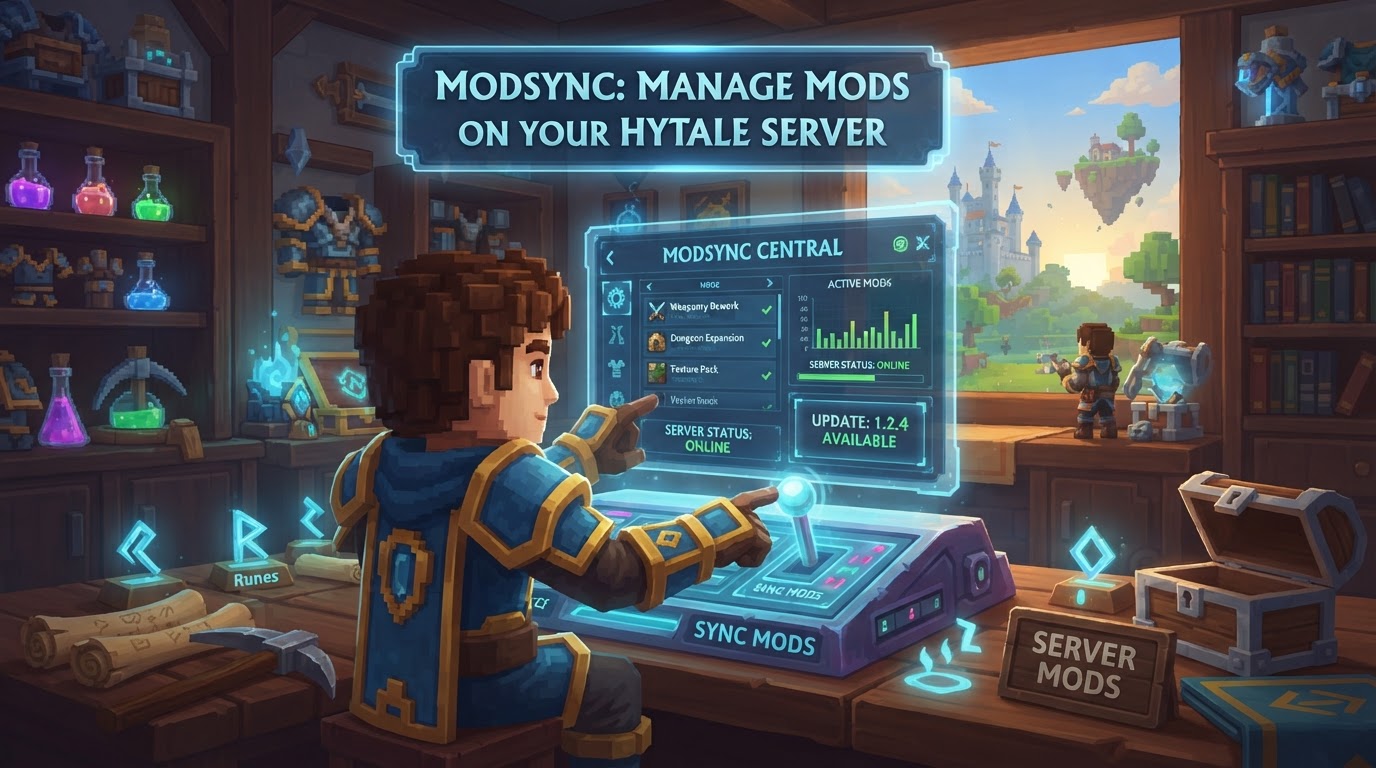
Managing modifications (mods) on a Hytale server can be a complex task, but ModSync is designed to centralize and streamline this process. It acts as a powerful server-side utility that ensures your server’s mod environment is consistently managed, updated, and synchronized. Crucially, Hytale’s server-first modding architecture means that players connecting to a ModSync-managed server will automatically receive the necessary mod files, eliminating the common hassle of manual client-side installations and ensuring everyone is playing with the correct versions.
Understanding ModSync’s Core Mechanics
ModSync functions as a server-side plugin that simplifies the entire lifecycle of mods on your Hytale server. It integrates primarily with online repositories like CurseForge, allowing administrators to control their mod environment through intuitive in-game and server console commands. Here’s a breakdown of its key functionalities:
- Mod Lifecycle Management: ModSync provides comprehensive tools to add new mods, install them onto your server, upgrade them to newer versions, and remove them when no longer needed. This covers the full spectrum of mod management.
- Update Management: Staying current is vital for stability and new features. ModSync can actively check for available updates for your installed mods and allows you to upgrade them, either individually or all at once, ensuring your server runs the latest compatible versions.
- Release Channels: To give administrators fine-grained control over stability, ModSync supports selecting specific release channels (Release, Beta, or Alpha) for mods. This means you can choose to run stable releases for a production server or experiment with newer beta/alpha versions for testing.
- Source Integration: ModSync connects to popular mod repositories, with CurseForge being a primary source. Utilizing a CurseForge API key significantly enhances its capabilities, enabling features like accurate auto-matching of mods. Without an API key, it can fall back to services like CFWidget for URL-based lookups, but with reduced functionality.
- Persistent Tracking: Once a mod is added to ModSync’s managed list, its status and configuration are saved. This ensures that your mod setup remains consistent across server restarts, reducing administrative overhead.
- Import Functionality: If you have existing mods already in your server’s folders that weren’t installed via ModSync, you can scan for them and import them into ModSync’s management system. This feature greatly benefits from a CurseForge API key for efficient auto-matching.
- Self-Upgrade: ModSync itself can be updated directly from GitHub Releases, allowing you to keep the management tool up-to-date with the latest features and bug fixes.
Step-by-Step Guide: Installing ModSync
Before you can begin managing your Hytale server’s mods with ModSync, you first need to install it. This process is straightforward:
- Download ModSync: Navigate to the official ModSync releases page (typically on CurseForge or GitHub) and download the latest
modsync-<version>.jarfile. Always ensure you are downloading from a trusted source. - Place on Server: Transfer the downloaded
.jarfile into your Hytale server’smods/folder. This is the standard location for server-side plugins and mods. - Start Server: Boot up your Hytale server. ModSync will initialize and create its necessary configuration files upon its first startup.
- Set API Key (Recommended): For ModSync to function at its best, especially for features like accurate auto-matching during imports and comprehensive mod lookups, it’s highly recommended to configure a CurseForge API key. You can do this by typing the following command in your server console or in-game (if you have sufficient permissions):
/modsync config key curseforge <your_api_key>Without an API key, ModSync will rely on less robust methods for mod identification, such as CFWidget for URL-based lookups, but will not support search-based imports or as accurate auto-matching.
Step-by-Step Guide: Managing Mods with ModSync Commands
Once ModSync is installed and your server is running, you can begin managing your mods using a series of commands. These commands can be executed either directly in the server console or in-game if you possess the necessary administrative permissions.
- Add a Mod to ModSync’s List:
To tell ModSync about a mod you want to manage, use its CurseForge URL:
/modsync add <CurseForge_URL>Example:
/modsync add https://www.curseforge.com/hytale/mods/my-awesome-modThis command adds the mod to ModSync’s internal managed list, but does not install it yet.
- List Managed Mods:
To view all mods currently under ModSync’s management, including their installation status, version, and unique identifier:
/modsync list - Install Mods:
After adding mods, you need to install them onto your server. ModSync will download the mod files, validate their manifest, and place them into the appropriate
mods/orearlyplugins/directories.- To install all mods in your managed list:
/modsync install - To install a specific mod by its name, slug, or identifier:
/modsync install <name_or_slug_or_identifier>
- To install all mods in your managed list:
- Check for Updates:
To see which of your installed mods have newer versions available on their respective repositories:
/modsync checkThis command compares the installed versions against the latest available releases.
- Upgrade Mods:
To update your mods to their latest versions:
- To upgrade all installed mods with available updates:
/modsync upgrade - To upgrade a specific mod:
/modsync upgrade <name_or_slug_or_identifier>
- To upgrade all installed mods with available updates:
- Remove Mods:
If you no longer wish to use a mod, you can remove it from ModSync’s management and from your server’s files:
- To remove a specific mod:
/modsync remove <name_or_slug_or_identifier> - To remove all managed mods from your server:
/modsync remove all
- To remove a specific mod:
- Import Existing Mods:
If you have mods already in your server’s folders that weren’t added via ModSync, you can bring them under its control:
- To scan your server’s directories for unmanaged mod files:
/modsync scan - To import the scanned mods into ModSync’s managed list (auto-matching works best with a CurseForge API key):
/modsync import - For manual import of a specific file with a known CurseForge URL (useful for custom or non-CurseForge mods):
/modsync import <filename.jar> <CurseForge_URL>
- To scan your server’s directories for unmanaged mod files:
Essential Tips for ModSync Users
- Server Restart is Crucial: After performing any actions that involve installing, upgrading, or removing mods, a manual server restart is almost always necessary for the changes to fully take effect. New mod files need to be loaded by the server’s core, and old ones need to be unloaded. If your server is configured for automatic restarts, using the
/stopcommand can often trigger this process gracefully. - Leverage Your API Key: Setting up a CurseForge API key is not just a recommendation; it’s essential for unlocking ModSync’s full potential. It greatly improves the accuracy of mod identification, enables efficient auto-matching during imports, and provides more reliable access to mod metadata.
- Utilize Release Channels: Don’t overlook ModSync’s ability to manage mods based on their release channels (Release, Beta, Alpha). This feature allows you to maintain a stable environment by sticking to ‘Release’ versions or to test cutting-edge features by opting for ‘Beta’ or ‘Alpha’ versions for specific mods. This can be configured globally or on a per-mod basis.
- Regular Backups: Before implementing any significant changes to your server’s mod configuration, always perform a full backup of your server files. This ensures that you can revert to a working state if any unforeseen issues or conflicts arise.
- Monitor Server Console: Pay close attention to your server’s console output, especially during startup and after executing ModSync commands. Error messages or warnings can provide critical insights into mod loading problems, conflicts, or missing dependencies, allowing for quicker troubleshooting.
Common Mistakes to Avoid
- Forgetting Server Restart: This is arguably the most common pitfall. Many administrators make changes with ModSync and then wonder why their mods aren’t appearing or functioning correctly. Always remember to restart your server after modifying your mod list.
- Missing API Key: Operating ModSync without a configured CurseForge API key severely limits its capabilities. You’ll miss out on efficient auto-matching, robust search functionality, and potentially encounter issues with mod identification, making mod management more cumbersome.
- Mod Compatibility Issues: While Hytale’s server-first modding model helps prevent client-side conflicts, server-side compatibility problems can still occur. These might stem from version mismatches, conflicting APIs, or unmet dependencies between mods. If issues arise, try isolating recently added or updated mods, checking their documentation for known conflicts, and ensuring all dependencies are met.
- Ignoring Early Development Status: ModSync, like many Hytale-related tools, is still in active development. This means you might encounter bugs, incomplete features, or unexpected behavior. Being aware of this helps set realistic expectations and encourages users to provide valuable feedback to the developers.
- Windows File Locking: On Windows-based servers,
.jarfiles can sometimes become locked by the operating system while in use, preventing them from being deleted or overwritten. ModSync’s bootstrap plugin is designed to handle this by marking files for deletion upon the next server restart, but understanding this mechanism can help troubleshoot manual file management issues.