
Guide
How to Tell the Difference Between Hytale Plugins and Content Packs
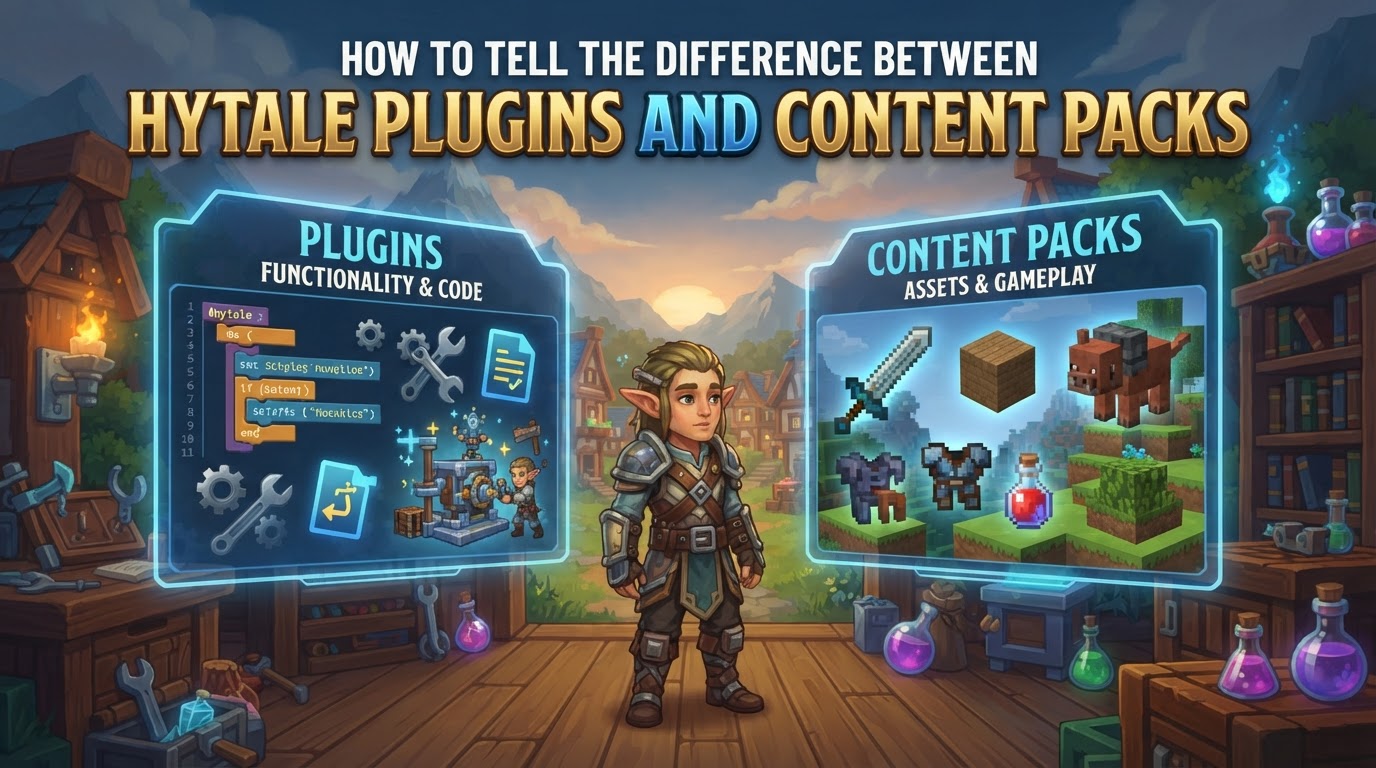
The fundamental distinction between Hytale Plugins and Content Packs lies in their core function and technical implementation: plugins introduce new server-side logic, mechanics, and systems through compiled code, while content packs add or modify game assets, data, and visual elements using structured files. Both are crucial components of Hytale’s robust server-side modding ecosystem, allowing for extensive customization without requiring players to install anything on their game client.
Understanding Hytale Plugins
Hytale Plugins are powerful server-side extensions designed to introduce entirely new functionalities and behaviors to a Hytale server. They are the backbone for complex game modes, custom economy systems, intricate minigames, and advanced server management tools.
What Plugins Do
- Introduce New Game Mechanics: Plugins can alter fundamental gameplay loops, create unique player abilities, or implement entirely new ways to interact with the game world.
- Add Custom Commands: Server administrators and players can gain access to new commands that execute specific server-side logic, such as teleportation systems, player moderation tools, or custom item spawning.
- Implement Server Systems: This includes features like in-game economies, ranking systems, custom chat formats, anti-griefing measures, and dynamic event management.
- Interact with the Server API: Plugins leverage Hytale’s Server API (Application Programming Interface) to directly communicate with and extend the server’s core functionality.
Technical Aspects of Plugins
- Programming Language: Plugins are written in Java.
- File Type: They are distributed as compiled Java Archive (
.jar) files. - Development Complexity: Creating plugins requires advanced programming knowledge in Java, familiarity with software development principles, and the use of Integrated Development Environments (IDEs) like IntelliJ IDEA or Eclipse.
Understanding Hytale Content Packs
Hytale Content Packs, often referred to as asset packs, focus on modifying or adding new content to the game world without altering its underlying code logic. They are about expanding the visual and data-driven aspects of Hytale, making them highly accessible for creators who may not have programming experience.
What Content Packs Do
- Introduce New Blocks and Items: Add entirely new types of building blocks, tools, weapons, armor, and consumables with unique properties and appearances.
- Modify Textures and Models: Change the visual appearance of existing game elements or provide new models for custom items, blocks, and entities.
- Add New Sounds: Incorporate custom audio effects for actions, environments, or specific items.
- Create New Non-Player Characters (NPCs) and Creatures: Define new mobs with custom models, textures, animations, and basic behaviors.
- Influence World Generation: Content packs can include rules and definitions for new biomes, structures, and terrain features that appear during world creation.
- Define Recipes and Crafting: Add new crafting recipes for custom items or modify existing ones.
Technical Aspects of Content Packs
- File Structure: Content packs are typically collections of structured JSON files (for data definitions) and various asset files (like
.pngfor textures,.gltffor models,.oggfor sounds). - Distribution: They are often distributed as compressed
.ziparchives containing these files, or as a directory structure with amanifest.jsonfile at its root. - Development Complexity: Creating content packs is generally more accessible. Hytale provides an in-game Asset Editor for visual creation and modification. Tools like Blockbench are commonly used for 3D modeling and texturing without requiring coding.
How to Tell the Difference: A Practical Guide
For server administrators, mod developers, and even curious players, identifying whether a custom addition is a plugin or a content pack can be straightforward by observing several key characteristics.
1. File Type and Structure (If Accessing Server Files)
- Plugins: If you are manually installing or browsing server files, plugins will almost exclusively be found as single
.jar(Java Archive) files. Their names often reflect their function (e.g.,EconomyPlugin.jar,CustomCommands.jar). - Content Packs: Content packs are typically distributed as
.zipfiles. Once extracted or loaded by the server, they form a directory structure containing various asset files (images, models, sounds) and JSON definition files. A key indicator of a content pack within a folder is the presence of amanifest.jsonfile at its root, which describes the pack’s contents.
2. Described Functionality and Features
- Plugins: When browsing mod descriptions on platforms like CurseForge, plugins will emphasize new server-side logic, custom commands, unique gameplay systems (e.g., “adds a comprehensive guild system,” “introduces new minigame modes,” “provides advanced server moderation tools”).
- Content Packs: Descriptions for content packs will highlight new visual elements, items, blocks, creatures, or world generation features (e.g., “adds 50 new building blocks,” “introduces custom weapons and armor,” “overhauls the forest biome with new trees and plants,” “adds a new playable race”).
3. In-Game Administrator Commands
For server administrators, Hytale provides specific commands that can help distinguish between and manage these types of server modifications:
/packscommand: This command is primarily used to manage and list loaded content packs. It can also indicate if a plugin includes bundled asset packs./assetscommand: This command allows administrators to query and analyze the various game resources loaded on the server. These resources (blocks, items, models, textures) are typically defined and provided by content packs.- Plugin-Specific Commands: Plugins often introduce their own unique commands (e.g.,
/economy,/warp,/kit). The existence of such commands is a strong indicator of a plugin’s presence.
4. Server Descriptions and Community Terminology
- Server Descriptions: When joining a server, its description often gives clues. Servers boasting “custom game modes,” “unique economy,” or “advanced player management” are heavily reliant on plugins. Servers highlighting “custom items,” “unique creatures,” or “beautiful new biomes” are showcasing content packs.
- Community Terminology: While “mods” is an umbrella term, the Hytale community generally refers to Java-based server extensions that add new code as “plugins.” Asset-based additions are consistently called “content packs” or “asset packs.”
Installation Process for Server Administrators
Regardless of whether you are installing a plugin or a content pack, the installation procedure on a Hytale dedicated server is largely the same, emphasizing Hytale’s server-side modding architecture.
- Stop the Server: Always ensure your Hytale server is completely shut down before making any changes to its files.
- Backup Server Files: Before installing any new modifications, create a backup of your server’s world and configuration files. This safeguards against potential issues.
- Obtain the Mod File: Download the plugin (
.jarfile) or content pack (.zipfile, or sometimes a direct folder) from a trusted source, such as CurseForge. Verify that the mod is compatible with your current Hytale server version. - Upload the File: Navigate to your server’s root directory and locate the
mods/folder. Upload the downloaded.jaror.zipfile directly into thismods/directory. If the content pack is distributed as a folder, place the entire folder intomods/. - Start or Restart the Server: Once the file is in place, start your Hytale server. If it was already running, perform a full restart.
- Verify Installation: Monitor the server console or logs during startup. Successful mod loading messages will typically appear. You can also use in-game commands (like
/packsfor content packs or plugin-specific commands) to confirm functionality.
Key Tips for Hytale Modding
- Server-Side Modding is Key: Remember that Hytale’s modding is primarily server-side. Players connecting to your server do not need to download or install any files on their client to experience the plugins or content packs you have installed.
- CurseForge Integration: CurseForge is the official platform for Hytale mod distribution. Many server hosting providers will likely offer integrated tools for easy browsing and one-click installation of mods directly from CurseForge.
- Asset Editor for Creators: For those interested in creating content packs, Hytale’s in-game Asset Editor is the primary visual tool for designing blocks, items, creatures, and other assets without needing to write code.
- Official Documentation: Always refer to the official Hytale documentation and modding resources for the most accurate and up-to-date information on plugin development and content pack creation.
Common Mistakes to Avoid
- Duplicated Files: Having multiple copies or outdated versions of the same mod file in the
mods/folder can lead to server startup failures, conflicts, or unexpected behavior.- Fix: Regularly clean your
mods/folder, ensuring only one active version of each mod is present.
- Fix: Regularly clean your
- Missing Dependencies: Some plugins or content packs require other specific mods (dependencies) to function correctly. Failing to install these can prevent the main mod from loading.
- Fix: Always carefully read the mod’s description for any listed dependencies and install them alongside the primary mod.
- Conflicting Mods: Two mods attempting to modify the same core game system, item, or asset in incompatible ways can cause crashes or errors.
- Fix: Install mods one by one, testing after each addition to isolate and identify the source of any conflicts. Check mod compatibility notes.
- Version Mismatches: Using plugins or content packs designed for a different version of Hytale than your server is running can cause instability or prevent them from loading entirely.
- Fix: Always ensure that all installed mods are explicitly stated to be compatible with your server’s current Hytale version.
- Incorrect File Placement: Mods must be placed in the server’s designated
mods/folder. Placing them elsewhere (e.g., in a world-specific folder or a client-side directory) will prevent the server from loading them.- Fix: Double-check that all mod files are directly within the
mods/directory of your server installation.
- Fix: Double-check that all mod files are directly within the