
Guide
How to Enable Full-Screen Windowed Mode in Hytale
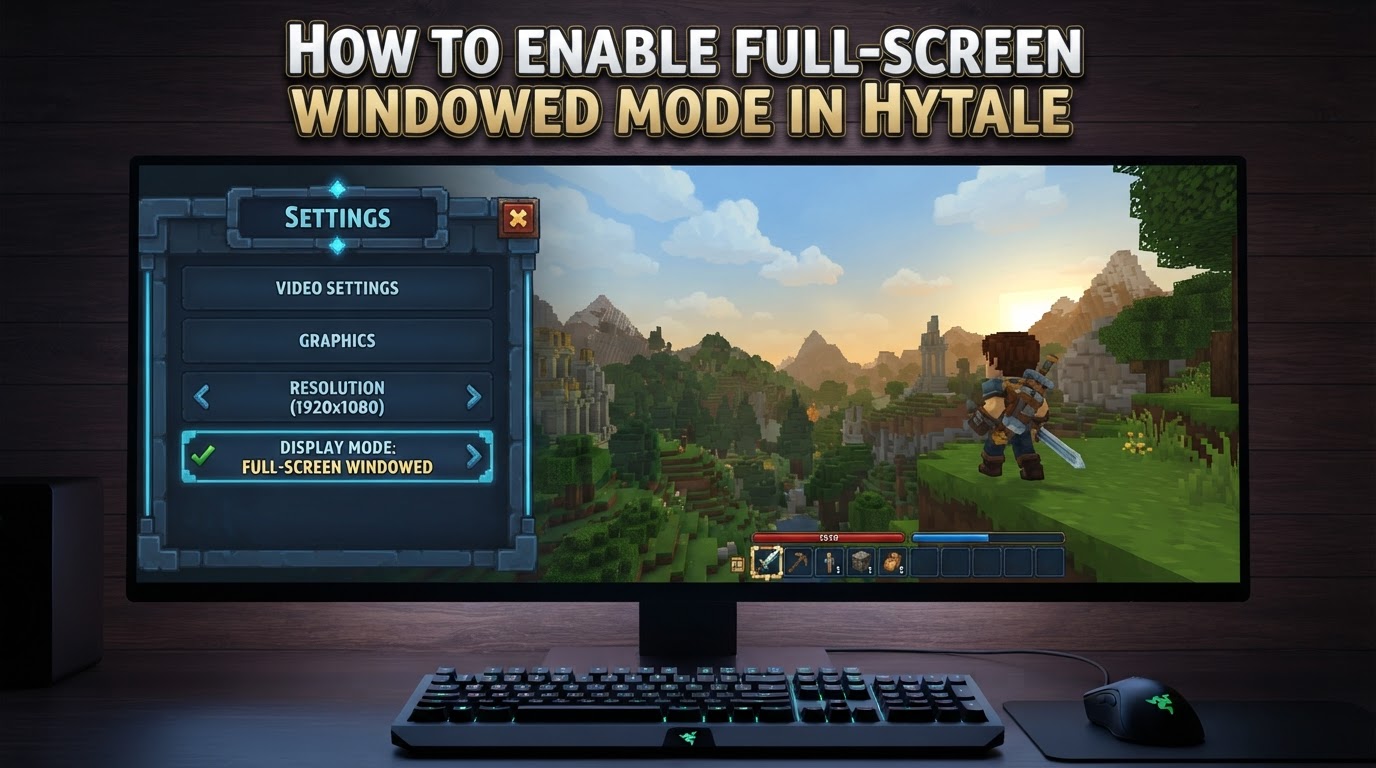
Hytale, which officially launched into early access on January 13, 2026, does not currently offer a native full-screen windowed (also known as borderless fullscreen) mode within its in-game settings. While the game does provide a “fullscreen” option, this activates an exclusive fullscreen mode, which can introduce various inconveniences for players. However, there are verified methods that Hytale players can employ to achieve a true full-screen windowed experience, enhancing gameplay fluidity and desktop integration.
Understanding Full-Screen Windowed Mode in Hytale
Hytale’s default “fullscreen” setting is an exclusive fullscreen mode. This means the game takes complete control of your display, often leading to a brief black screen or delay when you attempt to switch to other applications using Alt+Tab. For players with multiple monitors, exclusive fullscreen can be particularly frustrating, as it might lock your mouse to the game screen or cause Hytale to launch on an unintended display.
Full-screen windowed mode, by contrast, allows the game to run in a maximized window that has no visible borders, effectively blending the game seamlessly with your desktop environment. This provides several key advantages:
- Seamless Alt+Tabbing: You can switch between Hytale and other applications instantly, without any delays or screen flickering. This is invaluable for multitasking, checking guides, or communicating with friends.
- Multi-Monitor Compatibility: Your mouse cursor is not confined to the game window. You can freely move it across all your connected displays, making it ideal for streamers, content creators, or anyone who frequently uses secondary monitors while gaming.
- Desktop Integration: The game behaves more like a standard application, which can sometimes improve compatibility with overlays, recording software, and other background processes.
Since Hytale does not natively support this mode, players must rely on external tools or configuration file modifications.
Method 1: Using a Third-Party Tool (Recommended)
The most reliable and user-friendly solution for enabling full-screen windowed mode in Hytale is to use a dedicated third-party window management application. Among these, Borderless Gaming is a widely recognized and effective choice.
Step-by-Step Guide for Borderless Gaming:
-
Download and Install Borderless Gaming:
First, you need to acquire the Borderless Gaming application. It is available on various platforms, including Steam, or as a direct download from its official sources. Ensure you download it from a reputable site to avoid potential security risks. Install the application following the on-screen instructions.
-
Launch Borderless Gaming:
Before or during your Hytale gaming session, launch the Borderless Gaming application. It typically runs in the background or as a small window that lists active applications.
-
Launch Hytale:
Start Hytale. You can launch it in either its default windowed mode or its exclusive fullscreen mode. Borderless Gaming will convert whichever mode you choose into a borderless window.
-
Select Hytale in Borderless Gaming:
Once Hytale is running, open the Borderless Gaming application interface. You should see a list of all currently running applications. Locate Hytale in this list. It might appear as “Hytale” or a similar process name.
-
Apply Borderless Mode:
Within Borderless Gaming, there will be an option to move Hytale from a list of “Games” or “Running Applications” to a “Borderless Gaming” or “Favorites” list. This action typically applies the borderless windowed setting. Alternatively, Borderless Gaming often has a hotkey (commonly F4 by default) that you can press while Hytale is the active window to instantly apply the borderless effect.
After these steps, Hytale should now be running in a full-screen windowed mode, allowing you to enjoy the benefits of seamless multitasking.
Method 2: Manual settings.json File Edit (Uncertainty Flag)
A community-reported method involves directly modifying Hytale’s configuration file. While this method can achieve a similar effect, it is not officially supported and carries an inherent uncertainty regarding its long-term stability and performance. Game updates could potentially overwrite or alter the behavior of such manual edits. Furthermore, some users have reported that performance may not be as optimal as true exclusive fullscreen when using this method.
Step-by-Step Guide for Manual Edit:
-
Close Hytale:
Ensure that Hytale is completely closed before attempting to modify any game files. Running the game while editing its configuration can lead to corrupted files or prevent your changes from being saved correctly.
-
Navigate to the UserData Folder:
Open your file explorer and navigate to the following directory:
C:\Users\*PC USERNAME*\AppData\Roaming\Hytale\UserData
Replace*PC USERNAME*with your actual Windows user account name. TheAppDatafolder is often hidden by default, so you may need to enable “Show hidden files, folders, and drives” in your Folder Options. -
Open
Settings.json:Inside the
UserDatafolder, locate the file namedSettings.json. Open this file using a plain text editor such as Notepad, Notepad++, or Visual Studio Code. Do not use a word processor like Microsoft Word, as it can add formatting that corrupts the file. -
Modify Window Dimensions:
Within the
Settings.jsonfile, search for the entries related to window dimensions. These are typically named"WindowWidth"and"WindowHeight". Change the numerical values associated with these keys to match your monitor’s native resolution. For example, if your monitor is 1920×1080, you would set:
"WindowWidth": 1920,
"WindowHeight": 1080,
You may also need to ensure that the"Fullscreen"setting is set tofalseor that the game is launched in windowed mode after this edit to properly emulate the borderless experience. -
Save Changes:
After modifying the values, save the
Settings.jsonfile. Ensure you save it with the exact same filename and extension.
Once these changes are saved, launch Hytale. You may need to ensure the game is set to “windowed” mode in its in-game video settings for these file modifications to take effect and emulate a borderless experience.
Tips for an Optimal Full-Screen Windowed Experience
- Instant Alt-Tabbing: One of the primary benefits of full-screen windowed mode is the ability to instantly switch between Hytale and any other application without delay or screen blackouts. This is crucial for quick checks of Discord, browser tabs, or other desktop applications.
- Seamless Multi-Monitor Usage: If you have a multi-monitor setup, full-screen windowed mode is a game-changer. Your mouse cursor will no longer be trapped within the Hytale window, allowing you to fluidly move it to secondary displays for chat, streaming software, or other tasks without minimizing the game.
-
HDR Compatibility: For players utilizing High Dynamic Range (HDR) displays, ensure that if you are using Borderless Gaming, Hytale’s in-game fullscreen setting is set to
Fullscreenor windowed mode. If you encounter issues like dimming or incorrect color profiles, a common fix is to disable and then re-enable HDR in Windows (Windows Key + Alt + B) after Hytale has launched and Borderless Gaming has applied its effect. Sometimes, restarting the game after this toggle can also help.
Common Mistakes to Avoid
- Confusing Exclusive Fullscreen with Borderless Fullscreen: Many players mistakenly believe Hytale’s built-in “fullscreen” option (often toggled by F11 or found in video settings) is borderless fullscreen. It is not. Hytale’s default fullscreen is exclusive, which is precisely what causes the alt-tabbing and multi-monitor issues that full-screen windowed mode aims to solve.
- Not Running Borderless Gaming Correctly: If you opt for the third-party tool method, a frequent oversight is failing to launch Borderless Gaming before or alongside Hytale, or not correctly applying the borderless effect to the Hytale window within the application. Always double-check that Borderless Gaming is active and Hytale is selected.
-
Modifying Render Settings After
settings.jsonEdit: If you choose the manualsettings.jsonediting method, be aware that making subsequent changes to display or render settings within Hytale’s in-game options might overwrite your manual edits. This would revert the game to its previous display mode, requiring you to re-edit the file and restart Hytale. It is best to finalize your in-game display settings before making thesettings.jsonmodifications.
While Hytale does not yet offer a native full-screen windowed option, these methods provide effective workarounds to enhance your gameplay experience, particularly for those who frequently multitask or use multiple monitors. The third-party tool approach is generally recommended for its ease of use and reliability.