
Guide
How to Adjust Aim-Down-Sights FOV in Hytale (Sprint FOV Effect)
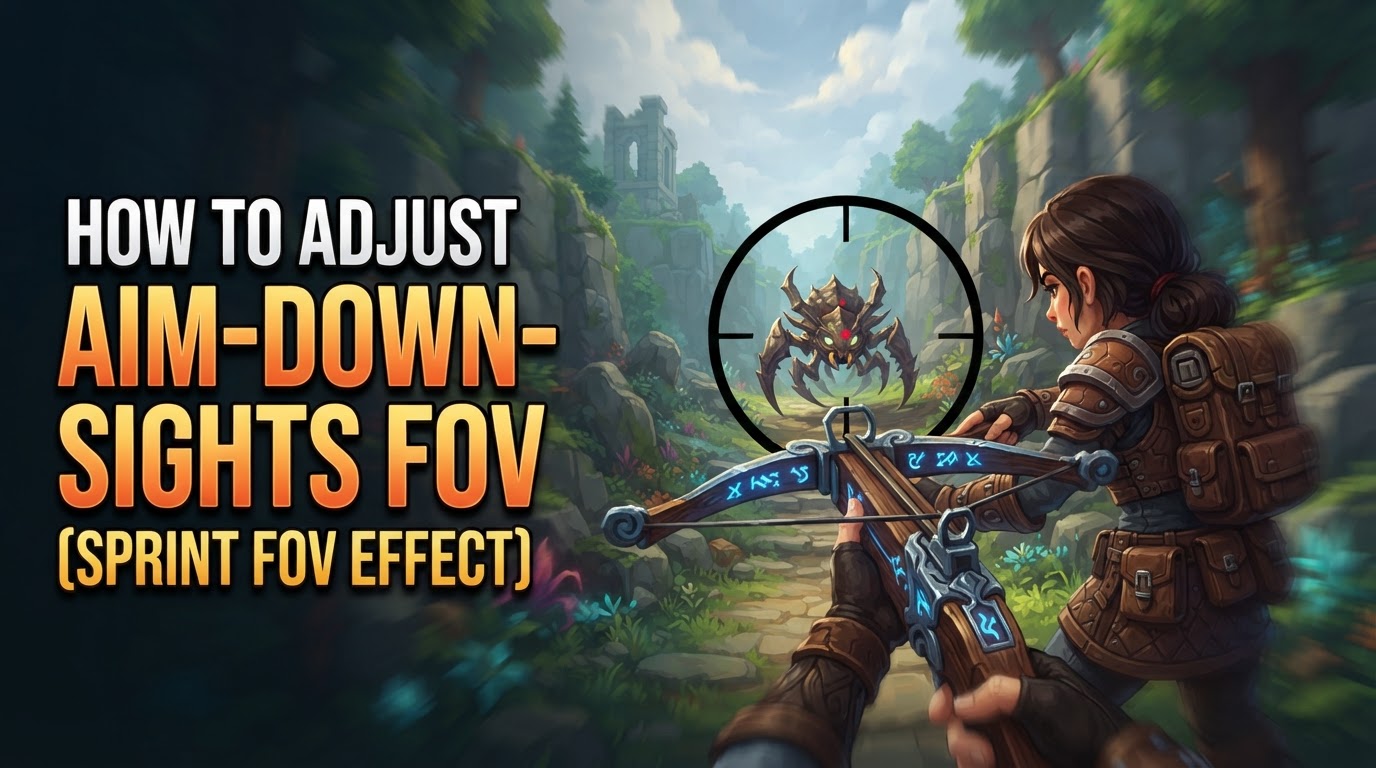
Hytale, the highly anticipated block-based sandbox RPG, offers players extensive control over their visual experience, particularly through its camera settings. However, for those seeking a dedicated ‘Aim-Down-Sights (ADS) FOV’ adjustment, it’s important to note that Hytale does not currently feature a separate, explicit slider for Aim-Down-Sights Field of View. Instead, your overall viewing experience, including any zoomed-in perspectives from aiming or using specific tools, is primarily governed by the game’s comprehensive ‘Field of View’ setting. This guide will walk you through optimizing your general FOV and managing the ‘Sprint FOV Effect’ to best suit your playstyle, providing the clearest possible view for all your adventures.
Understanding and Adjusting Your General Field of View (FOV)
The Field of View (FOV) setting in Hytale is fundamental to how much of the game world is visible on your screen at any given moment. It dictates the extent of the observable world, influencing everything from the perceived speed of movement to your situational awareness during intense combat encounters or serene exploration.
What is FOV?
In simple terms, FOV determines the angle of the scene that is rendered by your camera. A lower FOV narrows your perspective, making objects appear larger and closer, similar to looking through binoculars. A higher FOV widens your perspective, allowing you to see more of your surroundings, though objects may appear smaller and further away.
Why Adjust FOV?
- Situational Awareness: A wider FOV (higher value) is invaluable for combat, allowing you to spot enemies, projectiles, and environmental hazards that might otherwise be off-screen.
- Immersion and Focus: A narrower FOV (lower value) can enhance immersion by making the world feel more immediate and detailed. It’s often preferred for capturing cinematic screenshots or focusing on intricate details in the environment.
- Motion Sickness: Some players experience motion sickness with very high FOV settings due to the “fisheye” distortion effect. Adjusting this can significantly improve comfort.
- Perceived Speed: Higher FOV can make your character feel faster, as more of the environment rushes past your peripheral vision.
Step-by-Step: Adjusting General FOV
Adjusting your general Field of View in Hytale is a straightforward process that can be done at any time while in-game.
- While playing, press the
Esckey on your keyboard to open the main menu. - From the main menu, select the “Settings” option.
- Navigate to the “General” tab within the settings menu.
- Scroll down until you locate the “Camera” section.
- Within the “Camera” section, you will find the “Field of View” slider.
- Click and drag the slider to your desired FOV value. The default setting is typically 75, and the adjustable range usually spans from 30 (very narrow) to 120 (very wide).
- Once you have selected your preferred FOV, click the “Save Changes” button to apply your new setting. Changes are applied instantly, allowing you to see the effect in real-time without needing to restart the game.
Tips for General FOV Optimization
- Experiment Liberally: The ideal FOV is highly personal. Spend some time in various gameplay scenarios (combat, exploration, building) with different settings to find what feels most natural and effective for you.
- Balance Awareness and Detail: While a high FOV offers great awareness, it can make distant targets harder to spot or hit. Conversely, a low FOV provides detail but limits your peripheral vision. Aim for a balance that suits your primary activities.
- Consider Your Monitor: Players with wider monitors or ultrawide setups might benefit more from higher FOV values, as it can fill the screen more effectively without extreme distortion.
Common FOV Considerations
- “Fisheye” Effect: At very high FOV values (e.g., 100-120), objects at the edges of your screen can appear stretched or distorted, creating a “fisheye” effect. This can be disorienting for some players.
- Target Acquisition: A very high FOV can make distant enemies appear smaller, potentially making precise aiming more challenging, even if you have greater overall visibility.
Managing the Sprint FOV Effect
Beyond the general Field of View, Hytale offers a specific camera setting designed to enhance the sense of speed: the Sprint FOV Effect. This is a cosmetic feature that dynamically adjusts your FOV when your character is sprinting, providing a visual cue of increased velocity.
What is the Sprint FOV Effect?
The Sprint FOV Effect temporarily increases your Field of View while your character is sprinting. This visual change simulates the sensation of speed by making the environment appear to rush past more quickly. It’s a common feature in many action-oriented games to provide tactile feedback for movement.
Step-by-Step: Adjusting Sprint FOV Effect
Controlling the Sprint FOV Effect allows you to customize this visual feedback to your preference.
- Press the
Esckey to open the main menu. - Select “Settings”.
- Navigate to the “Gameplay” tab.
- Scroll down to the “Camera” section.
- Here, you will find a toggle labeled “Sprint FOV Effect”. You can click this to turn the effect “On” or “Off”.
- If you choose to enable the “Sprint FOV Effect”, an additional slider labeled “Sprint FOV Intensity” will become active.
- Adjust the “Sprint FOV Intensity” slider to control how pronounced the FOV increase is while sprinting. Recommended values often range from 1.0 (minimal effect, essentially your base FOV) for a subtle change, up to 1.5 for a very strong, noticeable speed sensation. Many players find a value around 1.05 to 1.1 provides a good balance, offering a visual cue without excessive distortion.
- Click “Save Changes” to apply your new settings.
Tips for Sprint FOV Effect
- Visual Confirmation of Sprinting: Enabling this effect can be a useful visual indicator that you are indeed sprinting, which can be helpful in situations where audio cues or character animations are subtle.
- Motion Sickness Mitigation: If you are prone to motion sickness, you might find it beneficial to either disable the “Sprint FOV Effect” entirely or reduce its “Sprint FOV Intensity” to a very low value. The sudden changes in FOV can sometimes trigger discomfort.
- Personal Preference: Like general FOV, the ideal intensity for the sprint effect is subjective. Experiment with different values to find what feels most comfortable and enhances your gameplay experience without being distracting.
The Nuance of Aim-Down-Sights (ADS) FOV in Hytale
As established, Hytale does not currently feature a dedicated, separate slider for “Aim-Down-Sights FOV.” This means that any aiming mechanics that involve a zoomed-in perspective will utilize your currently set general Field of View as its base. When you use a tool or weapon that inherently provides a zoomed view, that zoom factor is applied on top of your general FOV, not a distinct ADS FOV setting.
“Currently, verifiable sources do not explicitly mention a separate ‘Aim-Down-Sights FOV’ setting in Hytale. The game features a general FOV slider that applies to the overall perspective. It is uncertain if ADS mechanics exist with a distinct FOV adjustment, or if it simply uses the general FOV with an in-game zoom.”
This implies that if you prefer a less “zoomed-in” feel when aiming, your best approach is to increase your general FOV. A higher general FOV will mean that even when a tool applies its inherent zoom, the resulting view will still be wider than if you started with a lower general FOV. Conversely, if you desire a more focused, magnified view when aiming, a lower general FOV will achieve that effect more intensely.
It is also worth noting that Hytale does not currently feature separate FOV sliders for first-person and third-person views. The general FOV setting applies universally to whichever camera perspective you are utilizing.
In summary, while a specific ADS FOV adjustment is not available, players can effectively manage their aiming perspective by carefully tuning their general Field of View and understanding how the game’s inherent zoom mechanics interact with that base setting. Experimentation with the general FOV is key to finding the optimal balance for all aspects of your Hytale adventure, including any aiming scenarios.