
Guide
Does Hytale Support Voice Chat?
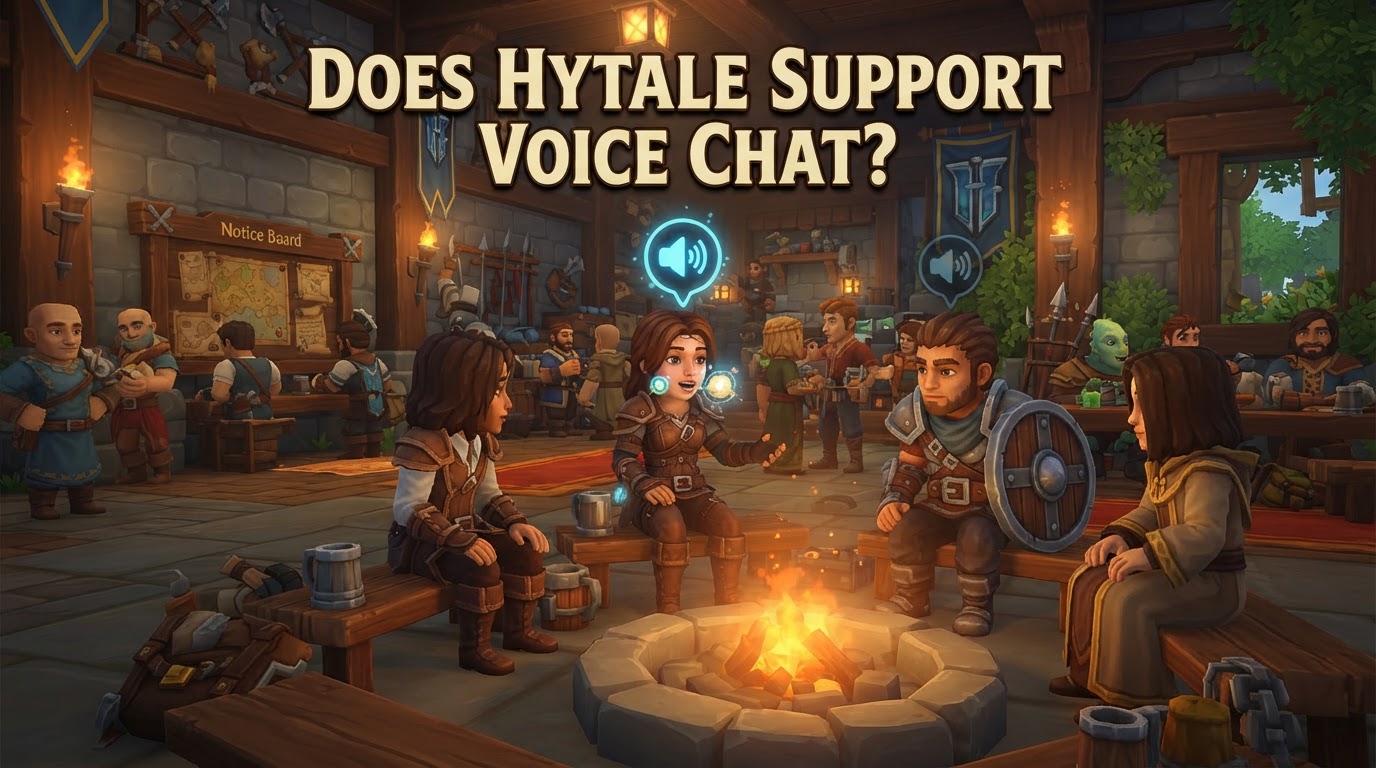
Yes, Hytale features a built-in proximity voice chat system, allowing players to communicate directly with others based on their in-game distance. This core communication feature was reportedly integrated into the game during Hytale update 4 part 3, providing a seamless way for players to interact without needing external applications.
The implementation of proximity voice chat means that your voice will only be heard by characters who are physically close to your avatar within the game world. This design choice fosters more immersive interactions, encouraging localized conversations, role-playing, and strategic communication during adventures or building projects with nearby allies.
How Hytale’s Built-in Voice Chat Works
Hytale’s voice chat system is designed for intuitive, in-world communication. Understanding its core mechanics will help you make the most of this feature.
Proximity-Based Communication
- Localized Audio: The defining characteristic of Hytale’s voice chat is its proximity-based nature. Unlike global voice channels found in some games, you will only hear players who are within a certain range of your character. This creates a more realistic and engaging communication environment, where conversations feel natural to your immediate surroundings.
- Dynamic Interaction: This system encourages players to stay close to their teammates for verbal communication, adding a layer of strategy to cooperative gameplay and making chance encounters with other players more dynamic.
Visual Indicators
- Speaking Cues: When a player speaks within your hearing range, a visual indicator, typically their name, will appear on your screen. This helps you identify who is speaking, even in crowded or chaotic situations, and confirms that your own voice is being transmitted when you speak.
Positional Audio (Likely)
- 3D Sound Immersion: While not explicitly detailed in all public announcements for the official feature, it is highly probable that Hytale’s voice chat incorporates 3D positional audio. This means that the sound of a player’s voice will appear to originate from their exact in-game location. If a player is to your left in the game, their voice will sound like it’s coming from your left, enhancing immersion and spatial awareness.
Essential Controls and Audio Enhancements (Likely)
- Push-to-Talk: Many advanced voice chat systems, including those often replicated by community mods for Hytale, offer a push-to-talk (PTT) option. This allows you to activate your microphone only when a specific key is pressed, preventing unwanted background noise from being transmitted. It’s a crucial feature for maintaining clear communication.
- Volume Controls: Expect to find options for adjusting overall voice chat volume, and potentially even individual player volumes, within the game’s audio settings. This gives you control over your listening experience.
- Noise Suppression and Automatic Gain Control (AGC): To ensure high-quality audio, it’s common for modern voice chat systems to include features like noise suppression (to filter out background noise) and automatic gain control (to adjust microphone input levels automatically, ensuring your voice is heard clearly regardless of how loudly or softly you speak). While specific details for Hytale’s official implementation are pending, these are standard expectations for a robust system.
Getting Started: Enabling and Configuring Hytale Voice Chat
As a built-in feature, Hytale’s voice chat is designed to be accessible directly through the game’s interface. While exact menu paths and options may vary slightly upon release, the general steps for enabling and configuring it will likely follow a standard pattern.
-
Prepare Your Microphone:
- Connect and Test: Before launching Hytale, ensure your microphone is properly connected to your computer and functioning correctly. Test it using your operating system’s sound settings or a third-party application to confirm it’s detected and picking up your voice.
- Default Device: Make sure your preferred microphone is set as the default input device in your operating system’s sound settings.
-
Navigate to In-Game Audio Settings:
-
Once Hytale is running, access the main menu or pause menu (usually by pressing
Esc). - Look for an option like “Settings,” “Options,” or “Audio.”
-
Once Hytale is running, access the main menu or pause menu (usually by pressing
-
Enable and Configure Voice Chat:
- Within the audio or communication settings, you should find a dedicated “Voice Chat” section.
- Enable Voice Chat: Locate a toggle or checkbox to “Enable Voice Chat” and ensure it is turned on.
- Microphone Selection: If you have multiple microphones connected, there might be an option to select your desired input device directly within Hytale.
- Push-to-Talk Keybind: If push-to-talk is available, assign a convenient keybind for activation. This is highly recommended to prevent accidental transmissions.
- Microphone Sensitivity/Threshold: Adjust these settings to ensure your voice is picked up clearly without transmitting excessive background noise. A higher threshold means you’ll need to speak louder to activate the microphone.
- Volume Adjustments: Set the incoming voice chat volume to a comfortable level.
Tips for an Optimal Voice Chat Experience
To ensure clear communication and a positive experience for everyone, consider these practical tips:
- Utilize Push-to-Talk (If Available): This is arguably the most important tip. Using push-to-talk prevents your microphone from being constantly open, cutting down on background noise, keyboard clicks, and accidental transmissions that can distract other players.
- Regularly Check Your Microphone Settings: Before you dive into a session, quickly verify your microphone’s input levels and ensure it’s selected as the correct device in both your operating system and Hytale’s settings. A quick sound check can save frustration later.
- Be Mindful of Proximity: Always remember that Hytale’s voice chat is proximity-based. If you’re trying to communicate with a friend who is far away, they won’t hear you. Either move closer, or use text chat or an external voice communication service for long-distance coordination. This feature encourages localized teamwork.
- Minimize Background Noise: Even with noise suppression, a quiet environment is best. Try to reduce ambient sounds in your room to ensure your voice comes through as clearly as possible.
- Respect Server Rules and Etiquette: Some servers may have specific rules regarding voice chat usage, language, or content. Always be respectful and adhere to community guidelines.
Common Issues and Troubleshooting
Even with a robust system, users can encounter common hurdles. Here’s how to address them:
-
Microphone Not Working or Too Quiet:
- Check OS Settings: Verify your microphone is enabled, set as the default input device, and has sufficient input volume in your operating system’s sound settings.
- In-Game Selection: Ensure the correct microphone is selected within Hytale’s audio settings.
- Sensitivity: Adjust microphone sensitivity or threshold in-game; if it’s too high, your voice might not activate the mic.
-
Players Can’t Hear Me (or I Can’t Hear Them):
- Proximity: The most frequent reason for this is simply being too far apart. Move closer to the player you wish to communicate with.
- Volume Levels: Check both your outgoing microphone volume and your incoming voice chat volume in Hytale’s settings.
- Push-to-Talk: If you’re using PTT, ensure you’re holding down the correct key when speaking.
-
Background Noise is Disruptive:
- Enable Push-to-Talk: This is the primary solution.
- Adjust Sensitivity: Increase your microphone sensitivity threshold in-game so only louder sounds (your voice) activate it.
- Reduce Ambient Noise: Try to eliminate sources of background noise in your physical environment.
-
Voice Chat Options Not Appearing/Enabled:
- Game Version: Ensure your Hytale client is up to date, as the feature was added in a specific update.
- In-Game Settings: Double-check that voice chat is explicitly enabled within Hytale’s audio or communication settings.
The Future of Hytale Voice Chat
While Hytale’s built-in proximity voice chat provides a solid foundation for in-game communication, the depth of its customization and advanced features upon release are not yet fully detailed. Community-developed solutions for Hytale, such as “Bedrock Voice Chat” and “HyVoiceChat,” have demonstrated the potential for highly advanced features like web-based onboarding, per-player volume mixers, and extensive moderation tools. It remains to be seen if the official system will incorporate all these advanced functionalities over time.
However, the inclusion of a native proximity voice chat system from the outset underscores Hytale’s commitment to immersive and dynamic player interaction, ensuring that communication is an integral and natural part of the adventure.