
Guide
Hytale Server Discovery: How to Find and Join Community Servers
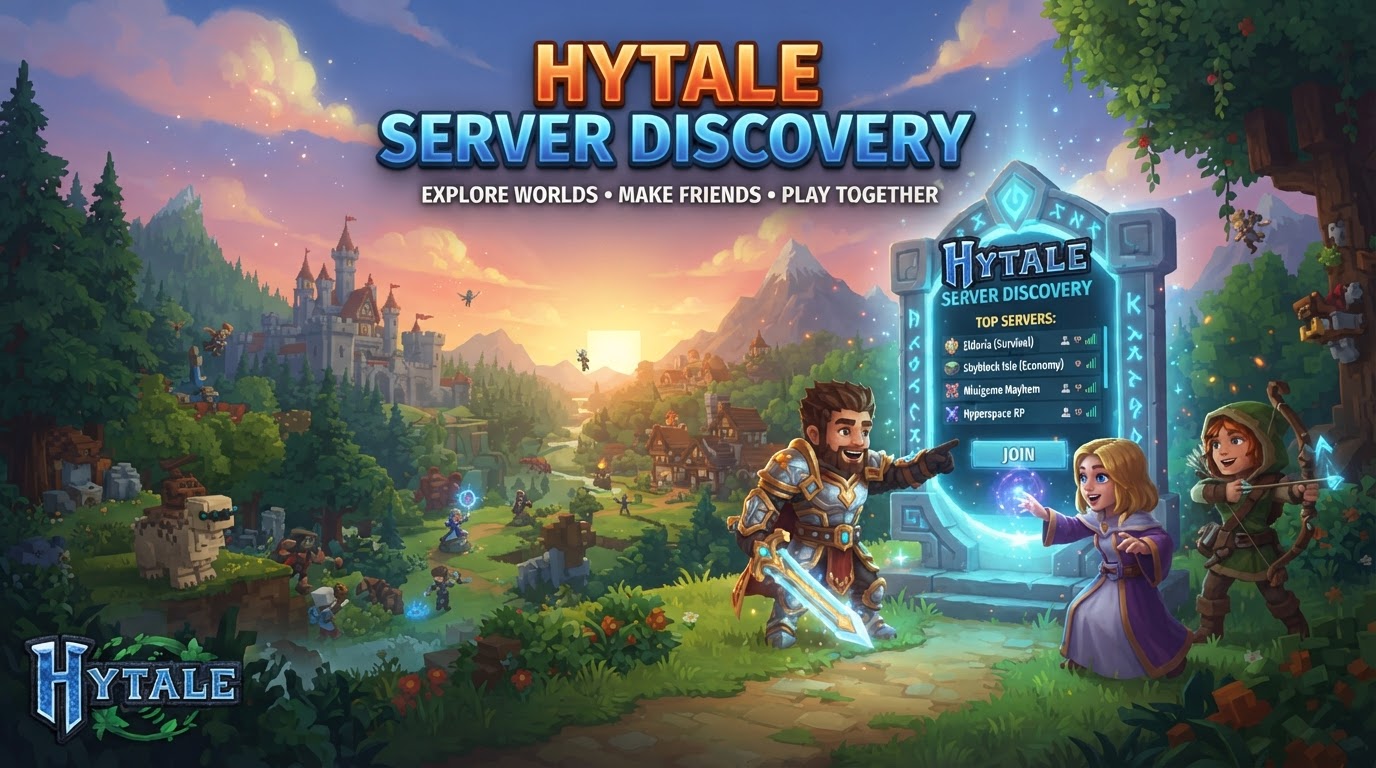
Hytale offers a comprehensive and integrated system for players to discover and join community servers, combining a robust in-game browser with direct connection options and external community resources. Since its early access launch and subsequent updates, the game has prioritized making server access seamless, whether you’re looking for a massive multiplayer experience or a private game with friends.
The Hytale Server Discovery Ecosystem
Finding the perfect community server in Hytale is made easy through a multi-faceted approach. The primary method is the in-game Server Discovery browser, a curated directory allowing players to explore a vast array of community-created content. Beyond this, players can connect directly using an IP address, join friends’ single-player worlds via unique share codes, or simply jump into servers where their friends are already playing through the in-game friends list. For those seeking niche communities or independent server listings, external websites and social platforms remain valuable resources.
A key feature that enhances the player experience is Hytale’s automatic content download system. When you join a server, any custom content—be it unique blocks, items, creatures, or entire mod packs—is automatically downloaded to your client. This ensures that you can seamlessly experience the server’s unique gameplay without needing to manually install mods beforehand, making the transition between different server types incredibly smooth.
Finding and Joining Servers: Step-by-Step Guides
Using the In-Game Server Browser (Server Discovery)
The in-game server browser is your primary tool for exploring the diverse world of Hytale community servers. It provides powerful filtering and sorting options to help you pinpoint exactly what you’re looking for.
- Launch Hytale and Log In: Start the Hytale client and ensure you are successfully logged into your Hytale account.
- Navigate to Server Discovery: From the main menu, locate and click on the “Multiplayer” option, then select “Server Discovery.” This will open the dedicated server browser interface.
- Browse, Search, and Filter:
- Search Bar: Use the search bar to look for specific server names or keywords in their descriptions.
- Filters: Utilize the extensive filtering options to refine your search. You can filter by:
- Server Type: Choose from categories like Survival, Adventure/RPG, Creative, PvP, Minigames, Roleplay, Social, Sandbox, or Other.
- Audience: Select between Everyone, Teen, or Mature to find servers suitable for your age group.
- Region: Filter by geographical region (e.g., North America, Europe, Asia) to find servers with lower latency.
- Language: Some servers may also allow filtering by primary language.
- Sorting: Sort the results by “featured” (servers curated by the Hytale team), “most-liked” by the community, or your “personal favorites” for quick access. While early versions didn’t show live player counts, the sorting by popularity often reflects active communities.
- Select and Connect: Once you’ve found a server that interests you, click on its listing to view more details. If it meets your criteria, click the prominent “Connect” or “Join” button to enter the server.
Connecting via Direct IP Address
If you know the exact IP address and port of a Hytale server, often provided by server owners on their websites or social media, you can bypass the in-game browser entirely. This method is common for private servers or those not yet listed in the official discovery system.
- Obtain Server Details: Get the server’s full address, which typically includes an IP address or domain name followed by a port number (e.g.,
play.myawesomeserver.com:5520or199.123.45.67:5520). - Launch Hytale: Start the game and proceed to the main menu.
- Access Direct Connect: Click on “Multiplayer” or “Join Server” from the main menu.
- Enter Address: Look for an option labeled “Direct Connect” or “Add Server.” Select it and a field will appear where you can input the server’s address.
- Connect: Type or paste the full server address into the designated field. Then, click “Connect” or “Join.” If you used “Add Server,” you might also be prompted to give the server a name to save it to your favorites list for future, easier access.
Joining a Friend’s World with a Share Code
Hytale allows players to easily invite friends to their single-player worlds using a unique share code. This is perfect for small, private sessions without the need for a dedicated server host.
- Friend’s Setup: Your friend, who is hosting the world, must first enable “Online Play” in their world’s settings and ensure “allow other players to join” is toggled “on.” They can also set a password for added privacy. Once enabled, they will generate a unique “share code” to send to you.
- Launch Hytale: Start your Hytale client and navigate to the main menu.
- Access Join via Code: From the main menu, go to the “Multiplayer” section and look for the “Join via Code” button.
- Enter Share Code: Click the button and a field will appear. Paste the share code provided by your friend into this field.
- Enter Password (if applicable): If your friend secured their world with a password, you will be prompted to enter it here as well.
- Connect: Click “Connect” to join your friend’s world. Remember, their game must be running and open to multiplayer for you to successfully connect.
Leveraging Your Friends List
Hytale’s integrated friends list provides a convenient way to join ongoing games. If a friend is playing on a server or hosting a world that allows multiplayer, you can often see their current activity status and join them directly through your friends list interface, eliminating the need to exchange IP addresses or share codes.
Exploring External Community Resources
While the in-game tools are powerful, the Hytale community thrives on external platforms. These can be excellent for discovering new servers, reading reviews, or finding communities that might not yet be prominently featured in the in-game browser.
- Hytale Hub and Fan Sites: Dedicated Hytale news and community sites often host server lists, reviews, and promotional content from server owners.
- Reddit Communities: Subreddits like
r/HytaleServersare specifically dedicated to server listings, discussions, and announcements. - Discord Servers: Many Hytale communities and individual servers maintain active Discord servers. These are fantastic places to find direct links, chat with server staff, and get real-time updates.
Optimizing Your Server Search: Expert Tips
- Utilize Filters Effectively: Don’t just scroll aimlessly. The in-game server browser’s filtering options are your best friend. Narrow down your search by game mode, region, and audience to quickly find suitable servers.
- Check External Listings: Supplement your in-game search with external resources. Websites, Discord communities, and Reddit can offer insights into newer, niche, or highly-rated servers that might not always be at the top of the in-game list.
- Favorite Servers: Once you find a server you enjoy, make sure to mark it as a favorite. This allows for quick access in the future without having to search for it again. The “recently played” list is also useful for revisiting servers.
- Play with Friends: The easiest way to find a good server is often through recommendations. Use the in-game friends list to see where your friends are playing and join them directly.
- Review Server Descriptions: Always take a moment to read the server’s description carefully. This provides crucial information about its rules, gameplay style, community focus, and any unique features.
- Consider Server Stability: For the best multiplayer experience, prioritize servers that are professionally hosted by dedicated providers. These typically offer 24/7 uptime, better performance, and more reliable connections compared to servers run on personal computers.
Avoiding Pitfalls: Common Mistakes to Sidestep
- Incorrect Server Information: When using Direct Connect, even a single typo in the IP address or port number will prevent you from joining. Double-check all details provided by the server owner.
- Missing Game Prerequisites: Ensure your Hytale client is fully updated and you are logged into your Hytale account before attempting to join any server. Connection issues can often stem from basic client problems.
- Attempting to Join an Offline Friend’s World: If your friend is hosting a single-player world via a share code, their game must be actively running and accessible to multiplayer for you to connect. If they close their game, the connection will be lost.
- Ignoring Server Policies (for server operators): For those looking to run their own server and have it listed in the official browser, failing to adhere to Hytale’s terms of service and server owner policies will result in rejection or removal from the discovery system.
- Lack of Password for Share Codes: While convenient, sharing a code without a password can leave your private world open to unintended players. Always consider setting a password for added security.
- Performance Issues with Self-Hosting: Hosting a server on your personal computer can lead to significant performance drops for both you and other players, especially if your internet connection isn’t robust. It also requires your PC to be on constantly, which isn’t ideal for a 24/7 server.
By understanding and utilizing these various methods, Hytale players can confidently navigate the vast landscape of community servers, finding the perfect place to build, adventure, and connect with others.