
Guide
How to Use Hytale’s Visual Scripting / Node Editor for Modding
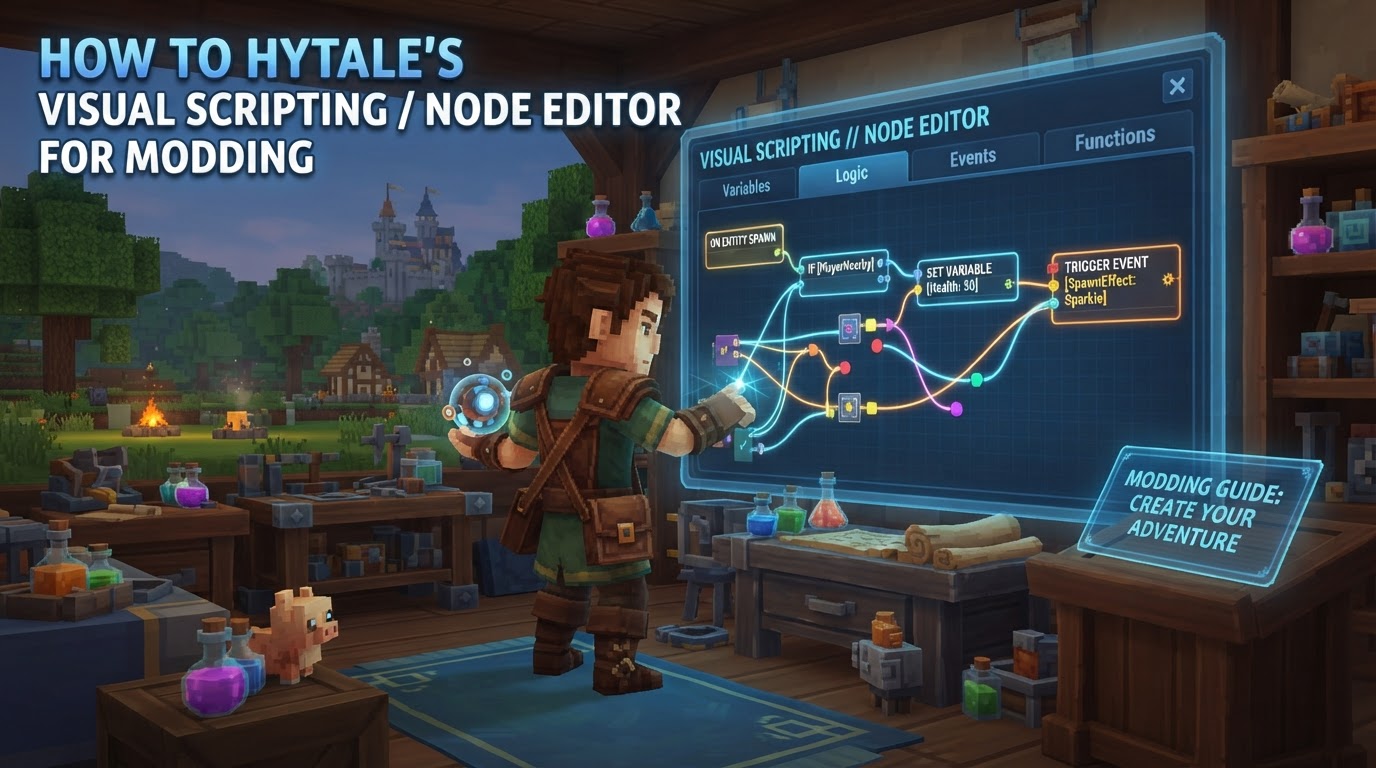
Hytale is being built from the ground up with extensive modding capabilities, offering a visual approach to content creation and game logic. While the comprehensive, node-based visual scripting system is a planned future release, Hytale’s Early Access already features a powerful “Asset Editor” that provides a visual interface for defining and overriding game data without writing code.
This guide will detail how to leverage both the Asset Editor currently available and the anticipated Visual Scripting / Node Editor to customize your Hytale experience, create new content, and even build complex gameplay mechanics.
Hytale’s Visual Modding Philosophy
Hytale’s core design philosophy for modding centers on accessibility and power. The developers aim to empower creators of all skill levels, from those who want to tweak item stats to those who envision entirely new game modes. This is largely achieved through visual tools that abstract away the complexities of traditional programming languages, allowing modders to focus on creative design and logical flow.
The visual modding tools are integrated directly into the game, fostering an iterative and immediate development cycle. This means you can make changes, test them in-game instantly, and refine your creations without ever leaving Hytale.
Using Hytale’s Current Visual Modding: The Asset Editor
The Hytale Asset Editor is your primary tool for data-driven modding in Early Access. It allows you to define and override game assets through a user-friendly visual interface, primarily working with JSON-based files behind the scenes. This tool is perfect for creating custom blocks, items, NPCs, world generation rules, and more, all without writing a single line of code.
Step-by-Step: Modding with the Asset Editor
- Access the Editor: Launch Hytale and enter Creative Mode. The Asset Editor is an in-game tool, accessible directly from your world.
-
Create or Duplicate Assets: Within the Asset Editor, you have two main options:
- Create New: Start from scratch to define a completely new block, item, or NPC.
- Duplicate Existing: Select an existing in-game asset (e.g., a specific type of wood block, a creature) and duplicate it. This creates a copy you can then modify, inheriting all original properties, which is a great way to learn and iterate.
-
Define Properties Visually: Once you have an asset selected or created, the editor presents you with various forms and visual elements to configure its properties. For example:
- For Blocks: You can set its texture, hardness, blast resistance, required tool to break it, what items it drops upon destruction, light emission, and more.
- For Items: Define its icon, name, description, stack size, effects when used, durability, and any custom behaviors.
- For NPCs: Configure their health, attack damage, movement speed, AI behaviors (e.g., aggressive, passive), loot tables, and visual model.
- For World Generation: Adjust parameters for biome features, terrain height, ore distribution, and structure placement.
The visual interface ensures that the underlying data structure is correctly formatted, preventing common errors associated with manual file editing.
-
Organize into Asset Packs: As you save your modifications, the Asset Editor automatically organizes your custom content into an “Asset Pack.” This pack is typically stored as a folder or a compressed archive (like a ZIP file) containing a
manifest.jsonfile and all your defined asset data. Asset Packs are the standard way Hytale bundles and distributes custom content. - Add to Your World: To experience your custom content, you need to enable the Asset Pack in your world settings. Navigate to the “Worlds” tab within Hytale, select your desired world, and enable your newly created Asset Pack. This tells the game to load and use your modifications.
- Test In-Game: With your Asset Pack enabled, jump into your world. You can immediately test your custom blocks, items, or NPCs. The in-game nature of the editor allows for rapid iteration and debugging.
Hytale’s Future Visual Modding: The Node Editor / Visual Scripting System
Beyond data modification, Hytale plans to introduce a dedicated “Visual Scripting” tool, often referred to as an “Asset Graph Editor” or “Node Editor.” This system is anticipated to be similar to professional visual scripting environments found in game engines like Unreal Engine’s Blueprints, enabling much more complex and dynamic gameplay logic.
This node-based editor will allow modders to define intricate behaviors, custom events, and advanced interactions that go beyond simple asset property changes. It’s designed to bring programmatic power to a wider audience without requiring traditional coding expertise.
Anticipated Step-by-Step: Modding with the Node Editor
While the full Visual Scripting / Node Editor is still under development, based on industry standards and Hytale’s stated goals, here’s how it is expected to function:
- Access the Tool: Like the Asset Editor, the Node Editor is expected to be an in-game tool, seamlessly integrated into Hytale’s creative suite.
- Create a New Script Graph: You will likely start by creating a new “script graph” or “behavior tree” associated with a specific game element (e.g., an NPC, an interactive object, a world event, or even a custom game mode).
-
Add Nodes: The core of visual scripting involves dragging and dropping “nodes” onto a canvas. Each node represents a specific action, condition, event, variable, or function. Examples might include:
- Event Nodes:
OnPlayerInteract,OnNPCSpawn,OnBlockBroken,OnTimerElapsed. - Action Nodes:
DealDamage,SpawnItem,PlaySound,SetVariable,MoveNPC. - Condition Nodes:
If,Branch,CompareVariables. - Flow Control Nodes:
Sequence,Loop.
- Event Nodes:
-
Connect Nodes: Logic is established by drawing “wires” or “connections” between the input and output pins of different nodes. These connections dictate the flow of execution and data. For example, an
OnPlayerInteractevent node might connect to anIfcondition node that checks if the player has a specific item, which then branches to aSpawnItemaction node if the condition is met. -
Configure Node Properties: Each node will have configurable parameters. For instance, a
DealDamagenode would allow you to specify the amount of damage and the target, while aSpawnItemnode would let you choose which item to spawn and at what location. - Save and Apply: Once your visual script is complete, you will save it and associate it with the relevant game element. For example, a script defining an NPC’s combat behavior would be applied to that specific NPC type within the Asset Editor.
- Test and Debug: Just like with asset modifications, you will be able to test your visual scripts directly in-game. The system is expected to include debugging tools, such as visual indicators of script execution flow or logging messages, to help identify and fix issues.
Tips for Effective Visual Modding
- Start Simple: Begin with small, manageable projects. For data modding, try changing the properties of an existing block. For visual scripting, start with a simple interaction, like a block that plays a sound when activated.
- Familiarize with the Asset Editor First: Even when the Node Editor is released, the Asset Editor will remain crucial for defining the raw data that your scripts will interact with. Understanding how to create and modify assets is foundational.
- Think Modularly: Break down complex logic into smaller, reusable components. This applies to both asset definition (e.g., creating a base item and then variations) and visual scripting (e.g., creating sub-graphs for common behaviors).
- Plan Your Logic: Before you start dragging nodes, take a moment to outline the desired behavior. A simple flowchart or written description can save you a lot of time and prevent “spaghetti graphs.”
- Utilize Community Resources: The Hytale community will be a rich source of examples, tutorials, and support. Keep an eye on official forums, fan wikis, and modding communities for shared knowledge.
- Reference Official Documentation: As Hytale evolves, official documentation will be the most accurate source for understanding the capabilities and nuances of its modding tools.
Anticipated Challenges and Best Practices
- Avoiding “Spaghetti Graphs”: A common pitfall in visual scripting is creating overly complex, disorganized node graphs that are difficult to read, debug, and maintain. Use comments, group nodes, and strive for clear, linear logic flows.
- Performance Considerations: While visual scripting simplifies development, it’s still possible to create inefficient logic. Be mindful of how often your scripts run and the complexity of the operations they perform, especially for global or frequently triggered events.
- Understanding Node Functionality: Each node performs a specific action. Take the time to understand what each node does and its inputs/outputs. Experimentation and reading documentation will be key.
- Version Control: For larger projects or collaborative efforts, consider using external version control systems (like Git) for your Asset Packs and script files. This helps track changes, revert to previous versions, and manage contributions.
- Distinguishing Client-Side vs. Server-Side: Hytale emphasizes server-side modding to maintain game integrity and prevent cheating. While visual scripting will likely allow for rich client-side interactions, understand that core game logic and authoritative events will reside on the server. The in-game tools are designed to work within this framework.
Hytale’s visual modding tools, from the current Asset Editor to the planned Node Editor, represent a powerful and accessible pathway for creators to shape their unique experiences within the game. By understanding and utilizing these tools, you can bring your creative visions to life without needing deep programming knowledge.