
Guide
How to Join Hytale Servers: A Quick Guide
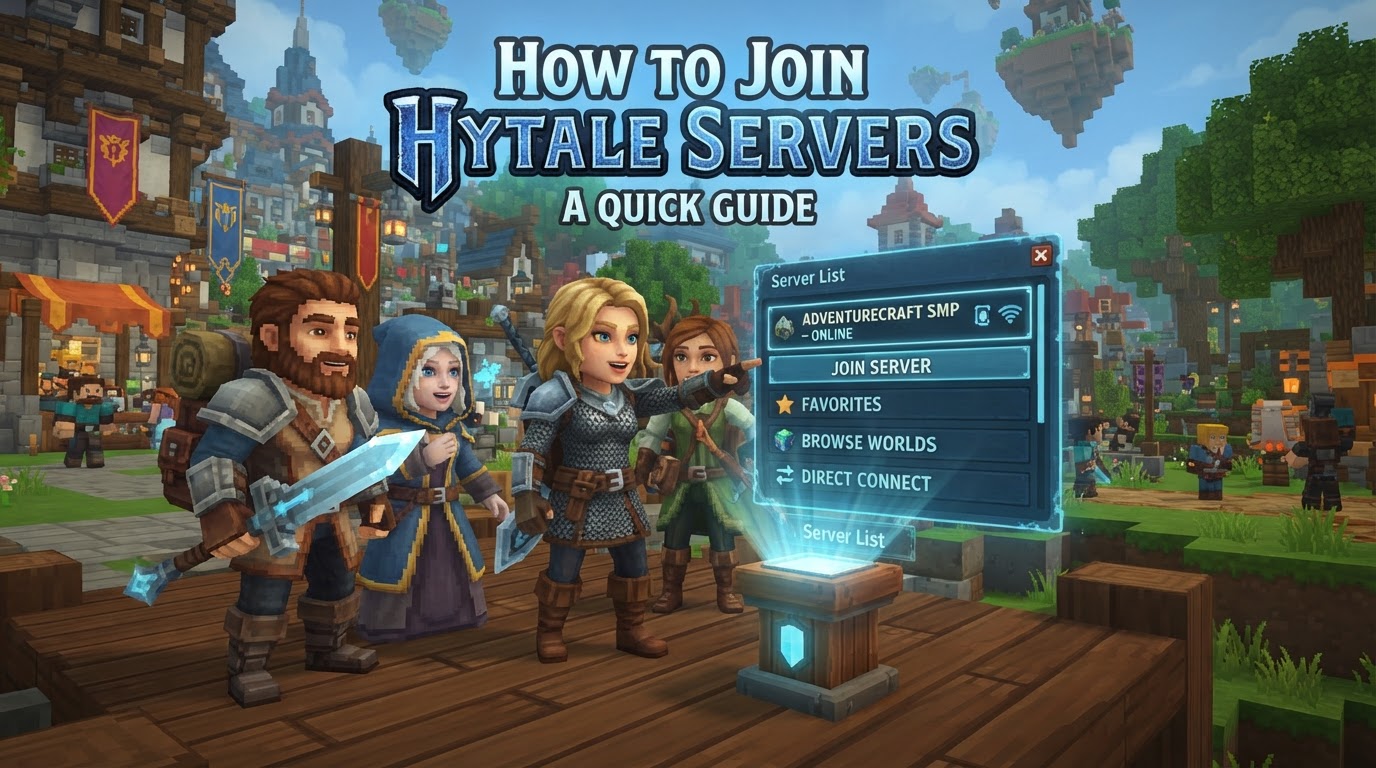
Joining a Hytale server is a straightforward process, designed to be seamless thanks to the game’s innovative server-side first architecture. This means that when you connect to a server, any custom content, mods, or unique game mechanics are automatically delivered to your client, eliminating the need for manual installations or complex version matching on your end.
Hytale’s core design philosophy centers around its “server-side first” architecture. Unlike many other block-based sandbox games, Hytale places the server at the heart of the experience, even for single-player modes, which run on a local server instance. This fundamental approach simplifies the multiplayer experience significantly. When a player connects to a dedicated Hytale server, all custom content—including unique assets, modifications, and plugins—resides on the server. The client automatically downloads and integrates this content upon connection, ensuring that players are always running the exact server-specified version of the game’s content. This eliminates common headaches such as version mismatches, missing mod files, or complicated client-side setups, allowing players to jump into diverse, modded experiences with minimal fuss.
Dedicated servers are a cornerstone of the Hytale multiplayer experience, offering hosts full control over their worlds, player communities, and custom content. For a successful connection, it is crucial that both the player’s game client and the target server are running the exact same protocol version. While future updates may introduce some degree of version tolerance, maintaining an up-to-date client is paramount for a smooth connection experience.
Exact Steps to Join a Hytale Server
Connecting to a Hytale server is a simple process once you have the necessary information. Follow these steps to join your desired server:
-
Obtain Server Details
Before you can connect, you will need the server’s unique identifier: its IP address and port number. This information is typically provided by the server host, administrator, or found on community server listings. An example format would be
192.168.1.1:5520. Hytale dedicated servers do not use friend share codes; direct connection with thehost:portformat is required. -
Launch Hytale
Start the Hytale game client from your desktop or game launcher. Ensure that your game client is fully updated to the latest version.
-
Navigate to Multiplayer/Servers
From the main menu of the Hytale client, locate and select the option labeled “Multiplayer” or “Servers.” This will take you to the server browser interface.
-
Use Direct Connect
Within the Multiplayer/Servers section, look for a button or option specifically designated as “Direct Connect.” This allows you to manually enter a server address.
-
Enter Server Address
In the field provided for “Server Address” or “IP:Port,” accurately type or paste the
host:portinformation you obtained in step 1. Double-check for any typos. -
Connect
Click the “Connect” or “Join Server” button. If the server is password-protected, a prompt will appear for you to enter the password. Once authenticated, the game client will begin downloading any necessary server-side content and connect you to the game world.
Tips for a Smooth Connection
To ensure a hassle-free experience when joining Hytale servers, keep the following tips in mind:
- Verify Information: Always double-check the IP address, port number, and any password provided by the server owner. A single incorrect character can prevent a successful connection.
- Keep Game Updated: Ensure your Hytale client is always fully updated to the latest version. Version mismatches between your client and the server are a primary cause of connection failures.
- Check Server Status: Before attempting to join, confirm with the server owner or community that the server is online and operational. Many servers have status pages or community channels where this information is readily available.
- Explore Server Listings: Utilize community platforms, such as dedicated Hytale subreddits (e.g.,
r/HytaleServers) or fan-made server lists, to discover public servers. These listings often detail the server’s game mode (e.g., Adventure, Creative, Factions, RPG), player count, and specific rules.
Common Mistakes and Troubleshooting
Encountering issues when trying to connect to a Hytale server can be frustrating, but many problems have straightforward solutions. Here are common mistakes and how to troubleshoot them:
-
Server Offline or Starting Up
If you receive messages like “Server not found” or “Connection timed out,” the server might be offline, undergoing maintenance, or still in the process of starting up. Contact the server administrator to confirm its status.
-
Incorrect IP Address or Port
Error messages such as “Unable to connect” or “Server not responding” frequently indicate a typo in the server address. Carefully re-enter the exact
IP:PORTcombination provided. -
Game Version Mismatch
If your Hytale client and the server are running different versions of the game, you will be unable to connect. Always ensure your game is updated to the latest release. If the problem persists, inquire with the server administrator to ensure their server is also running the current version.
-
Firewall or Network Issues
- Client-Side: Your operating system’s firewall (e.g., Windows Defender Firewall) or antivirus software may be blocking Hytale’s connection. Try temporarily disabling them or adding Hytale to their list of allowed applications.
- Server-Side: For players attempting to host their own servers, the UDP port 5520 (or any custom port configured) must be open in the server machine’s firewall and correctly port-forwarded on the router to allow external connections.
-
Server Not Authenticated
A dedicated Hytale server requires a one-time authentication step before players can connect. If you are hosting, ensure you’ve used the
/auth login devicecommand in the server’s console to authenticate it with Hytale’s services. -
Incorrect Password
If the server is password-protected, entering an incorrect password will result in connection rejection. Remember that passwords are case-sensitive.
-
Whitelist Enabled
Some private servers operate with a whitelist, meaning only pre-approved players can join. If you cannot connect, confirm with the server administrator that your player ID has been added to the whitelist.
-
Network Driver Issues
Hytale utilizes the QUIC protocol for network communication. Some older or specific network adapter drivers (particularly from Intel and Realtek) might have compatibility issues, potentially leading to slow connections or worlds failing to load correctly. Adjusting specific network adapter properties in your operating system’s device manager (e.g., disabling “Priority & VLAN” or “Receive Segment Coalescing”) has been known to resolve such issues for some users.