
Guide
How to Disable PvP on Your Hytale Server
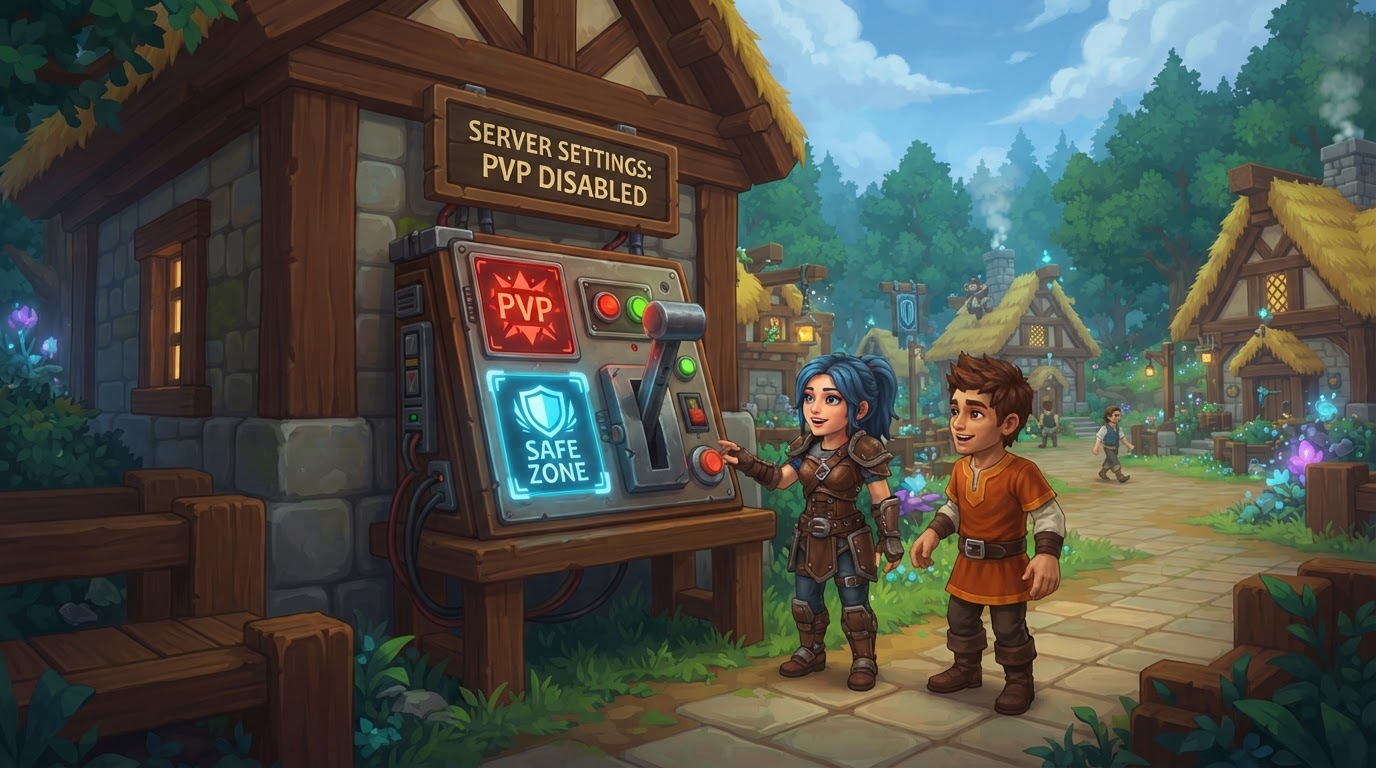
Disabling Player-versus-Player (PvP) combat on your Hytale server is a fundamental setting for server owners aiming to create cooperative, exploration, or role-playing focused environments. While PvP is often disabled by default on new Hytale servers, verifying and configuring this setting is crucial to ensure your server’s gameplay aligns with your community’s expectations. This guide will walk you through the precise steps to disable PvP, regardless of your server setup.
Understanding Hytale’s PvP Mechanics
Before diving into the configuration steps, it’s important to understand how Hytale handles PvP settings:
- Per-World Control: PvP settings are managed on a per-world basis within your Hytale server. This means if your server hosts multiple distinct worlds, you can configure PvP differently for each one. For instance, you could have a peaceful building world and a separate, combat-focused arena world.
- Default State: Most Hytale servers, especially those fresh out of the box or provisioned by hosting providers, typically ship with PvP disabled by default. This is a common design choice to prioritize cooperative play initially.
- Effect: When PvP is disabled, players cannot inflict damage on one another during regular gameplay. This prevents accidental or intentional player-on-player combat, fostering a safer and more collaborative environment. Conversely, enabling PvP allows players to engage in combat.
- Server-Side Configuration: Hytale’s server architecture allows server owners to define custom content and game rules, including PvP settings, directly on the server. These settings are automatically loaded when a player joins, eliminating the need for players to install any client-side modifications.
- Zone Limitations: Hytale does not natively support designated PvP/PvE (Player-versus-Environment) zones for dedicated servers out of the box. Implementing such a feature, where specific areas have different PvP rules, would typically require custom modifications or community-developed plugins once such features become available.
Methods to Disable PvP
There are primarily three reliable methods to disable PvP on a Hytale server, catering to different server management styles and hosting environments.
1. Via Server Host’s Control Panel (Recommended for Hosted Servers)
Most Hytale server hosting providers offer a user-friendly web-based control panel that simplifies server management, including PvP settings. This is often the easiest and safest method for those using a commercial host.
- Access Dashboard: Begin by logging in to your server hosting provider’s dashboard. Common providers include Nodecraft, LOW.MS, Aternos, Pine Hosting, or BisectHosting. The exact interface will vary by provider.
- Stop Server: It is critically important to stop your Hytale server before making any configuration changes through the control panel. This prevents potential data corruption, ensures your changes are saved correctly, and avoids settings being overwritten by a running server process.
- Navigate to Settings: Within your control panel, look for sections or menus labeled “Game Settings,” “World Settings,” “Configuration,” or similar. These sections typically house options for core game mechanics.
- Select World: If your server hosts multiple worlds, you might need to select the specific world you wish to modify from a dropdown or list. The default world is often named “default.”
- Toggle PvP: Locate an option labeled “PvP Enabled,” “Allow PvP,” or similar. This will usually be a toggle switch, a checkbox, or a dropdown menu. Set this option to Off, Disabled, or ensure the checkbox is unchecked.
- Save Changes: After making your selection, be sure to click a “Save,” “Apply,” or “Update” button to confirm your configuration changes.
- Start Server: Once the changes are saved, restart your Hytale server. The new PvP setting will take effect as the server loads. (Note: Some providers, like Aternos, claim real-time updates for certain settings like PvP without requiring a full server restart, but restarting is generally the safest practice.)
2. By Editing the config.json File (Universal Method)
This method involves directly modifying the server’s configuration file. It is universal, working for any server setup, including self-hosted servers, and provides the most granular control. It’s essential to be precise when editing JSON files.
- Stop Server: Always ensure your Hytale server is completely stopped before attempting to edit any configuration files. Editing a file while the server is running can lead to lost changes or file corruption.
- Access Files: Use your server’s file manager (provided by your host) or an FTP (File Transfer Protocol) client (like FileZilla for self-hosted servers) to access your server’s file system.
- Locate World Config: Navigate through the server directories to find the specific world’s configuration file. The typical path is:
universe/worlds/<YourWorldName>/. For the default world, this would commonly beuniverse/worlds/default/. - Open
config.json: Inside the selected world’s folder, locate and open the file namedconfig.jsonusing a plain text editor (e.g., Notepad++, VS Code, or your host’s file editor). Avoid rich text editors as they can introduce formatting issues. - Modify Value: Within the
config.jsonfile, search for the line that controls PvP. It will typically look like:"IsPvpEnabled": true. Change the value fromtruetofalse, so the line reads:"IsPvpEnabled": false. - Save File: Save the modified
config.jsonfile. If using an FTP client, ensure the file is uploaded back to the server, overwriting the old version. - Start Server: Start your Hytale server. The server will load the updated configuration, and PvP will be disabled.
3. Using an In-Game or Console Command (Admin Only)
For quick changes by server administrators, Hytale provides console commands. This method is convenient for on-the-fly adjustments, provided you have the necessary permissions.
- Admin Permissions: You must have administrator (OP) permissions on the server to execute these commands. Without these permissions, the commands will not work.
- Execute Command: In the server console (accessed via your hosting panel or directly if self-hosting) or directly within the game chat (if you have OP status and the command system is enabled), type the following command:
/world config pvp false. - Specify World (Optional): If you are managing multiple worlds and wish to disable PvP for a specific world other than the one you are currently in or the default, you can append the
--worldargument:/world config pvp false --world <worldName>. Replace<worldName>with the actual name of the world (e.g.,/world config pvp false --world my_adventure_world).
Important Tips for Server Management
- Server Stop is Crucial: Always stop your server before directly editing configuration files or using host panel options that affect core settings. This is the single most important rule to prevent data loss, corruption, or unexpected behavior.
- JSON Format Precision: Hytale’s configuration files use JSON (JavaScript Object Notation) format. When manually editing
config.json, pay extremely close attention to syntax, including capitalization, quotation marks, commas, and curly braces. A single misplaced character can prevent your server from starting or cause settings not to apply. - Host Panel Benefits: Utilizing your hosting provider’s “Easy Config,” “Game Settings,” or similar features can significantly simplify the process. These visual interfaces often provide toggles and input fields that reduce the risk of manual errors associated with direct file editing.
- Single-Player/LAN: For single-player games or local area network (LAN) worlds, PvP can typically be toggled through the in-game settings menu, usually found under the “Game” or “World Options” section. This guide focuses on dedicated server management.
Common Mistakes to Avoid
- Not Stopping the Server: This is the most frequent and critical error. Failing to stop the server before editing files or applying changes via a control panel can lead to the server overwriting your manual changes, or even corrupting the configuration file.
- Incorrect
config.jsonEditing: Typos, incorrect capitalization (e.g.,ispvpenabledinstead ofIsPvpEnabled), missing commas, or improper JSON structure in theconfig.jsonfile can prevent your server from starting or cause it to ignore your intended settings. - Not Restarting the Server: For most configuration changes, especially those made via file editing or a host panel, the changes will not take effect until the server is properly restarted.
- Modifying the Wrong World: If your server hosts multiple worlds, ensure you are editing the
config.jsonor settings for the specific world where you want to disable PvP. Accidentally modifying the wrong world will lead to confusion when the changes don’t appear where expected. - Expecting PvP Zones: As mentioned, Hytale does not currently offer built-in PvP/PvE zones. Attempting to configure such zones without specific, custom mods will not work and can lead to frustration.
Uncertainties and Evolving Features
- The exact phrasing and location of PvP settings within various server host control panels may differ slightly based on the host’s custom interface. Always look for keywords like “PvP,” “Player Combat,” or “Game Rules.”
- Server control panels and Hytale’s server architecture are still under development. The exact steps for using them might change as the game evolves through its beta and full release phases. Always refer to your hosting provider’s documentation for the most up-to-date guidance.
- While console commands can change PvP settings, it’s generally recommended to verify the change through the
config.jsonfile if the setting does not persist after a server restart, as command-line changes might sometimes be temporary depending on server implementation. - Some providers, like Aternos, claim real-time PvP setting updates without a server restart, but other providers and direct file edits typically require a restart for changes to fully apply. When in doubt, a restart is the safest option.