
Guide
How to Turn Off Particle Effects in Hytale
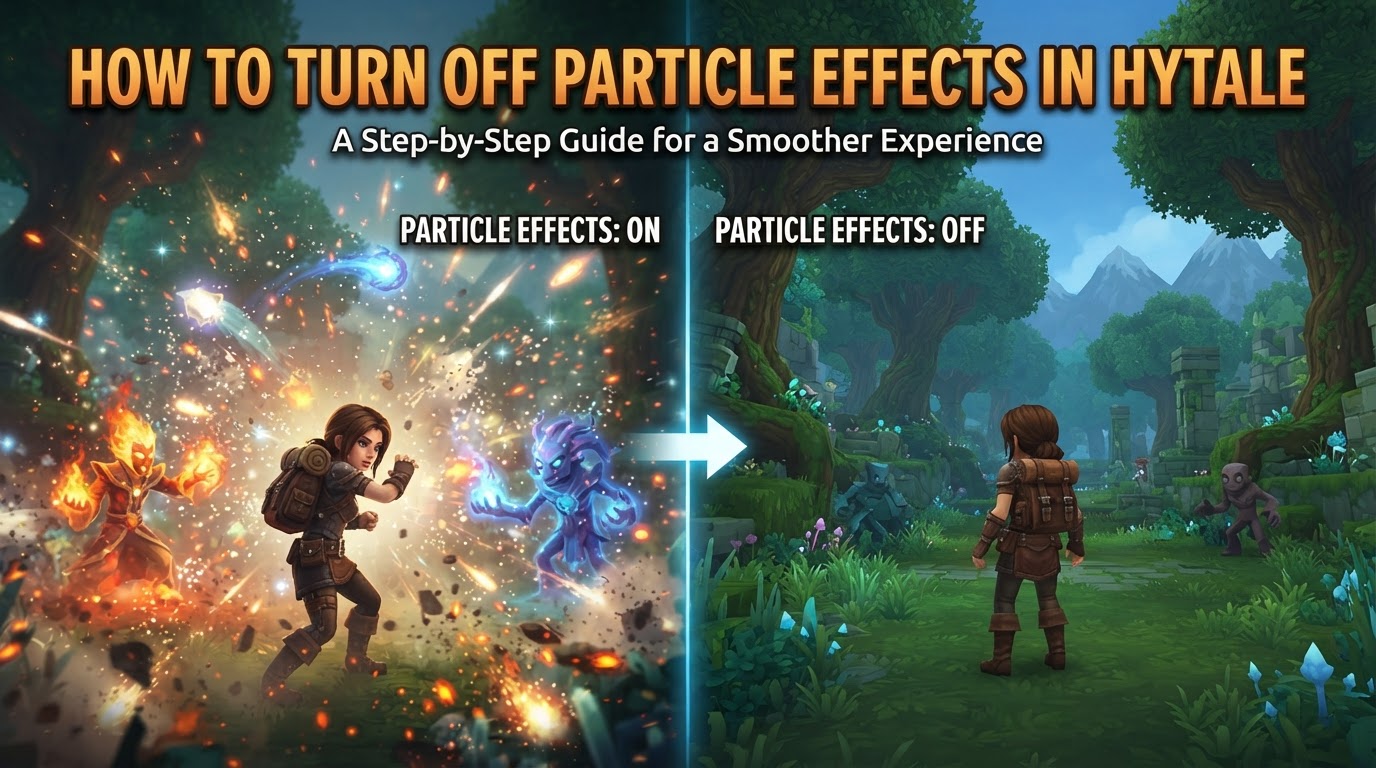
While Hytale does not currently feature a single, universal “off” switch to completely disable all particle effects, players can significantly reduce their visual complexity and performance impact by adjusting the ‘Particle Quality’ setting to its lowest available option within the game’s video settings. This optimization is crucial for maintaining stable frame rates, especially during intense combat, in densely populated areas, or when numerous environmental effects are present.
Why Adjust Particle Effects in Hytale?
Particle effects are intricate visual elements that enhance the immersive quality of Hytale. They represent everything from the sparks of a forging hammer, the wisps of a magic spell, the splash of water, the dust kicked up by movement, to the environmental details like falling leaves or mist. While visually appealing, these effects demand considerable processing power from your system.
Hytale’s foundation as a voxel-based engine means that performance can be influenced by a complex interplay of CPU, RAM, and GPU resources. Unlike traditional engines that might offload more to the GPU, voxel engines often require significant CPU and RAM involvement for world generation, physics calculations, and the behavior of non-player characters. Particle effects add to this already demanding graphical load, potentially causing “frame time spikes” – sudden, brief drops in your game’s frame rate. These spikes are particularly noticeable and disruptive during dynamic situations such as:
- Combat Encounters: Spells, explosions, weapon impacts, and enemy abilities all generate a multitude of particles.
- Environmental Phenomena: Heavy rain, snow, fog, or dust storms can blanket the screen with particles.
- Large-Scale Player Gatherings: In multiplayer environments, multiple players using abilities or interacting with the world simultaneously can create an overwhelming number of effects.
Reducing the quality of these particles directly lessens the computational burden, allowing your system to maintain a more consistent and higher frame rate. This translates to smoother gameplay, more responsive controls, and an overall more enjoyable experience, particularly for players on systems with less powerful hardware.
Step-by-Step Guide to Adjust Particle Quality
Adjusting the particle quality in Hytale is a straightforward process accessible directly from the in-game settings menu. Follow these steps to optimize your particle effects:
- Open the Settings Menu: From the main menu or while in-game, locate and click on the ‘Settings’ option. This is typically represented by a gear icon.
- Navigate to the Video Tab: Within the settings interface, you will see several tabs or categories. Click on the ‘Video’ tab, which controls all graphical and display-related options.
- Locate Advanced Rendering: Scroll down through the various video settings until you find a section specifically labeled ‘Advanced Rendering’ or a similar designation for detailed graphical options.
- Adjust Particle Quality: Within the ‘Advanced Rendering’ section, look for an option titled ‘Particle Quality’. Click on this option to reveal the available settings. Based on current Hytale builds, you will typically find options such as ‘Medium’ and ‘High’. To reduce performance impact, select the lowest available option (e.g., ‘Medium’).
- Apply and Save Changes: After selecting your desired particle quality, ensure you apply or save your changes. There will usually be an ‘Apply’ or ‘Save’ button at the bottom of the settings screen. Failing to save will revert the changes.
Once saved, the game will immediately begin rendering particle effects at your chosen quality level. You may notice an immediate improvement in frame rate, especially in areas previously prone to performance drops.
Understanding “Off” vs. “Lowest Quality”
It’s important to clarify the distinction between completely “turning off” particle effects and setting them to their “lowest quality.” In Hytale’s current in-game options, a direct toggle to disable all particles is not typically presented. Instead, players are given options like “Medium” and “High” for ‘Particle Quality’.
Some community optimization guides for various games might refer to setting particles to “0” for maximum performance. In Hytale’s context, if “Low” or “0” is not an explicit option in the in-game menu, selecting “Medium” (assuming it’s the lowest available setting) effectively serves as the performance-optimized choice. This means the game will still render particles, but they will be simplified, less numerous, or have reduced visual fidelity (e.g., fewer frames of animation, less complex shapes, or shorter lifespans).
The visual impact of switching from “High” to “Medium” particle quality might be subtle to some players, as Hytale’s art style often ensures even simplified effects remain aesthetically pleasing. However, the performance benefits, particularly when many particles are on screen, are tangible. For players prioritizing frame rate above all else, choosing the lowest available quality setting is the practical equivalent of “turning off” these effects in terms of their computational cost.
It is possible that future updates to Hytale, or advanced configuration file editing (which is not officially supported for general players and carries risks), might introduce more granular control or a complete disable option. For now, rely on the in-game ‘Particle Quality’ setting.
Beyond Particle Effects: Comprehensive Performance Optimization
While adjusting particle quality is an excellent step, achieving optimal performance in Hytale often involves a holistic approach to your video settings. Consider these additional adjustments for maximum frame rate gains:
- Shadow Quality: Shadows are notoriously demanding. Setting ‘Shadow Quality’ to its lowest available option (e.g., ‘Low’ or even ‘0’ if an option exists to disable them) can provide significant performance boosts.
- Post-Processing Effects: Features like bloom, sunshafts, depth of field, and motion blur add cinematic flair but can be very taxing. Disabling these options can free up considerable GPU resources.
- Render Scale: This setting determines the internal resolution at which the game is rendered before being scaled to your display resolution. Reducing ‘Render Scale’ (e.g., to 95% or even 80% for significant gains) can drastically improve performance at the cost of some visual sharpness.
- View Distance: While not directly related to particles, reducing how far the game renders the world can lessen the overall load on your CPU and GPU.
Remember that Hytale’s performance is also heavily reliant on your system’s CPU and RAM. Ensuring you have sufficient and fast CPU cores, along with ample RAM, indirectly aids in rendering complex scenes, including those with many particle effects, more smoothly.
The Trade-Offs: Visuals vs. Performance
Adjusting particle quality, like most graphical settings, involves a trade-off between visual fidelity and performance. Setting particle quality to its lowest option will inevitably result in less detailed or less numerous visual effects. Explosions might appear less spectacular, magic spells might lack some of their ethereal glow, and environmental details might be less dynamic.
For many players, especially those involved in competitive play or who simply desire the smoothest possible experience, the performance gains outweigh the minor visual compromises. A consistent frame rate ensures more precise input, better reaction times, and a generally more fluid gameplay experience. For others who prioritize immersion and visual splendor, a higher particle quality might be preferred, provided their system can handle the load without significant performance degradation.
Hytale’s Early Access and Evolving Settings
It is crucial to remember that Hytale is currently in Early Access. This means the game is actively under development, and its settings, mechanics, and optimization options may evolve over time. The specific options available for ‘Particle Quality’ or other graphical settings could change with future updates, patches, or even during the transition to a full release.
Players should always consult the most current in-game settings and official Hytale documentation or community resources for the latest and most accurate information regarding performance optimization. The developers may introduce new options, refine existing ones, or implement further optimizations that impact how particle effects are handled.