
Guide
How to Set Custom Keybinds in Hytale
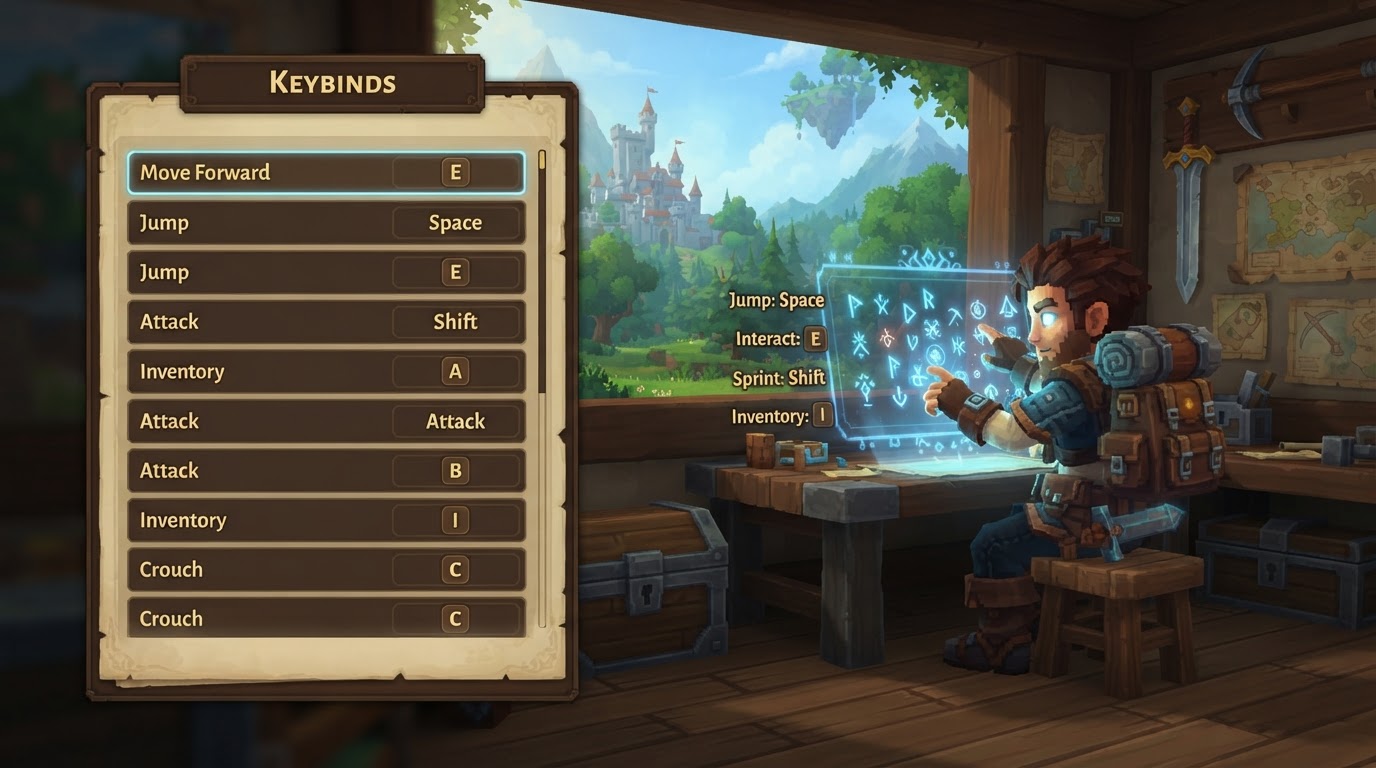
Hytale provides players with extensive in-game options to customize their keybinds, ensuring a highly personalized and comfortable gaming experience tailored to individual preferences and playstyles. This comprehensive functionality is readily accessible through the game’s settings menu, allowing you to remap nearly every action to your desired keys or mouse buttons.
Understanding Hytale’s Keybinding System
Hytale’s control system is meticulously designed to be highly rebindable, catering to a diverse range of players, from those seeking optimal performance in combat to those prioritizing accessibility or creative building efficiency. The game’s developers have put a strong emphasis on empowering players to make the controls their own.
Keybinding Categories and Behavior
To streamline the customization process, Hytale organizes its keybinds into logical categories. This structure makes it easier to locate and modify specific actions without sifting through a single, unwieldy list. Common categories you’ll encounter include:
- Movement: Actions like moving forward, backward, strafing, jumping, sprinting, and crouching.
- Combat: Primary attack, secondary attack, blocking, using abilities, and weapon switching.
- Camera: Adjusting camera angles, zooming, or toggling first/third-person views.
- Builder Tools: Specific actions related to Hytale’s robust building system, such as selecting blocks, manipulating structures, or activating specific tool functions.
- Menus: Opening the inventory, character screen, map, quest log, or the main menu itself.
- Miscellaneous/Debug: Less frequently used actions or developer-oriented commands that can sometimes be useful for advanced players or content creators.
For several movement actions, such as crouching, sprinting, and walking, Hytale offers a choice between “hold” and “toggle” behavior. By default, these are often set to “hold,” meaning the action is active only while the key is pressed. Switching to “toggle” allows you to press the key once to activate the action and press it again to deactivate it. This flexibility is crucial for players who find continuously holding down keys fatiguing or prefer a more relaxed control scheme.
PC-Centric Design and Modding Potential
Hytale’s control scheme is primarily built around keyboard and mouse input, reflecting its origins as a PC-first title. This focus means that the default keybinds are optimized for this input method, and the customization options are extensive for keyboard and mouse users.
An advanced feature of Hytale’s control system lies in its robust modding capabilities. The game’s interaction system allows modders to define entirely custom keybinds for various actions through assets and plugins. This means that community-created content can introduce new abilities, tools, or UI elements that are fully integrated into the game’s keybinding system, offering an even deeper layer of personalization beyond the default options. Modders can create keybinds that trigger specific server-side commands or client-side actions, greatly expanding the game’s functionality.
Changes made to your keybinds are typically saved automatically, ensuring that your customized setup persists across game sessions. If you attempt to assign a new keybind that conflicts with an existing one, Hytale is designed to intelligently resolve this. Often, it will automatically clear the old assignment from the conflicting action, or prompt you to confirm the change, preventing accidental overwrites and ensuring your new keybind takes precedence.
Step-by-Step Guide: How to Set Custom Keybinds
Customizing your keybindings in Hytale is a straightforward process that can be completed entirely within the game’s user interface. Follow these steps to tailor your controls to your exact preferences:
Accessing the Controls Menu
- Launch Hytale: Begin by starting the Hytale game client. You can either be in the main menu or within an active game world or server; the settings menu is accessible from both.
- Open the Pause Menu: While in-game, press the
Esckey on your keyboard. This action will bring up the main pause menu overlay. - Access Settings: From the options presented in the pause menu, locate and select the “Settings” entry. This will open the general game settings panel.
- Navigate to Controls: Within the Settings menu, you will see several tabs or categories. Click on the tab labeled “Controls” to access all keybinding and input-related options.
Rebinding an Action
- Select Keybind: On the “Controls” tab, you will see a comprehensive list of game actions, each with its currently assigned key or mouse button displayed next to it. Browse through these categories or scroll down to find the specific action you wish to change. Once you’ve identified it, click directly on the keybind entry associated with that action. The entry will typically highlight or display a prompt like “Press a key…” indicating it is awaiting new input.
- Assign New Key: With the keybind entry selected and awaiting input, simply press the new key on your keyboard or click the new button on your mouse that you want to assign to that action. The selected entry will immediately update to display your new assignment.
- Repeat as Needed: Continue this process for any other actions you wish to remap. You can change as many keybinds as you like in a single session. Take your time to consider which keys feel most natural and efficient for each action.
Saving Your Changes
- Apply and Save Changes: After you have finished making all your desired modifications, look for an “Apply” or “Save Changes” button, typically located at the bottom of the controls menu or the settings panel. Click this button to confirm and save your new keybinds. While Hytale often saves changes automatically, explicitly applying them ensures they are locked in. You can then exit the settings menu and resume your game with your newly configured controls.
Optimizing Your Keybinds: Expert Tips
Beyond simply remapping keys, strategic customization can significantly enhance your Hytale experience. Consider these expert tips to optimize your keybinds for comfort, efficiency, and performance:
- Prioritize Ergonomics: Move frequently used actions, especially those critical in combat or fast-paced scenarios, closer to your primary movement keys (WASD). Binding abilities or primary tools to keys like Q, E, R, F, C, V, or to side buttons on a gaming mouse can drastically reduce the distance your fingers need to travel, improving reaction times and reducing strain.
- Clear Unused Defaults: Many games, Hytale included, assign default actions to keys that might not be ideal for your playstyle. Don’t hesitate to unbind default keys (e.g., Q and E often have less critical functions by default) to free them up for more important abilities or tools that you use constantly.
- Experiment with Movement Behavior: If you find yourself holding down the sprint or crouch key for extended periods, leading to finger fatigue, try switching these actions from “hold” to “toggle” in the control settings. This allows you to activate and deactivate them with a single press, which can be much more comfortable for certain playstyles.
- Leverage Mouse Buttons: Modern gaming mice often come with multiple programmable buttons. Assigning actions like primary attack, secondary attack, specific abilities, or even inventory access to these buttons can offload work from your keyboard and improve overall fluidity, especially during combat or rapid building.
- Accessibility Features: For players sensitive to visual effects, remember that while not directly keybinds, options like turning off screen shake or head bobbing (found in video or motion settings) can significantly improve comfort and reduce motion sickness, complementing your ergonomic keybind setup.
- Builder Tool Considerations: If you plan to heavily engage with Hytale’s advanced building tools, a full-sized keyboard with a numeric keypad can be highly beneficial. Many complex builder functions are often mapped to the numpad by default, providing dedicated keys for intricate operations.
Important Considerations and Troubleshooting
While Hytale’s keybinding system is robust, there are a few points to keep in mind, especially regarding current limitations and advanced scenarios:
- Controller Support: As of the current development phase, Hytale does not feature native, in-game controller support. The developers have indicated that this is a planned feature for a future update. Players who wish to use a controller currently need to rely on third-party remapping tools (e.g., Steam’s controller configuration for Steam Deck or applications like DS4Windows for PC) to translate controller inputs into keyboard and mouse commands.
- Resetting Controls: Hytale typically allows you to reset individual keybinds to their default settings. However, be cautious if there is a general “reset all controls to default” option, as this might also revert other related input settings, such as mouse sensitivity or inversion preferences, in addition to your key mappings. Always review what a full reset entails before confirming.
- Server-Side vs. Client-Side Keybinds: It’s important to distinguish between client-side keybinds (what you’re configuring in your game settings) and server-side custom commands. Some advanced modding solutions or server setups might allow server administrators to define custom commands that are triggered by specific keys. For instance, a server might have a mod that makes pressing ‘P’ activate a server-side command. Your client-side keybinds are independent of this. If you remap ‘P’ to another action on your client, the server’s custom command will still be looking for the original ‘P’ input, but your game client will execute your new action when you press ‘P’. This distinction is primarily relevant for players engaging with heavily modded servers.
- Conflict Resolution: While Hytale generally handles keybind conflicts by unassigning the old action, it’s good practice to be mindful when assigning new keys. If you frequently find conflicts, consider if you are trying to map too many actions to a limited set of keys, and explore using modifier keys (like Shift, Ctrl, Alt) in combination with other keys for additional binding options.