
Guide
How to Change Difficulty Mode in Hytale
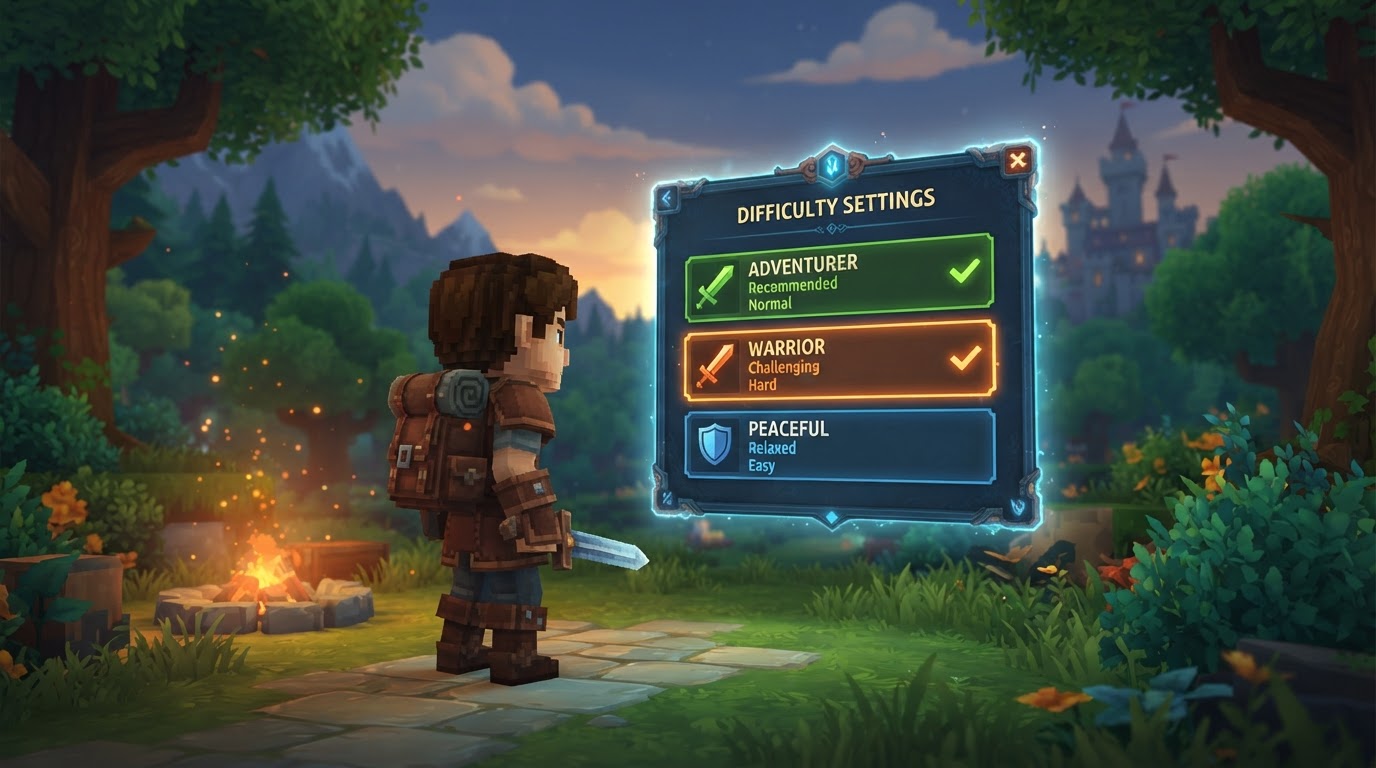
Hytale is designed to offer a highly customizable experience, allowing players to adjust the game’s difficulty across various aspects, from core game modes to granular world settings and server configurations. Whether you’re seeking a relaxed building experience, a challenging survival adventure, or a hardcore test of skill, Hytale provides the tools to tailor the challenge to your preferences.
The methods for changing difficulty depend on whether you are playing in a single-player world, managing a dedicated server, or utilizing community-developed modifications. This guide will walk you through each approach, ensuring you can fine-tune your Hytale experience.
Understanding Hytale’s Difficulty Layers
Before diving into the “how-to,” it’s crucial to understand the different layers through which Hytale allows difficulty to be adjusted. These layers can often be combined for a truly unique experience.
Core Game Modes
Hytale features distinct game modes that inherently alter the focus and challenge of gameplay. These are fundamental choices made when creating a new world or server:
- Exploration/Survival Mode: This is the standard Hytale experience, focusing on resource gathering, crafting, base building, combat, and progression through the world’s various zones. It presents a balanced challenge, requiring players to manage hunger, health, and defend against environmental threats and hostile creatures.
- Adventure Mode: While details are still emerging, Adventure Mode is expected to emphasize narrative, quests, and potentially more structured challenges or scenarios. Its difficulty might be tied more to specific objectives and encounters rather than open-ended survival.
- Creative Mode: Designed for builders and designers, Creative Mode removes survival constraints. Players typically have unlimited resources, invulnerability, and the ability to fly, allowing for unhindered construction and experimentation. This mode effectively eliminates traditional difficulty.
Customizable World Settings
Beyond the core game mode, Hytale offers a suite of settings that allow players to fine-tune the challenge within a specific world. These settings are often accessible when creating a new world or by editing an existing one’s properties.
- Player vs. Player (PvP): Enabling or disabling PvP directly impacts the difficulty of multiplayer interactions, determining whether players can harm each other.
- Environmental Damage: Options like enabling or disabling fall damage, or adjusting its severity, can significantly alter how players navigate the world and the consequences of missteps.
- Day/Night Cycle Speed: A faster night cycle means more frequent encounters with nocturnal creatures, potentially increasing the pace and challenge of survival.
- Death Penalties: This is a crucial aspect of difficulty. Hytale allows for granular control over what happens when a player dies:
- Inventory Penalty: Options typically include “None” (keep all items), “Drop All” (lose everything at the death location), or “Partial Drop” (lose a percentage or specific slots).
- Resource Loss Percentage: Beyond inventory, players might lose a percentage of their gathered resources upon death.
- Durability Loss Percentage: Dying could also inflict damage on equipped tools and armor, requiring more frequent repairs or replacements.
Hardcore Modes
For players seeking the ultimate challenge, Hytale plans to introduce dedicated hardcore modes, often featuring permanent consequences for failure. These are typically selected during world creation:
- Permadeath: The classic hardcore experience where dying means the end of that character or world, forcing players to start fresh.
- Three Strikes, Nine Lives: This mode allows a limited number of player deaths (customizable, often between 1 and 100) before the world or character is permanently deleted.
- Soulbound: An extreme variant where the entire world shares a single life pool. If any player dies, the world is lost for everyone.
Mob Behavior and AI (Planned)
Discussions around Hytale’s development indicate that harder difficulties might involve more than just increased mob health or damage. Future updates or higher difficulty settings could introduce:
- Enhanced AI: Mobs might exhibit more sophisticated combat tactics, flanking maneuvers, or coordinated attacks.
- Larger Detection Ranges: Enemies could spot players from further distances, making stealth more challenging.
- Enhanced Senses: Mobs might have better hearing or scent tracking, making it harder to avoid encounters.
Peaceful/Easy Modes (Discussed)
Conversely, for players who prefer a less stressful experience, developers have discussed options such as:
- Peaceful Mode: Hostile mobs would not attack players unless provoked, allowing for exploration and building without constant threat.
- Easy Mode: Mobs would have reduced health, lower damage output, and potentially less aggressive AI, making combat encounters more manageable.
How to Change Difficulty Mode in Hytale
The exact steps to modify difficulty will vary based on your game environment.
Changing Difficulty in a Single-Player World (In-Game)
For single-player experiences, most difficulty adjustments are made through the in-game world settings menu.
- Launch Hytale: Start the game and navigate to the main Home Screen.
- Access Worlds: Select the “Worlds” option, which typically displays your saved single-player worlds and options to create new ones.
- Create New World or Edit Existing:
- For a New World: Choose “Create New World.” You will then be presented with a series of customization options, often under a “Customize” tab or similar.
- For an Existing World: Select the world you wish to modify. Look for a “Settings” button, a gear icon, or an “Edit” option associated with that world.
- Navigate to Difficulty Settings: Within the world creation or editing menu, locate sections related to “Game Mode,” “World Settings,” “Death Penalties,” or “Hardcore Options.”
- Adjust Specific Settings:
- Game Mode: Select “Exploration/Survival,” “Adventure,” or “Creative” as your base experience.
- World Settings: Toggle options like “Enable PvP,” “Fall Damage,” or adjust the “Day/Night Cycle Speed.”
- Death Penalties: Configure “Inventory Penalty” (e.g., None, Drop All, Partial Drop), “Resource Loss Percentage,” and “Durability Loss Percentage” on death.
- Hardcore Modes (New Worlds Only): If creating a new world, you can select “Permadeath,” “Three Strikes, Nine Lives” (and customize the number of lives), or “Soulbound.”
- Apply Settings / Create World: Once you have made your desired adjustments, confirm your choices by clicking “Apply Settings,” “Save,” or “Create World” to begin playing with your new difficulty.
Changing Difficulty on a Dedicated Server (via config.json)
For administrators of dedicated Hytale servers, many fundamental difficulty settings are controlled through the server’s configuration files, primarily config.json. Direct file access is usually required.
- Log In to Your Server Hosting Panel: Access the control panel provided by your Hytale server host (e.g., Pterodactyl, Gamepanel, or direct SSH access).
- Navigate to File Management: Locate and select the ‘Files’ tab or a similar section for managing server files.
- Locate
config.json: Browse the server’s directory structure to find the main configuration file. It is typically found at a path similar tohome/container/universe/worlds/default/config.jsonor within a specific world’s folder. - Open and Edit
config.json: Use the panel’s built-in text editor or download, edit, and re-upload the file. Withinconfig.json, you will find various parameters that control server-wide and world-specific settings. - Modify World Difficulty Settings: Locate and change the values for relevant settings. Examples include:
"IsPvpEnabled": trueorfalse(to enable or disable player-versus-player combat)."IsSpawningNPC": trueorfalse(to control whether non-player characters, including hostile mobs, spawn)."IsAllNPCFrozen": falseortrue(to allow or prevent NPCs from moving and interacting)."GameMode": "Creative","Adventure", or"Survival"(to set the default game mode for the server).- Look for other parameters related to death penalties, environmental damage, or specific mob behaviors if available in the configuration.
- Save Changes: After making your modifications, save the
config.jsonfile. - Restart or Reload Server: Most changes made directly to
config.jsonrequire a server restart or a specific reload command (if available) to take effect. Consult your server host’s documentation for the correct procedure.
Using Difficulty Mods on a Server
For more advanced or dynamic difficulty adjustments, server administrators can leverage community-developed mods. Mods like “HyDifficulty” or “PJ Difficulty” (hypothetical examples based on common modding practices) often provide in-game commands or graphical interfaces for real-time changes.
- Install the Difficulty Mod: Follow the mod’s specific installation instructions, which typically involve placing the mod files into a designated ‘mods’ or ‘plugins’ folder on your server. Ensure the mod is compatible with your server’s Hytale version.
- Start or Restart the Server: After installation, restart your Hytale server to load the new mod.
- Use In-Game Commands: Once the server is running, log in as an administrator. The mod will usually provide an in-game command (e.g.,
/difficulty,/pjdf, or/config difficulty) to access its settings. - Adjust Difficulty Parameters:
- The command might open a graphical user interface (GUI) with sliders and checkboxes.
- Alternatively, you might use sub-commands (e.g.,
/difficulty set hard,/difficulty mobdamage 1.5) to adjust specific values. - These mods often allow you to change mob damage, player health multipliers, spawn rates, and other variables beyond the vanilla settings.
- Apply Changes: Changes made through mod commands are often applied instantly and persist across server restarts, depending on the mod’s design.
Tips for Managing Difficulty Effectively
- Consider Your Playstyle: Hytale is designed to accommodate various players. If you enjoy creative building, stick to Creative Mode. If you crave a challenge, experiment with Hardcore modes or increase mob difficulty.
- Balance is Key: While increasing difficulty can make the game more engaging, drastically altering settings without careful consideration might lead to an unbalanced or frustrating experience. Test changes incrementally.
- Communicate on Servers: If playing on a community server, discuss desired difficulty changes with administrators or the community. They may have specific rules or custom configurations in place.
- Utilize Health Bars: Enabling Entity Health Bars in your general game settings can be invaluable on harder difficulties, providing crucial information about enemy health during combat.
Common Mistakes to Avoid
- Confusing Game Modes with Difficulty Settings: Remember that Game Modes (Creative, Adventure, Survival) define the core gameplay loop, while difficulty settings (like mob damage or death penalties) fine-tune the challenge within those modes.
- Overlooking
config.jsonfor Server Changes: For dedicated servers, direct modification ofconfig.jsonis often necessary for persistent, server-wide difficulty changes that go beyond what in-game commands or basic settings might offer. - Not Testing Changes Thoroughly: After modifying difficulty settings, especially on a server, always test the changes to ensure they provide the intended experience and do not introduce unintended side effects or bugs.
- Ignoring Hytale’s Early Access Status: Hytale is still in development. Features and mechanics related to difficulty may change, be expanded upon, or be refined as the game progresses towards full release. Information from community discussions might reflect suggestions or earlier development stages rather than finalized features.
- Underestimating Hardcore Modes: The officially announced Hardcore modes involve permanent consequences for death. Ensure all players fully understand the implications before enabling them, as they can be very punishing.