
Guide
How to Change Render Distance in Hytale
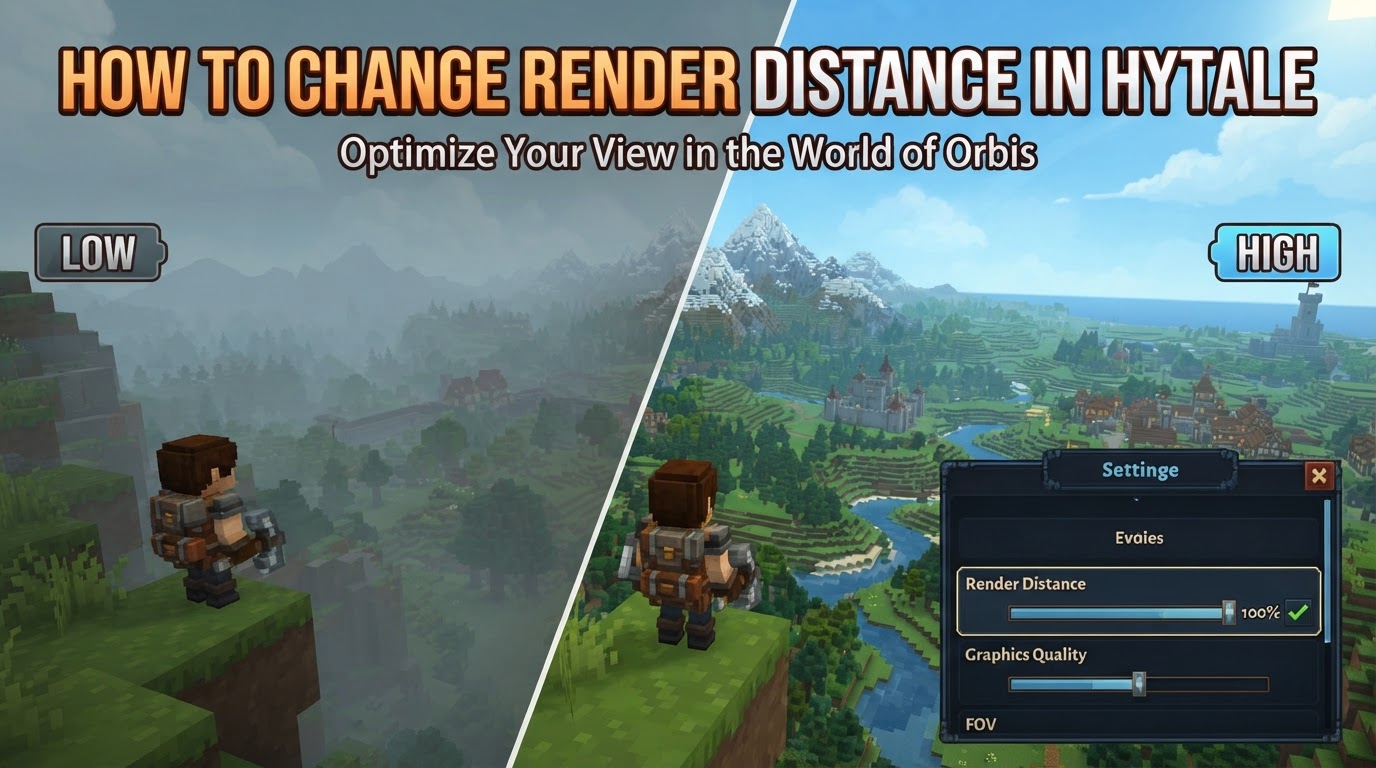
Changing the render distance in Hytale directly influences both your visual experience and game performance. A higher render distance allows you to see more of the expansive world, but it places a greater strain on your computer’s hardware. Conversely, lowering it can significantly improve frame rates (FPS) and overall smoothness, especially on less powerful systems. It is crucial to understand that Hytale is an anticipated sandbox game that has not yet been officially released, meaning all information regarding its mechanics, including render distance, is based on pre-release previews, developer insights, and community discussions, and is therefore subject to change upon the game’s full launch.
Understanding Render Distance in Hytale
Render distance, often referred to as view distance, dictates how far the game engine loads and displays terrain, environmental objects, and entities from your current position. In Hytale, this setting is a critical factor in balancing visual fidelity with system performance. For players, a higher render distance means a more immersive world, allowing you to spot distant landmarks, structures, or even other players from afar. However, rendering more of the world demands more processing power from your CPU, more memory (RAM), and more graphical power from your GPU.
In single-player mode, your computer simultaneously runs the game client and a local server instance. This dual operation makes performance particularly sensitive to render distance settings, as your machine is doing double duty. For dedicated servers, the render distance setting primarily affects how much of the world the server processes and sends to connected clients, which in turn impacts the server’s CPU and RAM usage. Server owners must carefully manage this setting to prevent lag spikes, crashes, or the need for more expensive hardware.
There can be some ambiguity in how render distance values are presented. In-game settings for players might directly correspond to a number of blocks, with common ranges mentioned between 128 and 1024 blocks. Server configurations, however, often refer to “chunks” or a “MaxViewRadius,” where a setting of 12 might equate to 384 blocks (comparable to 24 Minecraft chunks), implying that each unit of server view distance could correspond to 32 blocks. Players and server administrators should be mindful of these potential differences in units when making adjustments.
How to Change Render Distance for Players (In-Game Settings)
For most players, adjusting the render distance will be done directly through Hytale’s in-game settings menu. This method allows for quick changes and immediate feedback on performance.
Step-by-Step Guide for Players:
- Launch Hytale: Start the Hytale game client as you normally would.
- Access the Main Menu: From the game’s main screen, or by pausing the game during gameplay, locate and select the “Settings” or “Options” button.
- Navigate to Video/Graphics Tab: Within the settings menu, look for a section specifically dedicated to visual or graphical configurations. This is typically labeled “Video,” “Graphics,” or “Display.”
- Locate View Distance Option: Inside the Video/Graphics tab, you should find an option clearly labeled “View Distance” or “Render Distance.” This will likely be presented as a slider or an input field where you can type a numerical value.
- Adjust the Value: Move the slider or input your desired numerical value. Based on pre-release information, common ranges for player settings are often suggested between 128 and 1024 blocks. Start with a moderate value and adjust incrementally to find the best balance for your system.
- Apply/Save Changes: After making your adjustment, ensure you click an “Apply,” “Save,” or “OK” button for the changes to take effect. The game should then immediately update the render distance.
How to Change Render Distance for Server Owners (Configuration Files)
For those running a Hytale server, whether through a hosting provider or on a self-managed machine, the process involves modifying server configuration files. The exact steps can vary slightly depending on your hosting control panel or server setup.
Step-by-Step Guide for Server Owners:
- Access Your Server Panel: Log in to your Hytale server’s control panel. This could be provided by hosting services such as HolyHosting, PebbleHost, Nodecraft, Apex Hosting, or similar platforms.
- Stop the Server: It is highly recommended, and often required, to stop your Hytale server before making any configuration changes. This prevents data corruption and ensures the new settings are loaded correctly.
- Navigate to Configuration Files: Within your server panel, look for sections like “Configuration Files,” “Game Settings,” “Server Settings,” or a file manager. You’ll be searching for the server’s primary configuration file.
- Locate Render Distance Setting: Open the relevant configuration file. This might be a
config.jsonfile or a similar text-based configuration. Search for a setting named “render distance,” “view distance,” “MaxViewRadius,” or “View Distance Radius.” - Adjust the Value: Change the numerical value associated with the render distance setting. For server configurations, this value often refers to chunks. A common default is 12, which might correspond to 384 blocks. Carefully consider the impact on server resources before setting a very high value.
- Save Changes: After modifying the file, save your changes. If using a file manager in a control panel, there will usually be a “Save” button.
- Restart the Server: Once the changes are saved, start your Hytale server. The new render distance setting will be applied as the server boots up.
Tips for Optimizing Render Distance
Finding the optimal render distance is a balance between visual quality and performance. Here are some tips to help you achieve the best experience:
- Performance vs. Visuals: Understand the trade-off. Lowering the render distance will almost always boost your FPS and reduce strain on your CPU and RAM. Increasing it provides a more expansive and immersive view but demands more from your hardware.
- Recommended Player Settings: For a good balance on most modern systems playing at 1080p, a view distance of 192 to 256 blocks is often a solid starting point. Players with lower-end hardware might opt for 128, while those with high-end rigs might comfortably handle 384 blocks or more.
- High View Distance Requirements: Be aware that achieving very high view distances, such as 1024 blocks, demands substantial system resources. Early estimates suggest that such settings might require high-end specifications like 64 GB of RAM and 16 GB of VRAM for a smooth experience.
- Server Resource Management: Server owners must be particularly mindful. High view distances heavily strain server resources, especially CPU and RAM. Excessively high settings can lead to significant lag spikes, server crashes, or necessitate an upgrade to more expensive hosting plans or hardware.
- Dynamic Adjustments: Some advanced server hosting providers or plugins might offer features like “PerformanceSaver” which dynamically adjust the view distance in real-time based on server load, helping to prevent lag during peak usage.
- Other Performance Settings: If you’re still seeking better FPS, consider adjusting other graphical settings in conjunction with render distance. Turning off VSync, disabling shadows, reducing post-processing effects (like bloom, sunshafts, and depth of field), and lowering particle effects can all contribute to improved performance. Additionally, a “render scale” setting of 95% can provide a noticeable performance boost with minimal perceived visual impact.
Important Considerations and Uncertainties
As Hytale is not yet released, all information is based on pre-release data and is subject to change. This includes the exact names of settings, the range of values, and the performance impact. Always cross-reference with official Hytale announcements upon release.
- Conflicting Units: Be aware of the potential for conflicting units. In-game settings might use blocks, while server settings might use chunks or a different unit. Always confirm what unit the specific setting you are adjusting refers to.
- Overestimating Hardware: A common mistake is setting the render distance too high without adequate hardware, particularly sufficient CPU and RAM. This can lead to severe performance issues, stuttering, and a frustrating gameplay experience. Start low and gradually increase.
- Not Restarting Server: For server-side changes, failing to properly save the configuration file and then restart the server will prevent the new render distance from taking effect. Always ensure these steps are completed.