
Guide
How to Change Graphics Settings in Hytale
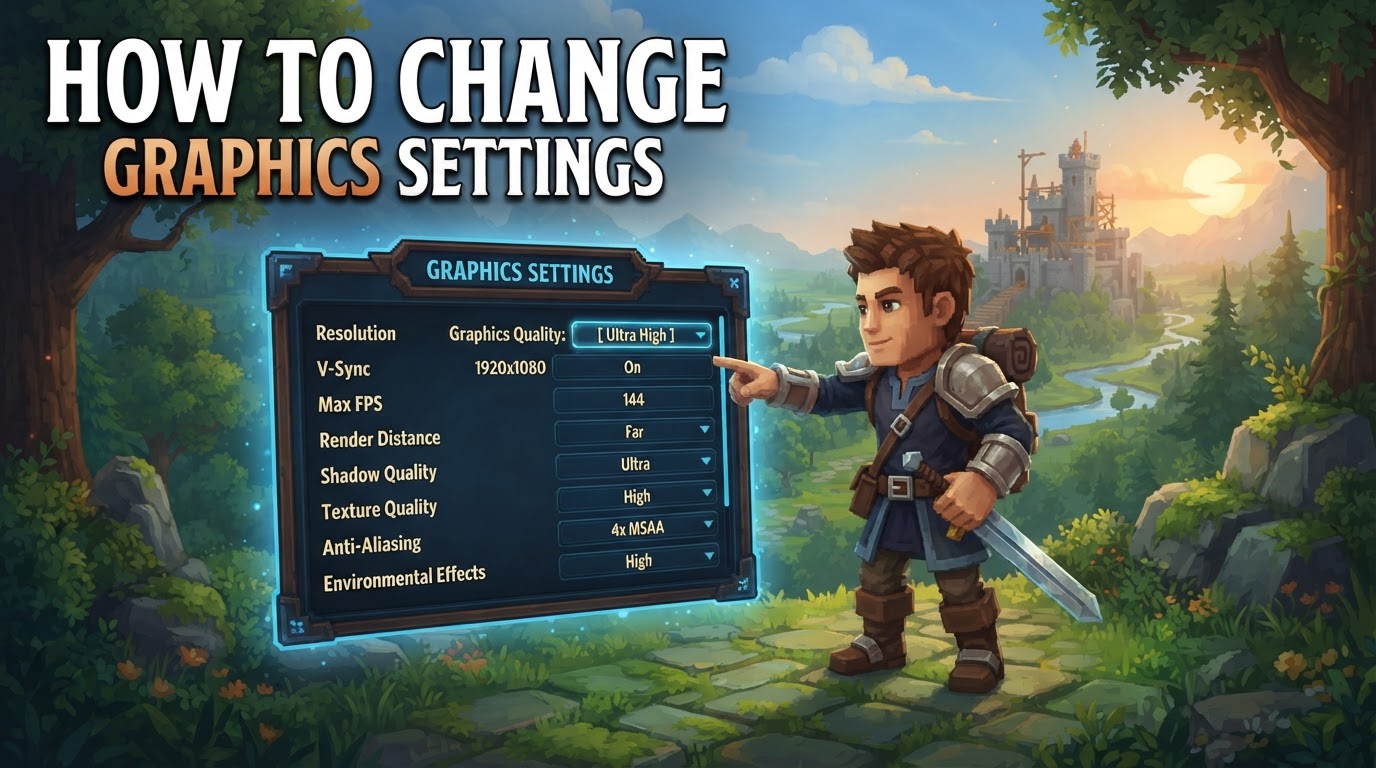
Optimizing your Hytale graphics settings is essential for achieving a smooth and visually appealing gameplay experience, especially given the game’s unique demands on both your CPU and GPU. Hytale’s voxel-based engine requires careful configuration to balance visual fidelity with performance, ensuring you get the most out of your hardware.
Understanding Hytale’s Graphics Engine
Hytale’s engine, while offering a distinct visual style that blends clear pixel aesthetics with a hand-painted look, operates differently from many other games. Its voxel-based nature means that the game world is constructed from individual blocks, leading to significant demands on your computer’s Central Processing Unit (CPU) and Random Access Memory (RAM). This is particularly true in single-player mode, where your machine is simultaneously running both the game client (what you see and interact with) and a local server (managing the game world, AI, and physics).
The Graphics Processing Unit (GPU), on the other hand, is primarily responsible for rendering what you see on screen: drawing the voxels, applying textures, handling complex lighting, rendering shadows, and processing various post-processing effects like bloom or depth of field. Therefore, optimizing your graphics settings involves strategically reducing the workload on both your CPU/RAM and your GPU to prevent bottlenecks and maintain a high, stable frame rate.
Exact Steps to Change Graphics Settings in Hytale
Adjusting your visual preferences and performance settings in Hytale is a straightforward process. Follow these steps to customize your game’s appearance and ensure optimal performance:
1. Access the Settings Menu
- Launch Hytale and navigate to the main menu.
- Look for an icon or text label typically marked as “Settings,” “Options,” or a gear icon. Click on this to open the main configuration panel.
2. Go to the Video Tab
- Within the broader settings menu, you will find several categories or tabs. Locate and select the tab specifically labeled “Video” or “Graphics.” This section houses all the visual and rendering options for the game.
3. Adjust Graphics Presets
- Inside the “Video” or “Graphics” tab, you’ll likely find a “Graphics Preset” option, often located within a “Rendering” section.
- Click on this option to reveal a dropdown or selection of predefined settings. These typically include:
- Low: Prioritizes performance above all else, reducing visual quality significantly. Ideal for older hardware or maximizing frame rates.
- Medium: Offers a balanced experience, providing decent visuals without overly taxing your system.
- High: Enhances visual fidelity with more detailed textures, better lighting, and more complex effects, requiring a moderately powerful system.
- Epic: Aims for the highest possible visual quality, intended for high-end gaming rigs.
- Custom: Allows you to manually adjust every individual setting to fine-tune your experience.
- Selecting a preset will automatically apply a set of recommended configurations to multiple individual settings.
4. Customize Individual Settings (Optional)
If you choose the “Custom” preset, or if you want to make minor adjustments to a predefined preset, you can manually tweak specific options. This is where you can truly tailor Hytale to your system’s capabilities and your personal visual preferences.
- View Distance: This crucial setting determines how far into the game world objects, terrain, and details are rendered. Lowering the view distance can significantly reduce the workload on both your CPU and GPU, leading to substantial performance improvements. Experiment to find a balance that feels good for exploration without sacrificing too many frames.
- Render Scale: This setting adjusts the internal resolution at which the game is rendered before being scaled up or down to your display’s native resolution. Reducing the render scale (e.g., to 90% or 80%) can significantly reduce GPU load, especially on high-resolution monitors, without always causing a drastic visual downgrade. For more granular control or to go below the in-game UI’s minimum, some players have found success by directly editing the
settings.jsonfile, though this is an advanced, unofficial method. - VSync (Vertical Sync): VSync synchronizes the game’s frame rate with your monitor’s refresh rate to prevent screen tearing. Turning VSync off can sometimes improve frame time stability and reduce input lag, but it may introduce visual artifacts known as screen tearing if your frame rate exceeds your monitor’s refresh rate.
- Fullscreen: Playing Hytale in exclusive fullscreen mode is generally recommended for optimal performance. This allows the game to have dedicated control over your display, often resulting in slightly higher frame rates and reduced input latency compared to windowed or borderless windowed modes.
- Shadows and Post-processing: These are often among the most graphically intensive effects. Reducing the quality of shadows (e.g., from high to medium or low) or disabling them entirely can free up significant GPU resources. Similarly, post-processing effects like bloom, motion blur, or ambient occlusion add visual flair but come at a performance cost. Experiment with disabling or lowering these to see their impact.
- Anti-aliasing: Anti-aliasing smooths out jagged edges on objects. While it improves visual fidelity, it can be demanding. Some players prefer turning anti-aliasing to a “low” setting or even off for a sharper, more pixel-perfect look, which also benefits performance.
5. Save Changes
After you have made all your desired adjustments to the graphics settings, it is crucial to save them. Look for a “Apply,” “Save,” or “OK” button within the settings menu before exiting. Failing to save your changes will revert them to their previous state.
Tips for Optimizing Hytale Graphics Settings
Achieving the perfect balance between visual quality and performance often requires a bit of experimentation. Here are some key tips to guide your optimization process:
- Prioritize View Distance: As mentioned, view distance is often the single most impactful setting for improving frame rates in voxel-based games. Start by lowering this if you’re experiencing performance issues.
- CPU and RAM are Key: Do not underestimate the importance of your CPU and RAM for Hytale. If you’re consistently experiencing stuttering or low frame rates, especially in single-player, upgrading these components might yield more significant improvements than a new graphics card.
- Single-player vs. Multiplayer Performance: Remember that single-player mode is inherently more demanding because your PC is running both the game client and a local server. You might experience better performance on dedicated multiplayer servers where the server load is handled by another machine.
- Consider Disabling VSync: If you’re experiencing input lag or want to maximize your frame rate, try turning VSync off. Be aware of potential screen tearing.
- Slight Render Scale Reduction: A subtle reduction in render scale (e.g., 95% or 90%) can provide a noticeable performance boost with minimal perceived visual degradation, particularly on high-resolution displays.
- Disable Expensive Visual Effects: Shadows, complex lighting, and post-processing effects are often the biggest performance hogs. Disabling or reducing their quality can significantly boost your FPS.
- Monitor Your Frame Rate (FPS): Use an in-game frame rate counter (often accessible by pressing a key like F7, though this can vary) to see the immediate impact of your changes. This feedback is invaluable for fine-tuning.
Common Mistakes When Adjusting Graphics Settings
Even experienced players can make mistakes when configuring game settings. Avoiding these common pitfalls can save you frustration and lead to a better Hytale experience:
- Ignoring System Requirements: Attempting to run Hytale on hardware that falls below the minimum specifications will inevitably lead to poor performance, regardless of how much you lower the settings. Ensure your system meets at least the minimum requirements (e.g., Windows 10/11, Intel Core i5-7500 or AMD Ryzen 3 1200, 8 GB RAM with a dedicated GPU like NVIDIA GTX 900 Series or AMD Radeon 400 Series). For a smooth 1080p at 60 FPS experience, recommended specs like an Intel Core i5-10400 or AMD Ryzen 5 3600 and 16 GB of RAM are advised.
- Maxing Out All Settings Blindly: Unless you possess an exceptionally powerful, top-tier gaming PC, setting every graphics option to its absolute maximum will likely result in significant frame rate drops, stuttering, and an overall poor gameplay experience.
- Focusing Solely on GPU: Many players mistakenly believe that performance issues are always GPU-related. In Hytale’s case, due to its voxel-based engine, your CPU and RAM are often equally, if not more, critical for maintaining smooth gameplay, especially in single-player scenarios.
- Neglecting Driver Updates: Outdated graphics card drivers are a frequent cause of performance issues, instability, and even crashes in games. Always ensure your GPU drivers are up to date by downloading the latest versions from your graphics card manufacturer’s official website (NVIDIA, AMD, Intel).
- Not Utilizing Custom Presets: Sticking exclusively to the predefined “Low,” “Medium,” “High,” or “Epic” presets might not offer the absolute best balance for your unique system. Don’t be afraid to select “Custom” and experiment with individual settings to find the sweet spot that maximizes both visuals and performance for your specific hardware.
By understanding these settings and following these guidelines, you can tailor Hytale’s visual experience to your liking, ensuring smooth gameplay whether you’re exploring vast landscapes, building intricate structures, or engaging in combat.